
iPazzPort KP-810-21SA
iPazzPort Mini Bluetooth & 2.4G Wireless Keyboard User Manual
Model: KP-810-21SA
pengenalan
This manual provides comprehensive instructions for the iPazzPort Mini Bluetooth and 2.4G Wireless Keyboard with Touchpad Mouse. It covers setup, operation, maintenance, and troubleshooting to ensure optimal performance and user experience. This portable keyboard is designed for versatile use with various devices, including Smart TVs, PCs, laptops, smartphones, and Android TV boxes.
Apa yang ada dalam Kotak
- iPazzPort Mini Bluetooth Keyboard with Touchpad (x1)
- USB Dongle (x1)
- Kabel Pengecasan USB (x1)
- Manual Pengguna (dokumen ini)
Persediaan
Mengecas Papan Kekunci
Before initial use, fully charge the keyboard using the provided USB charging cable. Connect the micro-USB end of the cable to the keyboard's charging port and the USB-A end to a standard USB power source (e.g., computer USB port, USB wall adapter).

Image: The iPazzPort keyboard held in hands, showing the location of the rechargeable port, touchpad, and power switch. The rechargeable port is located at the top edge of the device.
The keyboard features a built-in long-lasting rechargeable battery. It is recommended to charge the device when the battery indicator light signals low power.
Menghidupkan/Mematikan
Locate the power switch on the top edge of the keyboard. Slide the switch to the "ON" position to power on the device. To power off, slide the switch to the "OFF" position.
Mod Sambungan
The iPazzPort keyboard supports dual connection modes: 2.4G Wireless and Bluetooth.
Sambungan Tanpa Wayar 2.4G
- Locate the USB dongle. It is cleverly placed in the battery compartment at the back of the keyboard for storage.
- Insert the USB dongle into an available USB port on your device (e.g., Smart TV, PC, Android TV Box).
- Pastikan papan kekunci dihidupkan.
- Tekan Fn + F1 simultaneously to enter 2.4G wireless connection mode. The keyboard should automatically connect to your device.

Image: The back of the iPazzPort keyboard with the battery cover removed, revealing the battery and the dedicated slot for the 2.4G USB dongle. This design allows for easy storage and retrieval of the dongle.

Image: The iPazzPort keyboard displayed alongside icons representing compatible devices such as Smart TV, Smartphones, TV Box, Notebook, and Laptop. Text overlays indicate "Fn+F1=2.4G dongle Connection mode" and "Fn+F3=Bluetooth Connection mode".
Sambungan Bluetooth
- Pastikan papan kekunci dihidupkan.
- Tekan Fn + F3 simultaneously to enter Bluetooth connection mode. The indicator light on the keyboard will flash, indicating it is in pairing mode.
- On your device (e.g., smartphone, tablet, laptop), navigate to the Bluetooth settings.
- Cari untuk available Bluetooth devices and select "iPazzPort Keyboard" (or similar name) from the list.
- Follow any on-screen prompts to complete the pairing process. Once connected, the indicator light on the keyboard will stop flashing.
Arahan Operasi
Fungsi Pad Sentuh
Pad sentuh bersepadu menyokong gerak isyarat berbilang sentuhan untuk navigasi yang dipertingkatkan:
- One-finger click: Berfungsi sebagai butang kiri tetikus.
- Klik dua jari: Berfungsi sebagai butang kanan tetikus.
- Seret dua jari: Scrolls the page up and down.
Image: The iPazzPort keyboard being held, illustrating its ergonomic design and the location of the touchpad. Text highlights that one-finger click is the left mouse button, two-finger click is the right mouse button, and two-finger drag scrolls the page.

Imej: Dari dekat view of the iPazzPort keyboard's touchpad, indicating its multi-touch support, and a section of the QWERTY keyboard layout.
Kawalan Lampu Latar
The keyboard features a three-color RGB backlight for improved visibility in low-light conditions. To cycle through backlight colors or turn it off, use the dedicated function keys.
- Tekan Fn + F2 to switch backlight color.

Image: The iPazzPort keyboard illuminated with a green backlight, demonstrating its three-color backlight feature for clear key identification in dark environments. The image also mentions auto sleep/wake mode for energy saving.

Image: Three iPazzPort keyboards displayed with different backlight colors: blue, green, and red, illustrating the colorful three-color backlight feature designed to meet diversified user needs.
Hotkeys and Media Keys
The keyboard includes various hotkeys and media keys for quick access to common functions. These are typically activated by holding the Fn key and pressing the corresponding function key.

Image: A detailed graphic outlining the features and specifications of the iPazzPort keyboard, including a comprehensive table of hotkey shortcuts for functions like wireless connection, backlight switching, Bluetooth connection, locking/unlocking touchpad, maximizing current page, opening development tools, adjusting mouse sensitivity, and task manager shortcut. It also lists shortcuts for Windows key, Caps Lock, scrolling, jumping to start/end of text, and left/right mouse clicks.
Note: Due to differences in devices, not all keys may be effective on all systems, but most functions are widely compatible.
Compatibility and Usage Scenarios
This mini keyboard is highly compatible with a wide range of devices, making it suitable for various applications:
- Peranti Serasi: Apple TV, Amazon Fire Stick, Google TV, HTPC/IPTV, VR Glasses (Virtual Reality Headset Box), smartphones (iOS/Android/Windows), notebooks, laptops, desktop PCs, PS3, X-box, Linux, and more.
- Penggunaan yang Disyorkan: Home entertainment, meetings, office work, teaching, gaming, and general web melayari.
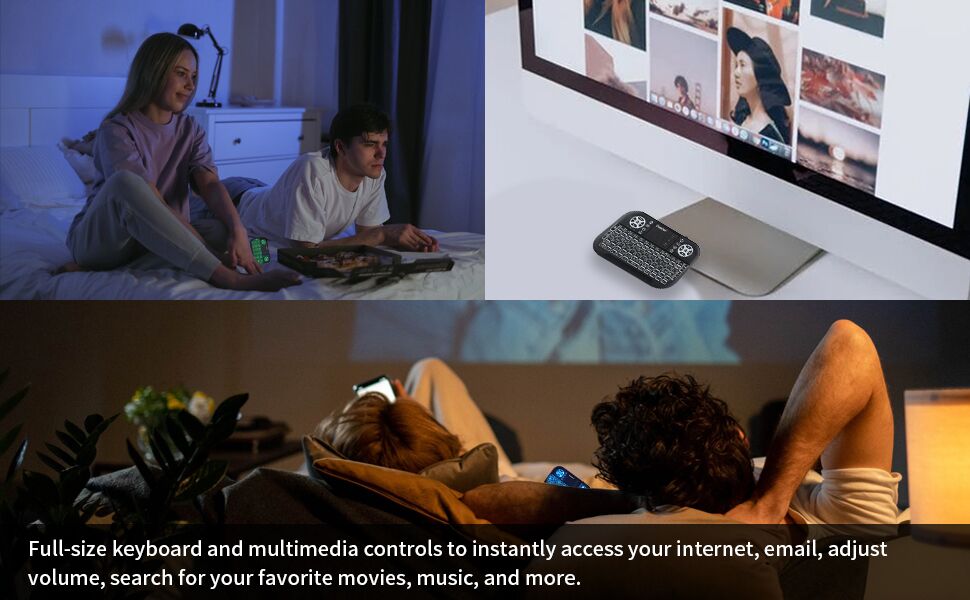
Image: A collage showing different usage scenarios for the iPazzPort keyboard, including a couple watching TV in bed, the keyboard next to a desktop monitor, and individuals relaxing while using their devices. This illustrates the keyboard's versatility for home entertainment and casual use.

Image: A family in a living room, with individuals engaged with different devices. One person is seen using the iPazzPort keyboard, highlighting its integration into a modern home entertainment setup.
Penyelenggaraan
Penjagaan Bateri
The keyboard is equipped with a rechargeable battery. To prolong battery life:
- Elakkan daripada menghabiskan bateri sepenuhnya sebelum mengecas semula.
- Do not use the keyboard while it is charging.
- If storing the keyboard for an extended period, ensure it is partially charged (around 50%) and store it in a cool, dry place.
The keyboard features an automatic sleep and wake-up function to conserve power. It will enter sleep mode after a period of inactivity. Press any key to wake it up.
Pembersihan
To clean the keyboard and touchpad:
- Pastikan papan kekunci dimatikan.
- Gunakan kain lembut dan tidak berbulu sedikit dampdisapu dengan air atau larutan pembersih yang lembut dan tidak melelas.
- Gently wipe the surface of the keyboard and touchpad. Avoid excessive moisture.
- Do not use harsh chemicals, solvents, or abrasive materials, as these can damage the surface.
Menyelesaikan masalah
Papan Kekunci Tidak Membalas
- Semak Kuasa: Ensure the keyboard is powered on and has sufficient battery charge. Recharge if necessary.
- Semak Sambungan:
- For 2.4G Wireless: Ensure the USB dongle is securely plugged into your device's USB port. Try a different USB port. Press Fn + F1 to re-establish connection.
- For Bluetooth: Ensure Bluetooth is enabled on your device. Go to your device's Bluetooth settings and verify the keyboard is connected. If not, try unpairing and re-pairing the keyboard (press Fn + F3 to enter pairing mode).
- Keserasian Peranti: Confirm your device supports external keyboards and the chosen connection method (2.4G or Bluetooth).
- Gangguan: Alihkan papan kekunci lebih dekat ke peranti anda dan jauhkan daripada peranti wayarles lain yang mungkin menyebabkan gangguan.
Touchpad Not Working Correctly
- Check Lock: Ensure the touchpad is not locked. Some keyboards have a function to lock/unlock the touchpad (refer to hotkey table, e.g., Fn + F6).
- Clean Touchpad: Ensure the touchpad surface is clean and free of debris or moisture.
- Mulakan semula: Power off the keyboard, wait a few seconds, and power it back on.
Isu Lampu Latar
- Aktifkan Lampu Belakang: Tekan Fn + F2 to cycle through backlight colors and ensure it's not turned off.
- Tahap Bateri: Low battery can sometimes affect backlight functionality. Recharge the keyboard.
Spesifikasi
| Ciri | Perincian |
|---|---|
| Dimensi Produk | 5.8 x 3.8 x 0.7 inci |
| Nombor Model | KP-810-21SA |
| Teknologi Ketersambungan | Bluetooth & 2.4GHz Wireless |
| Penerangan Papan Kekunci | Multipurpose, Multimedia, Ergonomic, Rechargeable |
| Ciri Khas | 3-RGB backlit, Ergonomic, High sensitive touchpad, Hotkeys and Media Keys, Rechargeable |
| warna | Hitam |
| Bilangan Kunci | 86 |
| Backlighting papan kekunci | RGB (Three-color) |
| Jenis Bateri | 1 C battery required (included) - Note: This seems to be a typo in the source data, likely referring to a rechargeable lithium-ion battery as per feature bullets. |
| Pengeluar | UNISEN LIMITED |

Image: The iPazzPort keyboard with its dimensions clearly marked: 5.8 inches in length, 3.8 inches in width, and 0.7 inches in thickness. This image also illustrates its portability, showing it being placed into a backpack.
Waranti dan Sokongan
iPazzPort is committed to providing high-quality products and service. If you have any questions or require assistance with your iPazzPort Mini Bluetooth Keyboard, please contact our after-sales service at any time. While specific warranty details are not provided in this manual, customer satisfaction is a priority.
For further support, please refer to the official iPazzPort website or contact the retailer from whom you purchased the product.
Ask a question about this manual
Ask about setup, troubleshooting, compatibility, parts, safety, or missing instructions. Manuals+ will review the question and use this page’s manual context to help answer it.