
1. Pengenalan
The IOGEAR Mini Wireless 4K HDMI Video Screen Sharing Adapter (GWAVR4K) provides a convenient solution for wirelessly displaying content from your devices onto a larger screen. This adapter supports 4K resolution at 30Hz and operates on 2.4/5GHz Wi-Fi with WPA-2 security, offering a reliable connection up to 30 feet in-room. It is compatible with various operating systems including Windows 10+, Mac OS 10.14+, iOS 10.10+, Android 10+, and Chromebook.

Image: The IOGEAR Mini Wireless 4K HDMI Video Screen Sharing Adapter, a compact device with an HDMI connector.
2. Kandungan Pakej
Sahkan bahawa semua item terdapat dalam pakej anda:
- IOGEAR Mini Wireless 4K Screen Sharing Receiver (GWAVR4K)
- USB Power Cable with Antenna

Image: The IOGEAR GWAVR4K adapter shown with its USB power cable and wireless antenna.
3. Persediaan
Follow these steps to set up your IOGEAR GWAVR4K adapter:
- Sambungkan Penerima: Plug the IOGEAR GWAVR4K receiver into an available HDMI port on your 4K UHDTV, projector, or monitor.
- Kuasakan Peranti: Connect the provided USB power cable to the receiver and then to a USB power source (e.g., a USB port on your TV or a USB wall adapter). The device requires power to function.
- Paparan Awal: Once powered, your display device should show a setup screen with instructions and a Wi-Fi network name (SSID) and password.
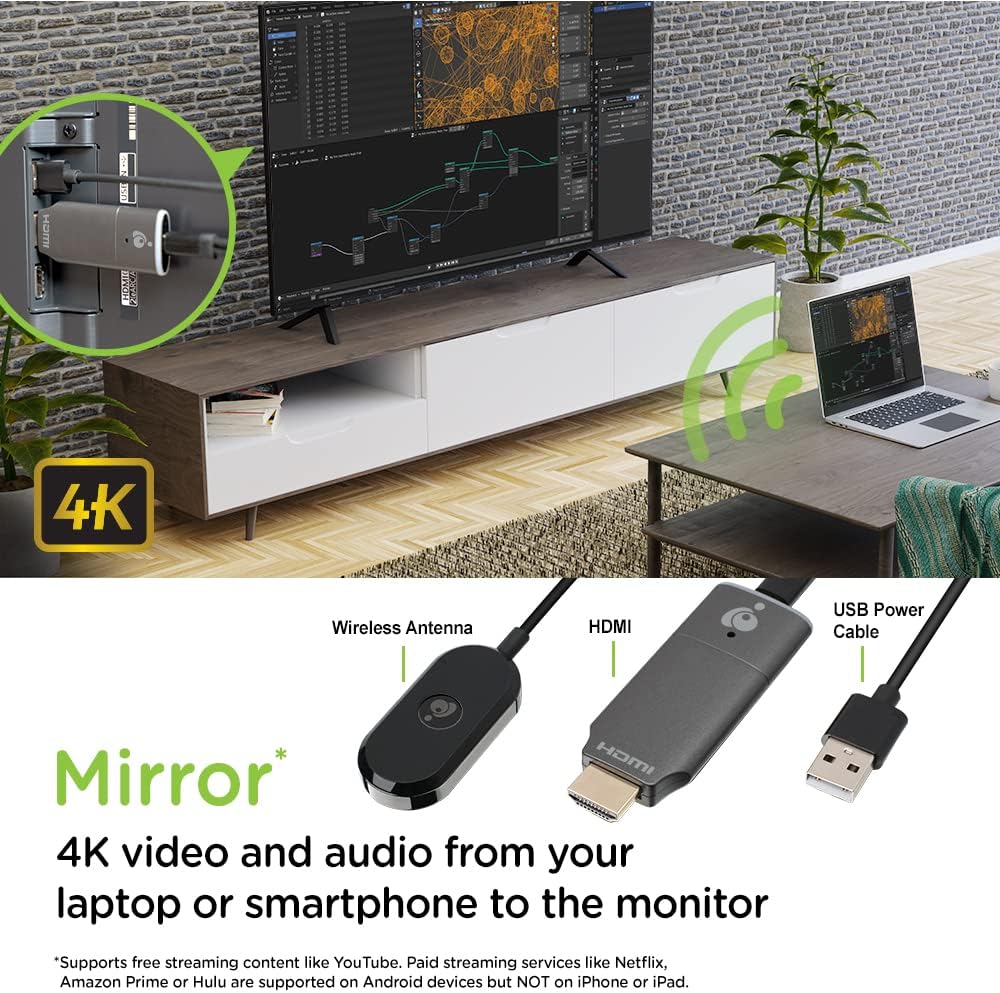
Image: The GWAVR4K adapter plugged into an HDMI port on the back of a television, with a laptop wirelessly mirroring content.
Video: Setup and Usage Overview
Video: An official IOGEAR video demonstrating the setup and basic operation of the Mini Wireless 4K HDMI Screen Sharing Adapter. It shows how to connect the device and initiate screen mirroring from various devices.
4. Arahan Operasi
The IOGEAR GWAVR4K adapter is designed for plug-and-play operation. Once connected and powered, follow the on-screen instructions on your display device to connect your source device.
Menyambungkan Peranti Anda:
- For Windows/Mac/Chromebook:
- On your computer, open your Wi-Fi settings and connect to the network name (SSID) displayed on your TV screen.
- Enter the password shown on the TV screen.
- Once connected, use your operating system's screen mirroring or casting feature (e.g., "Cast" in Chrome, "Display Settings" in Windows, "AirPlay" for Mac if supported by the adapter's firmware) to select the GWAVR4K device.
- Untuk iOS/Android:
- On your mobile device, open your Wi-Fi settings and connect to the network name (SSID) displayed on your TV screen.
- Enter the password shown on the TV screen.
- Activate your device's screen mirroring feature (e.g., "Screen Mirroring" on iOS, "Smart View" or "Cast" on Android) and select the GWAVR4K device from the list.
The adapter supports wireless mirroring of 4K video and audio up to 30 feet in-room. Ensure your source device is within this range for optimal performance.

Image: A laptop and a smartphone wirelessly mirroring 4K video and audio to a large monitor using the IOGEAR GWAVR4K adapter.

Image: A teacher and students in a classroom setting, demonstrating how the GWAVR4K adapter can be used to mirror a tablet wirelessly to a large screen for presentations.
5. Penyelenggaraan
The IOGEAR GWAVR4K adapter requires minimal maintenance to ensure optimal performance and longevity.
- Pembersihan: Gunakan kain lembut dan kering untuk membersihkan bahagian luar penyesuai. Jangan gunakan pembersih cecair atau aerosol.
- Storan: Apabila tidak digunakan, simpan penyesuai di tempat yang sejuk dan kering jauh dari cahaya matahari langsung dan suhu yang melampau.
- Kemas kini Firmware: Periodically check the IOGEAR website for any available firmware updates for the GWAVR4K model. Firmware updates can improve performance, add features, or fix bugs. Follow the instructions provided with the update carefully.
- Pengendalian: Avoid dropping the device or subjecting it to strong impacts. Handle the HDMI connector with care to prevent damage.
6. Penyelesaian masalah
If you encounter issues with your IOGEAR GWAVR4K adapter, refer to the following common solutions:
| Masalah | Kemungkinan Punca | Penyelesaian |
|---|---|---|
| Tiada paparan pada TV/monitor. |
|
|
| Cannot connect to the adapter's Wi-Fi. |
|
|
| Screen mirroring is lagging or unstable. |
|
|
| No audio during screen mirroring. |
|
|
7. Spesifikasi
| Ciri | Perincian |
|---|---|
| Nombor Model | GWAVR4K |
| Jenama | IOGEAR |
| Resolusi Maksimum | 4K @ 30Hz |
| Kekerapan Wayarles | 2.4GHz / 5GHz |
| Keselamatan Tanpa Wayar | WPA-2 |
| Julat Operasi | Up to 30 ft (in-room) |
| Keserasian OS | Windows 10+, Mac OS 10.14+, iOS 10.10+, Android 10+, Chromebook |
| Berat Barang | 2.4 auns |
| Dimensi Produk (L x W x H) | 4.12 x 1.37 x 5.25 inci |
| Peranti Serasi | Televisyen |
| Jenis Selesai | HDMI |
8. Waranti dan Sokongan
For warranty information and technical support, please visit the official IOGEAR website or contact their customer service. Details regarding product registration, warranty claims, and support resources can typically be found on the manufacturer's support pages.
IOGEAR Official Webtapak: www.iogear.com