1. Pengenalan
Thank you for choosing the ALLDOCUBE iPlay20P Android 11 Tablet. This manual provides essential information for setting up, operating, maintaining, and troubleshooting your device. Please read it carefully to ensure optimal performance and longevity of your tablet.
2. Maklumat Keselamatan
- Jangan dedahkan tablet kepada suhu yang melampau, cahaya matahari langsung atau kelembapan yang tinggi.
- Elakkan daripada menjatuhkan atau meletakkan tablet kepada kesan yang kuat.
- Gunakan hanya pengecas dan aksesori yang diluluskan untuk mengelakkan kerosakan dan memastikan keselamatan.
- Jauhkan tablet daripada air dan cecair lain.
- Jangan cuba membuka atau membaiki tablet sendiri. Hubungi khidmat pelanggan untuk mendapatkan bantuan.
3. Produk Lebihview
The ALLDOCUBE iPlay20P is a high-performance Android 11 tablet designed for various uses, from entertainment to productivity. It features a 10.1-inch Full HD IPS display, an 8-core CPU, 6GB RAM, 128GB internal storage, and a 6000mAh battery.
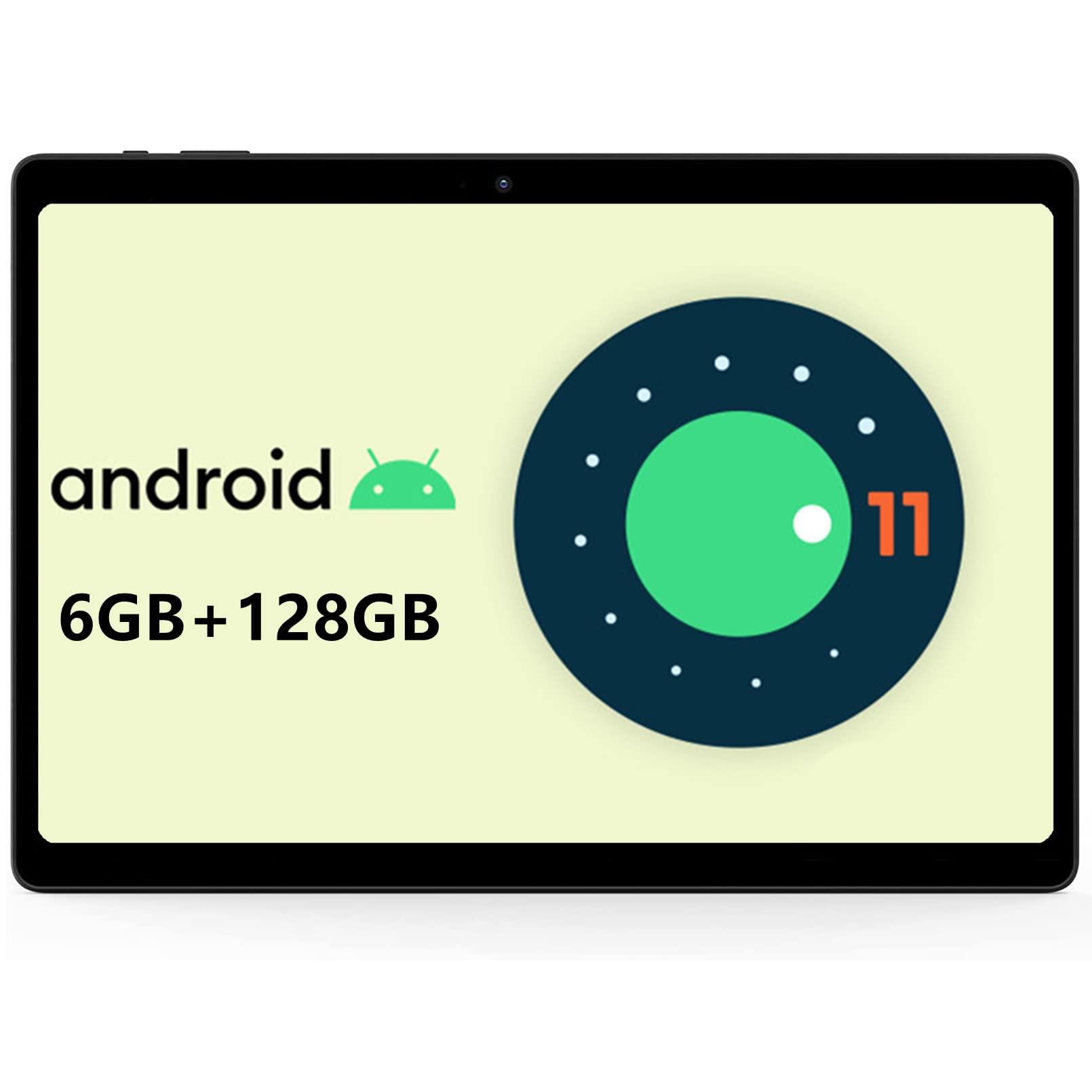
Imej: Depan view of the ALLDOCUBE iPlay20P tablet.
Ciri-ciri Utama:
- High-Performance 8-Core Processor: Equipped with a powerful octa-core processor for smooth multitasking and efficient operation.
- Paparan IPS HD Penuh: A 10.1-inch screen with 1920x1200 resolution for vibrant visuals.
- Ample Memory and Storage: 6GB RAM and 128GB internal storage, expandable via TF card.
- Bateri Tahan Lama: A 6000mAh battery provides extended usage times.
- Dual 4G LTE Support: Stay connected with dual 4G LTE capabilities.
- Dual-Band Wi-Fi & Bluetooth 4.2: Fast and stable wireless connectivity.
- Dwi Kamera: 2MP front camera and 5MP rear camera for photos and video calls.
- Sistem Pengendalian Android 11: Enjoy the latest features and security enhancements of Android 11.
4. Persediaan
4.1 Pengecasan Awal
Before first use, fully charge your tablet using the provided charger. Connect the charger to the tablet's USB-C port and plug it into a power outlet. The battery indicator on the screen will show charging status.
4.2 Hidupkan/Mati Kuasa
- Untuk Menghidupkan: Press and hold the Power button until the ALLDOCUBE logo appears.
- Untuk Mematikan: Press and hold the Power button until the power options appear on the screen, then select "Power off."
- Untuk Mulakan Semula: Press and hold the Power button until the power options appear, then select "Restart."
4.3 Tetapan Bahasa
To change the system language:
- Pergi ke tetapan.
- Navigasi ke Sistem > Bahasa & input > Bahasa.
- Ketik Tambah bahasa and select your desired language from the list.
- Once added, press and hold the icon next to your desired language and drag it to the top of the list to set it as the primary system language.
Video: This short video demonstrates how to change the system language on your ALLDOCUBE tablet.
4.4 Pemasangan Kad SIM dan Kad MicroSD
The tablet supports dual 4G LTE and expandable storage. Locate the SIM/MicroSD card tray on the side of the tablet. Use the provided ejector tool to open the tray. Insert your SIM card(s) and/or MicroSD card into the designated slots, ensuring correct orientation. Close the tray securely.
5. Arahan Operasi
5.1 Navigasi Asas
- Ketik: Touch the screen once to open an app, select an item, or press a button.
- Sentuh & Tahan: Tekan dan tahan item untuk mengakses lebih banyak pilihan atau mengalihkannya.
- Leret: Seret jari anda merentasi skrin untuk menatal halaman atau kandungan.
- Cubit: Gunakan dua jari untuk mengezum masuk atau keluar pada imej dan web muka surat.
5.2 Menyambung ke Wi-Fi
- Pergi ke tetapan > Rangkaian & internet > Wi-Fi.
- Togol suis Wi-Fi ke On.
- Pilih rangkaian Wi-Fi yang anda inginkan daripada senarai.
- Masukkan kata laluan jika digesa, kemudian ketik Sambung.
5.3 Menyambung ke Peranti Bluetooth
- Pergi ke tetapan > Peranti yang disambungkan > Bluetooth.
- Toggle the Bluetooth switch to On.
- Pastikan peranti Bluetooth anda berada dalam mod berpasangan.
- Select your device from the list of available devices and follow any on-screen prompts to complete pairing.
5.4 Using 4G LTE
If you have installed a SIM card with an active data plan, your tablet will automatically connect to the 4G LTE network. You can manage mobile data settings in tetapan > Rangkaian & internet > Rangkaian mudah alih.
5.5 Penggunaan Kamera
The tablet features a 2MP front camera and a 5MP rear camera. Open the Camera app to take photos or record videos. Tap the screen to focus and press the shutter button to capture.

Image: The tablet displaying its camera interface, ready for use.
5.6 Audio dan Multimedia
The tablet is equipped with dual speakers for clear audio output and a 3.5mm headphone jack for private listening. You can adjust volume using the physical volume buttons or through the system settings.

Image: The tablet connected to wired headphones, demonstrating audio output options.
6. Penyelenggaraan
6.1 Penjagaan Bateri
- Elakkan menyahcas sepenuhnya bateri dengan kerap.
- Jangan biarkan tablet dicas untuk tempoh yang lama selepas ia dicas sepenuhnya.
- Store the tablet in a cool, dry place if not used for a long time, with the battery charged to about 50%.
6.2 Pembersihan
Use a soft, lint-free cloth to clean the tablet screen and body. Avoid using harsh chemicals or abrasive materials that could damage the surface.
6.3 Kemas Kini Perisian
Semak dan pasang kemas kini sistem secara berkala untuk memastikan tablet anda mempunyai ciri terkini, tampalan keselamatan dan penambahbaikan prestasi. Pergi ke tetapan > Sistem > Kemas kini sistem untuk menyemak kemas kini.
7. Penyelesaian masalah
7.1 Tablet Tidak Dihidupkan
- Pastikan bateri dicas. Sambungkan pengecas dan tunggu beberapa minit sebelum cuba menghidupkan.
- Tekan dan tahan butang Kuasa selama sekurang-kurangnya 10-15 saat untuk memaksa mulakan semula.
7.2 Isu Sambungan Wi-Fi
- Check if Wi-Fi is enabled in settings.
- Mulakan semula penghala Wi-Fi anda.
- Forget the network in your tablet's Wi-Fi settings and reconnect.
- Pastikan anda berada dalam lingkungan isyarat Wi-Fi.
7.3 Prestasi Perlahan
- Tutup aplikasi latar belakang yang tidak diperlukan.
- Kosongkan data cache untuk aplikasi yang kerap digunakan.
- Pastikan ruang simpanan mencukupi tersedia.
- Mulakan semula tablet.
7.4 Tetapan Semula Kilang
If you encounter persistent issues, a factory reset may resolve them. Amaran: Ini akan memadamkan semua data pada tablet anda. Sandarkan data penting sebelum meneruskan.
- Pergi ke tetapan > Sistem > Tetapkan semula pilihan.
- Pilih Padam semua data (set semula kilang).
- Sahkan pilihan anda dan ikut arahan pada skrin.
8. Spesifikasi
| Ciri | Spesifikasi |
|---|---|
| Jenama | ALLDOCUBE |
| Nama Model | iPlay20P |
| Sistem Operasi | Android 11 |
| Saiz Paparan | 10.1 inci |
| Resolusi Paparan | 1920x1200 piksel |
| Jenama CPU | ARM (Helio P60 Octa-Core) |
| Kapasiti RAM | 6 GB |
| Kapasiti Penyimpanan Memori | 128 GB |
| Resolusi Kamera Depan | 5 MP |
| Resolusi Kamera Belakang | 2 MP |
| Ketersambungan | Cellular (4G LTE), Wi-Fi (2.4G/5G), Bluetooth 4.2, GPS |
| Kapasiti Bateri | 6000 mAh |
| Penceramah | 2 |
| Dimensi Produk | 24.2 x 16.8 x 0.87 cm |
| Berat Barang | 600 g |
9. Waranti dan Sokongan
9.1 Tempoh Waranti
ALLDOCUBE provides a 1-year free warranty for this product.
9.2 Product Issues
If you encounter any issues with your product, please contact customer service via email first. We will send a new product free of charge or issue a full refund for your order.
9.3 Menghubungi Sokongan
You can contact support through the following methods:
- Via Product Page: On the product page, click on the store name "ALLDOCUBE Global Store" below the "Add to Cart" button, then click "Ask a question" in the upper right corner to send a message.
- Via Amazon Account: Go to your Amazon account > Order History > Select the relevant order > Contact Seller.