
1. Pengenalan
This manual provides essential information for the safe and efficient use of your Getac V110 Rugged Convertible Laptop/Tablet PC. Please read this manual thoroughly before operating the device and retain it for future reference. The Getac V110 is designed for durability and performance in challenging environments, offering versatility as both a laptop and a tablet.
2. Maklumat Keselamatan
Patuhi langkah keselamatan berikut untuk mengelakkan kerosakan pada peranti atau kecederaan kepada diri anda:
- Jangan dedahkan peranti kepada suhu yang melampau, cahaya matahari langsung atau kelembapan berlebihan.
- Use only Getac-approved power adapters and accessories.
- Avoid dropping or subjecting the device to severe impacts, despite its rugged design.
- Jangan cuba membuka atau membaiki peranti sendiri. Rujuk kepada kakitangan perkhidmatan yang berkelayakan.
- Pastikan bukaan pengudaraan bersih untuk mengelakkan terlalu panas.
3. Fizikal Overview
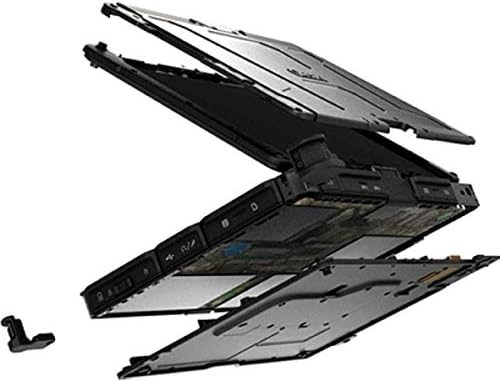
The Getac V110 is a versatile device designed for rugged use. It features a convertible design, allowing it to function as both a traditional laptop and a tablet. Key components include a durable chassis, an 11.6-inch touchscreen display, a full-sized keyboard, and various ports for connectivity.

Rajah 3.1: Meletup view illustrating the internal structure and ruggedized layers of the Getac V110.
3.1. Papan Kekunci dan Pad Sentuh
The device includes a backlit keyboard for typing in various lighting conditions and a precision touchpad for navigation.
Rajah 3.2: Atas-bawah view of the Getac V110 keyboard and integrated touchpad.
3.2. Reka Bentuk Boleh Tukar
The V110 can be easily converted between laptop and tablet modes by rotating the screen. This flexibility allows for optimal use in different scenarios.

Figure 3.3: The Getac V110 configured in laptop mode, displaying the screen and keyboard.

Figure 3.4: The Getac V110 in tablet mode, showcasing the touchscreen interface.
4. Persediaan
4.1. Kuasa Awal Hidup
- Sambungkan penyesuai kuasa ke peranti dan salur keluar kuasa.
- Press the power button located on the side or front of the device.
- Follow the on-screen prompts to complete the initial Windows 8.1 setup, including language, region, and user account creation.
4.2. Kesambungan Rangkaian
The Getac V110 supports both Wi-Fi and Ethernet for internet access.
- Wi-Fi: Access the network settings in Windows 8.1, select your desired Wi-Fi network, and enter the password if required.
- Ethernet: Connect an Ethernet cable from your network router or switch to the Ethernet port on the device.
4.3. Berpasangan Bluetooth
Untuk menyambungkan peranti Bluetooth:
- Pastikan peranti Bluetooth berada dalam mod berpasangan.
- On the Getac V110, navigate to PC Settings > PC and devices > Bluetooth.
- Turn Bluetooth on and select the device from the list to pair.
5. Mengendalikan Peranti
5.1. Bertukar Antara Mod Komputer Riba dan Tablet
To convert the device:
- Gently rotate the screen 180 degrees clockwise or counter-clockwise.
- Fold the screen back over the keyboard to enter tablet mode.
- Unfold the screen and rotate it back to the original position for laptop mode.
5.2. Penggunaan Skrin Sentuh
The 11.6-inch LED touchscreen supports multi-touch gestures. Use your fingers or a compatible stylus for navigation, selection, and input.
5.3. Pengurusan Kuasa
To conserve battery life, adjust power settings in Windows 8.1. You can configure sleep mode, display brightness, and other power-saving options.
- Mod tidur: Briefly press the power button to put the device into sleep mode.
- Tutup: Go to the Charms bar (swipe from right edge or move mouse to top-right corner), select Settings > Power > Shut down.
- Mulakan semula: Go to the Charms bar, select Settings > Power > Restart.
6. Penyelenggaraan
6.1. Membersihkan Peranti
Regular cleaning helps maintain performance and appearance.
- Gunakan kain lembut dan tidak berbulu sedikit dampened with water or a mild, non-abrasive cleaner for the screen and exterior.
- Elakkan menyembur cecair terus ke atas peranti.
- Jangan gunakan bahan kimia, pelarut atau bahan kasar yang keras.
6.2. Penjagaan Bateri
Untuk memaksimumkan jangka hayat bateri:
- Elakkan menyahcas sepenuhnya bateri dengan kerap.
- Store the device in a cool, dry place if not used for extended periods.
- If the device has removable batteries, ensure they are properly seated.
6.3. Kemas Kini Perisian
Regularly check for and install operating system and driver updates to ensure optimal performance and security. Access Windows Update through PC Settings.
7. Penyelesaian masalah
This section addresses common issues you might encounter with your Getac V110.
7.1. Peranti Tidak Menghidupkan
- Pastikan penyesuai kuasa disambungkan dengan selamat dan alur keluar berfungsi.
- Check if the battery is charged. If not, allow it to charge for at least 30 minutes before attempting to power on again.
- If the battery is removable, ensure it is correctly installed.
7.2. Isu Ketersambungan Wi-Fi
- Sahkan bahawa Wi-Fi didayakan dalam tetapan Windows.
- Restart your router and the Getac V110.
- Pastikan anda berada dalam lingkungan rangkaian Wi-Fi dan mempunyai kata laluan yang betul.
- Check for updated Wi-Fi drivers.
7.3. Skrin Sentuh Tidak Responsif
- Mulakan semula peranti.
- Pastikan skrin bersih dan bebas daripada serpihan.
- Check for any recent software updates or driver issues.
7.4. Prestasi Perlahan
- Tutup aplikasi yang tidak perlu berjalan di latar belakang.
- Semak ruang simpanan yang tersedia.
- Jalankan imbasan virus.
- Pastikan Windows dan pemacu dikemas kini.
8. Spesifikasi
| Ciri | Perincian |
|---|---|
| Jenama | Getac |
| Nombor Model | V110 |
| Pemproses | Intel Core i5-6300U (2.6 GHz) |
| Memori RAM | 8 GB DDR4 SDRAM |
| Kapasiti Storan | 128 GB |
| Saiz Skrin | 11.6 Inci |
| Resolusi Paparan | 1366 x 768 piksel |
| Jenis Paparan | LED |
| Input Antara Muka Manusia | Skrin sentuh |
| Sistem Operasi | Windows 8.1 |
| Pemproses bersama Grafik | Intel HD Graphics 520 |
| Teknologi Ketersambungan | Bluetooth, Ethernet, HDMI, USB, Wi-Fi |
| Berat Barang | 4.4 paun |
| Item Dimensions (L x W x Th) | 11.99" x 18.9" x 3.9" |
| Jenis Sel Bateri | Lithium Ion (23 Watt Hours) |
9. Maklumat Waranti
The Getac V110 Rugged Convertible Laptop/Tablet PC comes with a Waranti terhad 90 hari. This warranty covers manufacturing defects and malfunctions under normal use. It does not cover damage caused by misuse, accidents, unauthorized repairs, or modifications. Please retain your proof of purchase for warranty claims.
For detailed terms and conditions, refer to the warranty documentation provided with your device or contact Getac customer support.
10. Sokongan
If you require further assistance or encounter issues not covered in this manual, please contact Getac customer support. You can typically find support contact information on the manufacturer's official website or within the device's pre-installed documentation.
When contacting support, please have your device's model number (V110) and serial number ready.