
TomTom 1YB5.002.20
TomTom GO Expert Truck Sat Nav User Manual
Model: 1YB5.002.20
pengenalan
This manual provides essential information for setting up, operating, maintaining, and troubleshooting your TomTom GO Expert Truck Sat Nav. Please read it carefully to ensure optimal performance and safe use of your device.
The TomTom GO Expert is designed for professional large vehicle navigation, offering custom routing and POIs for buses, trucks, and coaches, along with live alerts for various road restrictions.
Apa yang ada dalam Kotak
Selepas membuka pakej, sahkan bahawa semua komponen ada:
- TomTom GO Expert Device
- Pengecas Kereta
- Click-and-Drive Mount
- Panduan Mula Pantas

Imej: Depan view of the TomTom GO Expert Sat Nav device, showing its 5-inch capacitive screen and the TomTom logo at the bottom.
Persediaan
1. Memasang Peranti
- Bersihkan Cermin Depan: Ensure the area where you intend to mount the device is clean and dry.
- Pasang Gunung: Securely attach the Click-and-Drive mount to your windshield or dashboard. Press the suction cup firmly against the surface and flip the lever to lock it in place.
- Sambungkan Peranti: Slide the TomTom GO Expert device onto the mount until it clicks securely.
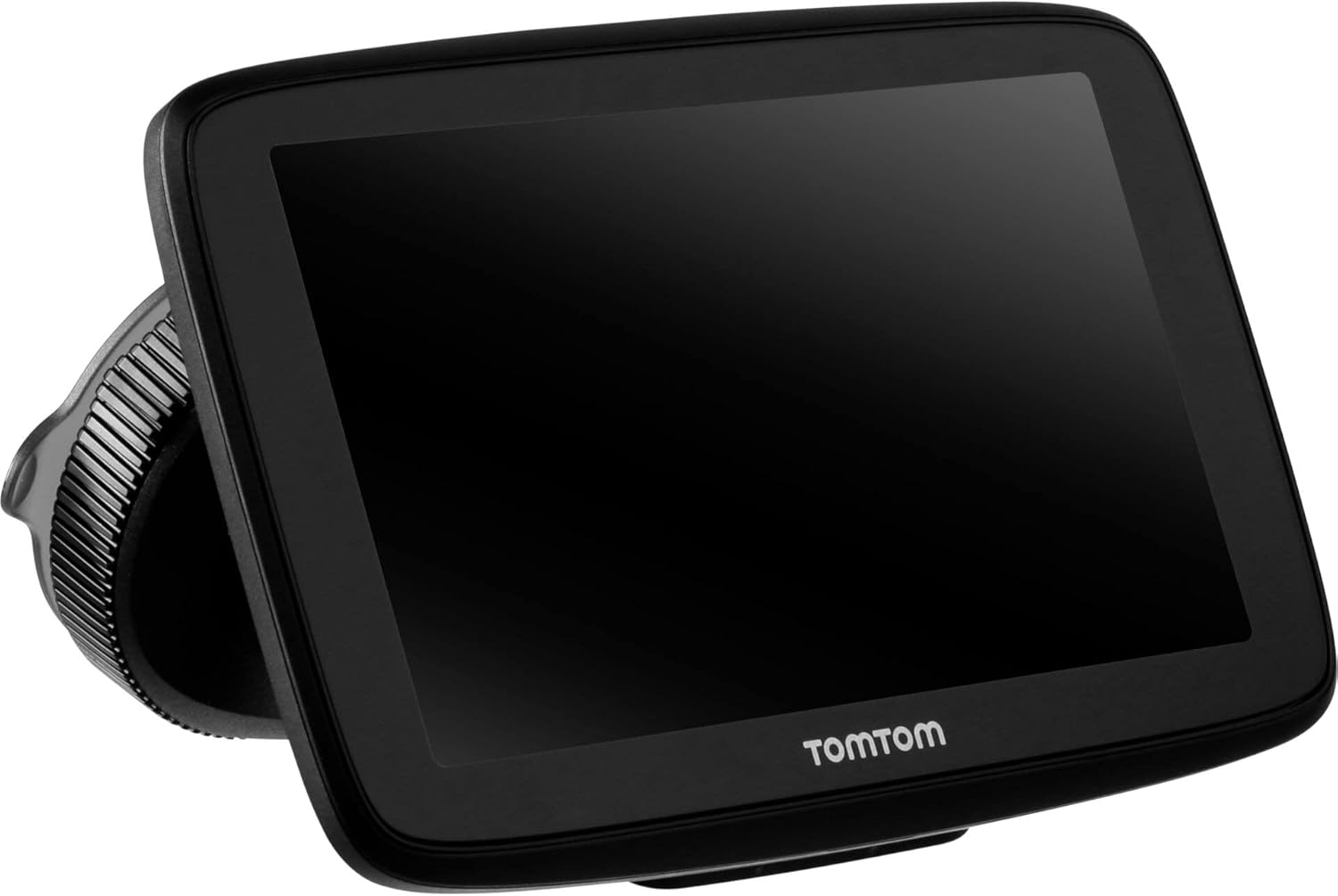
Image: The TomTom GO Expert Sat Nav device attached to its Click-and-Drive mount, viewed from an angle, showing the suction cup base.
2. Menghidupkan dan Mengecas
- Connect the Car Charger: Pasangkan pengecas kereta ke soket kuasa 12V kenderaan anda.
- Sambung ke Peranti: Connect the other end of the charger to the TomTom GO Expert device.
- Caj Permulaan: Allow the device to charge for at least 30 minutes before first use, or until the battery indicator shows sufficient charge.

Imej: Side profile of the TomTom GO Expert Sat Nav device, showing its slim design and how it connects to the Click-and-Drive mount.
3. Persediaan Awal dan Sambungan Wi-Fi
- Ikut gesaan pada skrin untuk memilih bahasa dan wilayah anda.
- Connect to a Wi-Fi network for quick map updates and traffic information. Navigate to Tetapan > Wi-Fi dan pilih rangkaian anda.
- Configure your vehicle profile (truck, bus, coach) by entering dimensions, weight, and other relevant details. This is crucial for custom routing.
Mengendalikan Peranti Anda
Asas Navigasi
- Memasuki Destinasi: Tap the search icon on the main menu and enter an address, POI, or coordinates.
- Penghalaan Tersuai: The device will automatically calculate routes based on your configured vehicle profile, avoiding unsuitable roads for large vehicles.
- Live Traffic Updates: With an active Wi-Fi connection, the device provides real-time traffic information to help you avoid delays.
- Lane Guidance: The device displays clear lane guidance to help you prepare for exits and turns.
- Kawalan Suara: Use voice commands for hands-free operation. Refer to the on-screen guide for available commands.
Map Updates and Services
Your TomTom GO Expert receives 3X faster updates via Wi-Fi. Ensure your device is connected to a stable Wi-Fi network to download the latest maps and software updates conveniently and at no extra cost.
- Kemas Kini Peta: Navigasi ke Tetapan > Kemas Kini & Item Baharu to check for and install map updates.
- Speed Camera Alerts: The device includes 1 year of speed camera alerts. Ensure this service is active for safer driving.
Penyelenggaraan
- Pembersihan: Use a soft, lint-free cloth to clean the screen and device casing. Jangan gunakan pembersih atau pelarut yang melelas.
- Kemas Kini Perisian: Regularly check for and install software updates via Wi-Fi to ensure optimal performance and access to new features.
- Penjagaan Bateri: Untuk memanjangkan hayat bateri, elakkan daripada mendedahkan peranti kepada suhu yang melampau. Jika menyimpan untuk tempoh yang lama, pastikan bateri dicas sebahagiannya.
- Storan: Apabila tidak digunakan, simpan peranti di tempat yang sejuk dan kering, jauh daripada cahaya matahari langsung.
Menyelesaikan masalah
Isu dan Penyelesaian Biasa
- Peranti Tidak Dihidupkan:
- Ensure the car charger is securely connected to both the device and the vehicle's power outlet.
- Check the vehicle's power outlet for functionality.
- Try resetting the device by holding the power button for 15-20 seconds.
- Tiada Isyarat GPS:
- Pastikan peranti mempunyai jelas view of the sky. Obstructions like tall buildings or tunnels can block the signal.
- Move to an open area and allow the device a few minutes to acquire satellites.
- Semak sebarang kemas kini perisian yang belum selesai yang mungkin meningkatkan prestasi GPS.
- Map Not Updating:
- Verify that the device is connected to a stable Wi-Fi network.
- Ensure there is sufficient storage space on the device for the new map data.
- Mulakan semula peranti dan cuba kemas kini sekali lagi.
- Skrin sentuh Tidak Responsif:
- Lakukan tetapan semula lembut dengan menekan butang kuasa sehingga peranti dimulakan semula.
- Pastikan skrin bersih dan bebas daripada serpihan.
Spesifikasi
| Ciri | Perincian |
|---|---|
| Dimensi Produk | 5.51 x 0.79 x 3.54 inci |
| Berat Barang | 12.7 auns |
| Nombor Model | 1YB5.002.20 |
| Bateri | 1 bateri Lithium Ion diperlukan (termasuk) |
| Sistem Operasi | Windows (internal OS) |
| Teknologi Ketersambungan | Bluetooth, Wayarles (Wi-Fi) |
| Ciri Khas | Bluetooth, Lane Assist, Touchscreen |
| Input Antara Muka Manusia | Skrin sentuh |
| warna | Hitam |
| Jenis Perkhidmatan Kenderaan | Bas, Lori |
| Saiz Skrin | 5 Inci |
| Jenis Peta | Seluruh dunia |
| Mod Keluaran Audio | Penceramah |
Waranti dan Sokongan
For detailed warranty information and technical support, please visit the official TomTom support webtapak atau rujuk kad jaminan yang disertakan dengan produk anda.
Sokongan dalam talian: www.tomtom.com/support
Ensure you have your device's serial number and model number (1YB5.002.20) ready when contacting support.
Ask a question about this manual
Ask about setup, troubleshooting, compatibility, parts, safety, or missing instructions. Manuals+ will review the question and use this page’s manual context to help answer it.