
Finlux FLU5535ANDROID
Finlux FLU5535ANDROID 55-inch 4K Ultra HD Android Smart TV
Manual Pengguna
1. Pengenalan
Terima kasih kerana membeliasing the Finlux FLU5535ANDROID 55-inch 4K Ultra HD Android Smart TV. This manual provides essential information for setting up, operating, and maintaining your new television. Please read this manual thoroughly before using the product and keep it for future reference.
Maklumat Keselamatan Penting
Always follow basic safety precautions when using this television to reduce the risk of fire, electric shock, and injury to persons. Do not expose the TV to rain or moisture. Do not open the cabinet. Refer all servicing to qualified personnel.
- Pastikan pengudaraan yang betul di sekeliling TV.
- Jangan sekat bukaan pengudaraan dengan barang seperti surat khabar, alas meja atau langsir.
- Jangan letakkan TV pada troli, dudukan, tripod, pendakap atau meja yang tidak stabil.
- Cabut palam TV semasa ribut petir atau apabila tidak digunakan untuk tempoh yang lama.
- Keep small components and batteries out of reach of children.
2. Apa yang ada di dalam Kotak
Upon unpacking your Finlux FLU5535ANDROID TV, please ensure all the following items are present:
- Finlux FLU5535ANDROID 55-inch 4K Ultra HD Android Smart TV
- Kawalan Jauh dengan Bateri
- Kabel Kuasa
- Stand (if applicable, for tabletop placement)
- Manual Pengguna (dokumen ini)
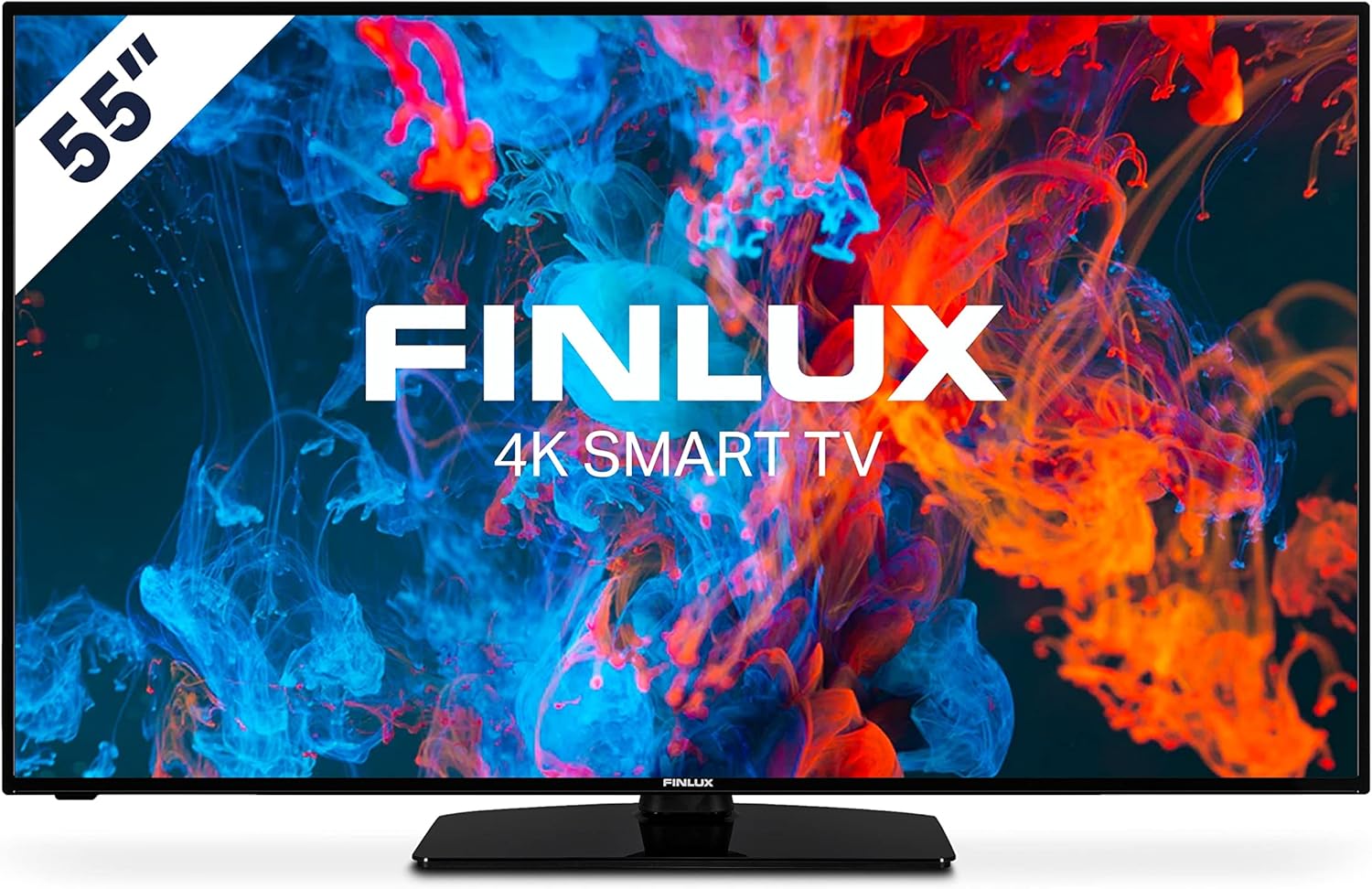
Imej: Depan view of the Finlux FLU5535ANDROID 55-inch 4K Ultra HD Android Smart TV, showcasing its slim bezel and central stand.
3. Persediaan
3.1 Penempatan Fizikal
The Finlux FLU5535ANDROID TV features a practical size and a slim screen, making it easy to place in various rooms. Its flat back and thin screen design allow for easy wall mounting or placement against a wall.
- Peletakan Atas Meja: Attach the provided stand securely to the TV following the instructions in the separate quick start guide. Place the TV on a stable, level surface.
- Pemasangan Dinding: If you plan to wall mount the TV, ensure you use a VESA-compatible wall mount (not included) and follow the wall mount manufacturer's instructions.
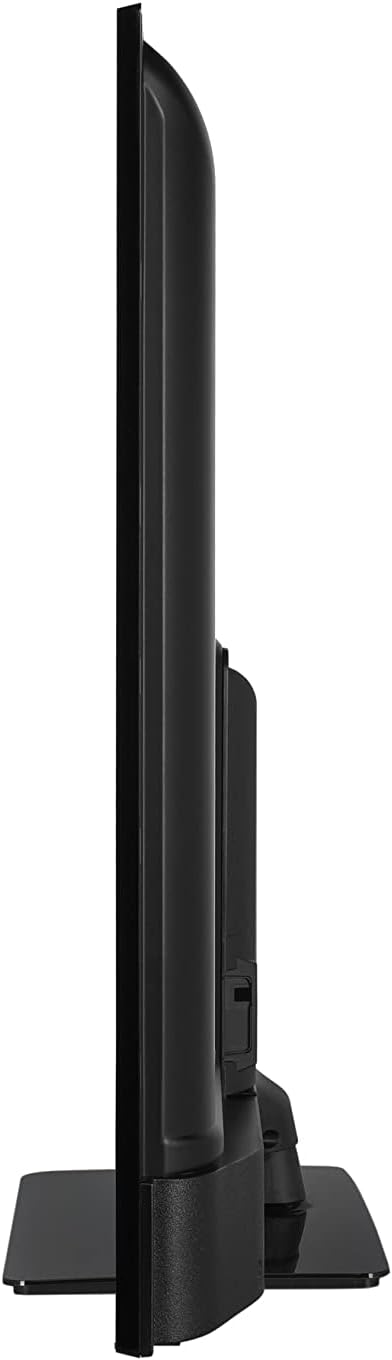
Imej: Side profile view of the Finlux FLU5535ANDROID TV, highlighting its slim design.
3.2 Menyambung Kabel
Connect the power cable to the TV's power input and then to a wall outlet. Connect your external devices such as set-top boxes, gaming consoles, or Blu-ray players to the appropriate ports on the TV.

Imej: Belakang view of the Finlux FLU5535ANDROID TV, displaying the arrangement of its input ports including HDMI and USB.
- HDMI: Connect high-definition devices using HDMI cables. This TV features 4 HDMI ports.
- USB: Connect USB storage devices for media playback or PVR functionality. This TV has 2 USB ports.
- Antena/Kabel: Sambungkan input antena atau TV kabel anda untuk saluran siaran.
- Ethernet: Untuk sambungan internet berwayar yang stabil.
3.3 Kuasa Awal Hidup dan Wizard Persediaan
After connecting all necessary cables, plug the TV into a power outlet and press the power button on the remote control or the TV itself. The TV will guide you through the initial setup process, including language selection, network connection, and channel scanning.
4. Mengendalikan TV Anda
4.1 Alat Kawalan Jauh Lebihview
The provided remote control allows you to navigate the TV's features and menus. Insert the included batteries into the remote control before use.

Image: The Finlux TV remote control, featuring dedicated buttons for quick access to popular streaming services like Netflix and YouTube, along with standard navigation and number keys.
- Butang Kuasa: Menghidupkan atau mematikan TV.
- Butang Nombor: Untuk pemilihan saluran langsung.
- Pad Navigasi (Atas/Bawah/Kiri/Kanan/OK): To navigate menus and confirm selections.
- Kelantangan Naik/Turun: Melaraskan tahap kelantangan.
- Saluran Atas/Bawah: Menukar saluran TV.
- Butang Netflix/YouTube: Akses terus kepada aplikasi penstriman ini.
- Butang Menu: Membuka menu tetapan utama.
- Butang Keluar: Keluar dari menu atau aplikasi semasa.
4.2 Ciri TV Pintar Android
This TV runs on the Android operating system, providing access to a wide range of applications and smart features. Popular applications like Netflix, YouTube, and Prime Video are pre-configured for your convenience.
- Perkhidmatan Penstriman: Enjoy movies and series in high quality from Netflix, YouTube, Prime Video, and Spotify.
- Gedung Google Play: Download additional apps, games, and content from the Google Play Store.
- Chromecast Terbina dalam: Easily cast content from your smartphone or other compatible devices directly to your TV.
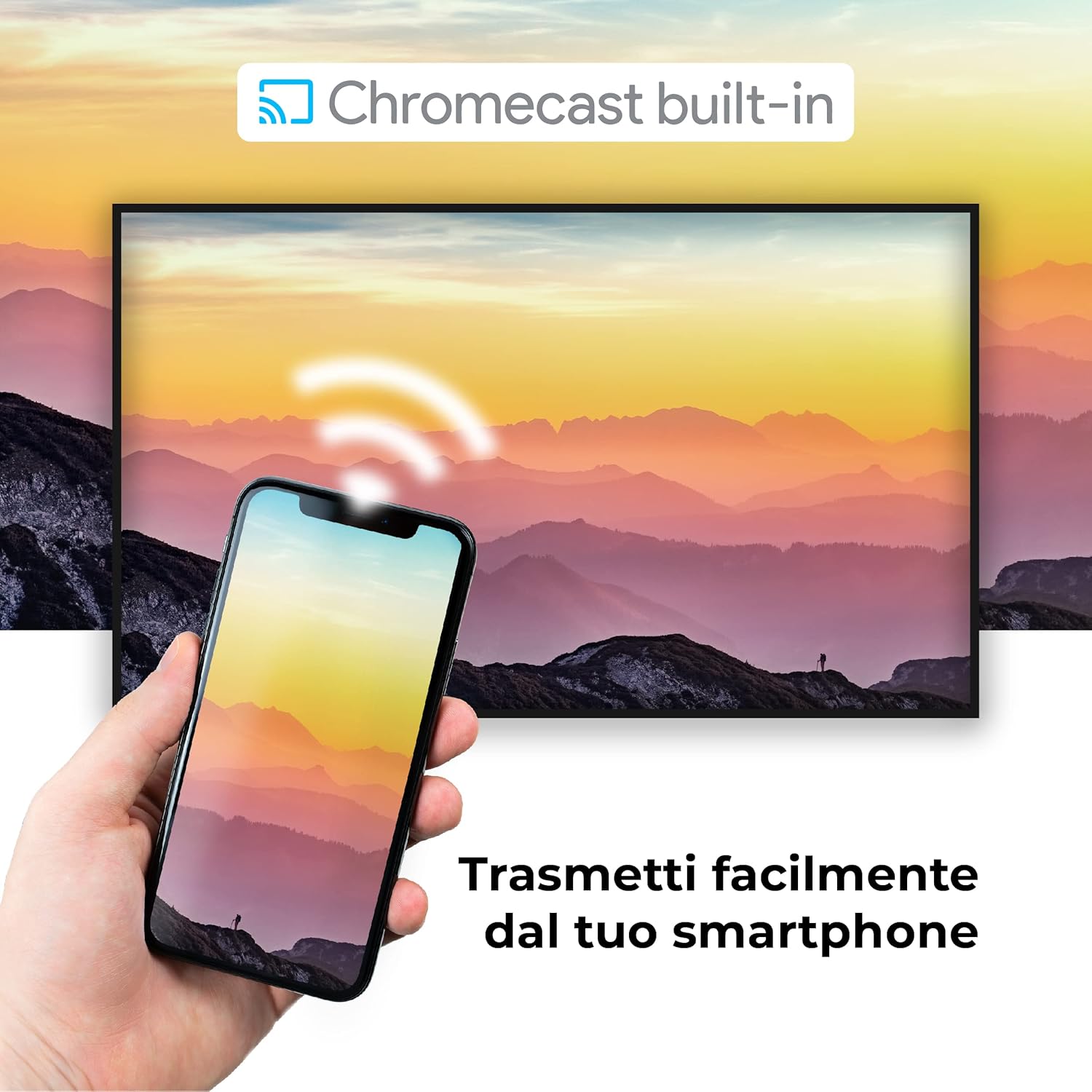
Image: A visual representation of the Chromecast built-in feature, demonstrating how content can be easily streamed from a smartphone to the Finlux TV.
4.3 USB Media Player and PVR
The TV supports USB multimedia playback, allowing you to view photos, play music, or watch videos directly from a USB storage device. It also features PVR (Personal Video Recorder) readiness, enabling you to record TV programs to a connected USB drive.
5. Sambungan
Your Finlux TV offers a variety of connection options for external devices:
- Port HDMI (x4): Untuk menyambungkan peranti definisi tinggi seperti pemain Blu-ray, konsol permainan dan kotak atas set.
- Port USB (x2): For connecting USB storage devices (e.g., flash drives, external hard drives) for media playback or PVR functionality.
- Bluetooth: For wireless connection to compatible audio devices like headphones or soundbars.
- Wi-Fi: Built-in Wi-Fi for wireless internet access and Smart TV features.
- Ethernet (LAN): Untuk sambungan internet berwayar yang stabil.
- Input Antena: For connecting an aerial for digital terrestrial television (DVB-T, DVB-T2).
- Input Satelit: For connecting a satellite dish (DVB-S, DVB-S2).
- Output Audio Digital Optik: For connecting to a soundbar or home theater system for high-quality audio.
6. Penyelenggaraan
6.1 Membersihkan TV
To ensure the longevity and optimal performance of your TV, regular cleaning is recommended:
- Skrin: Lap skrin perlahan-lahan dengan kain lembut yang tidak berbulu. Untuk tanda degil, dampLap kain sedikit dengan air atau pembersih skrin khusus. Jangan sekali-kali sembur pembersih terus ke skrin.
- Kabinet: Gunakan kain lembut dan kering untuk mengelap kabinet TV. Elakkan menggunakan pembersih atau pelarut yang kasar.
- Sebelum Pembersihan: Sentiasa cabut plag TV dari salur keluar kuasa sebelum membersihkan.
6.2 Penjagaan Am
- Elakkan meletakkan TV di bawah cahaya matahari langsung atau berhampiran sumber haba.
- Jangan dedahkan TV kepada suhu atau kelembapan yang melampau.
- Protect the TV from dust by regularly dusting its surface.
- Jangan letakkan objek berat di atas TV.
7. Penyelesaian masalah
If you encounter issues with your TV, refer to the following common problems and solutions before contacting support:
| Masalah | Kemungkinan Punca / Penyelesaian |
|---|---|
| Tiada Kuasa | Ensure the power cable is securely plugged into the TV and the wall outlet. Check if the power outlet is working. Try pressing the power button on the TV itself. |
| Tiada Gambar / Tiada Bunyi | Check the input source (HDMI, AV, TV) is correctly selected. Ensure external devices are powered on and connected properly. For sound, check volume levels and mute settings. |
| Kualiti Gambar Lemah | Check antenna/cable connection. Adjust picture settings (brightness, contrast, sharpness) in the TV menu. Ensure the source content is high quality. |
| Alat Kawalan Jauh Tidak Berfungsi | Periksa dan gantikan bateri. Pastikan tiada halangan antara alat kawalan jauh dan penderia IR TV. |
| Tidak Dapat Menyambung ke Wi-Fi | Ensure Wi-Fi is enabled on the TV. Check your router is working and within range. Re-enter the Wi-Fi password. Try restarting both the TV and the router. |
| Apl TV Pintar Tidak Dimuat | Check your internet connection. Try restarting the TV. Ensure the app is updated to the latest version. Clear app cache if available in settings. |
8. Spesifikasi
Below are the key technical specifications for the Finlux FLU5535ANDROID TV:
| Ciri | Perincian |
|---|---|
| Jenama | Finlux |
| Nombor Model | FLU5535ANDROID |
| Saiz Skrin | 55 Inci (140 cm) |
| Teknologi Paparan | LED |
| Resolusi | 4K Ultra HD (3840 x 2160) |
| Kadar Segar Semula | 100 Hz (with integrated technology, base 50 Hz) |
| Sistem Operasi | Android |
| Ketersambungan | Bluetooth, HDMI, USB, Wi-Fi, Ethernet |
| Port HDMI | 4 |
| Port USB | 2 |
| Ciri Khas | Flat Design, Android Smart TV, Chromecast Built-in, PVR Ready |
| Perkhidmatan Internet yang Disokong | Netflix, YouTube, Prime Video, Spotify |
| Komponen yang Disertakan | Power cable, Standard, TV |

Image: EU Energy Label for the Finlux FLU5535ANDROID TV, indicating its energy efficiency class G and power consumption details. For more details, visit the official EPREL database: Maklumat Produk EPREL
9. Waranti dan Sokongan
Finlux products are designed for reliability and performance. This product comes with a standard manufacturer's warranty. Please refer to the warranty card included with your product for specific terms and conditions.
For technical support, troubleshooting assistance beyond this manual, or warranty claims, please contact Finlux customer service. Contact information can typically be found on the manufacturer's official webtapak atau pada pembungkusan produk.
Note: Information regarding spare parts availability is not provided. Software updates are not guaranteed beyond a certain period.
Ask a question about this manual
Ask about setup, troubleshooting, compatibility, parts, safety, or missing instructions. Manuals+ will review the question and use this page’s manual context to help answer it.