
1. Pengenalan
This manual provides detailed instructions for the installation, operation, and troubleshooting of your PEMP Ultra-Thin 12.3-inch Display Head Unit. Please read this manual thoroughly before installation and use to ensure proper functionality and safety.
2. Maklumat Keselamatan
- Matikan: Ensure the vehicle's power is completely off before beginning any installation or wiring procedures.
- Pemasangan Profesional: If you are unsure about any part of the installation process, it is recommended to seek professional assistance.
- Pengurusan Kabel: Secure all cables to prevent interference with vehicle operation or damage.
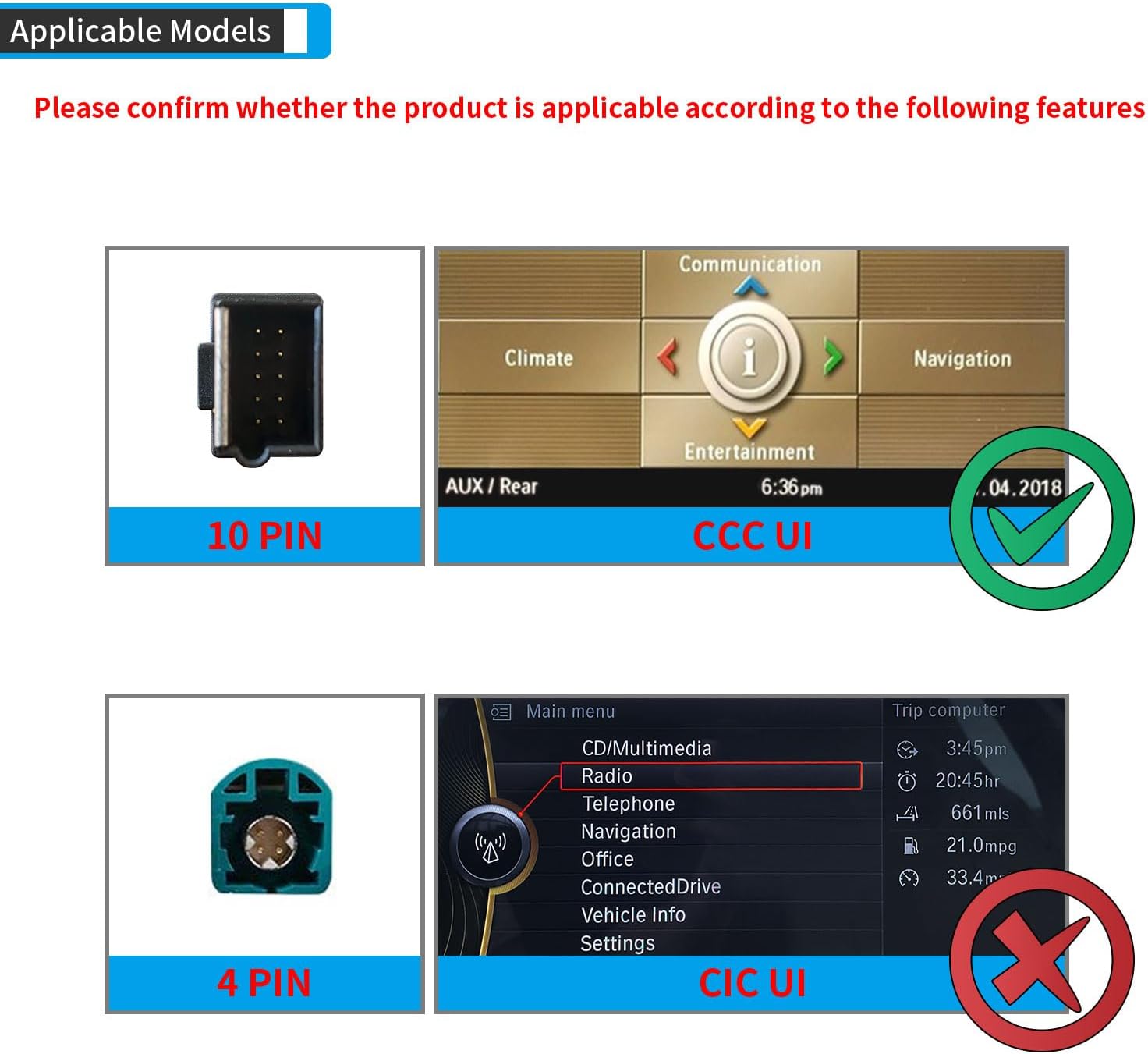
- Keserasian: This unit is specifically designed for BMW 2005-2010 E60 3 Series vehicles with the CCC Original 10 PIN LVDS system. Verify your vehicle's compatibility before installation.
3. Keserasian
This PEMP Ultra-Thin 12.3-inch Display Head Unit is compatible with:
- Model Kenderaan: BMW 5 Series E60 (2005-2010)
- Original System: CCC Original 10 PIN LVDS system.
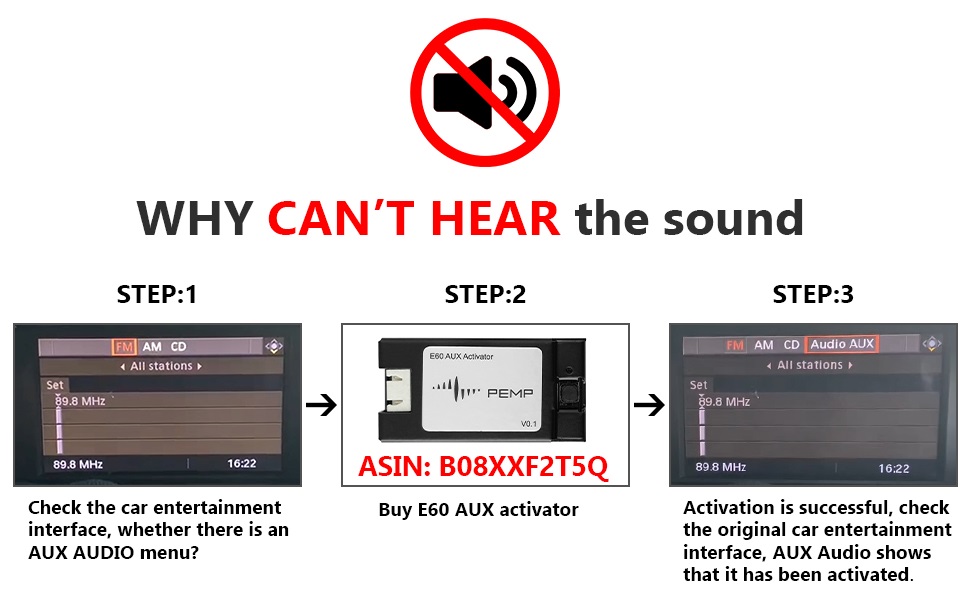
Penting: Please confirm your OEM display has the Aux Audio Menu. If not, an activator (ASIN: B08XXF2T5Q) may be required to activate Aux Audio first.
4. Ciri-ciri Produk
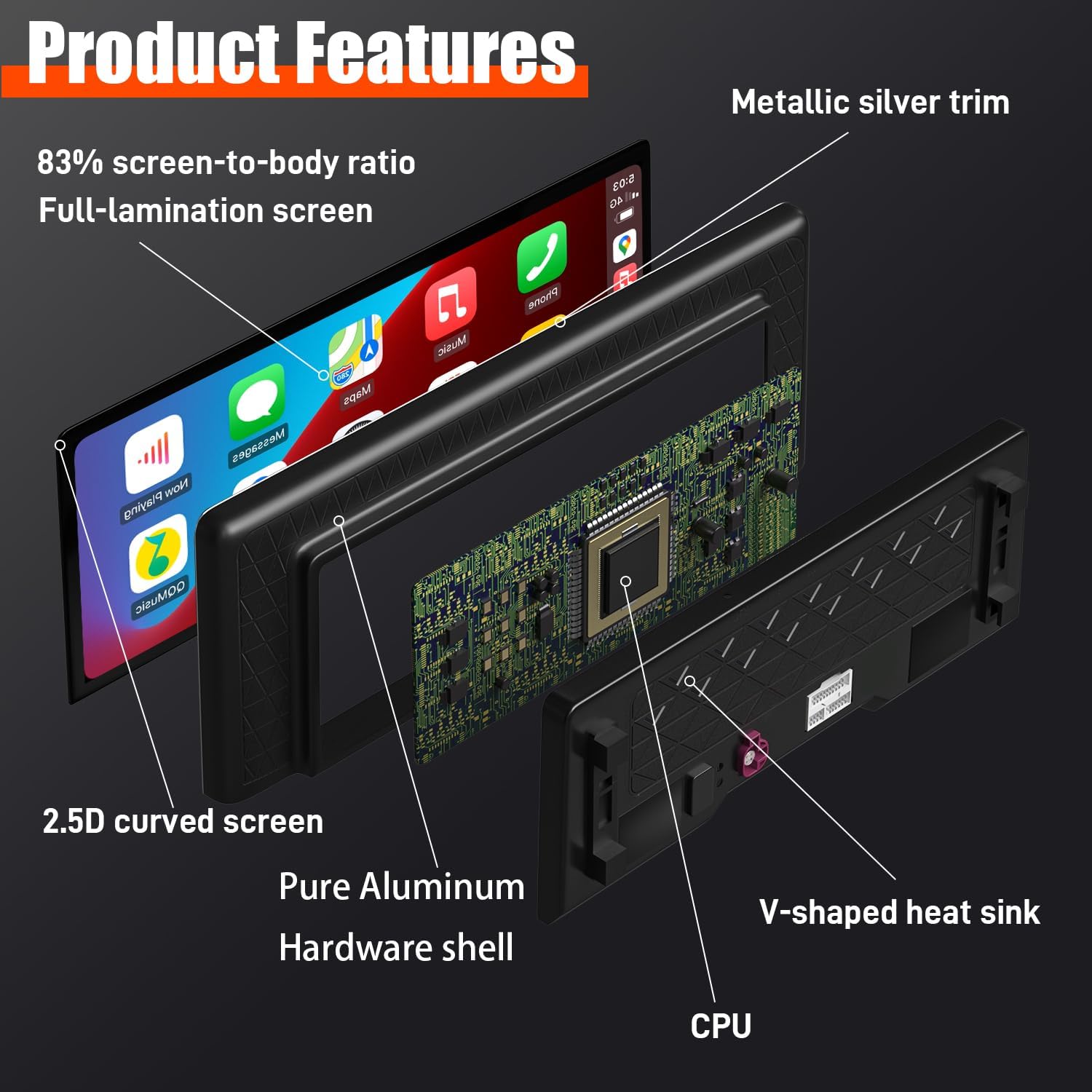
- Reka Bentuk Ultra Nipis: 12.3-inch large display with an 82.3% screen-to-body ratio, metal material shell, and Non-Airgap process for realistic picture quality.
- Ketersambungan: Supports Wired and Wireless CarPlay and Android Auto.
- Sistem pengendalian: Linux System for quick boot-up and fast access to CarPlay/Android Auto interface.
- Integrasi OEM: Supports factory monitor information display. Long press the Menu button to switch between the factory OEM interface and the CarPlay interface.
- Kawalan: Supports steering wheel button functions.
- Kualiti Paparan: Multi-Point Capacitive Touch Screen, 12.3-inch HD IPS Display Screen with a resolution of 1920 x 720.
- Sokongan Kamera: Supports the car's reversing camera and radar information display. Compatible with OEM cameras and aftermarket cameras (720P or less). Provides clear reversing picture.


5. Panduan Persediaan dan Pemasangan
Keselamatan Diutamakan: Ensure your car is completely powered off before starting installation.
5.1. General Installation Overview


5.2. Fiber Optic Cable Connection
If your OEM ISO harness includes a fiber optic cable, it must be adapted to the PEMP ISO harness for proper functionality.

5.3. Wired CarPlay and Android Auto Connection
For wired CarPlay and Android Auto, ensure your device is connected to USB IN 1.

6. Arahan Operasi
6.1. Switching Between OEM and New System
You can easily switch between your original BMW interface and the PEMP display's interface by long-pressing the Menu button on your iDrive controller.
6.2. Tetapan Kamera
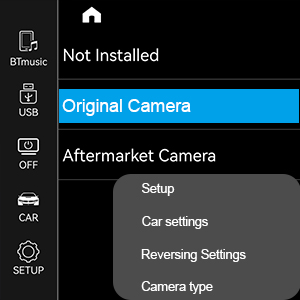
The unit supports both OEM and aftermarket front and rear view cameras. You can select the camera type in the settings menu.
- Pergi ke Persediaan.
- Pilih Tetapan kereta.
- pilih Membalikkan Tetapan.
- Pilih Jenis kamera (Original Camera or Aftermarket Camera).

7. Penyelesaian masalah
7.1. No Sound Issue
If you experience no sound from the display, follow these steps:
- Check OEM Audio: Press the FM/AM button on your original radio to confirm if the OEM radio has sound.
- Pemutusan sambungan Bluetooth: If the OEM radio has sound, go to Tetapan > Sistem on the PEMP unit. Turn off "Use Car's BT Channel". Then, disconnect the original Bluetooth from your phone's settings.
- AUX Feature: After disconnecting Bluetooth, go to the car's settings and select "Auto Switch to AUX" feature off.
- Laraskan Kelantangan: Go back to the original car interface, select AUX Front. If there is still no sound, adjust the volume knob on your car's radio.
- AUX Harness: If there is still no sound, you may need to connect the AUX harness. This involves connecting the provided AUX cable from the PEMP unit to your car's AUX-IN port, usually found in the center console.
- ISO Harness Check: Ensure the ISO harness is securely plugged in. If it feels loose, unplug and re-plug it firmly.
- Power/LVDS Cables: Check that the power cable and LVDS cables on the back of the PEMP machine are not loose. Re-plug them if necessary.

7.2. Splash Screen / OEM Resolution Issues
If your screen displays a splash screen or distorted image, adjust the resolution:
- Pergi ke Settings > Car Settings.
- Pilih Original Car's Screen Resolution.
- Slide through the options to find your car's suitable resolution.
- Select the correct resolution and return to the original car interface. The display should now be normal.

8. Spesifikasi
| Ciri | Spesifikasi |
|---|---|
| Nombor Model | PP-5823-11 |
| Saiz Paparan | 12.3 Inci |
| Resolusi Paparan | 1920x720 |
| Sistem Operasi | Linux |
| Teknologi Ketersambungan | Bluetooth |
| Ciri Khas | Bluetooth, Touchscreen, Built-in CarPlay and Android Auto |
| Mod Keluaran Audio | AUX |
| Berat Barang | 7.33 paun |
| Dimensi Produk | 12.99 x 5.12 x 1.06 inci |
9. Waranti dan Sokongan
For warranty information, technical support, or any inquiries regarding your PEMP product, please refer to the contact information provided with your purchase or visit the official PEMP webtapak. Simpan resit pembelian anda sebagai bukti pembelian untuk tuntutan waranti.
Anda juga boleh melawat Kedai PEMP di Amazon untuk maklumat produk tambahan dan sumber sokongan.