
pengenalan
Thank you for choosing the BUFFBEE Alarm Clock with Wireless Charging Station. This device combines a digital alarm clock with a versatile wireless charging stand, designed to charge your iPhone, Apple Watch, and AirPods simultaneously. It features a dimmable LED display, adjustable volume, and multiple safety protections to ensure efficient and secure charging. Please read this manual carefully before use to ensure proper operation and to maximize the lifespan of your product.
Apa yang ada dalam Kotak
Setelah membuka bungkusan anda, sila sahkan bahawa semua item berikut disertakan:
- BUFFBEE Alarm Clock with Wireless Charging Station
- Kabel Pengecas USB-C
- Penyesuai Kuasa
- Manual Pengguna (dokumen ini)
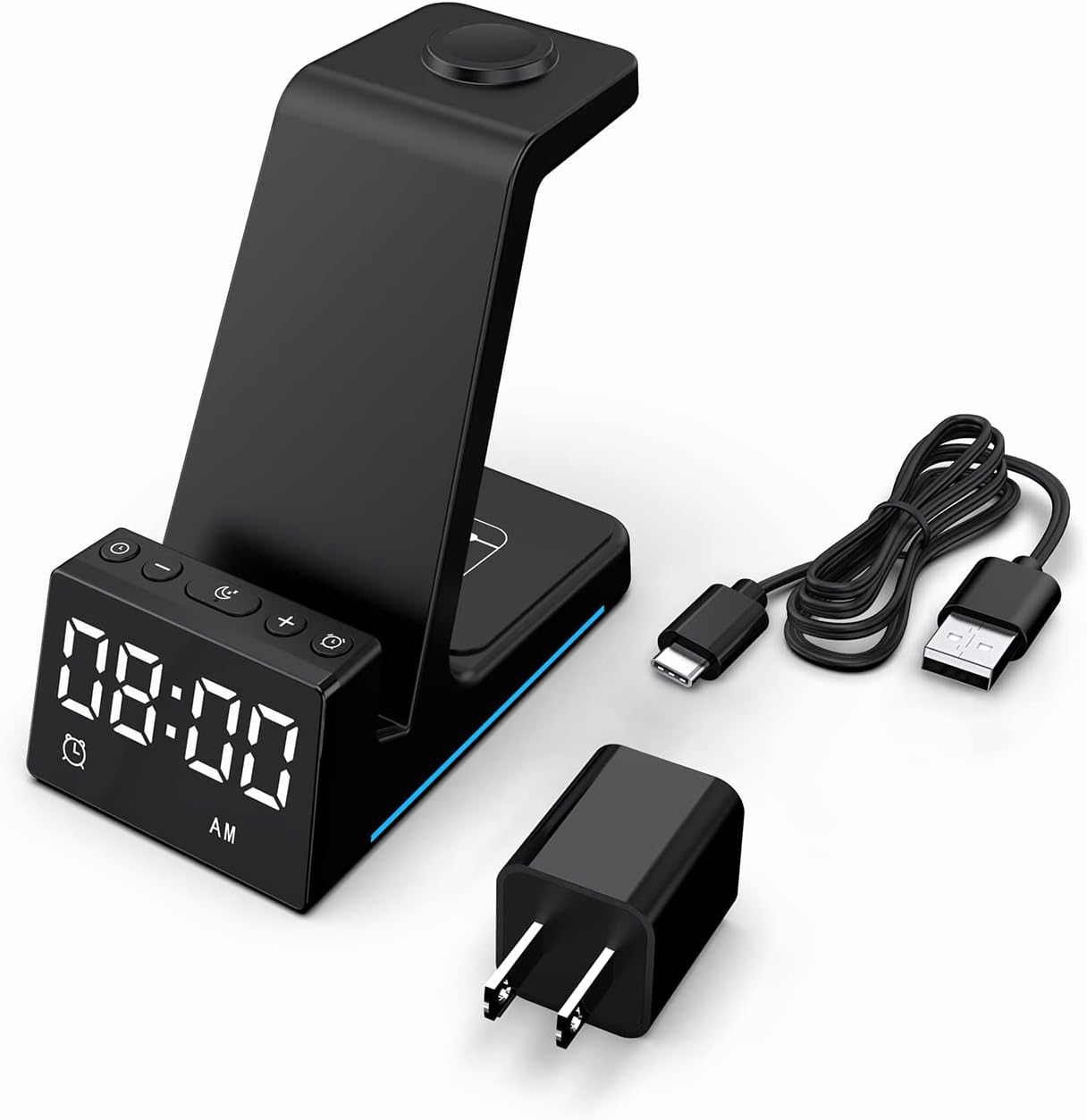
Imej: Semua komponen disertakan dalam pembungkusan produk.
Produk Selesaiview
The BUFFBEE Alarm Clock with Wireless Charging Station is designed for convenience and efficiency. It features dedicated charging areas for your smartphone, Apple Watch, and AirPods, alongside a clear digital clock display.
Ciri-ciri Utama:
- Jam Penggera Digital: Features adjustable brightness and volume, with 12/24 hour format options.
- Wireless Phone Charging: Supports 15W, 10W, 7.5W, and 5W output for various wireless charging enabled smartphones.
- Pengecasan Apple Watch: Dedicated magnetic charging spot for Apple Watch Series 2-7, SE.
- Pengecasan AirPods: Wireless charging pad for AirPods 2 (with wireless charging case), AirPods 3, and AirPods Pro.
- Perlindungan Keselamatan: Built-in overcharge, overvoltage, overheat, and overcurrent protection.

Image: The charging station with devices in place, highlighting its multi-device capability.

Image: Diagram illustrating the internal safety features and charging coils.
Persediaan
Follow these steps to set up your BUFFBEE Alarm Clock with Wireless Charging Station:
- Sambungkan Kuasa: Insert the USB-C end of the charging cable into the port on the back of the charging station. Plug the other end of the cable into the provided power adapter, then plug the adapter into a wall outlet. The digital display will light up, indicating power is connected.
- Letakkan Peranti:
- telefon pintar: Place your wireless charging enabled smartphone vertically or horizontally on the main charging stand. Ensure it is centered for optimal charging.
- Apple Watch: Place your Apple Watch on the magnetic charging disc at the top of the stand.
- AirPods: Place your AirPods (with wireless charging case) on the flat charging pad at the base of the unit.
- Sahkan Pengecasan: A blue indicator light will briefly illuminate when a device is correctly placed and charging. Your device's screen will also show a charging icon.
Video: Official product video demonstrating the setup and charging capabilities of the BUFFBEE Alarm Clock with Wireless Charging Station for iPhone, Apple Watch, and AirPods.

Image: Universal compatibility chart for different devices and charging wattages.
Arahan Operasi
Menetapkan Masa
- Tekan dan tahan butang Masa Ditetapkan button (usually marked with a clock icon) for 3 seconds. The hour digits will begin to flash.
- Gunakan + dan - butang untuk melaraskan jam.
- Tekan ke Masa Ditetapkan butang sekali lagi untuk bertukar kepada pelarasan minit. Digit minit akan berkelip.
- Gunakan + dan - butang untuk melaraskan minit.
- Tekan ke Masa Ditetapkan butang sekali lagi untuk mengesahkan dan keluar dari mod tetapan masa.
- To switch between 12-hour and 24-hour format, briefly press the Masa Ditetapkan button when not in setting mode.
Menetapkan Penggera
- Tekan dan tahan butang Set Penggera button (usually marked with an alarm clock icon) for 3 seconds. The alarm hour digits will flash.
- Gunakan + dan - butang untuk melaraskan jam penggera.
- Tekan ke Set Penggera button again to switch to alarm minute adjustment. The alarm minute digits will flash.
- Gunakan + dan - butang untuk melaraskan minit penggera.
- Tekan ke Set Penggera butang sekali lagi untuk mengesahkan dan keluar dari mod tetapan penggera.
- Untuk mengaktifkan atau menyahaktifkan penggera, tekan sebentar Set Penggera butang. Ikon penggera akan muncul/hilang pada paparan.
- When the alarm sounds, press any button to activate the snooze function (typically 9 minutes). To turn off the alarm completely, press and hold the Set Penggera butang.

Imej: Selesaiview of the digital alarm clock features.
Melaraskan Kecerahan Paparan
The LED display has multiple brightness levels to suit your preference, especially for nighttime use.
- Tekan ke Kecerahan button (usually marked with a sun icon) repeatedly to cycle through the available brightness levels (e.g., 100%, 40%, 3%, 1%, 0% off).
- Select the desired brightness level. The '0% off' setting turns the display completely off for undisturbed sleep.

Image: Visual representation of the 5-level adjustable brightness settings.
Melaraskan Kelantangan Penggera
The alarm volume can be adjusted to your preferred level.
- While the alarm is sounding, or during alarm setting mode, press the Kelantangan button (usually marked with a speaker icon) to cycle through the available volume levels.
- Select the desired volume.

Image: Illustration of the 3-level adjustable volume feature.
Penyelenggaraan
To ensure the longevity and optimal performance of your charging station, follow these maintenance guidelines:
- Pembersihan: Disconnect the power before cleaning. Use a soft, dry cloth to wipe the surface. Do not use abrasive cleaners, solvents, or chemical sprays.
- Elakkan Cecair: Jauhkan peranti ini daripada air dan cecair lain. Jangan kendalikan dengan tangan yang basah.
- Suhu: Store and operate the device in a dry environment at room temperature. Avoid extreme heat or cold.
- Pengendalian: Kendalikan peranti ini dengan berhati-hati. Elakkan daripada menjatuhkan atau mendedahkannya kepada hentaman yang kuat.
- Bekalan Kuasa: Only use the provided power adapter and cable. Using unauthorized power sources may damage the device and void the warranty.
Menyelesaikan masalah
If you encounter any issues with your BUFFBEE Alarm Clock with Wireless Charging Station, please refer to the following troubleshooting guide:
| Masalah | Kemungkinan Punca | Penyelesaian |
|---|---|---|
| Device is not powering on. | Power cable not connected properly; Power adapter faulty; Wall outlet not working. | Ensure the USB-C cable is securely connected to both the station and the power adapter. Try a different wall outlet. Verify the power adapter is functioning. |
| Smartphone/AirPods not charging wirelessly. | Device not placed correctly; Device not wireless charging compatible; Phone case too thick; Foreign objects on charging pad. | Reposition the device to ensure it is centered on the charging pad. Remove any thick phone cases or metallic objects. Confirm your device supports Qi wireless charging. |
| Apple Watch tidak mengecas. | Watch not placed correctly; Watch charger not making contact; Watch model not supported. | Ensure the Apple Watch is securely placed on the magnetic charging disc. Remove any watch cases that might obstruct contact. This charger supports Apple Watch Series 2-7, SE. |
| Pengecasan adalah perlahan atau terputus-putus. | Using a non-original power adapter/cable; Device overheating; Multiple devices charging simultaneously. | Use the provided power adapter and cable. Ensure the device is in a well-ventilated area. Charging multiple devices may slightly reduce individual charging speeds. |
| Alarm clock display is too bright/dim. | Tetapan kecerahan memerlukan pelarasan. | Tekan ke Kecerahan button to cycle through the 5 brightness levels, including 'off'. |
| Alarm is not sounding or is too quiet/loud. | Alarm not set or deactivated; Volume level too low/high. | Verify the alarm is activated (alarm icon visible). Adjust the alarm volume using the Kelantangan butang. |
Spesifikasi
| Ciri | Perincian |
|---|---|
| Dimensi Produk | 6.3 x 1.5 x 3.5 inci |
| Berat Barang | 15.8 auns |
| Jenama | BUFFBEE |
| Jenis Penyambung | Tanpa wayar |
| Peranti Serasi | Cellular Phones, Apple Watch, AirPods (with wireless charging case) |
| Model Telefon yang Serasi | Samsung Galaxy S10 series, iPhone 8 and newer, other Qi-enabled phones |
| Ciri Khas | Adjustable, Fast Charging, Wireless Charger, Wireless Charging |
| Input Voltage | 9 Volt |
| Jumlah Port USB | 1 (untuk input kuasa) |
| Wattage | 15 watts (max output) |
| Spesifikasi Met | Qi |
| Sumber Kuasa | AC Adapter (Battery Powered refers to internal clock battery backup, not main power) |
Waranti dan Sokongan
Your BUFFBEE Alarm Clock with Wireless Charging Station comes with a standard manufacturer's warranty. For specific warranty details, including duration and coverage, please refer to the warranty card included in your product packaging or contact BUFFBEE customer support directly.
If you require technical assistance, have questions about product operation, or need to report a defect, please reach out to BUFFBEE customer service through the contact information provided on the product packaging or the official BUFFBEE weblaman web. Sila sediakan model produk dan tarikh pembelian anda semasa menghubungi sokongan.