
TRAMSMART A19
TRAMSMART Smart Bulb A19 User Manual
Model: A19
pengenalan
Thank you for choosing the TRAMSMART Smart Bulb A19. This smart LED bulb offers a wide range of colors, tunable white light, and smart control features through WiFi and Bluetooth. It is compatible with voice assistants like Amazon Alexa and Google Assistant, allowing for convenient hands-free operation. This manual provides detailed instructions for installation, setup, operation, and troubleshooting to ensure you get the most out of your smart lighting experience.
Maklumat Keselamatan
- Pastikan kuasa dimatikan sebelum memasang atau menanggalkan mentol.
- Do not use with standard dimmers. This bulb is dimmable only via the smart app or voice control.
- Sesuai untuk lokasi kering sahaja. Jangan dedahkan kepada air atau kelembapan.
- Do not disassemble the bulb. This will void the warranty.
- Beroperasi dalam vol yang ditentukantagjulat e.
Kandungan Pakej
- TRAMSMART Smart Bulb A19 (quantity as purchased, e.g., 4-pack)
- Manual Pengguna
Ciri-ciri Produk
Berbilang warna & Putih Boleh Dilaras
Experience 16 million colors and adjustable white light from warm (2700K) to cool (6500K) to match any mood or activity.

Image: A smart bulb illustrating its capability to produce 16 million colors and tunable white light from warm (2700K) to cool (6500K).
Keserasian Kawalan Suara
Seamlessly integrate with Amazon Alexa and Google Assistant for convenient voice commands to control your lighting.

Image: A user interacting with an Amazon Echo device to control the smart bulb, demonstrating voice control functionality.
Kawalan Jauh & Kumpulan
Control individual bulbs or create groups to manage multiple bulbs simultaneously from anywhere using the dedicated app.
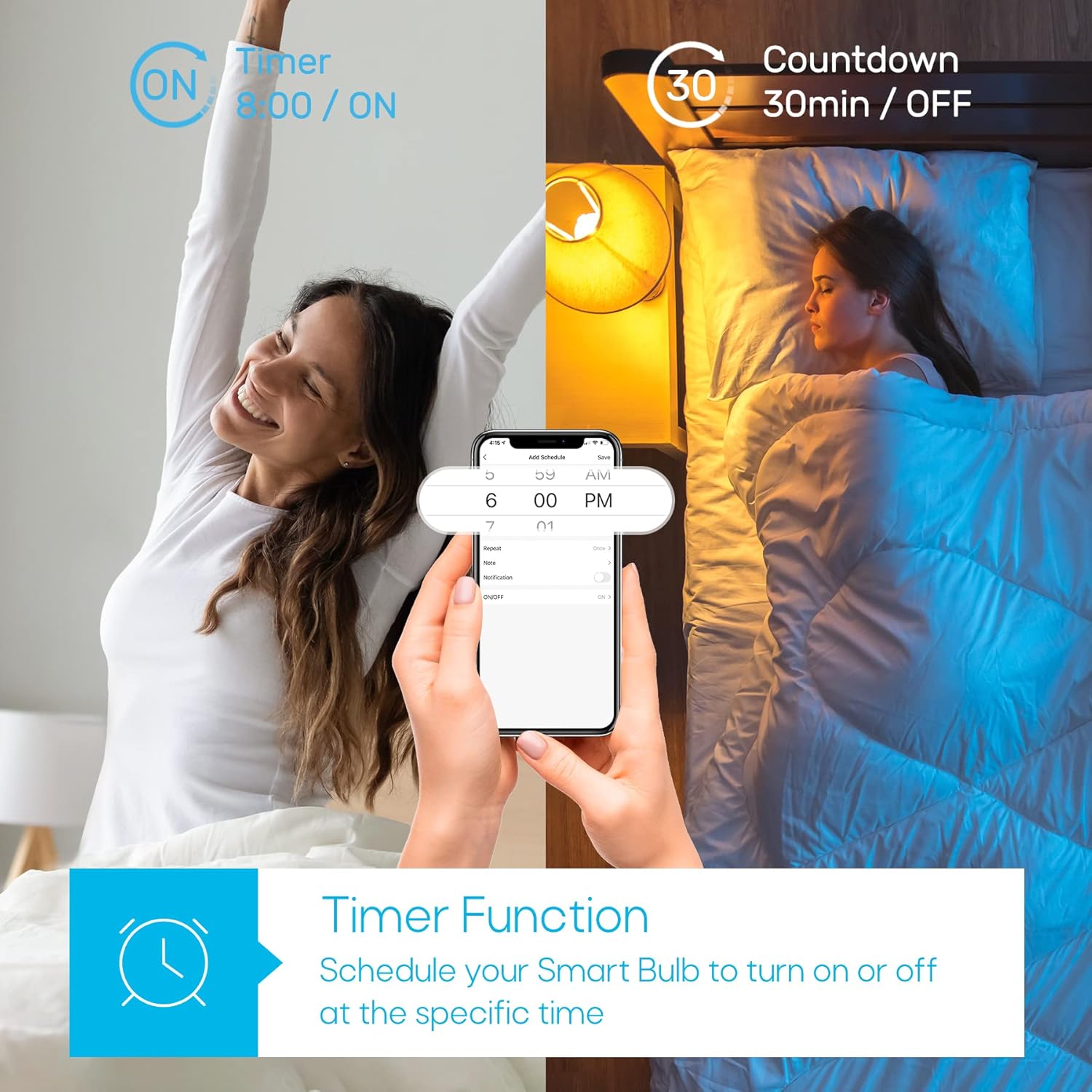
Image: A house with various rooms illuminated by smart bulbs, illustrating remote and group control capabilities through a mobile application.
Timer Function & Schedules
Set schedules for your bulbs to turn on or off at specific times, or use the countdown timer for temporary lighting needs.
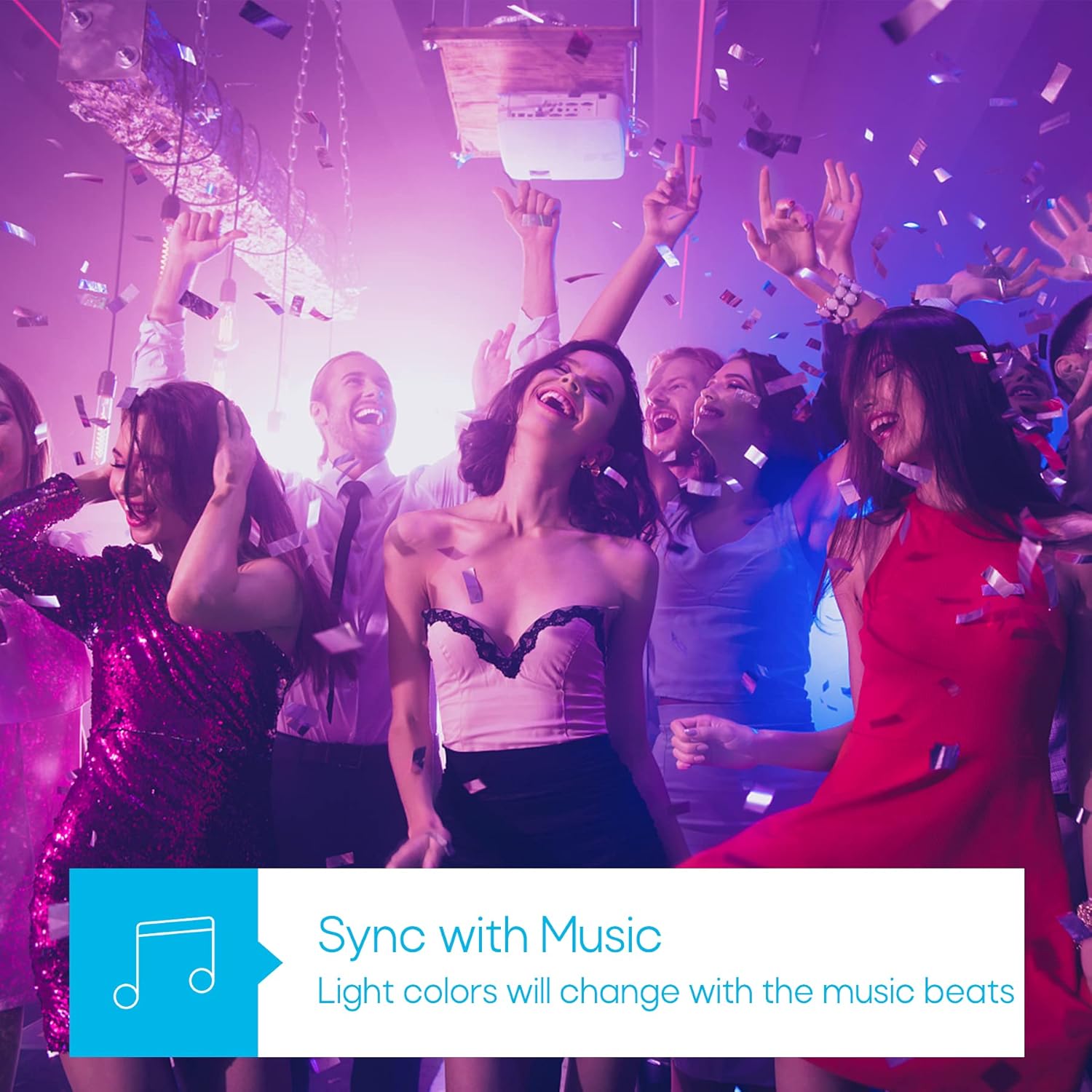
Image: A visual representation of the timer function, showing a smart bulb turning on for waking up and turning off for sleeping, managed via a smartphone app.
Mod Penyegerakan Muzik
Synchronize your lighting with music beats for an immersive audio-visual experience, perfect for parties or relaxation.

Image: A group of people enjoying a party with dynamic, color-changing smart lighting synchronized to music.
Biorhythm Mode
Adjust lighting automatically throughout the day to mimic natural sunlight, supporting your body's natural circadian rhythm.

Image: A visual guide to the Biorhythm mode, demonstrating how the smart bulb adjusts its light temperature and brightness to align with natural daylight patterns.
Arahan Persediaan
- Pasang Mentol: Screw the TRAMSMART Smart Bulb A19 into a standard E26/E27 light socket. Ensure the power is off before installation.
- Hidupkan kuasa: Turn on the light switch. The bulb should blink rapidly, indicating it's in pairing mode. If it doesn't blink, turn the light switch off and on three times (on-off-on-off-on) to reset it.
- Muat turun Apl: Download the recommended smart home app (e.g., Smart Life, Tuya Smart) from your smartphone's app store (iOS or Android).
- Daftar/Log Masuk: Buka aplikasi dan daftar untuk akaun baharu atau log masuk jika anda sudah memilikinya.
- Tambah Peranti: In the app, tap "Add Device" or the "+" icon. Select "Lighting" then "Light Source (Wi-Fi)".
- Sambung ke Wi-Fi: Confirm the bulb is blinking rapidly. Enter your 2.4 GHz Wi-Fi network password. Note: The bulb only supports 2.4 GHz Wi-Fi networks.
- Berpasangan: The app will begin pairing with the bulb. Once connected, you can rename the bulb and start controlling it.
- Connect to Voice Assistant (Optional):
- Untuk Alexa: Open the Alexa app, go to "Skills & Games," search for the smart home app (e.g., Smart Life), enable the skill, and link your account. Then, discover devices.
- Untuk Pembantu Google: Open the Google Home app, tap "Set up device," then "Works with Google," search for the smart home app, link your account, and assign the bulb to a room.
Arahan Operasi
Using the Smart Home App:
- Hidup/Mati: Tap the power icon next to the bulb's name to turn it on or off.
- Pelarasan Warna: Select the bulb, then navigate to the "Color" tab. Choose from the color wheel or preset scenes.
- Pelarasan Cahaya Putih: Select the bulb, then navigate to the "White" tab. Adjust brightness and color temperature (warm to cool white).
- Peredupan: Use the brightness slider in either the "Color" or "White" tab to adjust the light intensity from 1% to 100%.
- Pemilihan Adegan: The app offers various preset scenes (e.g., Reading, Party, Relax). You can also create custom scenes.
- Pemasa & Jadual: Access the "Schedule" or "Timer" function within the bulb's settings to set automated on/off times or countdowns.
- Penyegerakan Muzik: In the app, select the "Music" mode. The bulb's colors will change in rhythm with music played through your phone's microphone.
- Kawalan Kumpulan: Create groups of bulbs in the app to control multiple lights simultaneously.
Menggunakan Perintah Suara:
Once connected to Alexa or Google Assistant, use commands such as:
- "Alexa/Hey Google, turn on [Bulb Name]."
- "Alexa/Hey Google, turn off [Bulb Name]."
- "Alexa/Hey Google, set [Bulb Name] to blue."
- "Alexa/Hey Google, dim [Bulb Name] to 50%."
- "Alexa/Hey Google, make [Bulb Name] warmer/cooler."
Penyelenggaraan
- Pembersihan: Pastikan mentol telah dimatikan dan sejuk sebelum membersihkan. Lap dengan kain lembut dan kering. Jangan gunakan pembersih cecair.
- Storan: Jika menyimpan mentol untuk tempoh yang lama, simpan di tempat yang sejuk dan kering, jauh daripada cahaya matahari langsung.
- Kemas kini Firmware: Periodically check the smart home app for firmware updates to ensure optimal performance and security.
Menyelesaikan masalah
| Masalah | Kemungkinan Punca | Penyelesaian |
|---|---|---|
| Mentol tidak menyala. | No power; loose connection; bulb faulty. | Check light switch and power supply. Ensure bulb is screwed in tightly. Test bulb in another fixture. |
| Bulb not pairing/connecting to app. | Incorrect Wi-Fi band (not 2.4 GHz); incorrect password; bulb not in pairing mode; Wi-Fi signal too weak. |
|
| Kawalan suara tidak berfungsi. | Not linked to Alexa/Google Assistant; incorrect device name; internet connectivity issues. |
|
| Bulb disconnects frequently. | Isyarat Wi-Fi lemah; kesesakan rangkaian. |
|
| Colors appear dim or inaccurate. | Brightness setting too low; specific color limitations. |
|
Spesifikasi
| Ciri | Perincian |
|---|---|
| Model | A19 |
| Jenama | TRAMSMART |
| Wattage | 9 Watt |
| Keluaran Lumen | 800 Lumen |
| Suhu Warna | 2700K - 6500K (Putih Boleh Diputar) |
| Pilihan Warna | 16 Juta Warna RGB |
| Ketersambungan | Wi-Fi (2.4 GHz only) & Bluetooth |
| Keserasian Pembantu Suara | Amazon Alexa, Pembantu Google |
| Boleh dimalapkan | Yes (via app/voice control) |
| Ciri Khas | Dimmable, Color Changing, Music Sync, Timer, Schedule, Group Control, Biorhythm Mode |
| Saiz Bentuk Mentol | A19 |
| Dimensi (lebih kurang) | 14.1 x 12.8 x 12.6 cm (Pakej) |
| Bateri Diperlukan | Tidak |
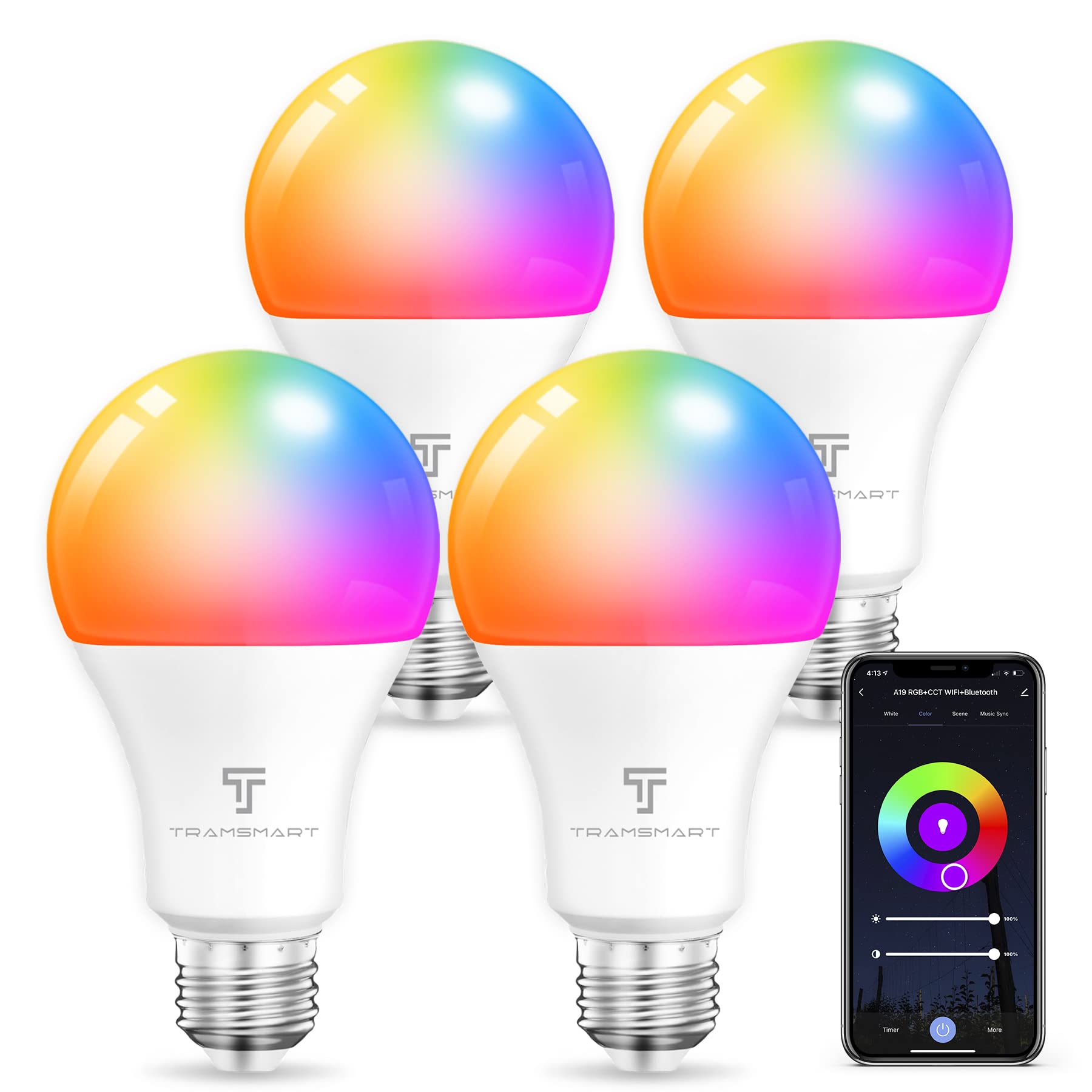
Image: TRAMSMART Smart Bulb A19 showing its physical dimensions and a summary of its features.
Waranti dan Sokongan
TRAMSMART products typically come with a limited warranty. Please refer to the warranty card included with your purchase or visit the official TRAMSMART website for detailed warranty information and terms. For technical support, troubleshooting assistance, or any product-related inquiries, please contact TRAMSMART customer service through their official channels. Contact information can usually be found on the product packaging or the brand's webtapak.
Nota: Simpan resit pembelian anda sebagai bukti pembelian untuk tuntutan waranti.
Ask a question about this manual
Ask about setup, troubleshooting, compatibility, parts, safety, or missing instructions. Manuals+ will review the question and use this page’s manual context to help answer it.