
1. Pengenalan
The MiraScreen G2M is a 1080P HDMI Wireless Display Receiver designed to mirror content from your smartphone, tablet, or PC onto a larger HD display such as a TV or projector. It supports various wireless display protocols including DLNA, AirPlay, and Miracast, providing a versatile solution for sharing media and presentations.

Image 1.1: The MiraScreen G2M Wireless Display Dongle, a compact device for screen mirroring.
2. Kandungan Pakej
- MiraScreen G2M Wireless Display Receiver
- USB Power Cable with Wi-Fi Antenna
- Manual Pengguna
3. Panduan Persediaan
3.1. Sambungan Perkakasan
- Connect the MiraScreen G2M dongle into an available HDMI port on your TV or projector.
- Connect the USB power cable to the MiraScreen G2M dongle.
- Plug the other end of the USB power cable into a USB power adapter (5V/1A recommended, not always included) or a USB port on your TV that provides sufficient power. Ensure the Wi-Fi antenna is positioned for optimal signal reception.
- Power on your TV/projector and select the correct HDMI input source.

Image 3.1: Diagram illustrating the connection of the MiraScreen G2M to a display and power source.
3.2. Initial Configuration (Connecting to Wi-Fi)
Once connected, the MiraScreen G2M will display a setup screen on your TV. This screen will show the device's Wi-Fi name (SSID) and password.
- On your smartphone, tablet, or PC, go to Wi-Fi settings and connect to the MiraScreen's SSID (e.g., "MiraScreen-XXXX").
- Enter the password displayed on your TV screen.
- Buka a web browser on your device and navigate to the IP address shown on the TV screen (e.g., 192.168.203.1).
- In the MiraScreen settings page, select "Internet" or "Wi-Fi Setup" to connect the dongle to your home Wi-Fi network. This allows the dongle to access the internet and receive updates.
- After connecting the dongle to your home Wi-Fi, your device will automatically reconnect to your home Wi-Fi network.
4. Arahan Operasi
The MiraScreen G2M supports various mirroring protocols. The method for casting depends on your device's operating system.
4.1. iOS Devices (AirPlay)
For Apple iPhones and iPads, use the built-in AirPlay feature:
- Ensure your iOS device is connected to the same Wi-Fi network as the MiraScreen G2M.
- Swipe down from the top-right corner (or up from the bottom for older models) to open Control Center.
- Tap "Screen Mirroring" or "AirPlay Mirroring".
- Select the MiraScreen device from the list. Your iOS device screen will now be mirrored to the display.
4.2. Android Devices (Miracast/Google Home)
For Android smartphones and tablets, use Miracast or Google Home (if supported):
- Ensure your Android device is connected to the same Wi-Fi network as the MiraScreen G2M.
- Navigate to your device's settings and look for "Cast," "Smart View," "Wireless Display," "Screen Mirroring," or similar options. The exact name varies by manufacturer.
- Select the MiraScreen device from the list. Your Android device screen will now be mirrored.
- Alternatively, for devices supporting Google Home, you can cast your screen through the Google Home app.
4.3. Windows PCs (Miracast)
For Windows 8.1 and Windows 10/11 PCs:
- Ensure your PC is connected to the same Wi-Fi network as the MiraScreen G2M.
- Tekan ke Kekunci Windows + P.
- Select "Connect to a wireless display" or "Duplicate/Extend" and choose the MiraScreen device.
4.4. macOS Devices (AirPlay)
For Apple MacBooks and iMacs:
- Ensure your Mac is connected to the same Wi-Fi network as the MiraScreen G2M.
- Click the AirPlay icon (a rectangle with an upward-pointing arrow) in the menu bar.
- Select the MiraScreen device from the list.

Image 4.1: The MiraScreen G2M enables wireless large screen display from mobile devices.

Image 4.2: Enjoy mobile games on a larger display by mirroring your device with the MiraScreen G2M.

Image 4.3: Transform your living room into a home theater by streaming content to your TV via MiraScreen G2M.
5. Keserasian
The MiraScreen G2M offers wide compatibility with various operating systems:
- iOS: Versi 8.0 dan ke atas
- Android: Versi 4.2 dan ke atas
- Windows: Versi 8.1 dan ke atas
- macOS: Version 10 (OS X) and above
It supports high-definition display devices such as notebooks, big screen TVs, and projectors.
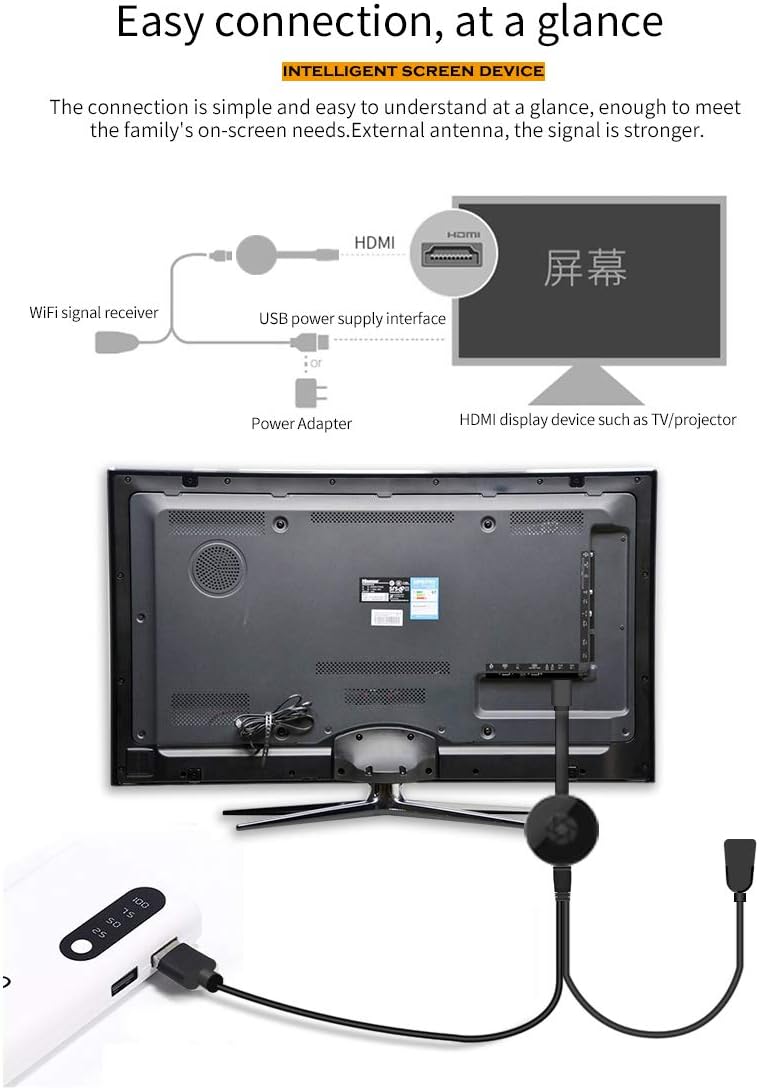
Image 5.1: The MiraScreen G2M is compatible with a range of operating systems including iOS, Android, Windows, and macOS.
6. Penyelenggaraan
To ensure the longevity and optimal performance of your MiraScreen G2M:
- Keep the device in a dry environment and away from direct sunlight.
- Elakkan daripada mendedahkan peranti kepada suhu yang melampau.
- Jangan buka peranti. Pembaikan tanpa kebenaran akan membatalkan jaminan.
- Bersihkan peranti dengan kain lembut dan kering. Jangan gunakan pembersih cecair.
- Pastikan pengudaraan yang betul di sekeliling peranti semasa operasi.
7. Penyelesaian masalah
7.1. No Display on TV/Projector
- Ensure the MiraScreen G2M is securely plugged into the HDMI port.
- Verify that the USB power cable is connected and receiving sufficient power (5V/1A). Try a different USB power adapter or port.
- Check that your TV/projector is set to the correct HDMI input source.
- Try restarting the MiraScreen G2M by unplugging and re-plugging the power cable.
7.2. Unable to Connect to MiraScreen Wi-Fi
- Ensure the MiraScreen G2M is powered on and displaying its SSID and password on the screen.
- Semak semula kata laluan Wi-Fi.
- Move closer to the MiraScreen G2M to improve signal strength.
- Restart your source device (phone/tablet/PC) and the MiraScreen G2M.
7.3. Lagging or Choppy Display
- Ensure your source device and the MiraScreen G2M are connected to a strong, stable Wi-Fi network.
- Reduce the distance between your source device, the MiraScreen G2M, and your Wi-Fi router.
- Kurangkan gangguan daripada peranti wayarles lain.
- Close unnecessary applications on your source device to free up resources.
7.4. Tiada Audio
- Check the volume levels on both your source device and the TV/projector.
- Ensure your source device is not muted.
- Some applications may require specific audio settings; check the app's audio output options.
8. Spesifikasi
| Ciri | Perincian |
|---|---|
| Nama Model | G2M |
| Resolusi | 1080p (1920x1080 Pixels) |
| Teknologi Ketersambungan | Wi-Fi |
| Jenis Penyambung | HDMI |
| Perkhidmatan Internet yang Disokong | AirPlay, DLNA, Miracast |
| OS yang disokong | iOS 8.0+, Android 4.2+, Windows 8.1+, macOS 10+ |
| Berat Barang | 5.3 auns |
| Dimensi Pakej | 4.21 x 4.17 x 1.26 inci |
| UPC | 619191719310 |
9. Waranti dan Sokongan
MiraScreen products typically come with a limited manufacturer's warranty. Please refer to the packaging or the official MiraScreen webtapak untuk terma dan syarat waranti tertentu.
For technical support or further assistance, please contact MiraScreen customer service through their official channels. Keep your purchase receipt for warranty claims.