
pengenalan
This manual provides detailed instructions for the BINIZE Portable Carplay Screen Navigation system. It covers setup, operation, and maintenance to ensure optimal performance and user experience.
Maklumat Keselamatan
- Pastikan peranti dipasang dengan selamat dan tidak menghalang anda view atau mengganggu kawalan kenderaan.
- Connect the power cord only to a 12V cigarette lighter port.
- Jangan cuba membuka atau mengubah suai peranti.
- Sentiasa utamakan pemanduan yang selamat. Jangan kendalikan peranti dengan cara yang mengalihkan perhatian anda dari jalan raya.
Kandungan Pakej
Sahkan bahawa semua item terdapat dalam pakej:
- BINIZE Portable Carplay Screen Navigation Unit
- Kabel Kuasa Pemetik Rokok
- Kabel Sambungan USB
- Kabel Output Audio (RCA)
- Mounting Bracket with 3M Adhesive
- Alat Kawalan Jauh
- Manual Pengguna (dokumen ini)
Persediaan
1. Memasang Peranti
Pilih lokasi yang sesuai pada papan pemuka anda yang tidak menghalang anda view atau kawalan kenderaan.

The base of the mounting bracket comes with 3M adhesive. Clean the dashboard surface thoroughly before attaching the base. Securely attach the unit to the bracket.

Laraskan sudut skrin untuk optimum viewing.
2. Sambungan Kuasa
Connect the cigarette lighter power cable to the device and insert it into your vehicle's 12V cigarette lighter port. The device will power on automatically.

Ensure the vehicle's voltage ialah antara 12V dan 14V.
This video demonstrates the initial power-up sequence of the BINIZE Portable Carplay Screen Navigation unit by connecting it to a cigarette lighter port. It shows the "welcome" screen appearing upon successful power-on.
Arahan Operasi
1. Initial Setup and Language Selection
Upon first power-on, the device will display the home screen. Navigate to the "Settings" menu to select your preferred language.

2. Pilihan Output Audio
The monitor itself does not have internal speakers. Sound is routed through your original car audio system.
Pemancar FM
To use the FM transmitter, set the device's FM frequency to match an unused FM channel on your car's stereo.

Ensure both the device and your car stereo are tuned to the same FM frequency for audio output.
Output Audio RCA
For additional audio requirements, such as connecting to a subwoofer or amplifier, use the two RCA ports (White: Audio Out Left, Red: Audio Out Right).
3. Apple CarPlay Connection
To use Apple CarPlay, connect your iPhone to the device using an original Apple data cable via the USB port on the right side of the player.
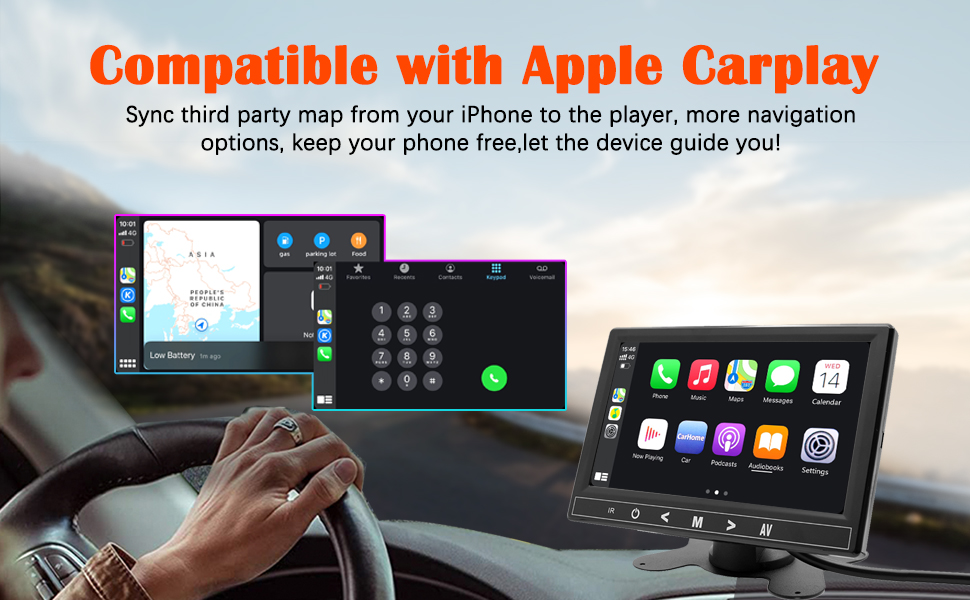
Select "i-Play" in the device settings. Grant any necessary permissions on your iPhone.
This video demonstrates how to connect an iPhone to the BINIZE Portable Carplay Screen Navigation for Apple CarPlay functionality. It shows the steps to select "i-Play" in settings and connect the original data cable.
4. Android Auto Connection
To use Android Auto, connect your Android phone to the device using an original data cable via the USB port on the right side of the player.

Select "A-Auto" in the device settings. Grant any necessary permissions on your Android phone.
This video illustrates the process of connecting an Android phone to the BINIZE Portable Carplay Screen Navigation for Android Auto. It guides the user to select "A-Auto" in settings and connect the data cable.
5. MirrorLink (iPhone)
To mirror your iPhone screen, connect your iPhone to the device using an original Apple data cable via the USB port on the right side of the player.
Select "i-Mirror" in the device settings. Grant permissions on your iPhone. The iPhone screen will be projected onto the player's screen.
This video demonstrates the MirrorLink function for iPhone, showing how to connect the device and mirror the phone's display.
6. MirrorLink (Android Phone)
To mirror your Android phone screen, connect your Android phone to the device using an original data cable via the USB port on the right side of the player.
Select "A-Link" in the device settings. Grant permissions on your Android phone. The Android phone screen will be projected onto the player's screen.
This video demonstrates the MirrorLink function for Android phones, showing how to connect the device and mirror the phone's display.
7. USB Flash Drive Reading
Insert a USB flash drive into the USB extension cable to play music or videos. The device supports various media formats.
8. Pengecasan Telefon
The USB extension cable can also be used to charge your mobile phone.
Penyelenggaraan
- Pastikan skrin bersih menggunakan kain lembut dan kering. Elakkan pembersih yang kasar.
- Pastikan semua sambungan kabel selamat.
- Elakkan daripada mendedahkan peranti kepada suhu yang melampau atau cahaya matahari langsung untuk tempoh yang lama.
Menyelesaikan masalah
| Masalah | Kemungkinan Punca | Penyelesaian |
|---|---|---|
| Peranti tidak dihidupkan. | No power from cigarette lighter. | Check vehicle's 12V port. Ensure power cable is securely connected. |
| Tiada keluaran bunyi. | FM frequency not synchronized or incorrect RCA connection. | Match FM frequency on device and car stereo. Verify RCA cable connections. |
| CarPlay/Android Auto tidak bersambung. | Non-original data cable, incorrect settings, or phone permissions. | Use original data cable. Check "i-Play" or "A-Auto" settings. Grant all necessary phone permissions. |
| MirrorLink not working. | Incorrect settings or phone permissions. | Check "i-Mirror" or "A-Link" settings. Grant all necessary phone permissions. |
| Screen freezes or is unresponsive. | Gangguan perisian sementara. | Restart the device by unplugging and re-plugging the power cable. |
For further assistance, please contact BINIZE customer support.
Spesifikasi
| Ciri | Perincian |
|---|---|
| Jenama | BINIZE |
| Nombor Model | B09DSMJ59X |
| Teknologi Ketersambungan | Bluetooth, RCA, USB |
| Jenis Pengawal | Android, Google Assistant |
| Ciri Khas | Skrin sentuh |
| Peranti Serasi | Telefon pintar |
| Mod Keluaran Audio | Stereo |
| Bilangan Saluran | 4 |
| Pengekodan Video | H.264, H.265/HEVC |
| Kaedah Kawalan | Sentuh |
| Teknologi Tanpa Wayar | Bluetooth |
| Input Kuasa | 12V (melalui pemetik api) |
Nota: Spesifikasi tertakluk kepada perubahan tanpa notis terlebih dahulu.
Waranti dan Sokongan
BINIZE products come with a standard manufacturer's warranty. Please refer to the warranty card included in your package for specific terms and conditions.
For technical support, warranty claims, or any other inquiries, please visit the official BINIZE webtapak atau hubungi pasukan perkhidmatan pelanggan mereka.