
1. Produk Lebihview
The NETVUE Sentry 2 is a 1080P outdoor security camera designed to provide comprehensive surveillance for your home. It features advanced functionalities such as 360° pan and 110° tilt for wide area coverage, real-time motion and human detection, two-way audio communication, and enhanced night vision capabilities. Its IP66 weatherproof rating ensures reliable performance in various outdoor conditions.
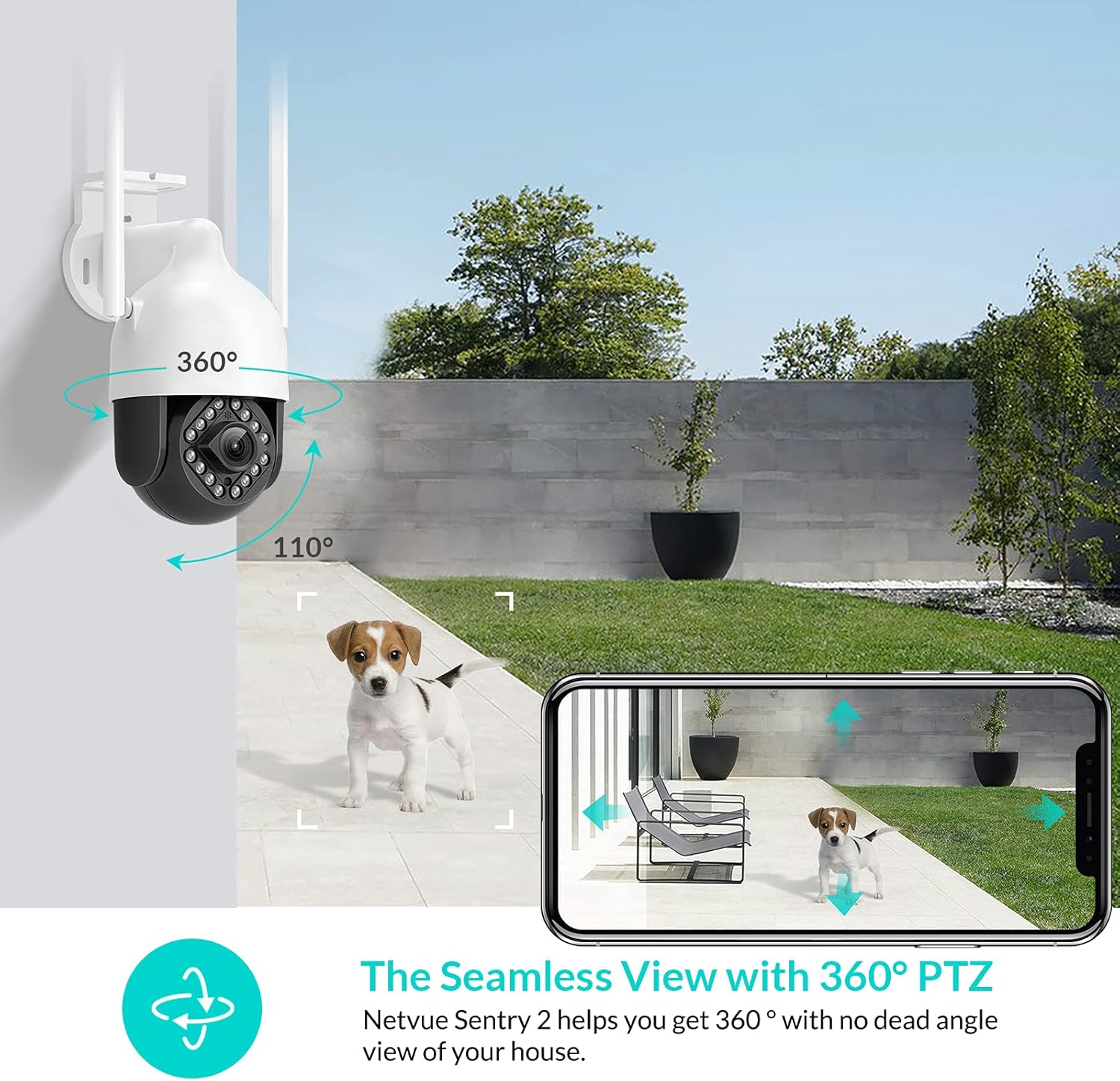
Image: NETVUE Sentry 2 Outdoor Security Camera showcasing its 360° pan and 110° tilt view.
2. Apa yang ada di dalam Kotak
Upon unboxing your NETVUE Sentry 2 camera, please verify that all components are present:
- NETVUE Sentry 2 Outdoor Security Camera
- Penyesuai Kuasa
- Pendakap Pemasangan
- Skru Pemasangan dan Penambat Dinding
- Waterproof Kit for Cable Connections
- Manual Pengguna (dokumen ini)
For a visual guide on the product and its components, please refer to the official product video below:
Video: Official Netvue Outdoor Security Camera Sentry 2 overview, including unboxing and installation steps.
3. Persediaan dan Pemasangan
3.1 Menghidupkan
- Connect the power adapter to the camera's power input.
- Palamkan penyesuai kuasa ke soket elektrik standard.
- Wait for the camera to power on and initiate its self-test.
3.2 Muat Turun Apl dan Pembuatan Akaun
- Download the official NETVUE app from your device's app store (iOS or Android).
- Open the app and create a new account, or log in if you already have one.
3.3 Sambungan Wi-Fi
The NETVUE Sentry 2 camera supports 2.4GHz Wi-Fi networks. Ensure your mobile device is connected to a 2.4GHz Wi-Fi network during the setup process.
- In the NETVUE app, tap 'Add Device' and select your camera model.
- Ikut arahan pada skrin untuk menyambungkan kamera ke rangkaian Wi-Fi anda. Ini biasanya melibatkan pengimbasan kod QR yang dijana oleh aplikasi dengan kanta kamera.

Image: NETVUE Sentry 2 camera demonstrating stable Wi-Fi connection in distance.
3.4 Pemasangan Fizikal
Pilih lokasi luar yang sesuai untuk memasang kamera, pastikan ia mempunyai cahaya yang jelas view and is within Wi-Fi range. The camera is IP66 weatherproof, suitable for various outdoor conditions.
- Use the mounting bracket as a template to mark drill holes on the desired surface.
- Tebuk lubang dan masukkan penambat dinding.
- Pasangkan pendakap pelekap pada permukaan menggunakan skru yang disediakan.
- Pasang kamera pada pendakap pelekap.
- Ensure all cable connections are properly sealed using the waterproof kit to prevent water ingress.
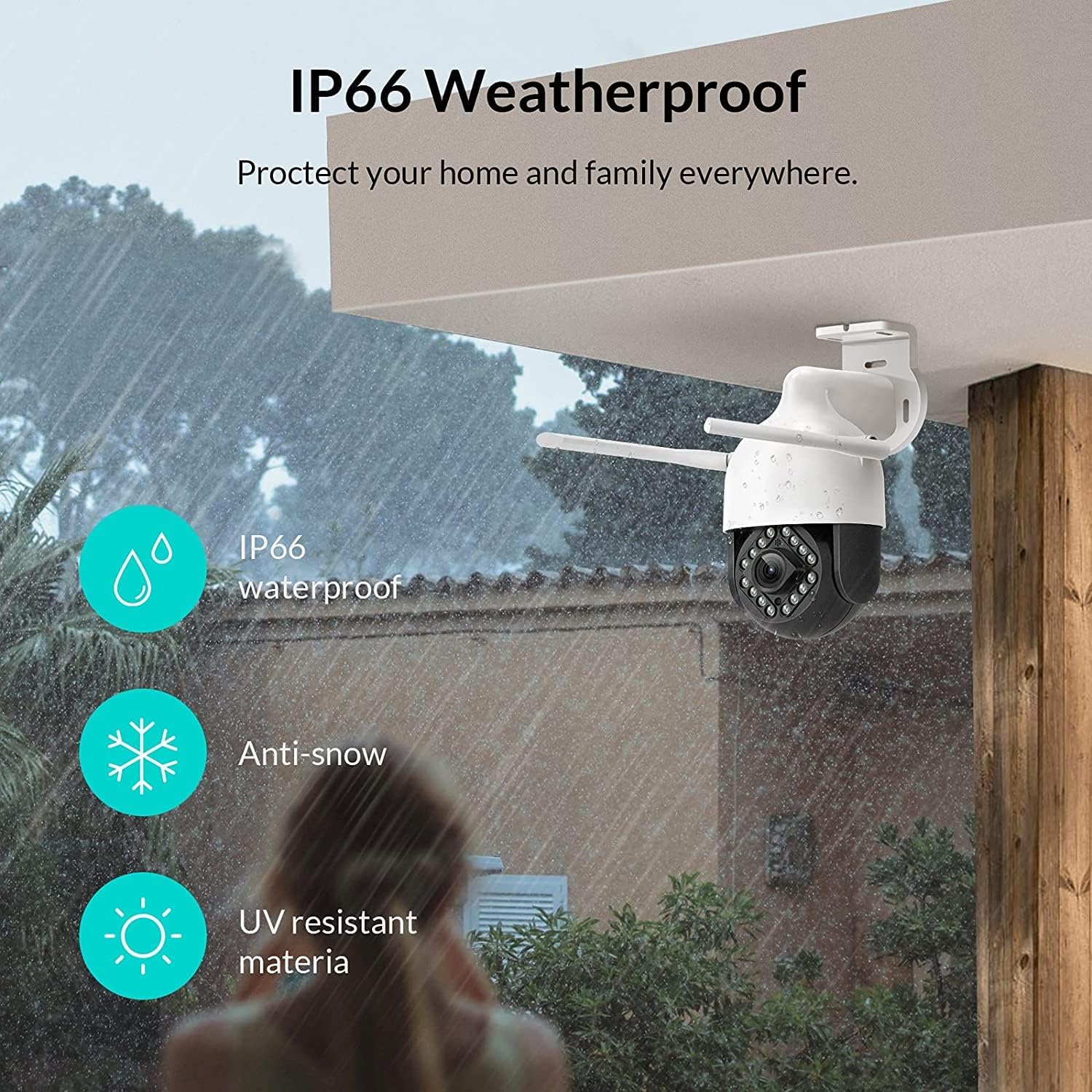
Image: NETVUE Sentry 2 camera highlighting its IP66 weatherproof features against rain and snow.
4. Mengendalikan Kamera
4.1 Langsung View dan Kawalan Pan/Tilt
Access the live video feed from your camera through the NETVUE app. You can remotely control the camera's pan (horizontal) and tilt (vertical) movements to adjust the viewsudut mengikut keperluan.
4.2 Gerakan dan Pengesanan Manusia
The camera is equipped with motion and human detection capabilities. When motion or a human figure is detected, you will receive immediate notifications on your mobile device.

Image: Real-time motion detection alert displayed on a smartphone from the NETVUE Sentry 2 camera.

Image: Motion and human detection alert from the NETVUE Sentry 2 camera, showing a person at the front door.
4.3 Audio Dua Hala
Utilize the two-way audio feature to communicate with individuals near the camera. This is useful for interacting with visitors or deterring unwanted guests.

Image: Two-way audio feature of the NETVUE Sentry 2 camera, allowing communication with a delivery person.
4.4 Penglihatan Malam
The NETVUE Sentry 2 camera is equipped with 16 infrared lights for super night vision, providing clear video footage even in low-light or complete darkness.

Image: Close-up of the NETVUE Sentry 2 camera's 16 infrared lights for super night vision.
5. Penyelenggaraan
5.1 Membersihkan Kamera
Periodically clean the camera lens and housing to ensure optimal performance. Use a soft, damp kain untuk mengelap habuk dan kotoran. Elakkan menggunakan bahan kimia yang keras atau bahan kasar yang boleh merosakkan kanta atau kemasan.
5.2 Kemas Kini Perisian Tegar
Regularly check the NETVUE app for available firmware updates. Keeping your camera's firmware up-to-date ensures you have the latest features, security enhancements, and bug fixes.
5.3 Pengurusan Storan
The camera supports local storage via a microSD card (not included) and cloud storage options. If using a microSD card, ensure it is properly formatted and regularly check its status within the app to prevent recording issues.
6. Penyelesaian masalah
6.1 Isu Sambungan Wi-Fi
- Ensure 2.4GHz Wi-Fi: The camera only supports 2.4GHz Wi-Fi. Confirm your router is broadcasting a 2.4GHz signal and your phone is connected to it during setup.
- Kekuatan Isyarat: Verify the camera is installed within a strong Wi-Fi signal range. Relocate the camera or use a Wi-Fi extender if necessary.
- Tetapan Penghala: Check your router settings for any restrictions that might prevent new devices from connecting.
6.2 SD Card Not Detected or Recording
- Reinsert SD Card: Power off the camera, remove the microSD card, and reinsert it firmly. Power the camera back on.
- Format Kad SD: Format the SD card through the NETVUE app. If issues persist, try a different, high-quality microSD card.
- Semak Tetapan Apl: Ensure recording settings are correctly configured in the NETVUE app.
6.3 No Motion Alerts
- Dayakan Makluman: Confirm motion detection and notification alerts are enabled in the NETVUE app settings.
- Laraskan Kepekaan: Adjust the motion detection sensitivity to an appropriate level.
- Check Schedule: Ensure motion detection is not disabled during specific times via a schedule.
6.4 Isu Umum
- Restart Camera: Disconnect the power adapter, wait 10 seconds, and reconnect it to restart the camera.
- Kemas kini Apl: Ensure your NETVUE app is updated to the latest version.
7. Spesifikasi
| Peranti Serasi | Monitor Video |
| Sumber Kuasa | AC/DC |
| Protokol Ketersambungan | Wi-Fi |
| Jenis Pengawal | Iris |
| Jenis Pemasangan | Lekap di dinding |
| Resolusi Tangkapan Video | 1080p |
| Bilangan Item | 1 |
| Bilangan Saluran | 1 |
| Teknologi Komunikasi Tanpa Wayar | Wi-Fi |
| Bateri Diperlukan? | Tidak |
| Teknologi Cahaya Rendah | Warna Malam |
| Jenis Makluman | Gerak Sahaja |
| Jenis Sumber Cahaya | Inframerah |
| Format Tangkapan Video | MPEG-4 |
| Kiraan Unit | 1.0 Kiraan |
| Penilaian Perlindungan Antarabangsa | IP66 |
| Dimensi Pakej | 11.3 x 6.1 x 5.91 inci |
| Berat Barang | 2.12 paun |
| Kegunaan Disyorkan Untuk Produk | Keselamatan Luar |
| Penggunaan Dalaman/Luar | Luar |
8. Waranti dan Sokongan
For warranty information and technical support, please refer to the official NETVUE website or contact NETVUE customer service directly. Keep your purchase receipt for warranty claims.