
pengenalan
This manual provides detailed instructions for the SSK Aluminum Dual Bay USB 3.0 to SATA Hard Drive Docking Station. This device allows for easy connection of 2.5-inch and 3.5-inch SATA HDDs and SSDs to your computer via USB 3.0, and features an offline cloning function for disk duplication without a computer connection.
Kandungan Pakej
- SSK Dual Bay Hard Drive Docking Station
- Kabel USB 3.0 Jenis-B ke Jenis-A
- Penyesuai Kuasa 12V/3A
- Manual Pengguna
Ciri-ciri Produk
- Dual Bay Design: Menyokong dua HDD/SSD SATA I/II/III 2.5 inci atau 3.5 inci secara serentak.
- Sokongan Kapasiti Tinggi: Each bay supports up to 20TB drives, for a total of 40TB.
- USB 3.0 with UASP: Provides fast data transfer speeds up to 5Gbps, enhanced by UASP for improved performance.
- Offline Cloning Function: Duplicate hard drives without connecting to a computer.
- Pemasangan Tanpa Alat: Easy plug-and-play setup for hard drives.
- Keserasian Luas: Serasi dengan sistem pengendalian Windows, macOS dan Linux.
- Pembinaan Tahan Lama: Features an aluminum alloy shell for heat dissipation and durability.
- Operating Status Indicators: LED lights indicate power, activity, and cloning progress.

Imej: Selesaiview of the SSK Dual Bay Docking Station, highlighting its compatibility with various drive sizes and operating systems. A laptop screen shows a file transfer in progress, demonstrating its use as an external drive reader.

Imej: Terperinci views of the SSK docking station's physical features, including its aluminum alloy casing, LED indicator, rear interface with USB 3.0 and power input, and the anti-skid footpad for stability.
Persediaan
- Sambungkan Kuasa: Connect the provided 12V/3A power adapter to the DC-12V port on the back of the docking station and then plug it into a power outlet. The power LED will illuminate.
- Masukkan Pemacu Keras: Gently insert your 2.5-inch or 3.5-inch SATA HDD/SSD into the drive slots (Slot A and Slot B) until they are securely seated. Ensure the SATA connectors align correctly.
- Sambung ke Komputer (untuk Pemindahan Data): If you intend to use the docking station for data transfer, connect the USB 3.0 cable from the Micro USB 3.0 port on the docking station to an available USB 3.0 port on your computer.
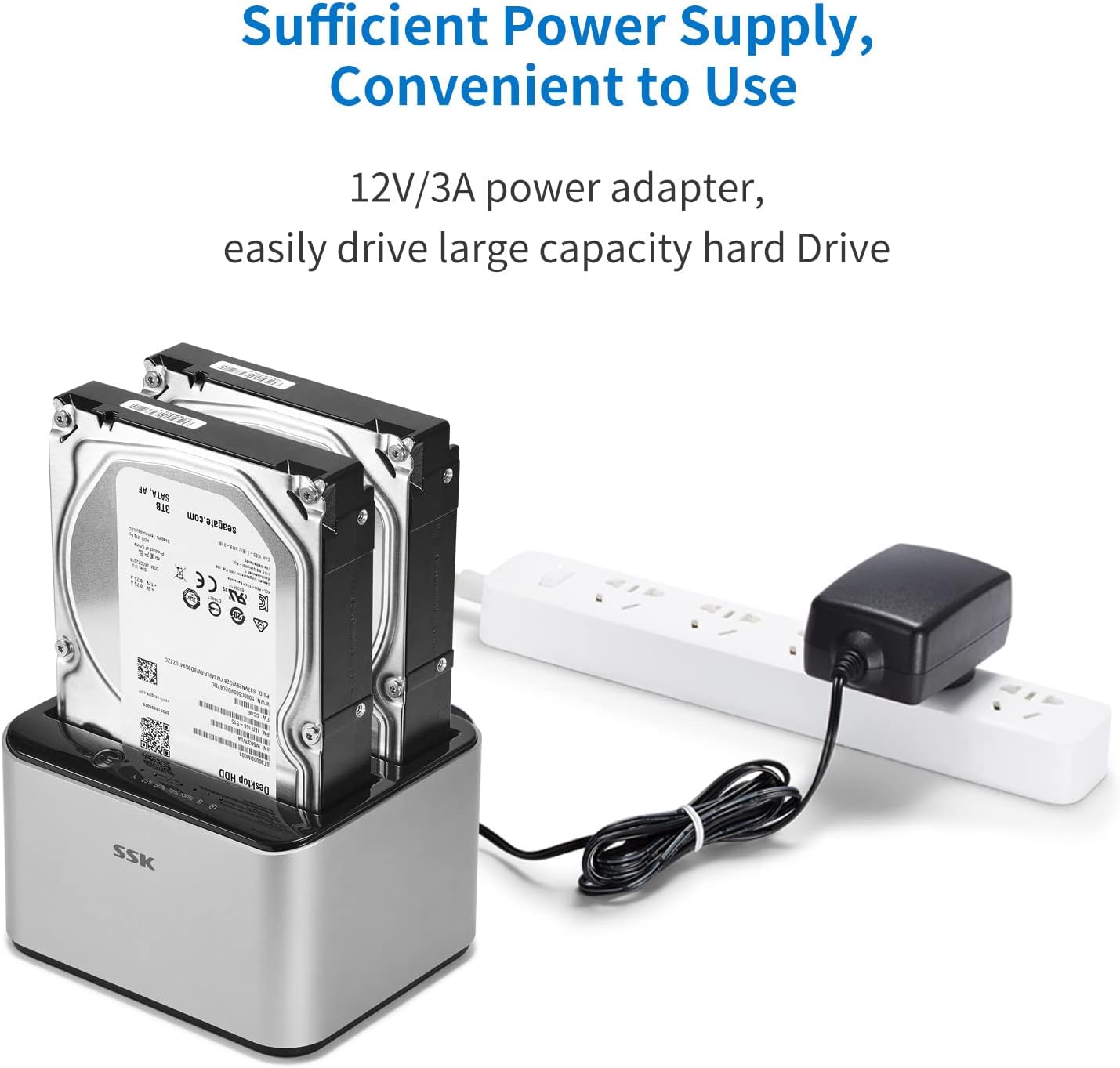
Image: The SSK docking station with two hard drives installed, demonstrating the connection of the 12V/3A power adapter to a power strip, ensuring sufficient power for large capacity drives.
Arahan Operasi
A. Data Transfer Mode
- Ensure the docking station is powered on and connected to your computer via the USB 3.0 cable.
- Insert the SATA HDD/SSD into the desired slot(s).
- Your computer's operating system should automatically detect the drives. You may need to initialize and format new drives via Disk Management (Windows) or Disk Utility (macOS) before use.
- Access the drives as external storage devices to transfer files.

Image: A visual representation of the speed advantage of USB 3.0 with UASP compared to traditional USB 3.0, illustrating faster data transfer rates for both reading and writing, with a hard drive docked in the station.
B. Offline Cloning Mode
The offline cloning function allows you to duplicate a source hard drive to a target hard drive without a computer connection. Warning: All data on the target disk will be erased during the cloning process. Ensure you have backed up any important data from the target disk before proceeding.
- Putuskan sambungan daripada Komputer: Ensure the USB cable is disconnected from the docking station and your computer. The docking station should only be connected to its power adapter.
- Insert Source Disk: Insert the Source Disk (the disk you want to copy FROM) into Slot A (Source).
- Insert Target Disk: Insert the Target Disk (the disk you want to copy TO) into Slot B (Target). The Target Disk must have a capacity equal to or greater than the Source Disk.
- Mulakan Pengklonan: Press and hold the 'Clone' button (usually located on the back or top panel) for approximately 3-5 seconds until the cloning progress LEDs begin to flash.
- Pantau Kemajuan: The LED indicators (e.g., 25%, 50%, 75%, 100%) will illuminate sequentially to show the cloning progress. When all LEDs are solid, the cloning process is complete.
- penyiapan: Once cloning is complete, power off the docking station and safely remove the drives.

Image: The SSK docking station in offline cloning mode, illustrating the placement of the Source Disk in Slot A and the Target Disk in Slot B. The progress LEDs on the right indicate the cloning status, from 25% to 100% completion.
Penyelenggaraan
- Pembersihan: Use a soft, dry cloth to clean the exterior of the docking station. Do not use liquid cleaners or solvents.
- Storan: Simpan stesen dok di tempat yang sejuk dan kering, jauh daripada cahaya matahari langsung dan suhu yang melampau.
- Pengendalian Pemacu: Always handle hard drives with care. Avoid dropping or subjecting them to physical shock.
- Penyingkiran Selamat: When connected to a computer, always use the 'Safely Remove Hardware' option (Windows) or 'Eject' function (macOS) before disconnecting the USB cable or powering off the docking station to prevent data corruption.
Menyelesaikan masalah
- Pemanduan Tidak Dikenali:
- Pastikan penyesuai kuasa disambungkan dengan kukuh dan stesen dok dihidupkan.
- Verify the USB 3.0 cable is firmly connected to both the docking station and your computer.
- Check if the hard drive is properly seated in the slot.
- For new drives, ensure they are initialized and formatted in your operating system's disk management utility.
- Try connecting the docking station to a different USB port on your computer or a different computer.
- Cloning Fails or Does Not Start:
- Ensure the USB cable is disconnected from the computer during offline cloning.
- Verify the Source Disk is in Slot A and the Target Disk is in Slot B.
- Confirm the Target Disk's capacity is equal to or greater than the Source Disk's capacity.
- Ensure both drives are securely inserted.
- Try powering off and on the docking station before initiating cloning.
- Kelajuan Pemindahan Data Perlahan:
- Ensure you are connected to a USB 3.0 port on your computer. USB 2.0 ports will operate at slower speeds.
- Verify your operating system and drivers support UASP.
- The speed of the hard drive itself can be a limiting factor.
Spesifikasi
| Jenama | SSK |
| Model | B098CWGYSR |
| Antara Muka Perkakasan | USB, USB 3.0 |
| Jenis Pemacu yang Serasi | 2.5-inch & 3.5-inch SATA I/II/III HDD/SSD |
| Supported Drive Quantity | 2 |
| Kapasiti Maksimum Setiap Ruang | 20 TB |
| Kadar Pemindahan Data | Sehingga 5 Gbps (USB 3.0) |
| Platform Perkakasan | Windows, macOS, Linux |
| bahan | aluminium |
| Berat Barang | 0.47 Kilogram |
| Bekalan Kuasa | Penyesuai Kuasa 12V/3A |
Maklumat Keselamatan
- Jangan dedahkan peranti kepada air, lembapan atau suhu yang melampau.
- Elakkan daripada menjatuhkan atau menyebabkan peranti ini mengalami hentaman yang teruk.
- Jangan cuba membuka atau mengubah suai peranti. Ini akan membatalkan jaminan.
- Gunakan hanya penyesuai kuasa yang disediakan. Menggunakan penyesuai yang salah boleh merosakkan peranti.
- Pastikan pengudaraan yang betul di sekitar stesen dok semasa operasi.
Waranti dan Sokongan
SSK products are designed for reliability and performance. For warranty information or technical support, please refer to the warranty card included with your product or visit the official SSK website. If you encounter any issues not covered in this manual, please contact SSK customer service for assistance.