
1. Pengenalan
This manual provides instructions for the proper use, setup, and maintenance of your MESTEK Short Power Bank Charging USB Data Cable. Please read this manual carefully before using the product to ensure optimal performance and longevity. This cable is designed for efficient charging and data transfer with compatible Apple iPhone models.
2. Produk Lebihview
The MESTEK Short Power Bank Charging USB Data Cable is engineered for convenience and durability. It features a braided nylon exterior for enhanced strength and tangle-free use, along with fast charging capabilities. The cable includes a standard USB-A connector on one end and a Lightning connector on the other, making it compatible with various Apple iPhone models.
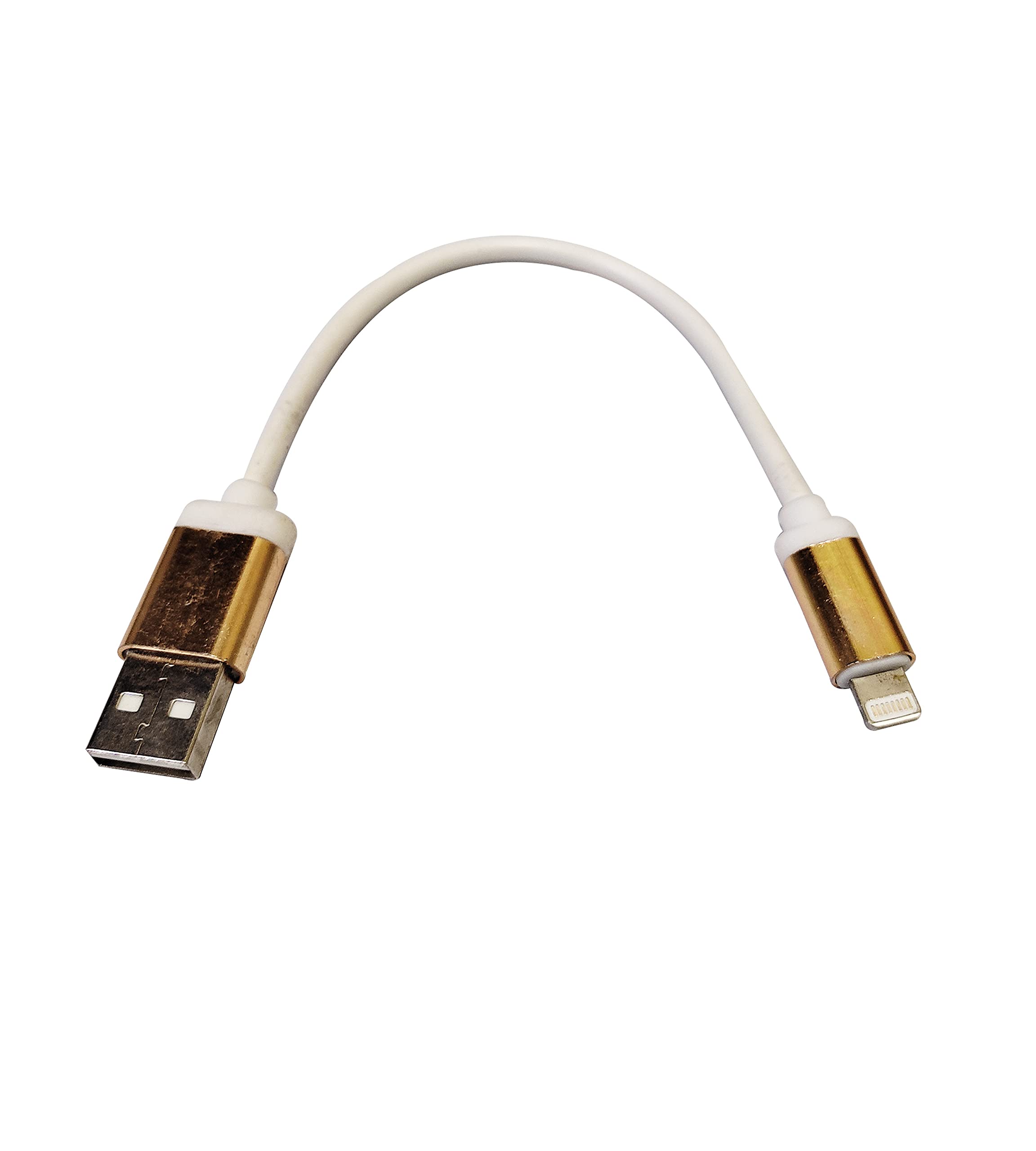
Image 1: MESTEK Short Power Bank Charging USB Data Cable. This image displays the white braided cable with gold-colored USB-A and Lightning connectors against a white background.
Ciri-ciri Utama:
- Pengecasan Cepat: Supports rapid power delivery to compatible devices.
- Braided Nylon Exterior: Provides durability and resistance to wear and tear.
- Reka Bentuk Tanpa Kusut: Reduces knots and makes storage easier.
- Compact Length: Ideal for use with power banks or in situations requiring a short cable.
3. Persediaan
Setting up your MESTEK USB Data Cable is straightforward. Follow these steps to begin charging or transferring data:
- Sambungkan ke Sumber Kuasa: Insert the USB-A end of the cable into a compatible USB power adapter, power bank, or computer USB port.
- Sambung ke Peranti: Insert the Lightning connector end of the cable into the charging port of your Apple iPhone.
- Sahkan Sambungan: Ensure both ends are securely connected. Your iPhone should indicate that it is charging or connected for data transfer.
4. Arahan Operasi
4.1 Mengecas Peranti Anda
- Once connected as described in the Setup section, your iPhone will begin charging automatically.
- For optimal fast charging, use a power adapter or power bank that supports fast charging protocols compatible with your iPhone.
- Monitor your device's battery indicator to confirm charging status.
4.2 Pemindahan Data
- Connect the USB-A end to a computer's USB port and the Lightning end to your iPhone.
- Your computer should recognize the iPhone as a connected device.
- Follow your computer's operating system or iTunes/Finder instructions to transfer photos, videos, music, or other data.
5. Penyelenggaraan
Proper care and maintenance will extend the life of your MESTEK USB Data Cable:
- Pembersihan: Gently wipe the cable and connectors with a dry, soft cloth. Avoid using harsh chemicals or abrasive materials.
- Storan: Simpan kabel di tempat yang sejuk dan kering, jauh daripada cahaya matahari langsung dan suhu yang melampau. Elakkan daripada menggulung atau membengkokkan kabel dengan ketat pada sudut tajam, terutamanya berhampiran penyambung.
- Pengendalian: Always grasp the connector head when plugging or unplugging the cable. Do not pull on the cable itself, as this can damage the internal wires.
- Elakkan Air: Keep the cable away from water and other liquids to prevent damage.
6. Penyelesaian masalah
If you encounter issues with your MESTEK USB Data Cable, consider the following troubleshooting steps:
- Peranti Tidak Mengecas:
- Pastikan kedua-dua hujung kabel disambungkan dengan selamat.
- Cuba gunakan penyesuai kuasa atau port USB yang lain.
- Test the cable with another compatible device to rule out a device-specific issue.
- Check the charging port on your iPhone for any debris or damage.
- Pengecasan perlahan:
- Ensure your power source (adapter/power bank) provides sufficient output for fast charging.
- Close unnecessary apps on your iPhone to reduce power consumption during charging.
- Isu Pemindahan Data:
- Pastikan pemacu komputer anda dikemas kini.
- Cuba port USB lain pada komputer anda.
- Restart both your iPhone and computer.
- Confirm that you have granted permission for the computer to access your iPhone's data if prompted.
If problems persist after attempting these steps, please contact MESTEK customer support.
7. Spesifikasi
| Atribut | Perincian |
|---|---|
| Jenama | MESTEK |
| Ciri Khas | Braided, Fast Charging, Tangle Free |
| Model Telefon yang Serasi | Apple iPhone 5, 5S, 6, 6 Plus, 6S, 6S Plus, 7, 7 Plus, 8, 8 Plus, X, XS, XR |
| Bahan Luar | nilon |
| Berat Barang | Kira-kira 200 g |
8. Waranti dan Sokongan
For warranty information or technical support, please refer to the product packaging or contact MESTEK customer service directly. Keep your purchase receipt as proof of purchase for any warranty claims.
MESTEK Customer Support: Please visit the official MESTEK website or contact your retailer for support contact details.