
pengenalan
This manual provides detailed instructions for the installation, operation, and maintenance of your Biostar TB360-BTC PRO 2.0 motherboard. Designed for cryptocurrency mining, this motherboard supports Intel 8th and 9th Generation Core processors and up to 12 GPUs. Please read this manual thoroughly before proceeding with installation and setup.
Produk Selesaiview
The Biostar TB360-BTC PRO 2.0 is a specialized motherboard built for high-performance cryptocurrency mining. It features an Intel B360 single-chip architecture and supports DDR4 memory.

Rajah 1: Atas-bawah view of the Biostar TB360-BTC PRO 2.0 motherboard, showing the LGA 1151 CPU socket, two DDR4 DIMM slots, and multiple PCIe slots.

Figure 2: Angled perspective of the motherboard, illustrating the arrangement of components and extensive connectivity for GPUs.
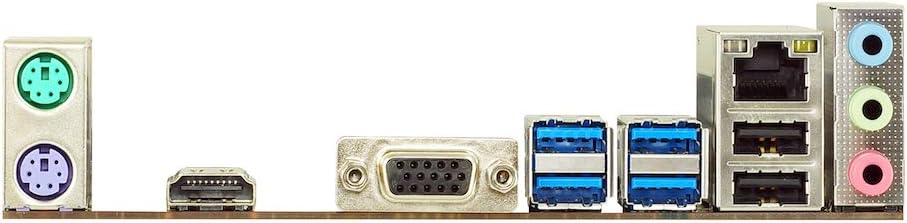
Figure 3: The rear input/output panel provides connectivity for peripherals, network, and display.
Ciri-ciri Utama
- Supports 9th & 8th Generation Intel Core Processor
- Intel B360 single chip architecture
- Support M.2 SATA III (6Gb/s) Connector
- Support 2-DIMM DDR4-1866/2133/2400/2666 up to 32G maximum capacity
- Support 12 x PCIe 3.0 slots
- Only 8th and 9th gen LGA 1151 CPUs with Integrated graphics are compatible
Panduan Persediaan
1. CPU and RAM Installation
Install your compatible 8th or 9th Generation Intel LGA1151 CPU (with integrated graphics) and DDR4 RAM into the motherboard. Ensure proper seating and secure retention.
2. Sambungan Kuasa
Connect the 24-pin ATX power connector to the motherboard.
Nota Penting: The 24-pin connector only supplies power to the motherboard. It does not provide additional power to the 8-pin EPS or the 6-pin AUX ports at the bottom of the motherboard. The 6-pin AUX ports on the bottom are output ports designed for attaching a PCIe cable to a riser or GPU. They are not designed to be plugged into a power supply.
3. Pemasangan GPU
Install your graphics cards into the PCIe 3.0 slots. Use powered risers for stability and optimal performance.
4. Sambungan Paparan
Plug the HDMI cable into the onboard HDMI port to connect to a display. The onboard HDMI is the primary video output.
5. Kuasa Awal Hidup
Power on your system using the power switch.
6. BIOS Settings
Access the BIOS setup utility during boot (usually by pressing DEL or F2). Configure the following settings:
- Navigasi ke Advanced > PCI Subsystem Settings.
- Tetapkan Menyahkod 4G di atas kepada Didayakan.
- Navigasi ke Chipset > PCH-IO Configuration.
- Tetapkan PCI Express Configuration > PCIe Speed kepada Gen2 or Gen1 (for all slots).
- Tetapkan Sokongan CSM kepada Dilumpuhkan.
- Navigasi ke Chipset > System Agent (SA) Configuration > PCI Express Configuration.
- Tetapkan PCIe x16 Speed kepada Gen2 or Gen1.
- pastikan Mod Perlombongan is Didayakan.
Nota: BIOS settings must be adjusted to support 12 GPUs.
Video: This video demonstrates the setup and operation of a mining rig using a similar motherboard, providing visual guidance for component installation and initial boot.
Arahan Operasi
Sistem Operasi
This motherboard is compatible with Windows 10. Ensure your operating system is installed in UEFI mode for proper functionality, especially when using M.2 drives.
Mining Software
Install your preferred cryptocurrency mining software. Configure it according to the software's instructions and your specific GPU setup.
Penyelenggaraan
- Regularly clean dust from the motherboard, GPUs, and fans to prevent overheating.
- Periodically check all cable connections (power, data, PCIe risers) to ensure they are secure.
- Monitor GPU temperatures and system stability to ensure optimal performance.
- Keep your BIOS and GPU drivers updated to the latest stable versions.
Menyelesaikan masalah
No Video When Booting
- Check that your CPU has internal graphics. CPUs ending with 'F' in the model number will NOT work.
- Ensure your CPU is an 8th or 9th Gen Intel LGA 1151. Other generations will NOT work.
- Try removing and replacing the CMOS battery.
Nota: The video titled "Didn't work." shows a system failing to boot, which could be related to these issues.
Motherboard Won't Boot or Recognize SSD/M.2 Drive
- If using an M.2 drive, ensure it's a SATA III drive. NVMe M.2 drives are NOT supported as they use PCIe lanes.
- Make sure the OS is installed on the drive in UEFI mode.
Nota: The video titled "Works great!" shows a functional mining rig, implying successful boot and drive recognition.
Motherboard Won't Boot After 4, 5, or 6 GPUs are Added
- Check all BIOS settings as outlined in the "Setup Guide" section.
- Ensure the OS is installed in UEFI mode.
- Risers are a common source of issues; check them if the above suggestions don't resolve the problem.
Nota: The video titled "Next generation superior mining board!! (Video proof!)" demonstrates a successful multi-GPU setup.
For further assistance, please contact support@deepinthemine.com.
Spesifikasi
| Ciri | Perincian |
|---|---|
| Dimensi Produk | 10 x 13 x 3 inci |
| Berat Barang | 2.16 paun |
| Pengeluar | Biostar |
| ASIN | B0985LF8XT |
| Nombor model item | TB360-BTC PRO 2.0 |
| Tarikh Mula-mula Tersedia | 28 Jun 2021 |
| Jenama | Biostar |
| Soket CPU | LGA 1151 |
| Peranti Serasi | Komputer Peribadi |
| Teknologi Memori RAM | DDR4 |
| Pemproses yang Serasi | Intel Core Generasi ke-8 |
| Jenis Chipset | Intel B360 |
| Kelajuan Jam Memori | 2666 MHz |
| Platform | Windows 10 |
| Nama Model | TB360-BTC PRO 2.0 |
| Model CPU | Teras i7 |
Waranti dan Sokongan
For warranty information, please refer to the documentation provided with your purchase or contact your retailer.
For technical support and troubleshooting, please contact Biostar customer service or email support@deepinthemine.com.