
pengenalan
This manual provides essential information for setting up, operating, maintaining, and troubleshooting your CyberpowerPC Gamer Xtreme Gaming PC. This system is designed for high-performance gaming and multitasking, featuring an AMD Ryzen 7 3700X processor, NVIDIA GeForce RTX 3060 graphics, 16GB DDR4 RAM, and a combination of SSD and HDD storage, running on Windows 10 Home 64-Bit.
1. Persediaan
1.1 Membongkar
Carefully remove the PC from its packaging. Ensure all accessories, including the power cable, keyboard, and mouse, are present. Retain the original packaging for future transport or service needs.

Rajah 1: Depan view of the CyberpowerPC Gamer Xtreme, highlighting its design and RGB lighting.
1.2 Menyambung Peranti
Connect your monitor, keyboard, mouse, and other peripherals to the appropriate ports on the rear and top of the PC. Ensure all connections are secure.
- Pantau: Connect your monitor to the graphics card's HDMI or DisplayPort output.
- Papan Kekunci dan Tetikus: Connect to any available USB ports (USB 2.0 or USB 3.0).
- Kuasa: Connect the power cable to the PC's power supply unit (PSU) and then to a grounded electrical outlet.
- Rangkaian: For wired internet, connect an Ethernet cable to the LAN port. For wireless, ensure the Wi-Fi antenna (if included) is attached.

Rajah 2: Bersudut view of the CyberpowerPC Gamer Xtreme, highlighting the front panel design and side ventilation.

Rajah 3: Atas view of the PC, illustrating the accessible front I/O ports and top ventilation.
1.3 Kuasa Hidupkan Awal dan Persediaan Windows
Press the power button located on the top panel of the PC. The system will boot up. Follow the on-screen instructions to complete the Windows 10 Home setup, including language selection, network connection, and user account creation.
2. Arahan Operasi
2.1 Hidupkan/Mati Kuasa
- Untuk Menghidupkan: Press the power button on the top panel.
- Untuk Mematikan: Klik butang Mula dalam Windows, kemudian pilih Kuasa > Matikan.
- Untuk Mulakan Semula: Klik butang Mula, kemudian pilih Kuasa > Mulakan Semula.
- Untuk Tidur: Klik butang Mula, kemudian pilih Kuasa > Tidur.
2.2 Menyambung ke Rangkaian
Your PC supports both wired (Ethernet) and wireless (Wi-Fi) network connections.
- Berwayar: Connect an Ethernet cable from your router/modem to the LAN port on the rear of the PC.
- wayarles: In Windows, click the network icon in the taskbar, select your Wi-Fi network, enter the password, and click Connect.
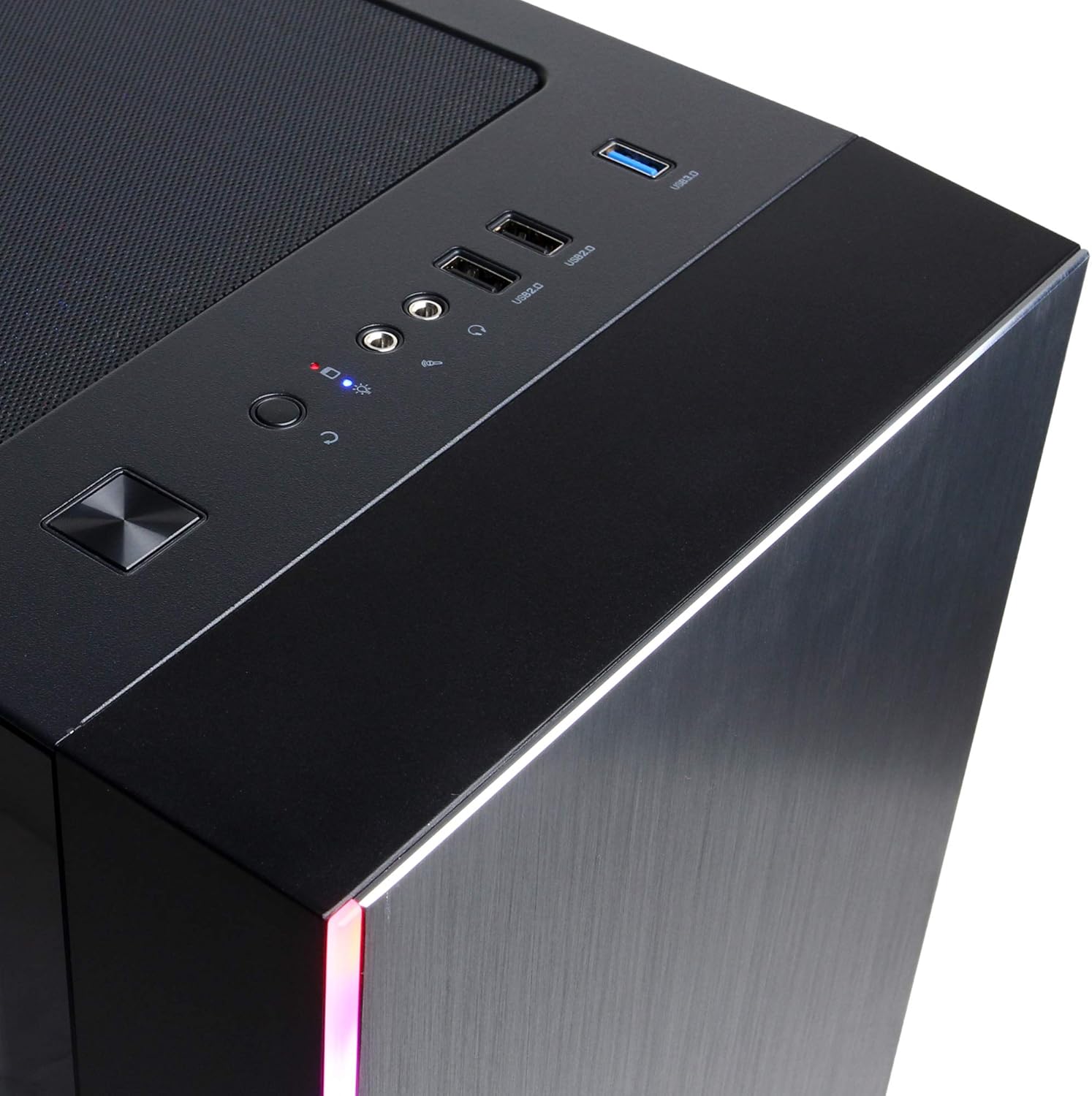
Figure 4: Detail of the top I/O panel, providing easy access to USB and audio connections.
3. Penyelenggaraan
3.1 Pembersihan
Regular cleaning helps maintain optimal performance and extends the lifespan of your PC.
- Luaran: Gunakan yang lembut, damp cloth to wipe down the exterior. Avoid harsh chemicals.
- habuk: Periodically use compressed air to clear dust from ventilation grilles and internal components. Ensure the PC is powered off and unplugged before cleaning.
3.2 Kemas Kini Perisian
Keep your operating system, drivers, and applications updated to ensure security, stability, and performance.
- Kemas Kini Windows: Pergi ke Tetapan > Kemas Kini & Keselamatan > Kemas Kini Windows.
- Pemacu Grafik: Download the latest drivers directly from NVIDIA's official webtapak.
4. Penyelesaian masalah
4.1 Tiada Kuasa
- Ensure the power cable is securely connected to both the PC and the wall outlet.
- Sahkan alur keluar dinding berfungsi dengan memasang peranti lain.
- Check the power switch on the PSU (if present) is in the 'On' position.
4.2 Tiada Paparan
- Confirm the monitor is powered on and connected to the graphics card's output, not the motherboard's integrated graphics ports (if applicable).
- Cuba kabel paparan atau monitor lain jika tersedia.
- Ensure the monitor's input source is correctly selected.
4.3 System Slowdown or Freezing
- Check Task Manager (Ctrl+Shift+Esc) for high CPU, RAM, or disk usage by specific applications.
- Pastikan Windows dan pemacu dikemas kini.
- Jalankan imbasan virus dan perisian hasad.
- Ensure adequate ventilation and check for excessive dust buildup.
5. Spesifikasi
| Ciri | Perincian |
|---|---|
| Jenama | CyberpowerPC |
| Nama Model | Gamer Xtreme |
| Sistem Operasi | Windows 10 Home |
| Model CPU | AMD Ryzen 7 3700X |
| Kelajuan CPU | 3.6 GHz (Asas) |
| Pemproses bersama Grafik | NVIDIA GeForce RTX 3060 |
| Graphics Card RAM | 12 GB GDDR6 |
| Memori RAM Dipasang | 16 GB DDR4 |
| Penyimpanan | 240 GB SSD, 1 TB HDD |
| Ketersambungan | HDMI, Wi-Fi (802.11ab), USB 2.0, USB 3.0 |
| Dimensi Item (LxWxH) | 18.6 x 17.4 x 8.9 inci |
| Kaedah Penyejukan | Udara |
| UPC | 811842073769 |
6. Maklumat Waranti
Your CyberpowerPC Gamer Xtreme Gaming PC is covered by a manufacturer's limited warranty. Specific terms and conditions, including warranty duration and coverage details, are typically provided with your purchase documentation or can be found on the official CyberpowerPC webtapak. Sila simpan bukti pembelian anda untuk tuntutan waranti.
7. Sokongan
For technical assistance, troubleshooting, or further inquiries, please visit the official CyberpowerPC support website or contact their customer service. You may need your product model number (GMA3088W) and serial number for support.
- rasmi Webtapak: www.cyberpowerpc.com
- Support Section: Look for a "Support" or "Contact Us" link on their webtapak.