
1. Pengenalan
Terima kasih kerana membeliasing the ONIKUMA X2 Gaming Headset. This headset is designed to provide an immersive audio experience for gaming across multiple platforms, including mobile devices, PlayStation 4, and personal computers. It features an integrated microphone for clear communication and LED lighting for an enhanced aesthetic.

Image 1.1: The ONIKUMA X2 Gaming Headset, showcasing its over-ear design and integrated microphone.
2. Maklumat Keselamatan
- Jangan dedahkan alat dengar kepada suhu, kelembapan atau cahaya matahari langsung yang melampau.
- Elakkan daripada menjatuhkan atau meletakkan set kepala kepada kesan yang kuat.
- Keep the headset away from water and other liquids. It is not water-resistant.
- Jangan cuba membuka atau mengubah suai alat dengar. Ini akan membatalkan jaminan.
- Clean the headset with a soft, dry cloth only.
- Mendengar pada tahap kelantangan yang tinggi dalam tempoh yang lama boleh menyebabkan kerosakan pendengaran. Laraskan kelantangan pada tahap yang selesa.
3. Kandungan Pakej
Sahkan bahawa semua item terdapat dalam pakej:
- ONIKUMA X2 Gaming Headset with attached microphone and 3.5mm audio cable.
- PC splitter cable (for separate audio and microphone jacks).
- Manual Pengguna (dokumen ini).
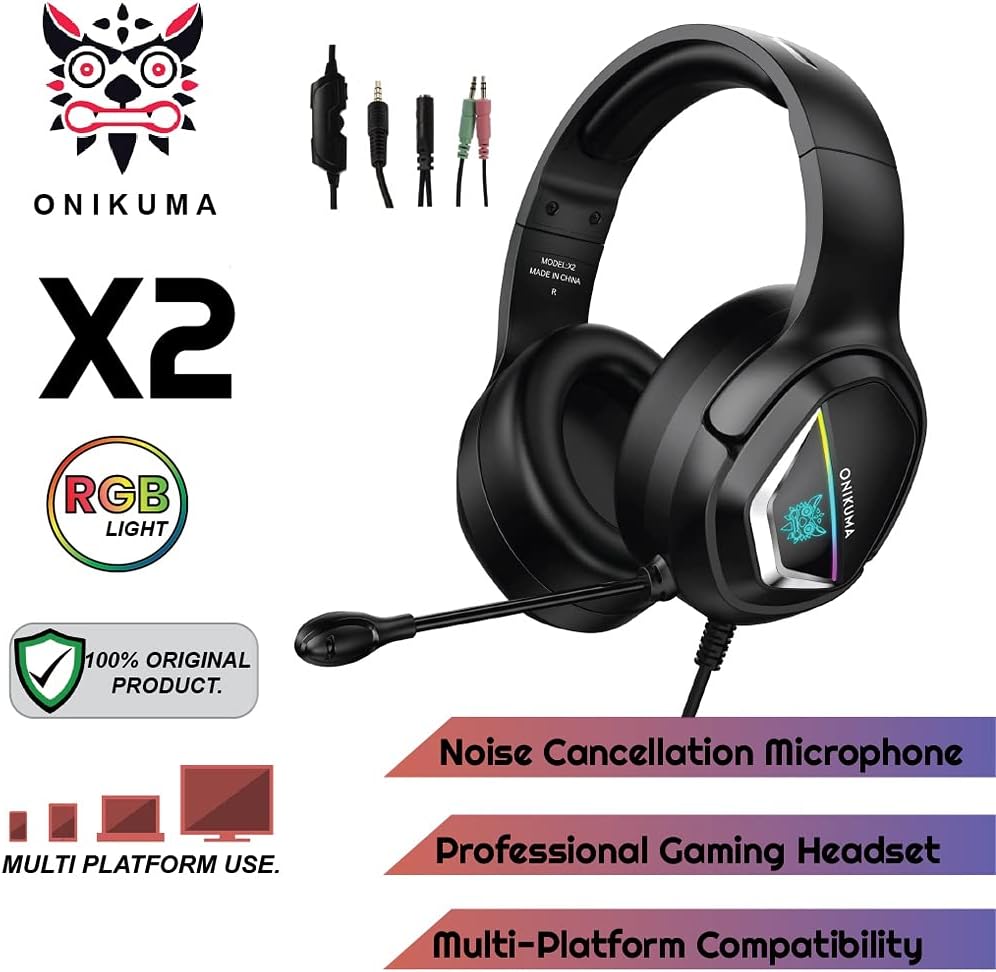
Image 3.1: The ONIKUMA X2 Gaming Headset along with its various connection cables.
4. Persediaan
4.1 Menyambung Alat Dengar
The ONIKUMA X2 headset features a universal 3.5mm jack for audio and microphone. For devices with separate audio and microphone ports, use the included PC splitter cable.

Image 4.1: Visual guide for connecting the headset to different gaming platforms and mobile devices.
4.1.1 PC/Laptop Connection
- For PCs with a single 3.5mm combined audio/mic jack: Plug the headset's 3.5mm jack directly into the port.
- For PCs with separate audio (green) and microphone (pink) jacks: Connect the headset's 3.5mm jack to the included PC splitter cable. Then, plug the green splitter jack into your PC's audio output and the pink splitter jack into your PC's microphone input.
- The USB connector is for powering the LED lights only. Plug it into any available USB port on your PC.
4.1.2 PlayStation 4 (PS4) Connection
- Plug the headset's 3.5mm jack directly into the controller's 3.5mm port.
- Go to PS4 Settings > Devices > Audio Devices.
- Tetapkan "Output ke Fon Kepala" kepada "Semua Audio".
- Adjust "Volume Control (Headphones)" to your preferred level.
- The USB connector is for powering the LED lights only. Plug it into an available USB port on the PS4 console.
4.1.3 Sambungan Xbox One
- For newer Xbox One controllers with a 3.5mm jack: Plug the headset's 3.5mm jack directly into the controller.
- For older Xbox One controllers without a 3.5mm jack: A Microsoft Stereo Headset Adapter (not included) is required. Plug the headset into the adapter, then plug the adapter into the controller.
- The USB connector is for powering the LED lights only. Plug it into an available USB port on the Xbox One console.
4.1.4 Nintendo Switch/3DS Connection
- Plug the headset's 3.5mm jack directly into the console's 3.5mm port.
- The USB connector is for powering the LED lights only. This may not be usable with handheld consoles.
4.1.5 Mobile Phone/Tablet Connection
- Plug the headset's 3.5mm jack directly into your mobile device's 3.5mm port.
- The USB connector is for powering the LED lights only and typically cannot be used with mobile devices.
5. Arahan Operasi
5.1 Kawalan Kelantangan
The headset features an inline volume control wheel located on the cable. Rotate the wheel up to increase volume and down to decrease volume.
5.2 Penggunaan Mikrofon
The flexible omnidirectional microphone can be adjusted to your preferred position for optimal voice pickup. Ensure the microphone is positioned close to your mouth for clear communication.

Image 5.1: Close-up of the flexible omnidirectional microphone on the ONIKUMA X2 headset.
An inline switch on the cable allows you to quickly mute or unmute the microphone. Slide the switch to the appropriate position.
5.3 Lampu LED
The RGB LED lighting on the earcups is powered by the USB connector. Plug the USB connector into an available USB port on your gaming console or PC to activate the lights. The lighting is purely aesthetic and does not affect audio performance.
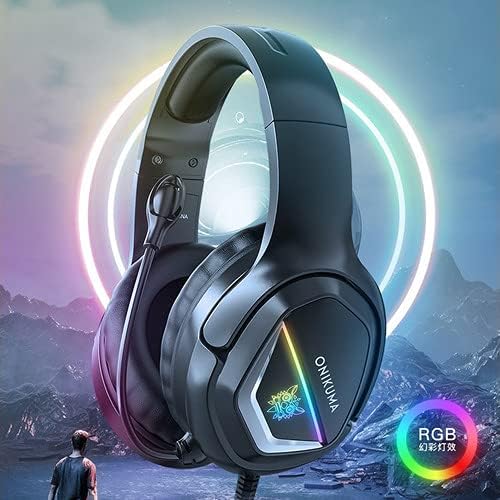
Image 5.2: The ONIKUMA X2 Gaming Headset with its RGB LED lighting illuminated.
6. Penyelenggaraan
6.1 Pembersihan
- Use a soft, dry, lint-free cloth to clean the headset's surfaces.
- Jangan gunakan pembersih cecair, aerosol atau pelarut.
- Gently wipe the earcups and headband.
6.2 Penyimpanan
- Simpan set kepala di tempat yang sejuk dan kering apabila tidak digunakan.
- Avoid tangling the cable. Consider using a cable tie for neat storage.

Image 6.1: Features contributing to headset comfort, including soft memory earmuffs, a soft head cushion, and an adjustable headband.
7. Penyelesaian masalah
| Masalah | Kemungkinan Punca | Penyelesaian |
|---|---|---|
| Tiada bunyi dari set kepala |
|
|
| Mikrofon tidak berfungsi |
|
|
| Lampu LED tidak berfungsi |
|
|
8. Spesifikasi
| Ciri | Perincian |
|---|---|
| Jenama | ONIKUMA |
| Nombor Model | X2New-Black RGB |
| warna | Hitam |
| Penempatan Telinga | Atas Telinga |
| Impedans | 16 Ohm |
| Sensitiviti | 103 dB |
| Bicu Fon Kepala | Jack 3.5 mm |
| Jenis Kawalan | Kawalan Kelantangan |
| Kaedah Kawalan | Integrated Controls (Touch) |
| Berat Barang | 394 gram |
| Ciri Khas | Includes Microphone, RGB LED Lighting |
| Bahan | Plastic, PU Leather, Polycarbonate (PC) |
| Penggunaan yang Disyorkan | Permainan |
| Peranti Serasi | Mobile Phones, PlayStation 4, PC, Xbox One, Nintendo Switch |
| Ciri Kabel | Bebas kusut |
| Tahap Ketahanan Air | Bukan Tahan Air |
| Teknologi Ketersambungan | berwayar |
Note: Frequency Response is listed as "1204 Unknown Rate" in product data. Please refer to the manufacturer's official webtapak untuk spesifikasi yang paling tepat.
9. Waranti dan Sokongan
9.1 Maklumat Waranti
This product is eligible for a 3-month warranty provided by the manufacturer/brand from the date of purchase. For more details regarding warranty claims or service, please contact the manufacturer or seller directly.
9.2 Sokongan Pelanggan
If you encounter any issues or have questions not covered in this manual, please refer to the ONIKUMA official website or contact their customer support for assistance. Keep your purchase receipt as proof of purchase for warranty purposes.