
1. Produk Lebihview
The SIIG JU-DK0L11-S1 is a versatile USB 3.0 Dual Monitor Docking Station designed to expand your laptop or desktop's connectivity and display capabilities. It supports up to two 1080p@60Hz Full HD video displays via two HDMI ports, along with multiple USB ports, Gigabit Ethernet, and a 3.5mm audio jack. This docking station is compatible with both Windows and macOS operating systems, including Mac M1/M2/M3 Pro&Max.
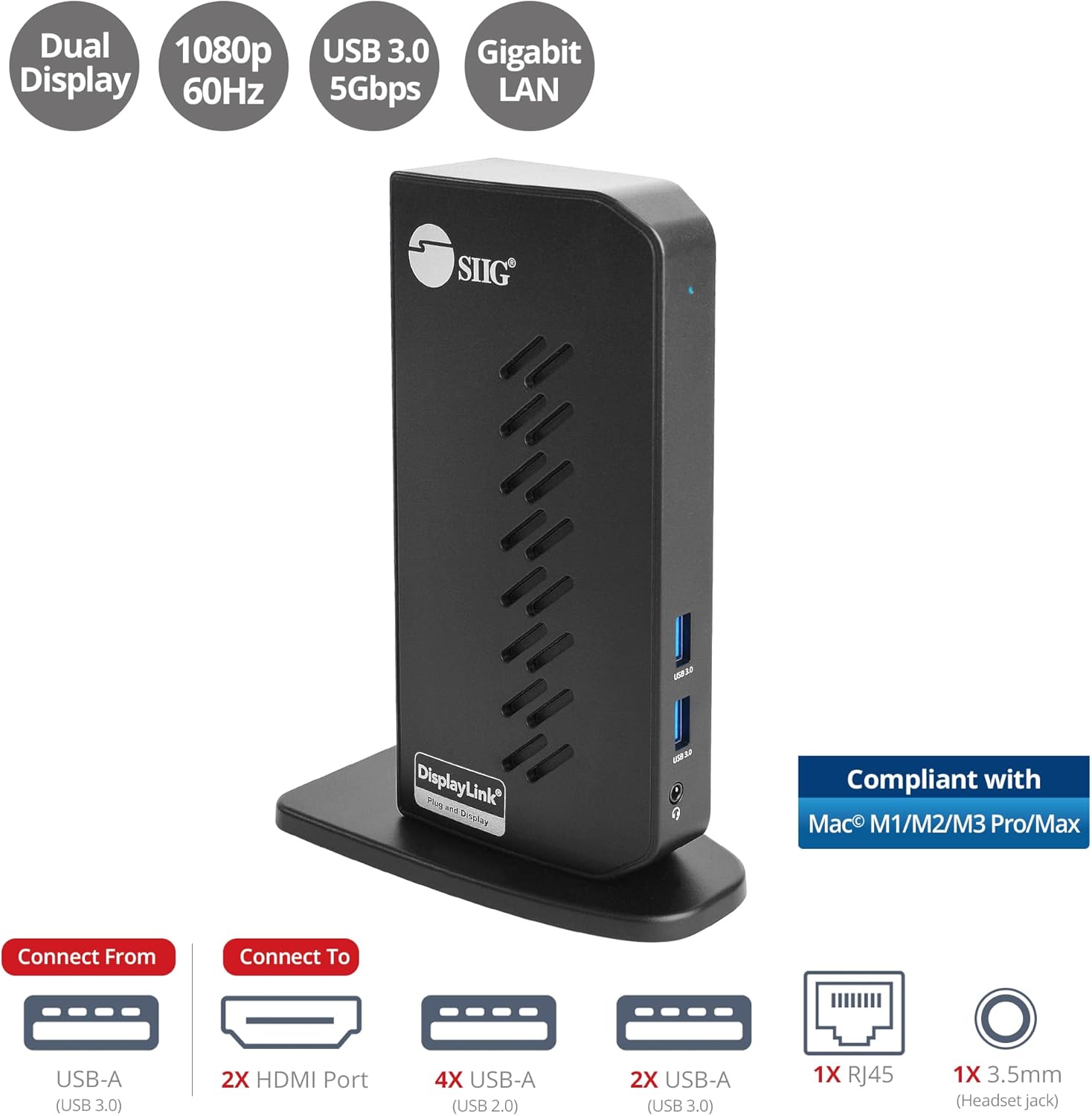
Image 1.1: The SIIG JU-DK0L11-S1 Dual Monitor Docking Station, showcasing its compact vertical design and various connectivity options.
2. Kandungan Pakej
Sahkan bahawa semua item terdapat dalam pakej sebelum meneruskan pemasangan.
- SIIG JU-DK0L11-S1 Dual Head Full HD HDMI Video Docking Station
- Penyesuai Kuasa (12V/2A)
- USB 3.0 Type-A to Type-B Cable
- Driver CD (Drivers can also be downloaded from the official SIIG webtapak)
- Manual Pengguna

Image 2.1: All components included in the SIIG JU-DK0L11-S1 docking station package, including the docking station, power adapter, USB cable, driver CD, and user manual.
3. Susun Atur Perkakasan
Familiarize yourself with the ports and indicators on the docking station.
Panel Depan
- LED kuasa: Menunjukkan status kuasa.
- 2x Port USB 3.0: For connecting high-speed USB devices (5Gbps, 4.5W/900mA).
- Bicu Alat dengar 3.5mm: For connecting headphones or stereo speakers with microphone input.
Panel Belakang
- 4x Port USB 2.0: For connecting standard USB devices (480Mbps, 5V/900mA).
- Port Ethernet Gigabit RJ45: Untuk sambungan rangkaian berwayar (10/100/1000Mbps).
- 2x HDMI Outputs: For connecting external displays (up to 1080p@60Hz).
- Port USB 3.0 Jenis-B: For connecting the docking station to your host computer.
- Bicu Kuasa: For connecting the 12V/2A power adapter.

Imej 3.1: Terperinci view of the front and rear panels of the docking station, highlighting all available ports and their functions.
4. Arahan Persediaan
Ikuti langkah ini untuk menyediakan stesen dok anda:
- Pasang Pemacu DisplayLink: Before connecting the docking station, install the necessary DisplayLink drivers on your computer. You can use the included driver CD or download the latest drivers from the official DisplayLink webtapak (www.displaylink.com/downloads) or SIIG's support page.
- Sambungkan Kuasa: Plug the provided 12V/2A power adapter into the docking station's power jack and then into a wall outlet. The Power LED on the front panel should illuminate.
- Sambungkan ke Komputer Hos: Use the supplied USB 3.0 Type-A to Type-B cable to connect the docking station's USB 3.0 Type-B port to an available USB 3.0 Type-A port on your laptop or desktop computer.
- Sambungkan Paparan: Connect your external monitors to the two HDMI output ports on the rear of the docking station using HDMI cables.
- Sambung Peranti: Connect your USB devices (keyboard, mouse, printer, flash drives, etc.) to the available USB 3.0 and USB 2.0 ports. Connect an Ethernet cable to the RJ45 port for a wired network connection. Plug your headset or speakers into the 3.5mm audio jack.
Video 4.1: An official video demonstrating the setup and connectivity of the SIIG JU-DK0L11-S1 Dual Head Full HD HDMI Docking Station, showing how to connect monitors and peripherals.
5. Arahan Operasi
Once the docking station is set up, you can configure your display settings and utilize the connected peripherals.
Mod Paparan
The docking station supports three primary display modes:
- Mod Cermin: Duplicates your primary display onto the external monitors.
- Mod Lanjutkan: Meluaskan desktop anda merentasi berbilang skrin, membolehkan ruang kerja yang lebih luas.
- Mod Utama: Designates one of the connected displays as the main display.
You can configure these settings through your operating system's display settings (e.g., Windows Display Settings or macOS System Settings > Displays).

Image 5.1: A typical dual 1080p monitor setup utilizing the SIIG docking station, demonstrating an extended display configuration for enhanced productivity.
Kesambungan USB
The docking station provides two USB 3.0 ports for high-speed data transfer (e.g., external hard drives, SSDs) and four USB 2.0 ports for standard peripherals (e.g., keyboard, mouse, printer). Simply plug your devices into the corresponding ports.
Gigabit Ethernet
For a stable and fast internet connection, connect an Ethernet cable from your router or modem to the RJ45 port on the docking station. This provides a more reliable connection than Wi-Fi, supporting 10/100/1000 BASE-T wired networks.

Imej 5.2: Jarak dekat view of the Gigabit RJ45 Ethernet port and USB ports, illustrating their use for network and high-speed data transmission.
Sambungan Audio
The 3.5mm headset jack allows you to connect headphones, speakers, or a microphone. Ensure your operating system's audio settings are configured to use the docking station's audio output/input.
6. Specifications (Model: JU-DK0L11-S1)
| Jenama | SIIG |
| Nombor Model | JU-DK0L11-S1 |
| Antara Muka Perkakasan | 3.5mm Audio, Ethernet, HDMI, USB 1.1, USB 2.0, USB 3.0 |
| Peranti Serasi | Desktop or laptop computer with an available USB 3.0 Type-A port. Compatible with Windows® 11/10/8.1/8/7 and macOS® 11 / 10.15 to 10.10. |
| Jumlah Port USB | 6 (2x USB 3.0, 4x USB 2.0) |
| Jumlah Port HDMI | 2 |
| Resolusi Maks | 1080p@60Hz (per display) |
| Kelajuan Ethernet | Gigabit (10/100/1000Mbps) |
| Input Voltage | 100 Volt (AC) |
| Dimensi Produk (L x W x H) | 5.31" x 2.87" x 7.36" |
| Berat Barang | 0.75 paun |

Image 6.1: Physical dimensions of the SIIG JU-DK0L11-S1 docking station, illustrating its compact and space-saving design.
7. Penyelesaian masalah
- Tiada Output Paparan:
- Ensure the docking station is powered on and the Power LED is lit.
- Verify that the USB 3.0 cable is securely connected between the docking station and your computer.
- Check that HDMI cables are firmly connected to both the docking station and your monitors.
- Confirm that DisplayLink drivers are correctly installed and up to date.
- Cuba mulakan semula komputer anda.
- Peranti USB Tidak Dikenali:
- Ensure the docking station is powered and connected to your computer.
- Cuba sambungkan peranti USB ke port berbeza pada stesen dok.
- Connect the USB device directly to your computer to rule out device issues.
- Tiada Sambungan Rangkaian:
- Verify the Ethernet cable is securely connected to the RJ45 port on the docking station and your network source.
- Check your computer's network settings to ensure the Ethernet adapter is enabled.
- Confirm that your router/modem is functioning correctly.
- Isu Audio:
- Ensure your headset/speakers are properly plugged into the 3.5mm jack.
- Check your computer's sound settings to select the docking station as the default audio output/input device.
8. Penyelenggaraan
To ensure the longevity and optimal performance of your SIIG docking station, follow these maintenance guidelines:
- Pastikan peranti bersih dengan mengelapnya dengan kain lembut dan kering. Elakkan menggunakan pembersih cecair atau aerosol.
- Ensure proper ventilation around the docking station to prevent overheating. The vertical design with heat dissipation features aids in this.
- Elakkan daripada mendedahkan peranti kepada suhu yang melampau, kelembapan atau cahaya matahari langsung.
- Kendalikan kabel dan penyambung dengan berhati-hati untuk mengelakkan kerosakan.
9. Waranti dan Sokongan
For warranty information and technical support, please refer to the documentation included with your product or visit the official SIIG website. SIIG is committed to providing reliable products and customer assistance.
For further assistance, you may contact SIIG customer support directly through their website or the contact information provided in your product's packaging.