
1. Produk Lebihview
The HDWR HD6600 is a compact, portable 1D/2D barcode scanner designed for efficiency and convenience. Its ergonomic design, resembling a car key, makes it easy to carry and use in various environments. This device supports both 1D and 2D barcode types, including QR codes, and offers flexible connectivity options.
Ciri-ciri Utama:
- Padat dan Mudah Alih: Designed for easy handling and pocket storage, optimizing space in any workplace.
- Dual Wireless Communication: Connects via radio using the included USB micro-receiver or via Bluetooth.
- Integrated Memory: Stores up to 5000 standard codes for later transmission, enhancing operational flexibility.
- Pengimbasan Serbaguna: Capable of high-quality reading for 1D and 2D barcodes, including QR codes, even if they are difficult to read or damaged.
- Operasi Mudah: Features an illuminated scan button and an on/off button for straightforward use.
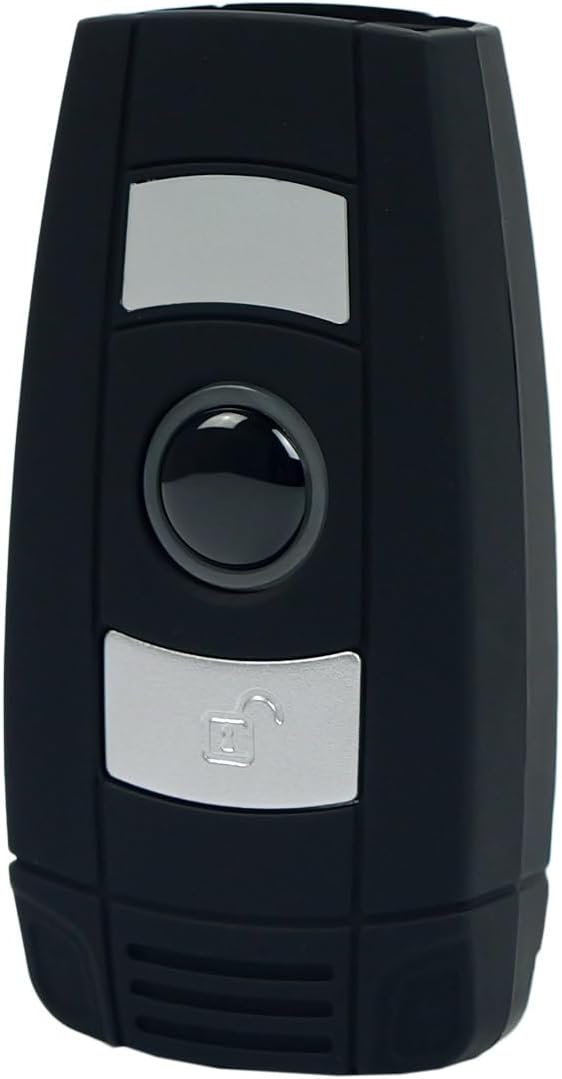
Rajah 1: Depan view of the HDWR HD6600 barcode scanner, showing the scan and function buttons.
2. Kandungan Pakej
Sahkan bahawa semua item terdapat dalam pakej anda:
- HDWR HD6600 Barcode Scanner
- Kabel Pengecas USB
- USB Micro-Receiver (for radio communication)
- Manual Pengguna (dokumen ini)
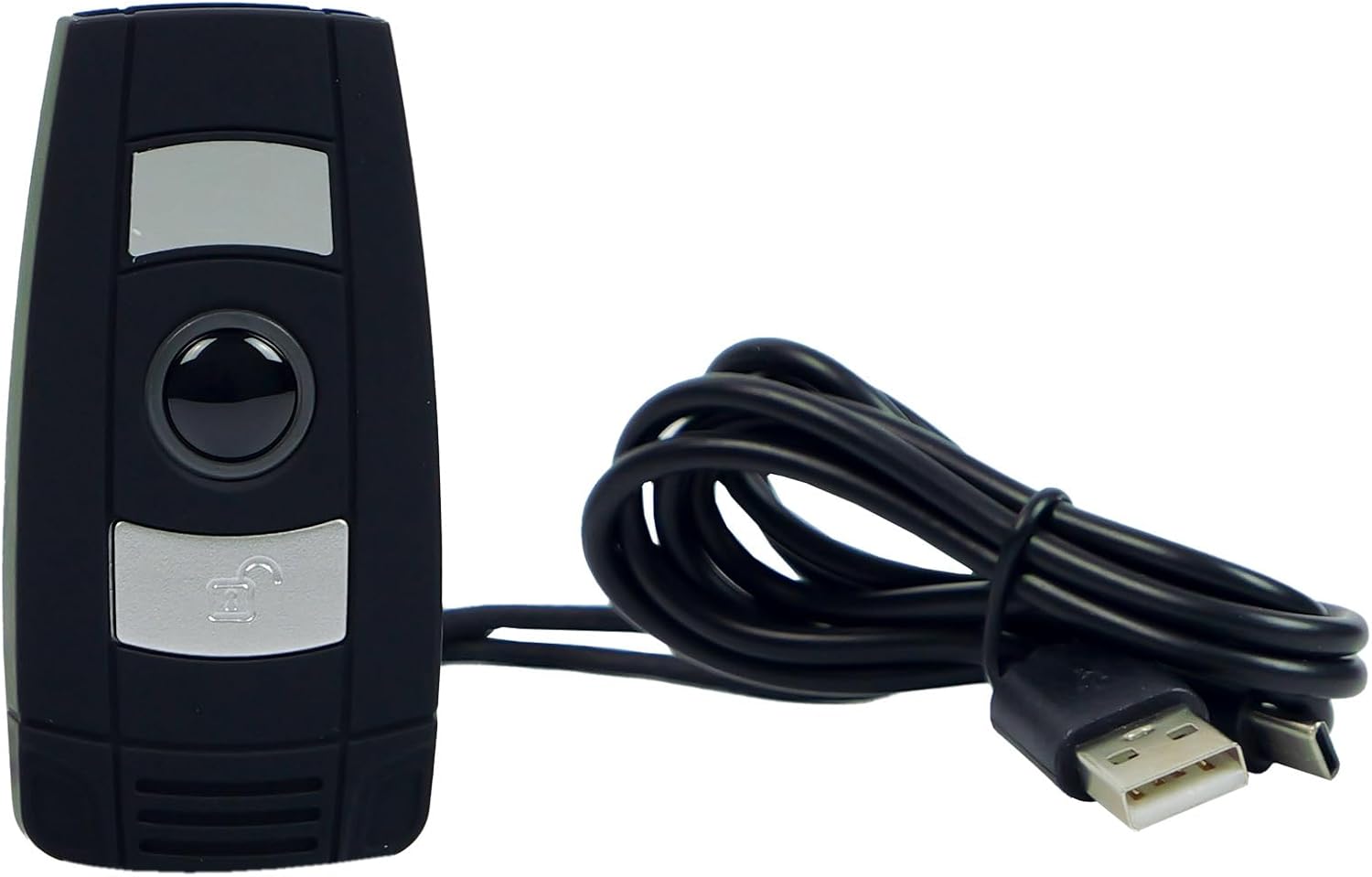
Figure 2: The HDWR HD6600 barcode scanner shown with its USB charging cable.
3. Persediaan Awal
3.1 Mengecas Peranti
Before first use, fully charge the scanner. Connect the provided USB charging cable to the scanner's USB-C port and to a power source (e.g., computer USB port or USB wall adapter). The charging indicator light will show the charging status.
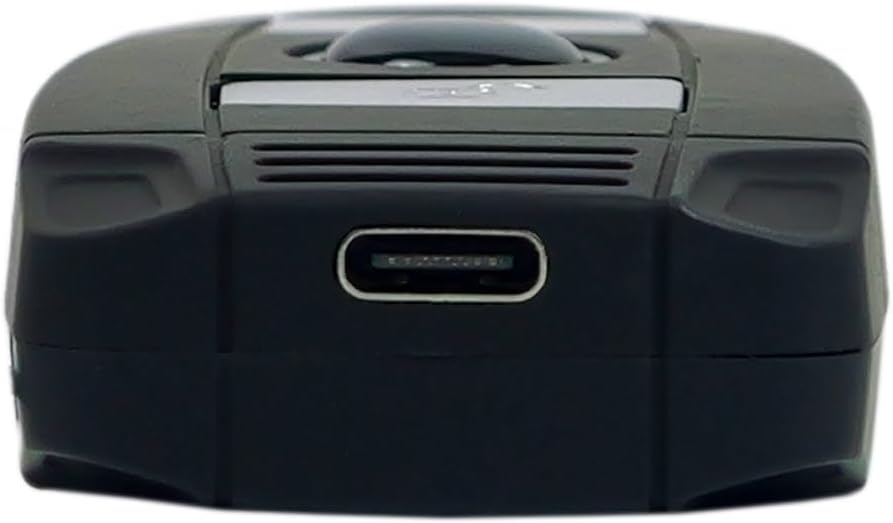
Figure 3: The USB-C charging port located at the bottom of the scanner.
3.2 Menghidupkan/Mematikan
To power on the scanner, press and hold the On/Off button until the indicator light illuminates. To power off, press and hold the On/Off button again until the indicator light turns off.
3.3 Menyambung ke Peranti
The HD6600 offers two primary connection methods:
3.3.1 USB Micro-Receiver (Radio Communication)
- Plug the USB micro-receiver into an available USB port on your computer or host device.
- The scanner will automatically attempt to pair with the receiver. A successful connection is indicated by a specific sound or light pattern (refer to device indicators).
3.3.2 Komunikasi Bluetooth
- Pastikan pengimbas dihidupkan.
- To switch to Bluetooth mode, press and hold the scan button for 8 seconds. The scanner will emit a sound or show a light pattern indicating it is in Bluetooth pairing mode.
- On your host device (computer, tablet, smartphone), enable Bluetooth and search for available devices.
- Select "HD6600" from the list of found devices to pair.
- Once paired, the scanner is ready for use.
4. Arahan Operasi
4.1 Mengimbas Kod Bar
Untuk mengimbas kod bar:
- Point the scanner's lens at the barcode you wish to read.
- Press the illuminated scan button.
- A successful scan will be indicated by a beep and/or a green light. The scanned data will be transmitted to your connected device.
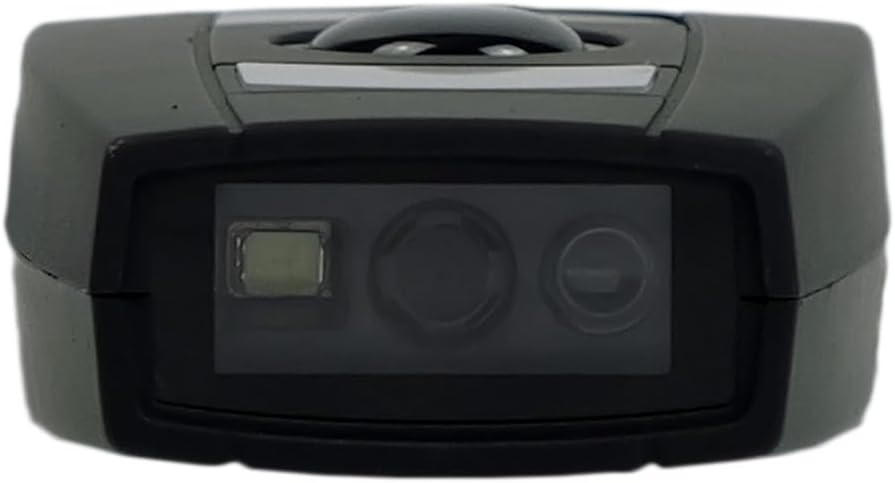
Figure 4: The scanning lens of the HDWR HD6600 barcode scanner.
4.2 Using Integrated Memory
The HD6600 can store up to 5000 standard barcodes when not connected or when operating in inventory mode. To retrieve stored data, connect the scanner to your host device and follow the instructions for data transfer (usually by scanning a specific function code or entering a data upload mode).
4.3 Switching Communication Modes
To switch between radio (USB micro-receiver) and Bluetooth communication modes, press and hold the scan button for 8 seconds. The scanner will confirm the mode change with an audible alert or indicator light change.
Video 1: Demonstration of the HDWR HD6600 barcode scanner's features and operation, including its compact design and scanning capabilities.
5. Penjagaan dan Penyelenggaraan
- Pembersihan: Use a soft, dry cloth to clean the scanner's exterior. For the scanning lens, use a lens cleaning cloth and solution. Avoid abrasive cleaners or solvents.
- Storan: Store the scanner in a cool, dry place away from direct sunlight and extreme temperatures. The maximum storage temperature is 60 degrees Celsius.
- Bateri: The device contains a Lithium-ion battery. Do not attempt to replace the battery yourself. Dispose of the device according to local regulations for electronic waste.
- Perlindungan: While durable, avoid dropping the scanner or exposing it to excessive moisture or dust.
6. Penyelesaian masalah
| Masalah | Kemungkinan Punca | Penyelesaian |
|---|---|---|
| Pengimbas tidak dihidupkan. | Bateri lemah. | Cas pengimbas menggunakan kabel USB yang disediakan. |
| Scanner does not connect to host device. | Incorrect communication mode; not paired; out of range. | Ensure correct mode (radio/Bluetooth). Re-pair the device. Move scanner closer to the host device. |
| Tidak boleh mengimbas kod bar. | Barcode damaged; scanner lens dirty; insufficient lighting. | Try scanning a different barcode. Clean the scanner lens. Ensure adequate lighting. |
| Data yang diimbas tidak betul atau tidak lengkap. | Partial scan; incorrect symbology settings. | Ensure the entire barcode is within the scanning area. Check scanner configuration for supported barcode types. |
7. Spesifikasi Teknikal
| Ciri | Perincian |
|---|---|
| Nombor Model | HD6600 |
| Jenama | HDWR |
| Teknologi Ketersambungan | Bluetooth, USB, Wi-Fi |
| Peranti Serasi | Komputer |
| Jenis Bateri | 1 Litium-ion (termasuk) |
| Vol Operasitage | 5 Volt |
| Berat Barang | 130 Gram |
| Suhu Penyimpanan Maksimum | 60 Darjah Celsius |
| Bilangan Item | 1 |
| Ketersediaan Alat Ganti | Maklumat tidak tersedia |
| Kemas Kini Perisian Dijamin Sehingga | Maklumat tidak tersedia |
8. Maklumat Waranti
The HDWR HD6600 barcode scanner comes with a Waranti 2 tahun dari tarikh pembelian. Waranti ini meliputi kecacatan pembuatan dan pincang fungsi dalam penggunaan biasa. Ia tidak melindungi kerosakan yang disebabkan oleh penyalahgunaan, kemalangan, pengubahsuaian yang tidak dibenarkan, atau penyelenggaraan yang tidak betul. Sila simpan bukti pembelian anda untuk tuntutan waranti.
9. Sokongan Pelanggan
For further assistance, technical support, or warranty inquiries, please contact HDWR customer service. Refer to the product packaging or the official HDWR webtapak untuk maklumat hubungan terkini.
Sumber Dalam Talian: Visit the official HDWR website for FAQs, updated drivers, and additional support materials.