
VENZ R4040-V2
VENZ Indoor Camera R4040-V2 User Manual
Model: R4040-V2 | Brand: VENZ
Produk Selesaiview
The VENZ Indoor Camera R4040-V2 is a 1080P HD home security camera designed for indoor use. It features 360° pan-tilt-zoom (PTZ) capabilities, two-way audio, motion detection, and night vision, making it suitable for monitoring babies, pets, or general home security.
Ciri-ciri Utama
- Resolusi HD 1080P: Provides clear and smooth video.
- Fungsi PTZ 360°: Offers 360° horizontal rotation and 104° vertical view for comprehensive coverage.
- Audio Dua hala: Mikrofon dan pembesar suara terbina dalam untuk komunikasi.
- Pengesanan & Penjejakan Gerakan: Sends instant alerts and tracks detected movement.
- Penglihatan Malam: IR LEDs provide clear vision up to 28 feet in low light.
- Pelbagai Pilihan Storan: Supports cloud storage and up to 128GB Micro SD card (not included).
- Keserasian Kawalan Suara: Works with Echo Show/Spot/Fire TV and Google Nest Hub/Chromecast.
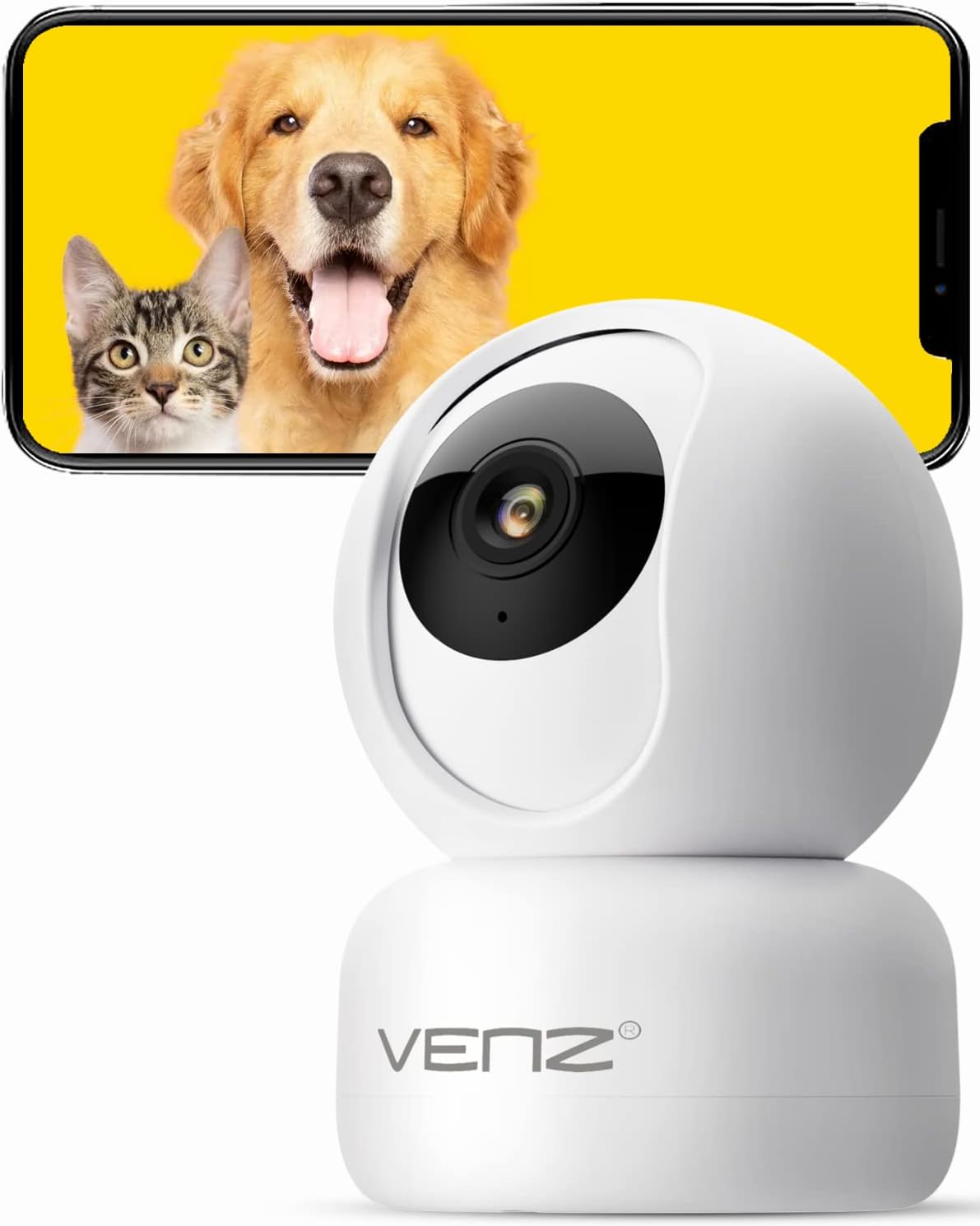
Image: The VENZ Indoor Camera R4040-V2, a white dome-shaped camera, shown next to a smartphone displaying live feed of a dog and a cat, illustrating its use for pet monitoring.
Apa yang ada dalam Kotak
Pastikan semua komponen tersedia sebelum meneruskan pemasangan.
- Kamera PTZ pintar x 1
- Kabel USB x 1
- Manual pengguna x 1
- Pendakap pemasangan x 1
- Penyesuai x 1
- Beg skru x 1
- Pelekat ditebuk x 1
- Tetapkan semula pin x 1
Panduan Persediaan
1. Menghidupkan Kamera
- Connect the provided USB cable to the camera's power port.
- Plug the USB cable into the adapter.
- Plug the adapter into a standard electrical outlet (DC 5V).
- Wait for the camera's indicator light to flash, indicating it is ready for setup.
2. Pemasangan Aplikasi dan Penciptaan Akaun
The VENZ Indoor Camera operates via the Woox Home App.
- Download the "Woox Home" app from the Gedung Google Play or Apple App Store.
- Open the app and register for a new account if you don't have one, or log in with existing credentials.

Image: The Woox Home App logo, indicating compatibility with Amazon Alexa and Google Assistant, and showing the app interface on a smartphone and a smart display.
3. Menambahkan Kamera pada Apl
- Dalam aplikasi Woox Home, ketik ikon "+" untuk menambah peranti baharu.
- Pilih "Kamera" atau "Kamera Keselamatan" daripada senarai peranti.
- Follow the on-screen instructions to connect the camera to your 2.4GHz Wi-Fi network. Ensure your Wi-Fi password is correct.
- The app will display a QR code. Position your camera to scan this QR code from your phone screen. Hold the phone approximately 6-8 inches (15-20 cm) from the camera lens.
- Once the camera successfully scans the QR code, it will emit a confirmation sound. Tap "I heard a prompt" in the app.
- The camera will then connect to your Wi-Fi network. Once connected, you can name your camera and begin using it.

Image: A hand holding a smartphone displaying a QR code, with the VENZ Indoor Camera positioned to scan it, illustrating the quick setup process.
4. Memasang Kamera (Pilihan)
The camera can be placed on a flat surface or mounted to a wall or ceiling using the included bracket.
- Choose a suitable location for mounting, ensuring it has a clear view dan berada dalam julat Wi-Fi.
- Use the punched sticker to mark the drilling positions on the wall/ceiling.
- Gerudi lubang dan masukkan sauh dinding.
- Pasangkan pendakap pelekap pada dinding/siling menggunakan skru yang disediakan.
- Secure the camera onto the mounting bracket by twisting it into place.
Mengendalikan Kamera
Langsung View dan Kawalan PTZ
- Open the Woox Home app and select your camera from the device list.
- The live video feed will appear.
- Use the on-screen joystick or directional arrows to pan (rotate horizontally 360°) and tilt (rotate vertically 104°) the camera lens.
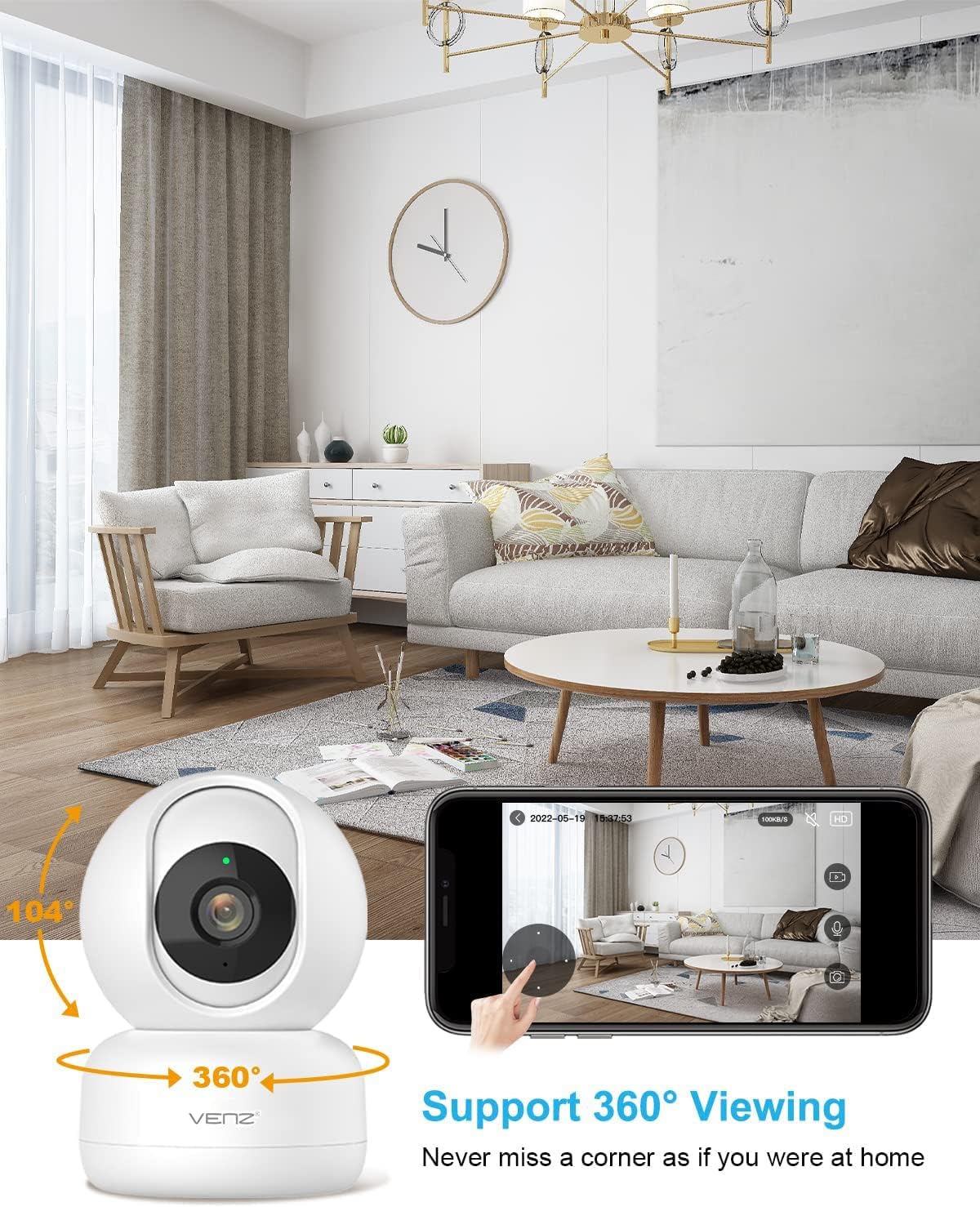
Image: The VENZ Indoor Camera with arrows indicating its 360-degree horizontal rotation and 104-degree vertical tilt capabilities, alongside a smartphone displaying the live view antara muka.
Audio Dua Hala
- Semasa dalam live view, tap the microphone icon in the app to speak through the camera.
- Ketik ikon pembesar suara untuk mendengar audio dari persekitaran kamera.

Image: Illustrations showing a woman speaking into her phone and a child interacting with a dog near the camera, demonstrating the two-way audio communication feature.
Pengesanan dan Penjejakan Pergerakan
- Navigate to the camera settings within the Woox Home app.
- Enable "Motion Detection" to receive instant alerts on your phone when movement is detected.
- Activate "Motion Tracking" for the camera to automatically follow and keep the detected subject within its field of view.
- Adjust sensitivity levels and set activity areas as needed.

Image: A child and an adult entering a room, with the camera's motion tracking feature highlighted by red boxes, and a smartphone displaying a "Motion Tracking Detection" notification from the Woox Home app.

Image: Two cats in a living room, with one jumping and the other sitting, demonstrating the camera's motion tracking capability by highlighting the subjects with yellow crosses, and a smartphone showing real-time motion detection notifications.
Penglihatan Malam
- Kamera secara automatik bertukar kepada mod penglihatan malam dalam keadaan cahaya malap.
- Infrared LEDs provide clear black-and-white video up to 28 feet (8.5 meters).
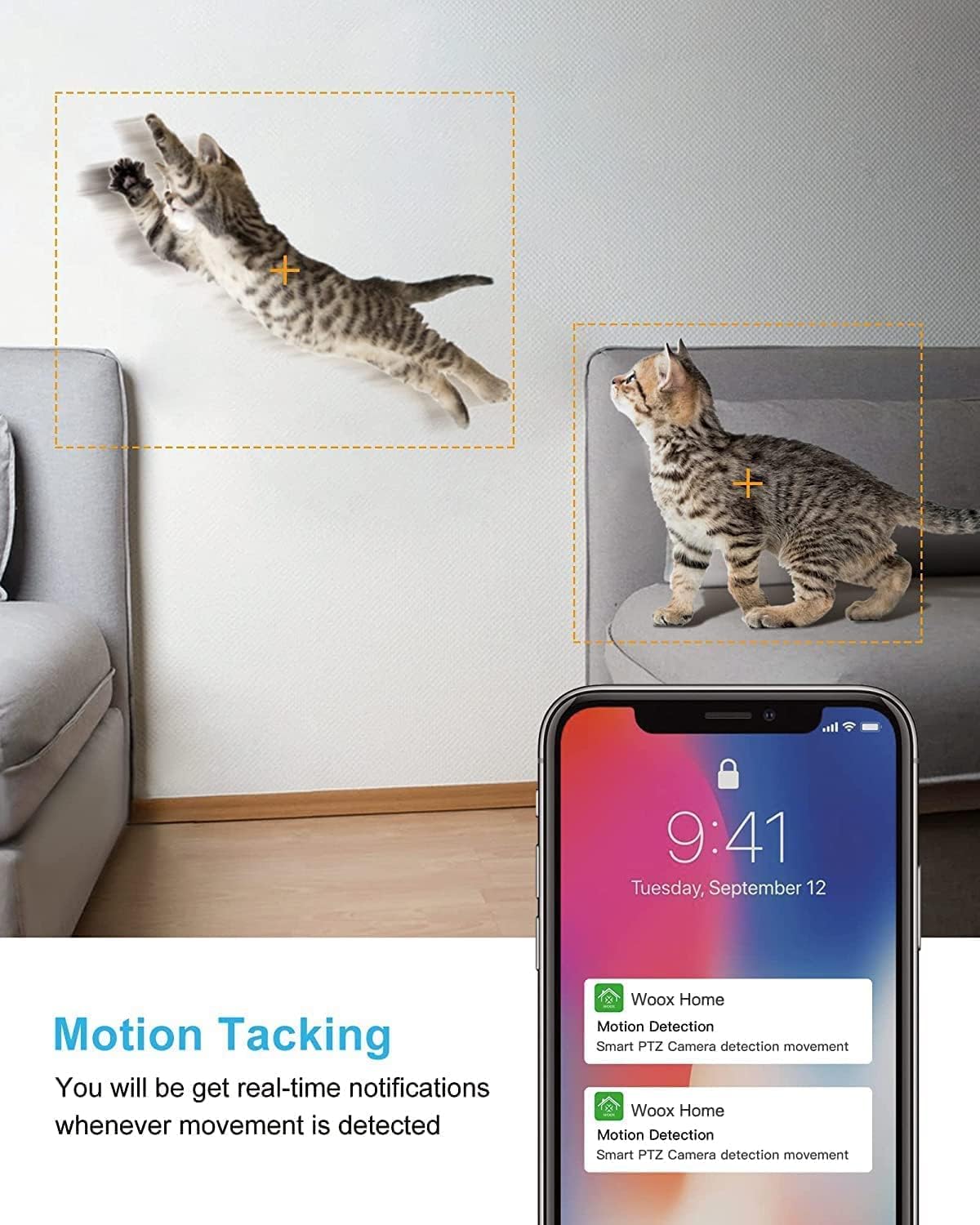
Image: A split image showing a baby sleeping in a crib in a dark room (top, black and white) and a woman viewing a clear image on her phone in bed (bottom), illustrating the camera's clear night vision capability.
Storan dan Main Semula
- Kad SD mikro: Insert a Micro SD card (up to 128GB, not included) into the camera's slot for local storage of recordings.
- Storan Awan: Subscribe to the optional cloud storage service via the Woox Home app for secure, encrypted data storage.
- Akses foo yang dirakamtage through the "Playback" or "History" section in the app.

Image: The VENZ Indoor Camera with an arrow pointing to its Micro SD card slot and a cloud icon with a shield, illustrating both local (Micro SD) and cloud storage options for recording and playback.
Multi-User and Multi-Device Access
- Share camera access with family members through the Woox Home app.
- Apl menyokong viewing multiple Wi-Fi cameras simultaneously (up to 4 live videos on one screen).
Penyelenggaraan
- Pembersihan: Gunakan kain lembut dan kering untuk membersihkan lensa kamera dan badan. Elakkan pembersih atau pelarut yang melelas.
- Kemas kini Firmware: Regularly check for and install firmware updates through the Woox Home app to ensure optimal performance and security.
- Kestabilan Rangkaian: Ensure your Wi-Fi network is stable and strong to prevent connection issues and maintain continuous monitoring.
- Pengurusan Kad SD: If using a Micro SD card, periodically check its storage capacity and format it if necessary to prevent data corruption.
Menyelesaikan masalah
| Masalah | Kemungkinan Punca | Penyelesaian |
|---|---|---|
| Kamera luar talian/Tidak dapat bersambung ke Wi-Fi |
|
|
| Poor video quality/Lagging feed |
|
|
| Pengesanan gerakan tidak berfungsi |
|
|
| No audio/Poor two-way audio |
|
|
| Kad SD tidak merakam |
|
|
Spesifikasi
| Ciri | Perincian |
|---|---|
| Nombor Model | R4040-V2 |
| Penggunaan Dalaman/Luar | Dalaman |
| Resolusi Tangkapan Video | 1080p |
| Bidang Dari View | 360 Darjah (Kuali), 104 Darjah (Sendeng) |
| Julat Penglihatan Malam | 28 Kaki (8.5 meter) |
| Protokol Ketersambungan | Wi-Fi (2.4GHz sahaja) |
| Sumber Kuasa | Elektrik Bertali arus (DC 5V) |
| Jenis Pengawal | Pembantu Google, Amazon Alexa |
| Pilihan Storan | Cloud Storage, Micro SD Card (up to 128GB) |
| Dimensi (L x W x H) | 2.91 x 2.91 x 4.21 inci |
| Berat Barang | 13.1 auns |
| bahan | PVC |
| UPC | 751004742501 |
Waranti dan Sokongan
Maklumat Waranti
Butiran waranti khusus biasanya diberikan bersama dokumentasi pembelian anda atau pada pegawai pengilang website. Please refer to the warranty card included in your product packaging for the most accurate and up-to-date information regarding coverage and duration.
Sokongan Pelanggan
For technical assistance, troubleshooting, or any inquiries regarding your VENZ Indoor Camera, please visit the official VENZ website or contact their customer support team. You can often find contact information (email, phone, or support portal) on the product packaging or the brand's online presence.
Visit the official VENZ Store for more information and support: VENZ Store on Amazon
Ask a question about this manual
Ask about setup, troubleshooting, compatibility, parts, safety, or missing instructions. Manuals+ will review the question and use this page’s manual context to help answer it.