
1. Pengenalan
This manual provides instructions for the Arducam 16MP Autofocus USB Camera, Model B0290. This camera module features a 16-megapixel IMX298 sensor, offering sharp images and accurate color reproduction. It is designed for various applications including home surveillance, 3D printer monitoring, object recognition, and machine vision.

Figure 1: Arducam 16MP Autofocus USB Camera Module (Model B0290).
2. Ciri-ciri Utama
- Pengimejan Berkualiti Tinggi: Adopts a 16MP IMX298 sensor for sharp images and accurate color reproduction. Maximum still picture resolution: 4656 x 3496.
- Fokus automatik: Automatically adjusts focus for objects at various distances without manual lens adjustment.
- Kadar Bingkai: Supports MJPG 10fps@4656x3496/4160x3120/3264x2448/2592x1944; 30fps@2320x1744/1080P/720; YUY2 10fps@1024x768/800x600/640x480.
- Pasang & Main: UVC-compliant, requiring no additional drivers for installation on compatible operating systems.
- Permohonan: Suitable for home surveillance, 3D printer monitoring, object recognition, tracking, and other machine vision tasks requiring high resolution.
3. Apa yang ada di dalam Kotak
- Kabel USB
4. Arahan Persediaan
The Arducam 16MP Autofocus USB Camera is UVC-compliant, allowing for plug-and-play functionality on most compatible operating systems without the need for additional driver installations.
4.1 Connecting to a Computer (Windows, Linux, Mac OS)
- Cari port USB yang tersedia pada komputer anda.
- Connect the provided USB cable to the camera module.
- Pasangkan hujung kabel USB yang satu lagi ke port USB komputer anda.
- Sistem pengendalian harus mengesan dan memasang pemacu yang diperlukan secara automatik.
- Open a camera application (e.g., Camera app on Windows, Guvcview on Linux, Photo Booth on Mac) to verify the camera's functionality.

Figure 2: Connecting the camera to a laptop via USB.
4.2 Connecting to a Raspberry Pi
- Ensure your Raspberry Pi is powered off.
- Connect the provided USB cable to the camera module.
- Plug the other end of the USB cable into an available USB port on your Raspberry Pi.
- Power on your Raspberry Pi. The camera should be recognized as a standard UVC device.
- Use appropriate software (e.g., `fswebcam`, `motion`, or custom Python scripts) to access the camera feed.

Figure 3: Connecting the camera to a Raspberry Pi.
4.3 Connecting to an Android Device
For Android devices, a USB-C to USB-A adapter (not included) may be required if your device uses a USB-C port. Ensure your Android device supports USB OTG (On-The-Go) functionality.
- Connect the provided USB cable to the camera module.
- If necessary, connect the USB-A end of the cable to a USB-C to USB-A adapter.
- Plug the adapter (or USB-A end directly) into your Android device's USB port.
- Install a compatible USB camera application from the Google Play Store (e.g., 'USB Camera' by ShenYao).
- Open the application and select the Arducam camera as the input source.
4.4 Produk Selesaiview Video
Video 1: Tamatview demonstrating the Arducam 16MP IMX298 Autofocus USB Camera (Model B0290) connected to various devices and showcasing its autofocus capabilities.
5. Arahan Operasi
Once connected, the Arducam 16MP Autofocus USB Camera operates as a standard webcam or camera module, depending on the host device and software used.
5.1 Autofocus Functionality
The camera features automatic autofocus. Simply point the camera at your desired subject, and the lens will adjust to achieve a clear image. This eliminates the need for manual focus adjustments, making it suitable for dynamic environments or varying object distances.
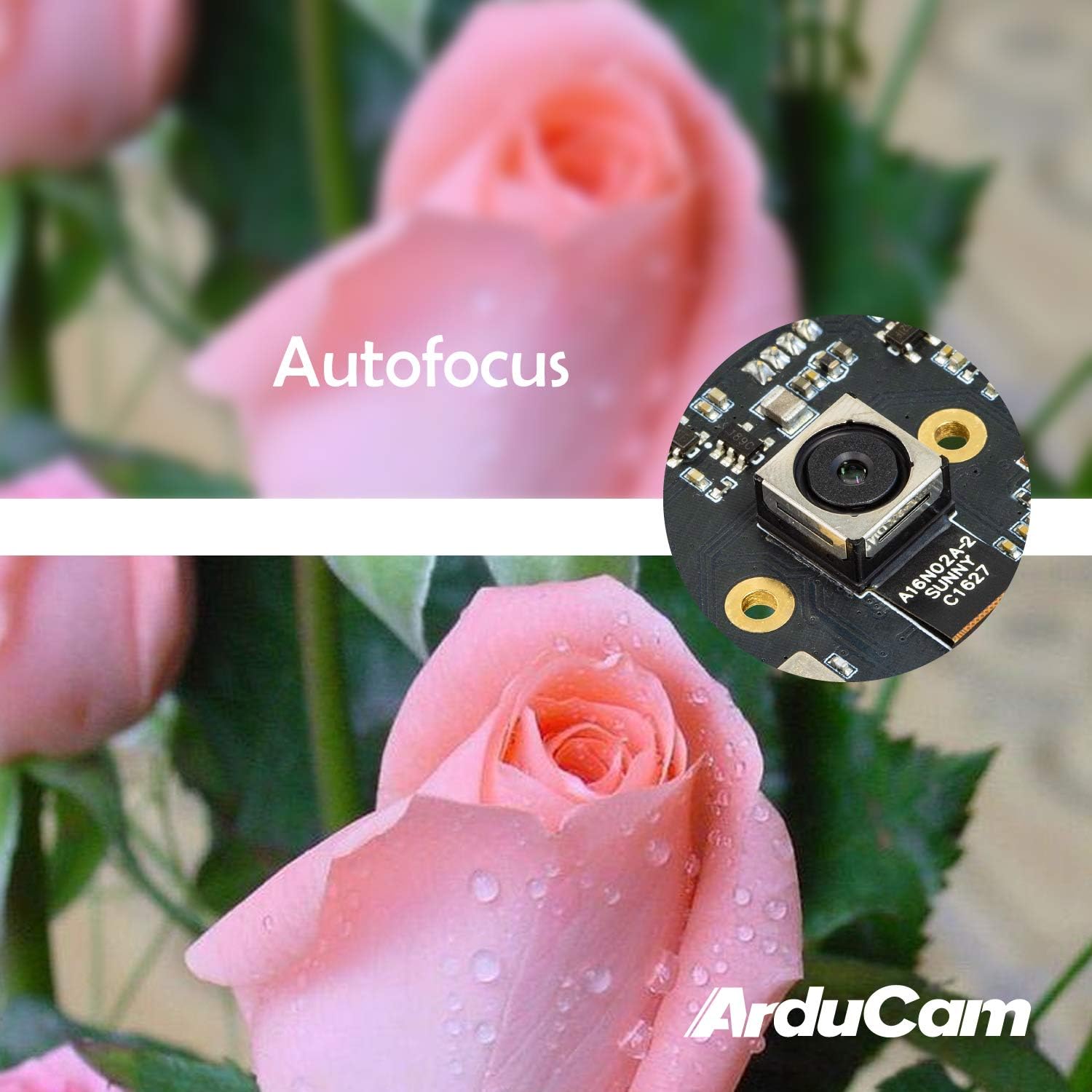
Figure 4: Demonstration of the camera's autofocus capability.
5.2 Keserasian Perisian
The camera is compatible with standard UVC (USB Video Class) software. On Windows, you can use the built-in Camera app or third-party webcam software. On Linux, applications like Guvcview or Cheese can be used. For Mac OS, Photo Booth or QuickTime Player can access the camera. For advanced applications, programming libraries such as OpenCV can be utilized.
6. Spesifikasi
| Ciri | Perincian |
|---|---|
| Jenama | Arducam |
| Nombor Model | B0290 |
| Teknologi Penderia Foto | CMOS |
| Resolusi Pegun Berkesan | 16 MP |
| Resolusi Tangkapan Video | 1080p |
| Panjang Fokus Maksimum | 100 Milimeter |
| Panjang Fokus Minimum | 100 Milimeter |
| Jenis Fokus | Auto Fokus |
| Teknologi Ketersambungan | USB |
| Keserasian Sistem Pengendalian | Linux, Mac, Windows |
| Berat Barang | 0.07 Kilogram |
| Saiz Penderia Foto | 1/2.8 inci |
| Format Gambar yang Disokong | MJPG / YUY2 |
| Format Audio yang Disokong | AAC, MP3, or PCM |
| Ciri-ciri | Cahaya Rendah |

Rajah 5: Atas dan bawah views of the camera module with dimensions.
7. Penyelenggaraan
To ensure the longevity and optimal performance of your Arducam 16MP Autofocus USB Camera, follow these maintenance guidelines:
- Pembersihan: Use a soft, dry, lint-free cloth to gently wipe the camera lens and module surface. Avoid using liquid cleaners or abrasive materials, as they can damage the lens or electronic components.
- Storan: When not in use, store the camera in a cool, dry place away from direct sunlight, extreme temperatures, and high humidity. Keep it protected from dust and physical impact.
- Pengendalian: Handle the camera module by its edges to avoid touching the lens or sensitive electronic components.
8. Penyelesaian masalah
If you encounter issues with your Arducam 16MP Autofocus USB Camera, consider the following troubleshooting steps:
- Kamera Tidak Dikesan:
- Pastikan kabel USB disambungkan dengan selamat ke kedua-dua kamera dan peranti hos.
- Try connecting the camera to a different USB port on your device.
- Test the camera on another computer or compatible device to rule out a device-specific issue.
- Mulakan semula komputer atau peranti hos anda.
- Tiada Imej atau Skrin Hitam:
- Verify that the correct camera is selected in your camera application settings.
- Close and reopen the camera application.
- Check if any other application is currently using the camera, as some systems only allow one application to access it at a time.
- Poor Image Quality / Focus Issues:
- Pastikan lensa kamera bersih dan bebas daripada habuk atau kotoran.
- Provide adequate lighting for your subject.
- For autofocus, ensure there is sufficient contrast in the scene for the camera to lock focus.
- Isu Keserasian:
- Confirm that your operating system and software are compatible with UVC devices.
- For Android, ensure USB OTG is supported and enabled.
9. Waranti dan Sokongan
Untuk maklumat jaminan dan sokongan teknikal, sila rujuk Arducam rasmi webtapak atau hubungi penjual secara terus. Simpan resit pembelian anda untuk tuntutan waranti.
Anda boleh melawat Kedai Arducam untuk maklumat dan sumber produk tambahan.