
pengenalan
This manual provides comprehensive instructions for the Docooler T-Wolf V11 Wired Gaming Mouse. It covers setup, operation, maintenance, and troubleshooting to ensure optimal performance and longevity of your device. The T-Wolf V11 is designed for both gaming and office use, featuring adjustable DPI, ergonomic design, and customizable RGB lighting.
Ciri-ciri Produk
- Reka Bentuk 8-Butang: Equipped with 8 programmable buttons suitable for various tasks in gaming and office applications.
- DPI boleh laras: Offers 6 levels of DPI adjustment (1000/1600/2400/3200/4800/6400) for precise cursor control and sensitive operation.
- Ergonomic Arc Design: Engineered for a comfortable grip, fitting closely to your palm to reduce fatigue during extended use.
- Integrated Weights: Features independent weights within the mouse, allowing customization for improved stability and precision to suit individual preferences.
- RGB Colorful Backlight: Provides 6 types of colorful RGB streaming light effects, enhancing the visual experience.
- Pembinaan Tahan Lama: Includes a lightweight aluminum alloy anti-skid roller for comfortable and reliable use.
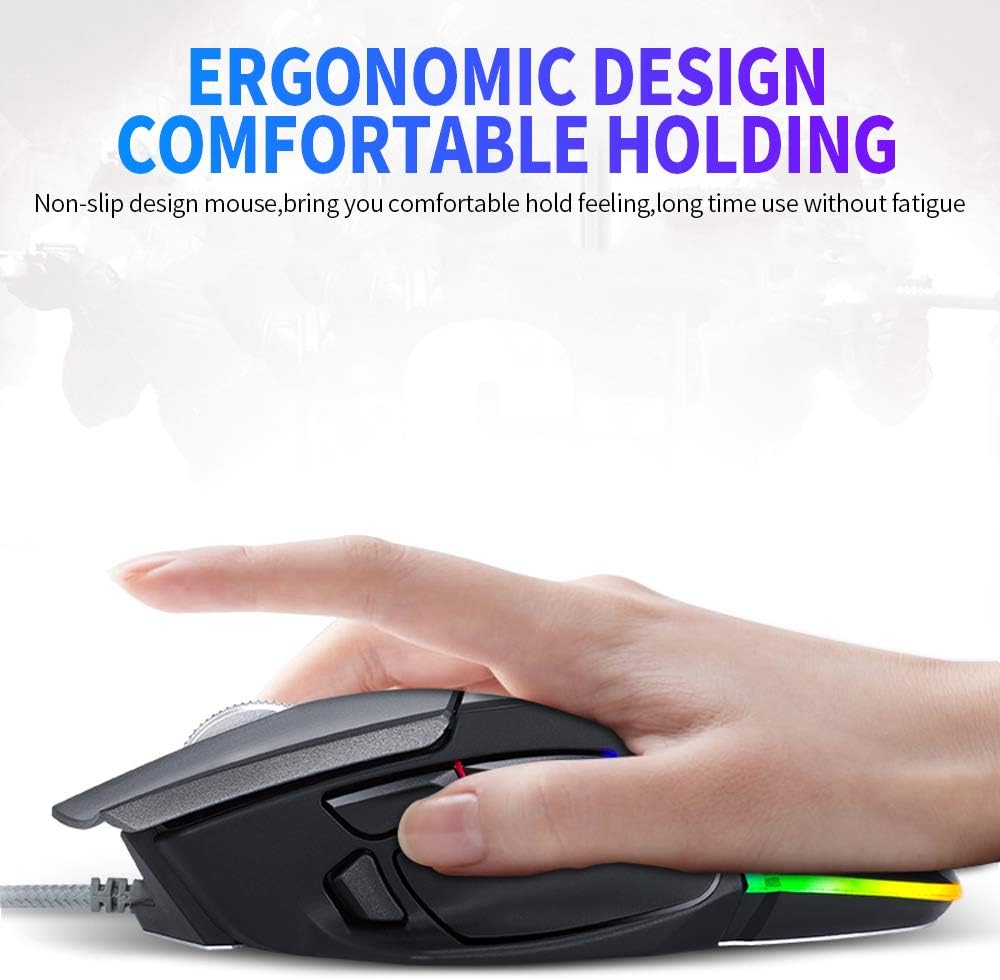
Image: The ergonomic design of the T-Wolf V11 mouse, demonstrating how it comfortably fits the hand to reduce strain during prolonged use.

Image: The T-Wolf V11 mouse illuminated with its dynamic RGB streaming light effects, showcasing the customizable lighting options.
Arahan Persediaan
- Buka bungkusan Tetikus: Carefully remove the T-Wolf V11 mouse from its packaging.
- Sambung ke Komputer: Plug the USB connector of the mouse's cable into an available USB port on your computer (desktop or laptop).
- Pemasangan Pemandu: The mouse is typically plug-and-play. Your operating system (Windows, macOS, Linux) should automatically detect and install the necessary drivers. No additional software installation is usually required for basic functionality.
- Sahkan Fungsi: Once connected, move the mouse to check cursor movement and click the left and right buttons to ensure they are responsive.

Image: The Docooler T-Wolf V11 gaming mouse connected to a laptop, illustrating a typical setup scenario.
Arahan Operasi
Fungsi Butang
- Klik Kiri (Butang 1): Fungsi klik utama standard.
- Klik Kanan (Butang 2): Fungsi klik sekunder standard.
- Roda Tatal (Butang 3): Tatal kandungan ke atas/bawah. Boleh juga ditekan untuk fungsi klik tengah.
- DPI Cycle Button (Button 4): Located near the scroll wheel, press to cycle through DPI settings (1000/1600/2400/3200/4800/6400).
- Forward/Backward Buttons (Buttons 5 & 6): Typically located on the side, used for navigation in web pelayar atau file penjelajah.
- Additional Programmable Buttons (Buttons 7 & 8): These buttons can often be customized using third-party software or operating system settings for specific functions or macros.
Pelarasan DPI
Press the DPI cycle button (usually located behind the scroll wheel) to switch between the available DPI settings. Each press will change the sensitivity, allowing you to adapt to different tasks, from precise aiming in games to fast navigation in desktop environments. The RGB lighting may change color to indicate the current DPI level.
Kesan Pencahayaan RGB
The T-Wolf V11 features 6 types of colorful RGB streaming light effects. These effects are pre-programmed and cycle automatically, providing a dynamic visual experience. There is no specific button to change RGB modes on the mouse itself; the lighting patterns are typically fixed or cycle through automatically.

Imej: A terperinci view of the T-Wolf V11 mouse, illustrating its DPI adjustment capabilities and RGB streamer marquee lighting.
Penyelenggaraan
- Pembersihan: Gunakan kain lembut dan kering untuk mengelap permukaan tetikus. Untuk kotoran degil, sedikit dampen the cloth with water or a mild, non-abrasive cleaner. Avoid using harsh chemicals or excessive moisture.
- Pembersihan Sensor: Periodically clean the optical sensor on the underside of the mouse with a cotton swab to ensure accurate tracking.
- Penjagaan Kabel: Avoid sharply bending or twisting the mouse cable to prevent internal damage. Store the cable neatly when not in use.
- Storan: Apabila tidak digunakan untuk tempoh yang lama, simpan tetikus di persekitaran yang bersih dan kering, jauh daripada cahaya matahari langsung dan suhu yang melampau.
Menyelesaikan masalah
- Tetikus Tidak Menjawab:
- Pastikan kabel USB dipasang dengan selamat ke dalam port USB yang berfungsi pada komputer anda.
- Cuba pasangkan tetikus ke port USB yang berbeza.
- Mulakan semula komputer anda.
- Pergerakan kursor tidak menentu atau gelisah:
- Bersihkan penderia optik di bahagian bawah tetikus.
- Pastikan anda menggunakan tetikus pada permukaan yang bersih, tidak reflektif dan seragam (cth, pad tetikus).
- DPI Tidak Berubah:
- Press the DPI cycle button firmly.
- Ensure the mouse is properly connected and recognized by your system.
- Lampu RGB Tidak Berfungsi:
- Semak sambungan USB.
- The RGB lighting is typically automatic; if it's not illuminating, ensure the mouse is receiving power.
Spesifikasi
| Jenama | Docooler |
| Model | V11 |
| warna | Hitam |
| Teknologi Ketersambungan | berwayar |
| Bilangan Butang | 8 |
| Tetapan DPI | 1000/1600/2400/3200/4800/6400 (Adjustable) |
| Jenis Lampu Latar | RGB Colorful |
| Panjang Kabel | 1.9 meter |
| Saiz Barang | 13 x 8.5 x 4.5 cm (5.1 x 3.3 x 1.8 inci) |
| Berat Barang | 177 g (6.24 auns) |
| Peranti Serasi | Komputer riba, PC |
| Platform Perkakasan | PC |
| Sumber Kuasa | Cable Electric (USB) |
Waranti dan Sokongan
For warranty information and technical support, please refer to the documentation provided with your purchase or contact Docooler customer service directly. Keep your proof of purchase for any warranty claims. Support contact details can typically be found on the manufacturer's official webtapak.