
pengenalan
This manual provides detailed instructions for the setup, operation, and maintenance of your FANGOR 15.6" Portable Monitor, model DH112222. Please read this manual thoroughly before using the product to ensure proper functionality and to prevent damage.
The FANGOR DH112222 is a versatile 15.6-inch Full HD 1080P IPS display designed for various applications, including extending laptop screens, gaming, and multimedia consumption. It features USB Type-C and HDMI connectivity, built-in speakers, and a smart cover for portability and protection.
Kandungan Pakej
Sila semak kandungan pakej semasa membuka kotak. Jika ada item yang hilang atau rosak, hubungi sokongan pelanggan.
- FANGOR 15.6" Portable Monitor (DH112222)
- Smart Cover / Stand
- USB-C to USB-C Cable (for power and video/data)
- HDMI to Mini HDMI Cable (for video)
- USB-A to USB-C Cable (for power)
- Penyesuai Kuasa (jika disertakan)
- Manual Pengguna (dokumen ini)
Produk Selesaiview
Familiarize yourself with the monitor's components and ports.
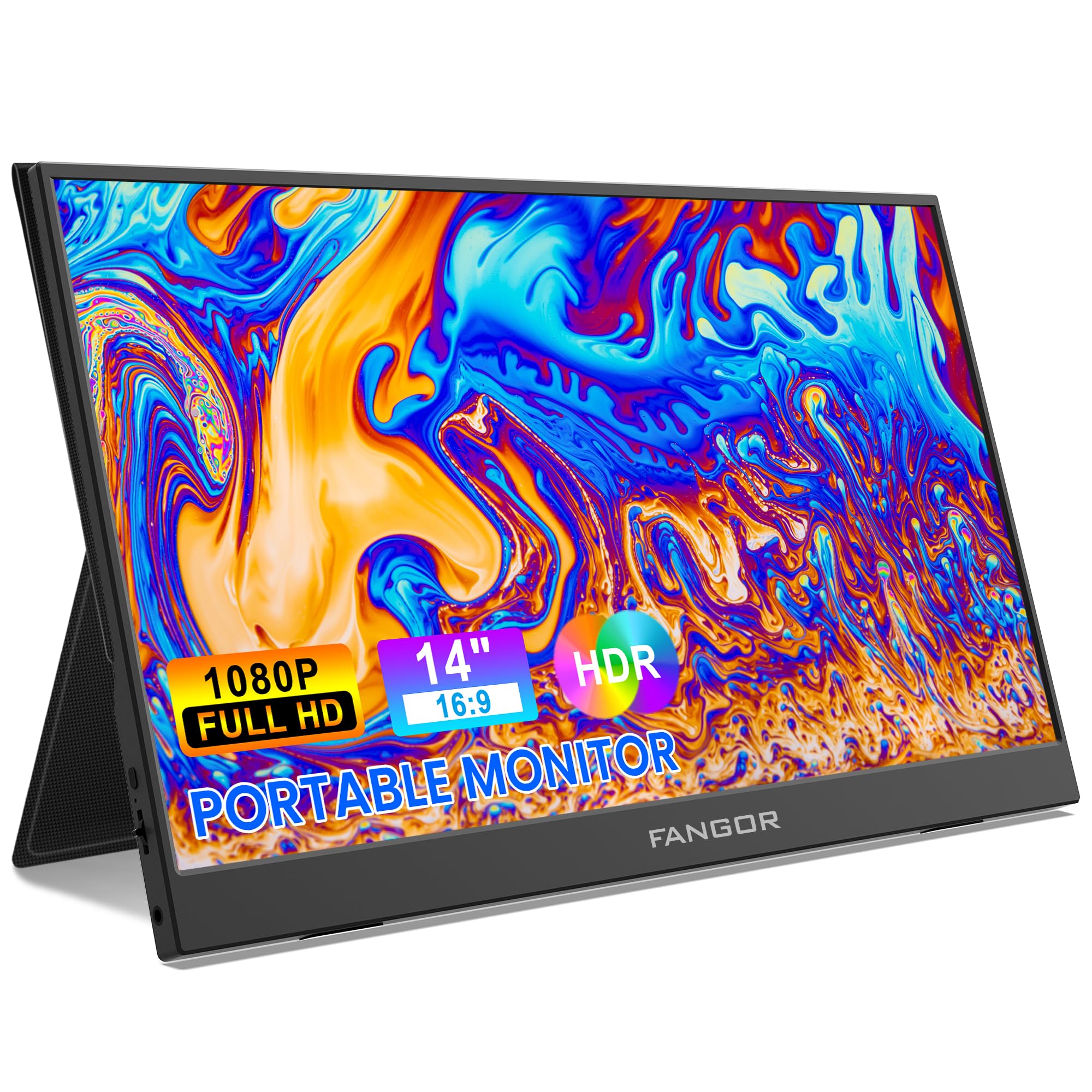
Image: FANGOR 15.6" Portable Monitor DH112222. This image displays the monitor with its smart cover, showcasing pro slimnyafile dan skrin.
Port dan Butang:
- USB-C Port (Full-featured): For power, video, and data transmission from compatible devices.
- Port HDMI Mini: For video input from devices using an HDMI cable.
- Bicu Audio 3.5mm: Untuk menyambungkan fon kepala atau pembesar suara luaran.
- Power Button / OSD Menu Button: Press and hold to power on/off. Press to access the On-Screen Display (OSD) menu.
- Volume / Navigation Buttons: Used to adjust volume or navigate through the OSD menu.
- Pembesar Suara Terbina dalam: Located on the sides or rear of the monitor.
Note: A visual diagram showing the exact location of each port and button would typically be included here.
Arahan Persediaan
1. Setting up the Smart Cover:
- Unfold the smart cover to form a triangular stand.
- Place the monitor into the grooves of the stand to achieve the desired viewsudut ing.
Note: An illustration demonstrating how to fold the smart cover into a stand would be beneficial here.
2. Connecting to a Power Source:
The monitor requires power to operate. It can be powered via USB-C.
- Connect one end of the USB-C to USB-C cable to the monitor's full-featured USB-C port.
- Connect the other end to a power adapter (5V/3A or higher recommended) or a compatible device's USB-C port that supports power delivery.
- Alternatively, use the USB-A to USB-C cable with a power adapter.
Note: A diagram showing power connection options would be helpful.
Arahan Operasi
Menyambung ke Peranti:
The FANGOR DH112222 supports various devices via USB-C and HDMI.
1. Connecting to a Laptop/PC (USB-C):
For laptops/PCs with a full-featured USB-C port (supporting DisplayPort Alternate Mode and Power Delivery):
- Connect one end of the USB-C to USB-C cable to the monitor's full-featured USB-C port.
- Connect the other end to the laptop's full-featured USB-C port.
- The monitor should automatically detect the signal and display the screen. If not, ensure the laptop's display settings are configured for an external monitor (e.g., Extend, Duplicate).
Note: Some laptops may require an external power source for the monitor if their USB-C port does not provide sufficient power.
2. Connecting to a Laptop/PC (HDMI):
For laptops/PCs with an HDMI port:
- Connect one end of the HDMI to Mini HDMI cable to the monitor's Mini HDMI port.
- Connect the other end (HDMI) to the laptop's HDMI port.
- Ensure the monitor is powered via its USB-C port (using a USB-A to USB-C cable connected to a power adapter or a USB-C to USB-C cable connected to a power source).
- The monitor should automatically detect the signal. Adjust display settings on your PC if necessary.
3. Connecting to Gaming Consoles (PS4, Xbox, Switch):
Use the HDMI to Mini HDMI cable for video and a USB-C cable for power.
- Connect the monitor to a power source via USB-C.
- Connect the HDMI to Mini HDMI cable from the console's HDMI output to the monitor's Mini HDMI input.
- Power on the console and the monitor.
4. Connecting to Smartphones (USB-C):
For smartphones with a full-featured USB-C port (supporting DisplayPort Alternate Mode and Power Delivery):
- Connect one end of the USB-C to USB-C cable to the monitor's full-featured USB-C port.
- Connect the other end to the smartphone's USB-C port.
- The monitor will display the phone's screen. Some phones may offer a desktop mode.
Note: Not all smartphones support video output via USB-C. Check your phone's specifications.
Menu Paparan Pada Skrin (OSD):
Menu OSD membolehkan anda melaraskan pelbagai tetapan paparan.
- Press the Power/OSD button to open the OSD menu.
- Use the Volume/Navigation buttons to move up/down or left/right through the menu options.
- Press the Power/OSD button again to select an option or confirm a setting.
- Untuk keluar dari menu OSD, navigasi ke pilihan 'Keluar' atau tunggu sehingga menu tamat masa.
Common OSD Menu Options: Brightness, Contrast, Color Temperature, Aspect Ratio, Input Source, Volume.
Penyelenggaraan
- Membersihkan Skrin: Gunakan kain lembut dan tidak berbulu sedikit dampdibilas dengan air atau pembersih skrin yang tidak kasar. Jangan sembur cecair terus ke atas skrin.
- Membersihkan Casing: Use a soft, dry cloth. Avoid harsh chemicals or abrasive materials.
- Storan: When not in use, store the monitor in its smart cover to protect the screen from scratches and dust. Avoid extreme temperatures and humidity.
- Pengendalian: Sentiasa pegang monitor pada bahagian tepinya. Elakkan daripada memberi tekanan pada skrin.
Menyelesaikan masalah
| Masalah | Penyelesaian yang Mungkin |
|---|---|
| Tiada isyarat / Skrin hitam |
|
| Tiada suara dari pembesar suara |
|
| Skrin berkelip atau imej tidak stabil |
|
| Monitor tidak dihidupkan |
|
Spesifikasi
| Ciri | Perincian |
|---|---|
| Nombor Model | DH112222 |
| Saiz Skrin | 15.6 Inci |
| Resolusi | FHD 1080p (1920 x 1080) |
| Jenis Paparan | LCD, IPS |
| Nisbah Aspek | 16:9 |
| Kadar Segar Semula | 60 Hz |
| Nisbah Kontras | 1000:1 |
| Viewsudut | 160 Darjah |
| Screen Finish | Berkilat |
| Ketersambungan | HDMI, USB-C (full-featured), Mini HDMI |
| Audio | Built-In Speakers, 3.5mm Audio Jack |
| Dimensi Produk | 38 x 28.5 x 45 cm |
| Berat Barang | 612.35 g (1.35 Paun) |
| Peranti Serasi | Laptop, PC, Smartphone, XBOX, Switch, PS4 |
Maklumat Keselamatan
- Jangan dedahkan monitor kepada hujan atau lembapan untuk mengelakkan bahaya kebakaran atau kejutan.
- Jangan buka monitor casing. Rujuk semua servis kepada kakitangan perkhidmatan yang berkelayakan.
- Elakkan meletakkan monitor berhampiran sumber haba atau dalam cahaya matahari langsung.
- Gunakan hanya penyesuai kuasa dan kabel yang disediakan atau disyorkan oleh pengilang.
- Jauhkan monitor daripada medan magnet yang kuat.
Waranti dan Sokongan
For warranty information and technical support, please refer to the warranty card included with your product or visit the official FANGOR webtapak. Simpan resit pembelian anda sebagai bukti pembelian untuk tuntutan waranti.
For further assistance, contact FANGOR customer support through their official channels.