
pengenalan
The Moment Cinebloom Diffusion Filter is designed to enhance your photography and videography by providing a dreamy, cinematic aesthetic. This filter softens harsh edges, reduces digital sharpness, and introduces a natural glow to highlights, emulating the look of classic film.
Crafted with Schott B270 professional-grade optical glass, the filter ensures exceptional clarity, accurate color reproduction, and no image degradation. It is compatible with various camera lenses, including DSLR, mirrorless, and cinema lenses, that feature standard thread sizes from 37mm to 82mm. This specific model is a 37mm filter with 20% diffusion strength.
The Cinebloom filter can be stacked with other filters, such as Neutral Density (ND) and Variable Neutral Density (VND) filters, allowing for precise exposure control while maintaining the desired diffusion effect.
Persediaan dan Pemasangan
This section provides instructions for correctly attaching your Moment Cinebloom Diffusion Filter to your camera lens or mobile device setup.
Attaching to a Camera Lens
- Identify the filter thread size of your camera lens. This is typically marked on the front of the lens or in its specifications. Ensure it matches the 37mm size of your Cinebloom filter.
- Carefully align the filter with the threads on the front of your camera lens.
- Gently rotate the filter clockwise until it is securely fastened. Avoid overtightening to prevent damage to the filter or lens threads.

Image: A hand carefully screwing the Moment Cinebloom Diffusion Filter onto the front of a camera lens.
Attaching to a Mobile Device (with Moment Filter Mount)
If using with a mobile device, a compatible Moment Filter Mount (sold separately) is required.
- Ensure your mobile device is fitted with a Moment case that supports filter mounts.
- Attach the Moment Filter Mount to your phone case, aligning it with your phone's camera lens.
- Screw the Cinebloom Diffusion Filter onto the threads of the Moment Filter Mount.

Image: The Moment Cinebloom Diffusion Filter mounted on a mobile phone, ready for use.
Operating the Filter
The Cinebloom Diffusion Filter is designed to be used passively, modifying the light entering your lens to create specific visual effects. No active controls are present on the filter itself.
Understanding Diffusion Effects
This 20% diffusion filter provides a noticeable softening effect, reducing contrast and creating a subtle glow around light sources. This is ideal for achieving a vintage or dreamlike aesthetic in your images and videos.

Image: A side-by-side comparison demonstrating the visual impact of the Cinebloom Diffusion Filter on an image, showing softened highlights and reduced digital harshness.
Diffusion Strengths Overview
Moment Cinebloom filters are available in various strengths (5%, 10%, 20%) to offer different levels of diffusion. Your 20% filter provides the strongest effect among these options.
- 5% Diffusion: Offers a subtle softening, ideal for a delicate filmic touch.
- 10% Diffusion: Provides a balanced softening and glow, suitable for a classic cinematic look.
- 20% Diffusion: Delivers a pronounced softening and glow, perfect for a bold, vintagestetik yang diilhamkan.
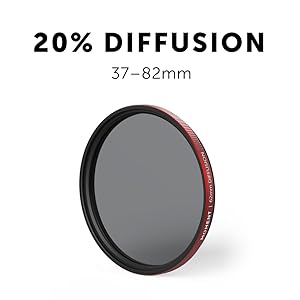
Image: The Moment Cinebloom 20% Diffusion Filter, illustrating its physical design.
Stacking with Other Filters
The Cinebloom filter can be combined with other filters, such as ND or VND filters, to achieve complex effects. Ensure that the combined thickness does not cause vignetting (darkening of image corners) or interfere with lens operation.
Demonstrasi Visual
Video: This video demonstrates the visual effects of Moment Cinebloom Diffusion Filters at 5%, 10%, and 20% strengths, showcasing how they soften highlights and create a cinematic look.
Penjagaan dan Penyelenggaraan
Proper care will ensure the longevity and optimal performance of your Cinebloom Diffusion Filter.
Membersihkan Penapis
- Use a soft, lint-free microfiber cloth specifically designed for optical lenses.
- For dust, gently blow it off with a lens blower or use a soft brush. Avoid wiping dry dust, as it can scratch the glass.
- For smudges or fingerprints, apply a small amount of lens cleaning solution to the microfiber cloth (not directly to the filter) and gently wipe in a circular motion from the center outwards.
- Avoid using harsh chemicals, abrasive materials, or paper products, as these can damage the filter's coating and glass.
Penyimpanan
Always store the filter in its protective case when not in use. This prevents dust accumulation, scratches, and accidental damage.

Image: The Moment Cinebloom Diffusion Filter resting securely within its dedicated protective case.
Menyelesaikan masalah
This section addresses common issues you might encounter with your Cinebloom Diffusion Filter.
Image Appears Too Soft or Blurry
- Semak Fokus: Ensure your camera is properly focused. Diffusion filters soften the image but should not cause blurriness due to focus issues.
- Diffusion Strength: A 20% diffusion filter provides a strong effect. If you desire a more subtle look, consider a lower percentage filter (e.g., 5% or 10%).
- Penapis Bersih: Dust or smudges on the filter can exacerbate the softening effect or introduce unwanted artifacts. Clean the filter as per the maintenance instructions.
Vignetting (Dark Corners)
- Keserasian Lensa: Ensure the filter size (37mm) is appropriate for your lens. Wide-angle lenses are more prone to vignetting with filters.
- Stacking Filters: If multiple filters are stacked, their combined thickness can cause vignetting. Try removing additional filters to see if the issue resolves.
Filter Stuck on Lens
- Tekanan Lembut: Apply firm, even pressure when twisting counter-clockwise.
- Pegangan Getah: If difficult, use a rubber jar opener or a specialized filter wrench for better grip.
- Elakkan Paksa: Do not use excessive force, as this can damage the filter or lens threads.
Spesifikasi
| Ciri | Perincian |
|---|---|
| Jenama | sekejap |
| bahan | Aluminium (bingkai) |
| Saiz Benang Penapis Foto | 37 Milimeter |
| Penerangan Salutan | Salutan Berbilang |
| Jenis Kesan Penapis Foto | Diffusion (20%) |
| Tahap Ketahanan Air | Tahan Air |
| Dimensi Produk (L x W) | 1.46" L x 1.46" W |
| UPC | 810004743281 |
| Bilangan Kepingan | 1 |
| Media Terbina Dalam | Sarung Penapis |
| Pengeluar | sekejap |
| Peranti Serasi | DSLR, mirrorless, cinema cameras, mobile rigs |
Maklumat Waranti
The Moment Cinebloom Diffusion Filter is covered by a Waranti Pengeluar 2 TahunWaranti ini meliputi kecacatan bahan dan mutu kerja di bawah penggunaan biasa. Sila simpan bukti pembelian anda untuk sebarang tuntutan waranti.
Moment also generally offers a lifetime guarantee on its products, reflecting their commitment to quality and performance.
Sokongan Pelanggan
For further assistance, technical support, or warranty inquiries, please contact Moment customer service through their official webtapak atau peruncit tempat produk itu dibeli.
You can find additional resources and contact information by visiting the Moment Store on Amazon.