
pengenalan
This manual provides comprehensive instructions for the Lexmark MS431dw Monochrome Laser Printer. It covers setup, operation, maintenance, and troubleshooting to ensure optimal performance and longevity of your device. The Lexmark MS431dw is designed for efficient monochrome printing, offering speeds up to 40 pages per minute and automatic duplex printing.

Imej: Depan-kanan view of the Lexmark MS431dw Monochrome Laser Printer.
Persediaan
1. Membongkar Pencetak
Carefully remove the printer from its packaging. Ensure all packing materials, tapes, and protective films are removed from the exterior and interior of the printer. Retain the packaging for future transport if needed.
2. Installing the Toner Cartridge
- Buka kulit hadapan pencetak.
- Remove the new toner cartridge from its packaging and gently shake it to distribute the toner.
- Insert the toner cartridge into the designated slot until it clicks into place.
- Tutup penutup hadapan.
3. Memuatkan Kertas
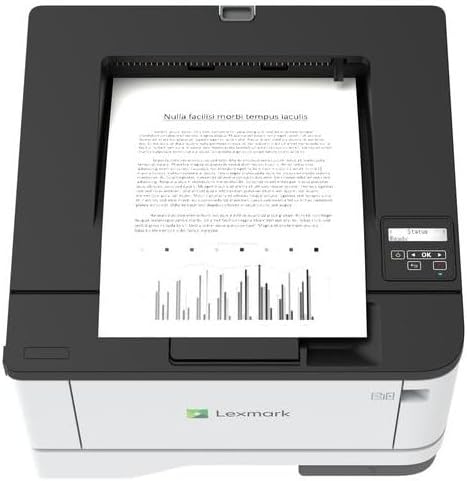
Imej: Atas view of the Lexmark MS431dw with paper loaded in the input tray.
Open the paper tray and adjust the paper guides to fit the size of your paper. Load the paper stack into the tray, ensuring it is flat and below the maximum fill line. Close the paper tray. The printer supports various media types, including card stock.
4. Kuasa Penyambung
Sambungkan kord kuasa ke input kuasa pencetak dan kemudian ke soket elektrik yang dibumikan.
5. Connecting to a Network/Computer
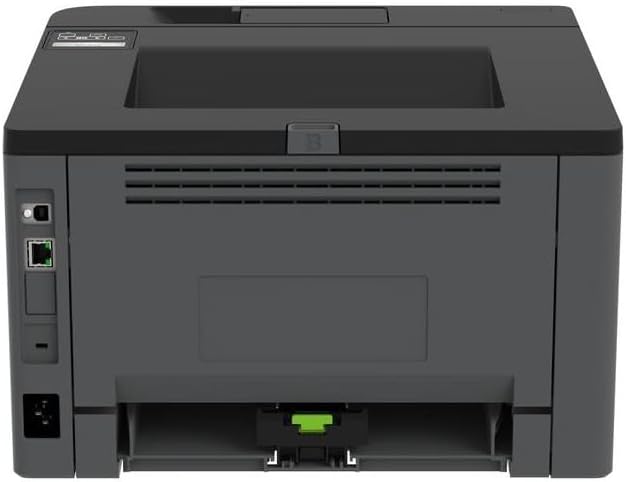
Imej: Belakang view of the Lexmark MS431dw, highlighting the Ethernet and power connection ports.
The Lexmark MS431dw supports Ethernet connectivity. Connect an Ethernet cable from your network router or switch to the Ethernet port on the back of the printer. For direct connection to a computer, use a USB cable (not included) if available, or configure network printing.
6. Pemasangan Pemandu
Turn on the printer. Insert the driver CD (if provided) into your computer, or download the latest drivers from the official Lexmark support webtapak. Ikut arahan pada skrin untuk menyelesaikan pemasangan pemacu.
Arahan Operasi
1. Panel Kawalan Selesaiview

Imej: Atas view of the Lexmark MS431dw, showing the printer's control panel with display and buttons.
The control panel features a display screen and navigation buttons (Up, Down, OK, Back) to access printer settings, status, and functions. Refer to the on-screen menus for specific options.
2. Percetakan Asas
- Ensure the printer is powered on and connected to your computer or network.
- Buka dokumen yang ingin anda cetak pada komputer anda.
- Pilih Cetak daripada menu aplikasi (cth., File > Cetak).
- Choose the Lexmark MS431dw from the list of available printers.
- Adjust print settings as desired (e.g., number of copies, paper size).
- klik Cetak.
3. Automatic Duplex Printing
The MS431dw supports automatic two-sided (duplex) printing. To enable this feature:
- In the print dialog box on your computer, navigate to the printer properties or preferences.
- Look for an option related to "Two-sided printing" or "Duplex printing."
- Select the desired duplex option (e.g., long-edge binding, short-edge binding).
- Confirm your selection and proceed with printing.
Penyelenggaraan
1. Replacing the Toner Cartridge
When the toner level is low, the printer's display will indicate a warning. To replace the cartridge:
- Pastikan pencetak dihidupkan.
- Buka penutup hadapan.
- Remove the old toner cartridge by pulling it out.
- Unpack a new Lexmark-compatible toner cartridge and gently shake it.
- Insert the new cartridge until it locks into place.
- Tutup penutup hadapan.
2. Membersihkan Pencetak
Pembersihan berkala membantu mengekalkan kualiti cetakan dan memanjangkan hayat pencetak.
- Luaran: Lap permukaan luar dengan lembut, damp, lint-free cloth. Do not use abrasive cleaners or solvents.
- Dalaman: Periodically open the front cover and gently remove any dust or paper debris from accessible areas using a dry, lint-free cloth. Avoid touching the fuser unit.
Menyelesaikan masalah
This section addresses common issues you might encounter. For more detailed troubleshooting, refer to the Lexmark support webtapak.
1. Kertas Tersekat
- If a paper jam occurs, the printer display will show an error message indicating the location of the jam.
- Carefully open the indicated covers or trays.
- Gently pull the jammed paper in the direction of the paper path. Avoid tearing the paper.
- Close all covers and trays. The printer should resume printing.
2. Kualiti Cetakan yang Buruk
- Faded Prints: The toner cartridge may be low. Replace it if necessary.
- Streaks or Spots: Clean the printer's interior as described in the Maintenance section. Ensure the toner cartridge is properly seated.
- Halaman Kosong: Verify the toner cartridge is installed correctly and has toner. Check printer drivers and print settings.
3. Isu Ketersambungan
- Printer Not Found: Ensure the Ethernet cable is securely connected to both the printer and the network. Verify network settings on the printer and computer.
- Status Luar Talian: Check the printer's power and network connection. Restart both the printer and your computer.
Spesifikasi
| Ciri | Perincian |
|---|---|
| Nombor Model | 29S0110 |
| Teknologi Percetakan | Laser |
| Output Pencetak | Monokrom |
| Kelajuan Cetakan Maksimum (Monokrom) | Sehingga 40 ppm (muka surat seminit) |
| Teknologi Ketersambungan | Ethernet |
| Ciri Khas | Auto-Duplex (Automatic Two-sided Printing) |
| Kapasiti Helaian Input Maks | 900 helai |
| Print Media Support | Card stock, Plain paper |
| Berat Barang | 9300 Gram (lebih kurang 20.5 paun) |
| Wattage | 570 watt |
| UPC | 734646695558 |
Catatan: Spesifikasi boleh berubah tanpa notis.
Waranti dan Sokongan
Maklumat Waranti
Your Lexmark MS431dw printer is covered by a standard manufacturer's warranty. For specific terms, conditions, and duration of your warranty, please refer to the documentation included with your product or visit the official Lexmark webtapak. Simpan bukti pembelian anda untuk tuntutan waranti.
Sokongan Pelanggan
For technical assistance, driver downloads, or further support, please visit the official Lexmark support portal.
Visit the Lexmark Store for Support