
1. Pengenalan
These Phomemo thermal labels are designed for use with compatible Phomemo thermal label printers. They utilize direct thermal printing technology, eliminating the need for ink or toner. This manual provides essential information for the proper setup, operation, and care of your Phomemo thermal labels.
2. Produk Lebihview
2.1 Compatible Printers
These labels are compatible with Phomemo M110, M100, M220, M221, M250, M260, M160, M150, M120, and M108 label makers. Ensure your printer model is listed for optimal performance.

Rajah 2.1: Compatible Phomemo Label Printers.
2.2 Label Specifications
- Saiz Label: 3/4" x 3/8" (20mm x 10mm)
- Labels per Roll: 1280 label
- Warna Cetakan: Hitam putih
- Bahan: Kertas haba
- ciri-ciri: BPA-free, Strong Adhesion, Abrasion Resistant, Water Resistant
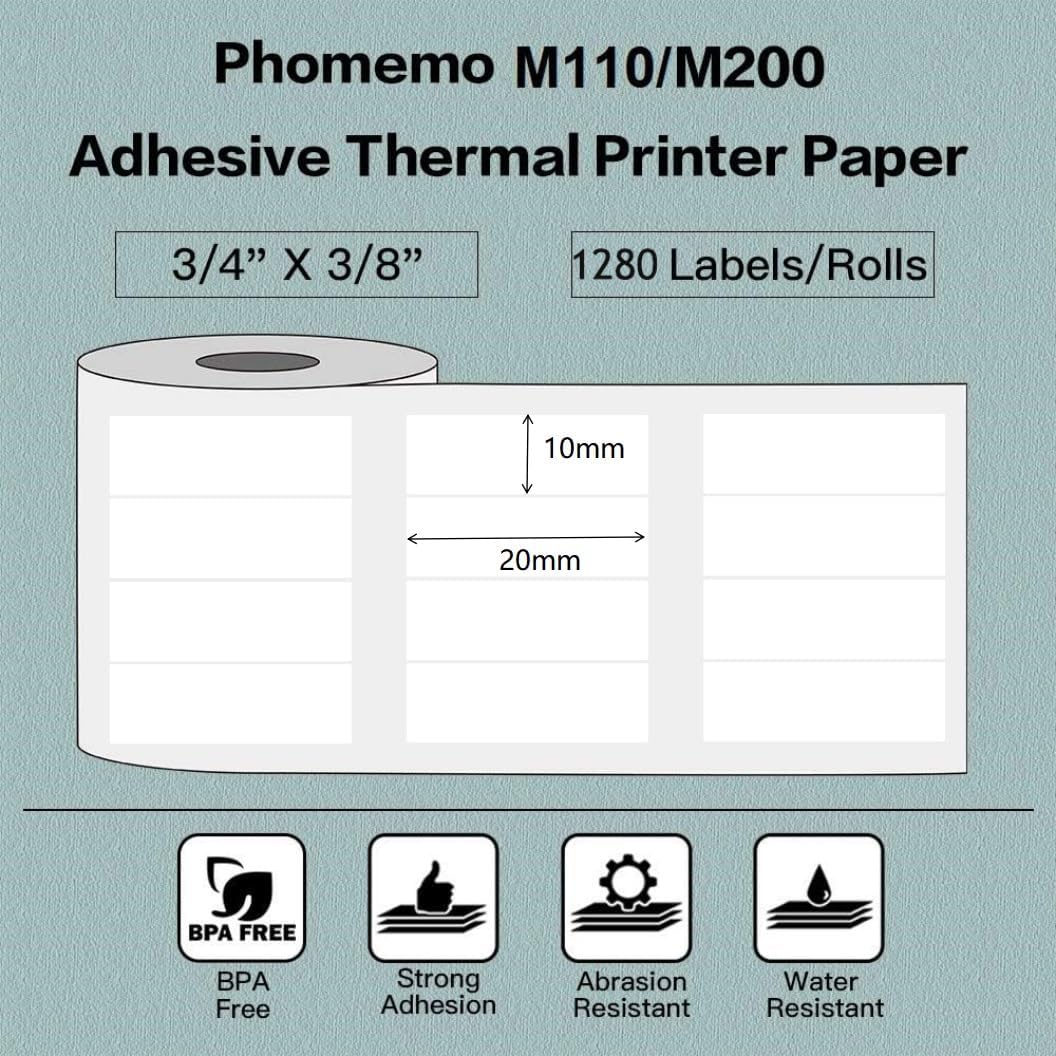
Rajah 2.2: Label dimensions and features.
3. Persediaan dan Pemasangan
3.1 Pemasangan Aplikasi
To use your Phomemo label printer and labels, install the Apl Induk Cetak. This app is available for download from the Apple App Store (for iOS devices) and Google Play Store (for Android devices).
3.2 Printer Connection
- Ensure your Phomemo label printer is powered on.
- Open the Print Master App on your smartphone or tablet.
- Enable Bluetooth on your device and connect to your Phomemo printer through the app.
3.3 Memuatkan Label
Refer to your specific Phomemo label printer's manual for detailed instructions on how to open the printer and correctly load the label roll. Ensure the labels are facing the correct direction for printing and are properly aligned within the printer's feed mechanism.
4. Operasi
4.1 Proses Mencetak
Once your printer is connected and labels are loaded, you can begin printing using the Print Master App. The app offers various fonts, filter effects, and themes to customize your labels. Follow these general steps:
- Open the Print Master App.
- Select the 'New Label' option.
- Choose the correct label paper size (20x10mm) or template within the app.
- Design your label by adding text, images, or barcodes.
- Adjust the content within the label boundaries.
- Initiate printing with a single click.
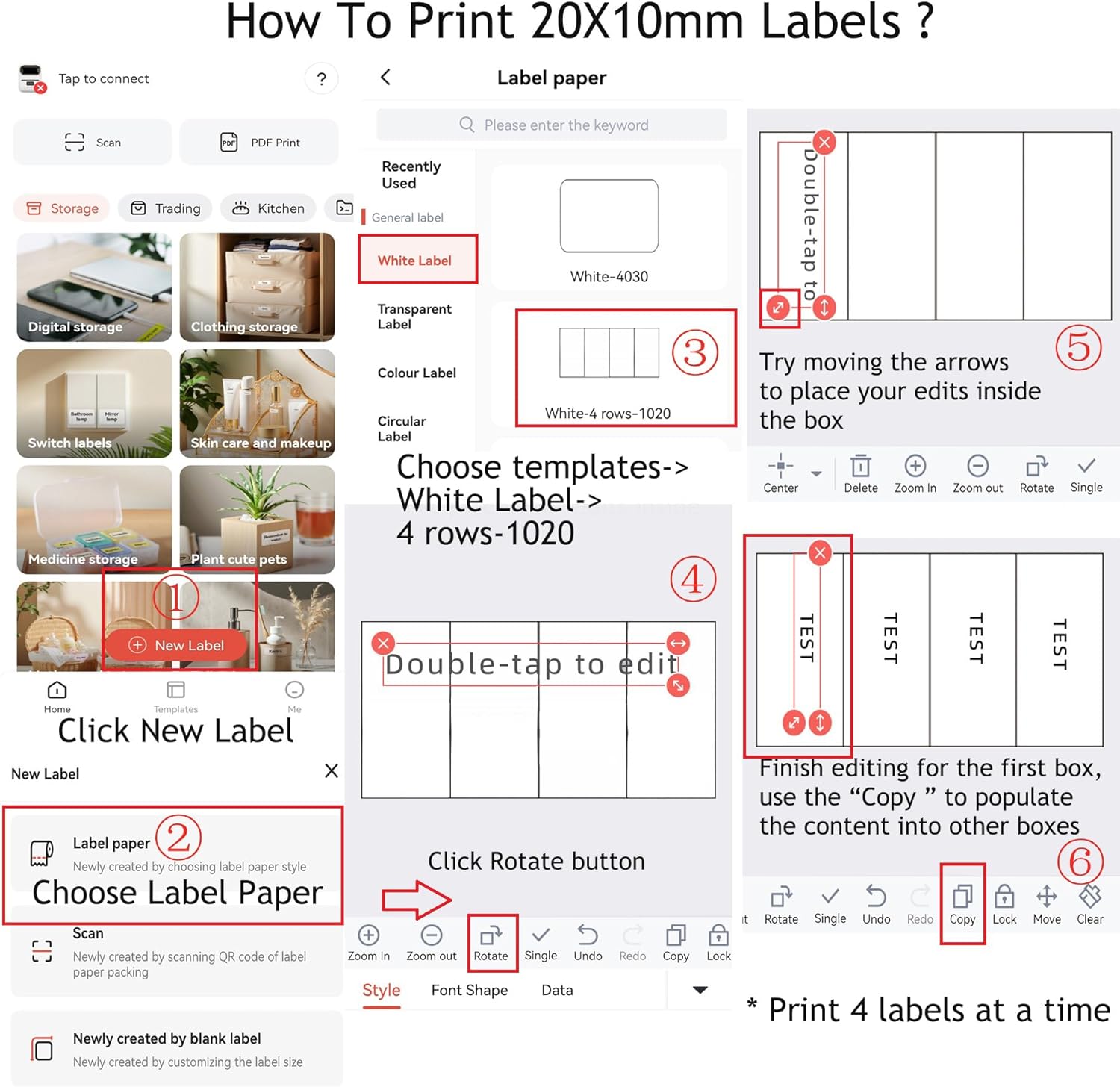
Rajah 4.1: Guide to printing 20x10mm labels using the Print Master App.
4.2 Penggunaan Cthamples
These versatile labels can be used for various purposes, including:
- Label kod bar
- Address and mailing labels
- harga tags
- Pengenalan produk
- Organisasi rumah tags
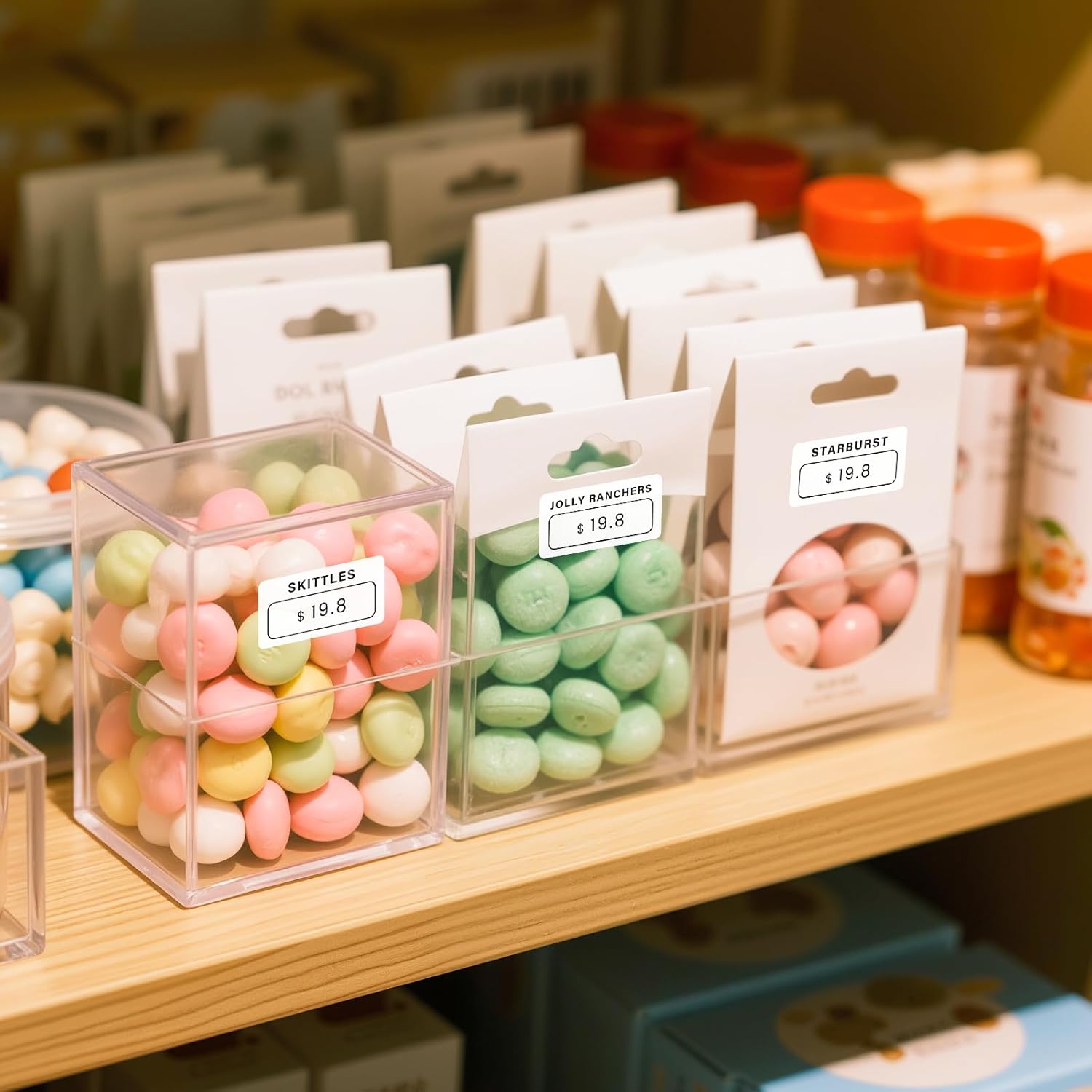
Rajah 4.2: Labels used for product identification on candy containers.

Rajah 4.3: Labels used for organizing medicine bottles.
5. Penyelenggaraan dan Penjagaan
5.1 Penyimpanan
Store thermal labels in a cool, dry place away from direct sunlight and excessive heat. Prolonged exposure to heat or light can degrade the thermal coating, affecting print quality and label longevity.
5.2 Label Properties
Phomemo thermal labels are designed with durability in mind:
- Bebas BPA: Safe for various applications.
- Tahan Air: Helps protect against splashes and moisture.
- Tahan calar: Provides durability against minor abrasions.
- Oil-Proof: Resists smudging from oils.

Rajah 5.1: BPA-free label feature.

Rajah 5.2: Inkless thermal label technology.

Rajah 5.3: Durability features: Water-proof, Oil-proof, Scratch Resistant.
6. Penyelesaian masalah
6.1 Isu Lazim
- Kualiti Cetakan Lemah: Ensure the label roll is correctly loaded and the thermal side is facing the print head. Check for any debris on the print head.
- Printer Not Connecting: Verify Bluetooth is enabled on your device and the printer. Restart both the printer and the app.
- Label Tidak Memberi Makan: Check for proper alignment of the label roll. Ensure there are no obstructions in the paper path.
- Incorrect Label Count: While the product is specified as 1280 labels per roll, occasional discrepancies have been reported. If you encounter a significant difference, please contact Phomemo support.
6.2 Instructional Video
Video 6.1: Umum berakhirview of Phomemo label usage. (Duration: 0:21)
7. Spesifikasi Teknikal
| Jenama | Phomemo |
| Model Number (Printer) | M110 |
| Saiz Label | 20mm x 10mm (3/4" x 3/8") |
| Label setiap Gulungan | 1280 |
| warna | putih |
| bentuk | segi empat tepat |
| Jenis Bahan | kertas |
| Jenis Selesai | Tidak bersalut |
| Nombor Bahagian Pengilang | 2010-600 |
8. Maklumat Sokongan
For further assistance, technical support, or warranty inquiries regarding your Phomemo thermal labels or compatible printers, please visit the official Phomemo website or contact their customer service directly. Refer to your printer's packaging or the Phomemo webtapak untuk butiran hubungan khusus.