
pengenalan
The Victrix Gambit Dual Core Tournament Controller is designed for competitive gaming across Xbox One, Xbox Series X|S, and Windows 10/11 PC. It features advanced technology for responsive input and extensive customization options to adapt to various play styles.
Ciri-ciri Utama:
- Dual Core Technology: Dedicated processing for ultra-fast input and clear audio.
- Swappable Components: Includes interchangeable thumbsticks, D-pads, and faceplates for personalized ergonomics and aesthetics.
- Customizable Paddles & Triggers: Remappable buttons, bumpers, and paddles, along with adjustable hair triggers with five positional stops.
- Dolby Atmos Integration: Built-in support for immersive surround sound via the 3.5mm audio jack with compatible headsets.
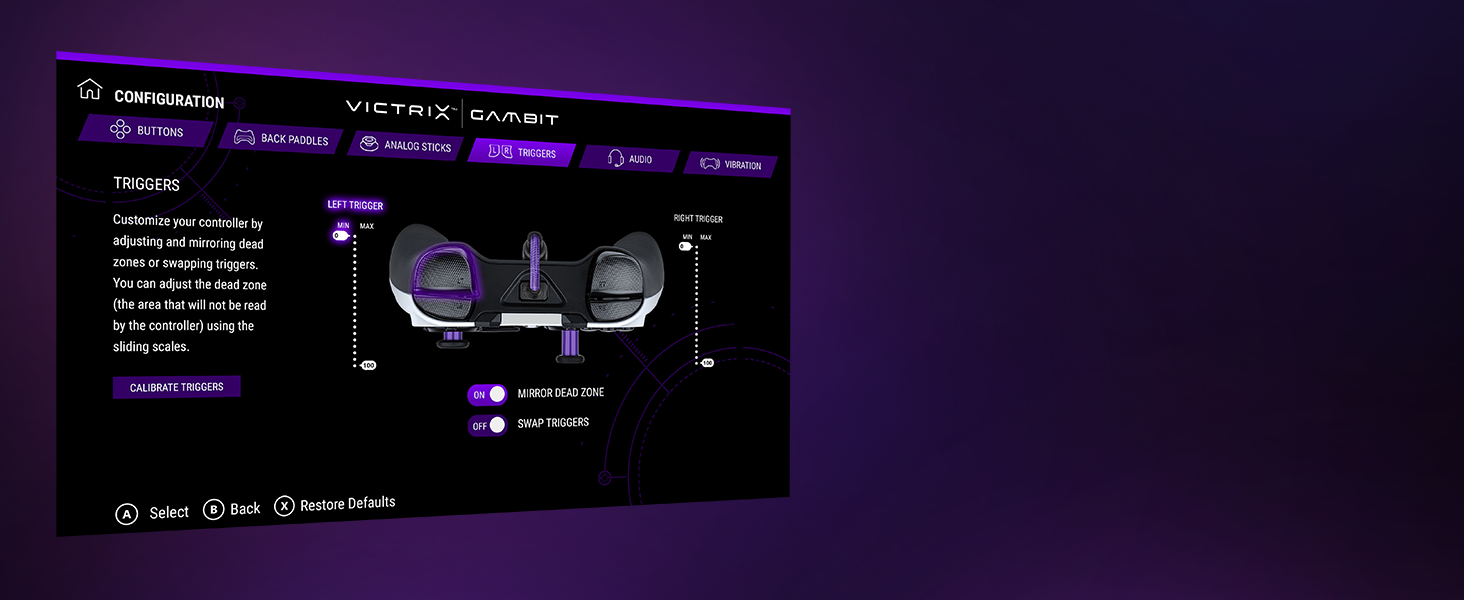
- Victrix Control Hub App: Software for fine-tuning controller settings, including button remapping, dead zones, audio profiles, and vibration strength.
- Reka bentuk tahan lasak: Comes with a hard-shell carrying case for protection and portability.
Persediaan
Connecting Your Controller:
- Ensure your Xbox console or PC is powered on.
- Connect the braided USB-C cable to the USB-C port on the top of the Victrix Gambit controller.
- Connect the other end of the USB-C cable to an available USB port on your Xbox console or PC.
- The controller's Xbox button will illuminate, indicating a successful connection.
Installing the Victrix Control Hub App:
- For Xbox: Download the 'Victrix Control Hub' app from the Xbox Store.
- For PC: Download the 'Victrix Control Hub' app from the Microsoft Store or Victrix's official webtapak.
- Launch the app to access customization options and firmware updates.
Mengendalikan Pengawal
Swapping Components:
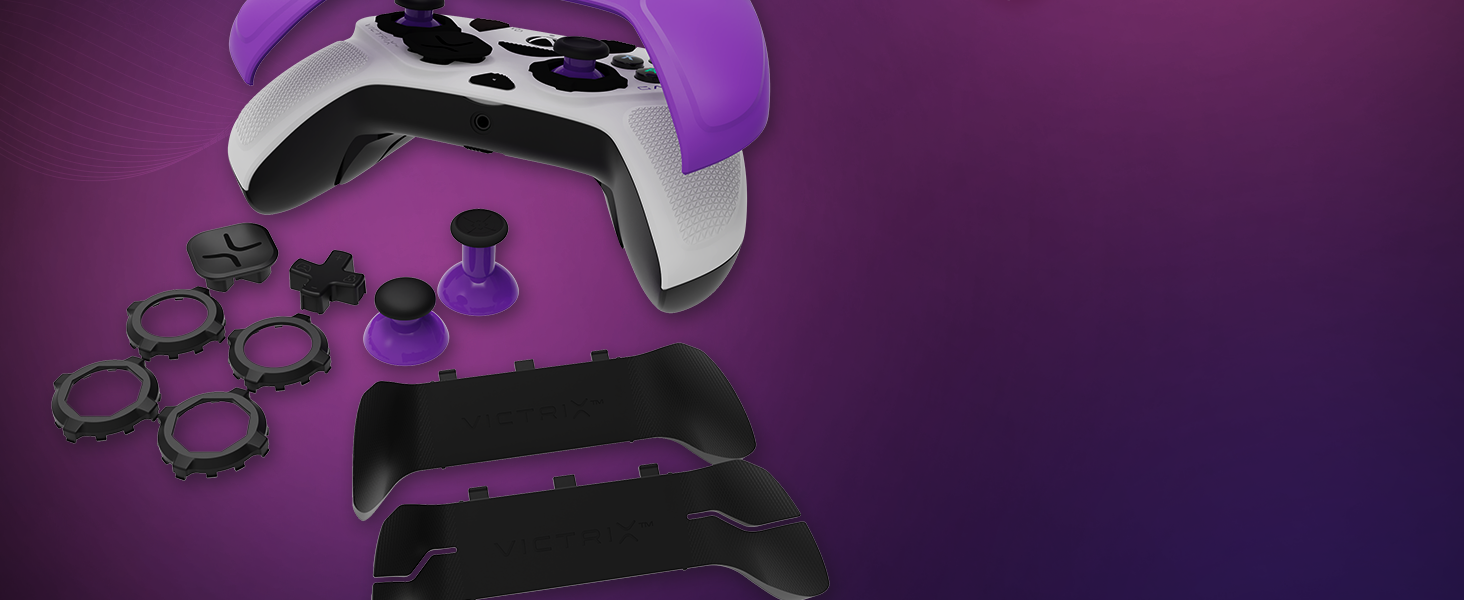
The Victrix Gambit controller features magnetic, swappable components for personalized comfort and control.
- Plat muka: Gently lift the existing faceplate from the controller to remove it. Align the new faceplate with the controller's body and press down until it snaps into place.
- Batang ibu jari: Pull the existing thumbstick straight up to remove it. Insert the desired thumbstick into the base and push down until it is securely seated.
- D-Pads: The D-pad is also magnetically attached. Simply pull it off and replace it with your preferred style.
- Back Paddles: The back paddle module can be removed by sliding it off. Replace it with the 2-button or 4-button module as desired.
Adjusting Trigger Stops:
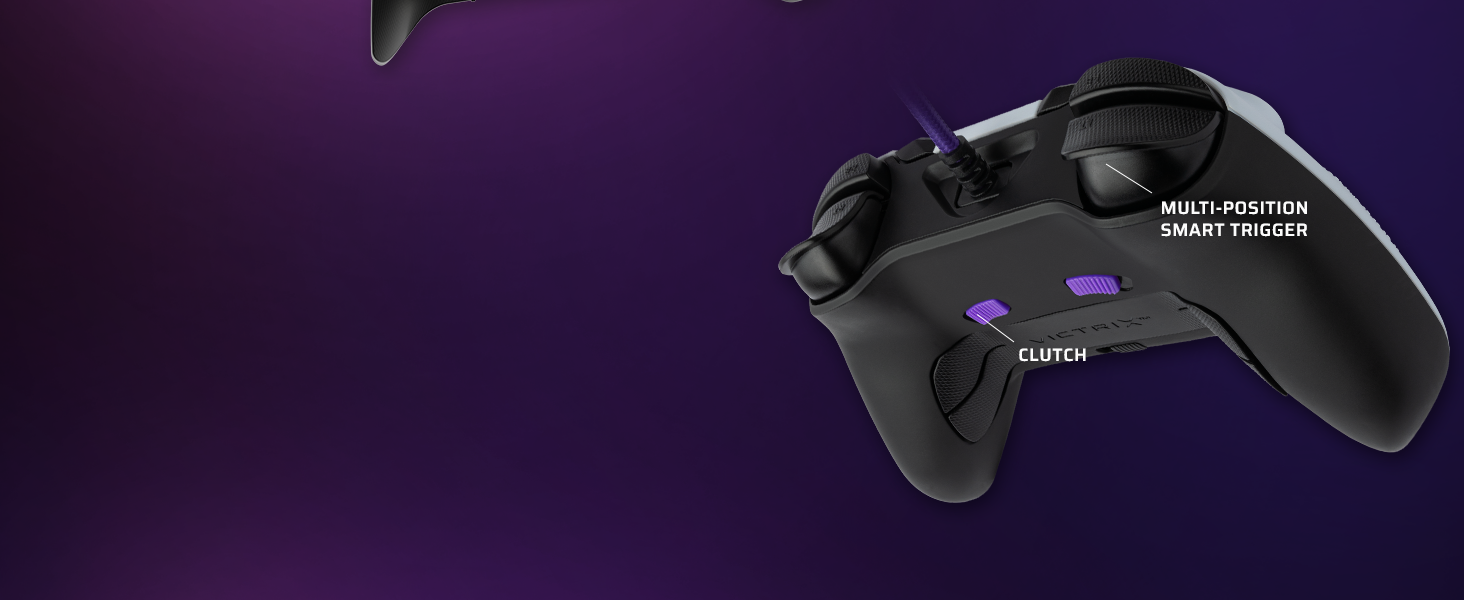
The controller features patented five-position trigger stops, allowing you to reduce the travel distance of the triggers for faster response times in games. Locate the small switches on the underside of the controller, near the triggers. Slide these switches to adjust the trigger travel to your preferred setting.
Customizing with the Control Hub App:
The Victrix Control Hub app provides extensive customization options:
- Pemetaan Semula Butang: Assign any button function to another button or paddle.
- Analog Stick Adjustment: Test and calibrate analog sticks, adjust dead zones, and invert X/Y axes.
- Tetapan Pencetus: Calibrate triggers, adjust dead zones, and swap trigger functions.
- Audio Profiles: Fine-tune volume, game/chat balance, mic mute, and mic monitoring. Create custom EQ profiles.
- Getaran: Adjust the strength of the controller's vibration or turn it off completely.
Video: Seorang pegawai tamatview of the Victrix Gambit Dual Core Tournament Controller, demonstrating its features and customization options through the Victrix Control Hub app.
Penyelenggaraan
Membersihkan Pengawal Anda:
- Use a soft, dry cloth to wipe down the controller's surface regularly.
- Untuk kotoran degil, sedikit dampen kain dengan air atau pembersih yang lembut dan tidak melelas. Elakkan kelembapan berlebihan.
- Do not use harsh chemicals or solvents, as these can damage the controller's finish.
- Ensure the controller is disconnected from its power source before cleaning.
Storan:
- Store the controller in its included hard-shell carrying case when not in use to protect it from dust, spills, and physical damage.
- Avoid storing the controller in extreme temperatures or direct sunlight.
Menyelesaikan masalah
Isu dan Penyelesaian Biasa:
- Pengawal Tidak Menjawab:
- Pastikan kabel USB-C disambungkan dengan selamat pada kedua-dua pengawal dan konsol/PC.
- Cuba sambungkan pengawal ke port USB yang berbeza.
- Mulakan semula konsol atau PC anda.
- Check for any firmware updates via the Victrix Control Hub app.
- Hanyutan Kayu atau Input Tidak Tepat:
- Open the Victrix Control Hub app and navigate to the 'Analog Sticks' section. Perform a stick calibration.
- Clean around the base of the thumbsticks to remove any debris.
- Adjust dead zone settings in the Control Hub app if minor drift persists.
- Buttons Not Registering or Malfunctioning:
- Pastikan tiada serpihan bersarang di bawah butang.
- Check button remapping settings in the Victrix Control Hub app to ensure correct assignments.
- If using trigger stops, ensure they are not set too aggressively, preventing full button press.
- Isu Audio:
- Verify your headset is properly connected to the 3.5mm jack.
- Check audio settings within the Victrix Control Hub app and your console/PC's system settings.
- Ensure Dolby Atmos is correctly configured if you are using it.
Spesifikasi
| Ciri | Perincian |
|---|---|
| Nombor Model | 049-006-NA |
| Keserasian | Xbox One, Xbox Series X|S, Windows 10/11 PC |
| Ketersambungan | Berwayar (USB-C) |
| Sokongan Audio | 3.5mm audio jack with Dolby Atmos (lifetime access included) |
| Penyesuaian | Swappable faceplates, thumbsticks, D-pads, back paddles; adjustable trigger stops; software remapping |
| Dimensi | 3.74 x 8.27 x 8.27 inci |
| Berat badan | 1.18 paun |
| Pengeluar | Victrix |
| Tarikh Tayangan | 4 Oktober 2021 |
Waranti dan Sokongan
For warranty information, technical support, or service inquiries, please refer to the official Victrix webtapak atau hubungi sokongan pelanggan mereka secara langsung. Simpan bukti pembelian anda untuk sebarang tuntutan waranti.
Online resources, including FAQs and additional guides, may be available on the Victrix support page.