
pengenalan
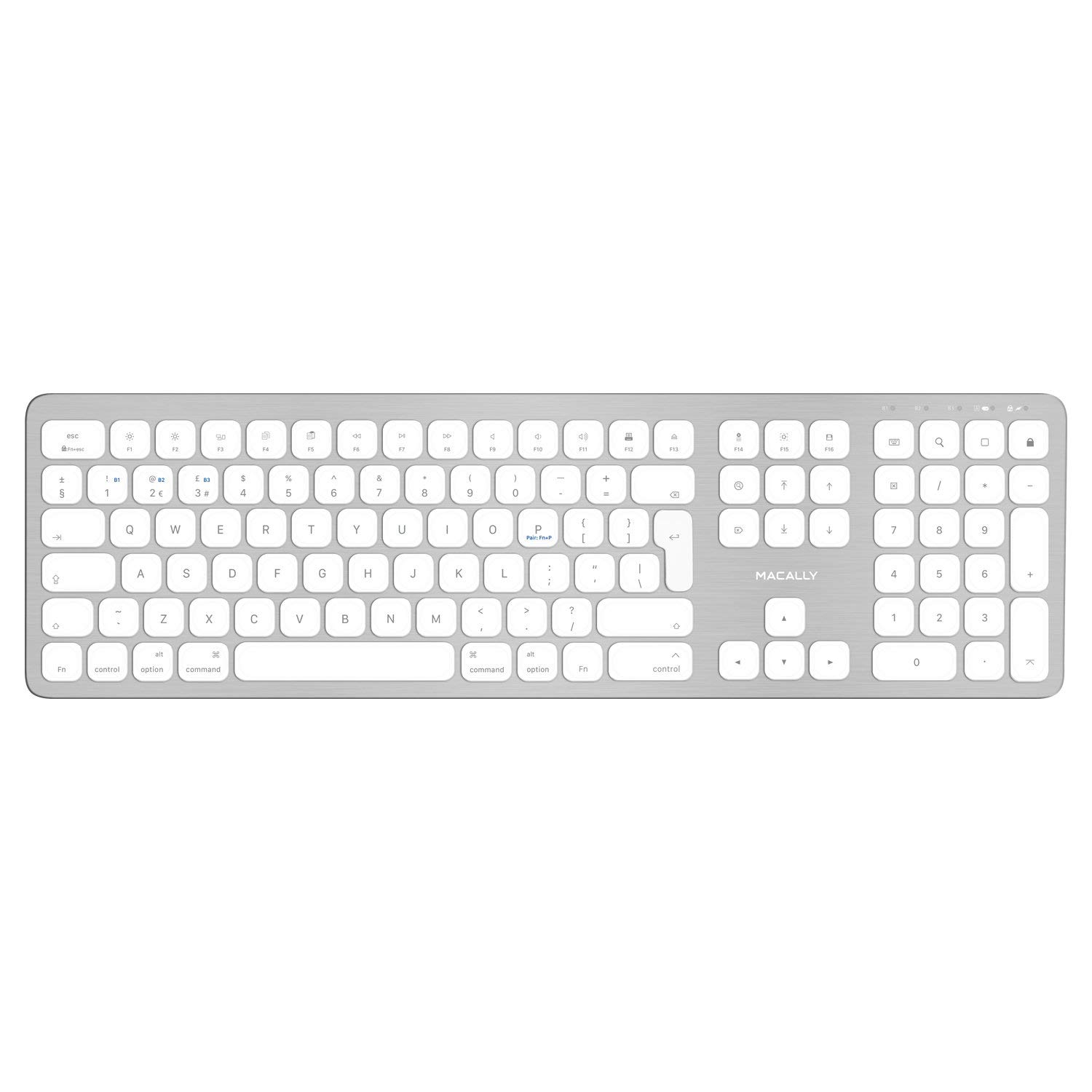
The Macally BTWKEYMB-UK is an ultra-thin, extended wireless Bluetooth keyboard designed for seamless compatibility across multiple operating systems, including Mac, PC, iOS, and Android. Featuring a durable aluminum construction and a UK QWERTY layout, this keyboard offers a comfortable and efficient typing experience with its 110 full-size, flat keys utilizing a scissor-style mechanism. It includes a dedicated 17-button numeric keypad and 21 function shortcuts for enhanced productivity. The Quick-Switch feature allows for instant switching between up to three paired Bluetooth devices.
Persediaan
Kandungan Pakej
- Macally BTWKEYMB-UK Wireless Bluetooth Keyboard
- Kabel Pengecas USB
- Manual Pengguna
Mengecas Papan Kekunci
Before initial use, fully charge the keyboard. Connect the supplied USB charging cable to the keyboard's charging port and the other end to a USB power source (e.g., computer USB port, USB wall adapter). The charging indicator light will illuminate during charging and turn off when fully charged.
Berpasangan dengan Peranti
The BTWKEYMB-UK keyboard supports pairing with up to three Bluetooth-enabled devices using its Quick-Switch feature. Follow these steps to pair your keyboard:
- Ensure the keyboard is charged and powered on. The power switch is located on the side of the keyboard.
- Press and hold one of the Quick-Switch keys (F1, F2, or F3) for approximately 3-5 seconds until the corresponding Bluetooth indicator light above the key begins to blink rapidly. This indicates the keyboard is in pairing mode.
- On your device (Mac, PC, iOS, or Android), enable Bluetooth and search for available devices.
- Select "Macally BTWKEYMB-UK" from the list of discovered Bluetooth devices.
- If prompted, enter the pairing code displayed on your device using the keyboard and press Enter.
- Once successfully paired, the indicator light for the selected Quick-Switch key will stop blinking and remain solid for a few seconds before turning off.

Arahan Operasi
Keyboard Layout and Function Keys
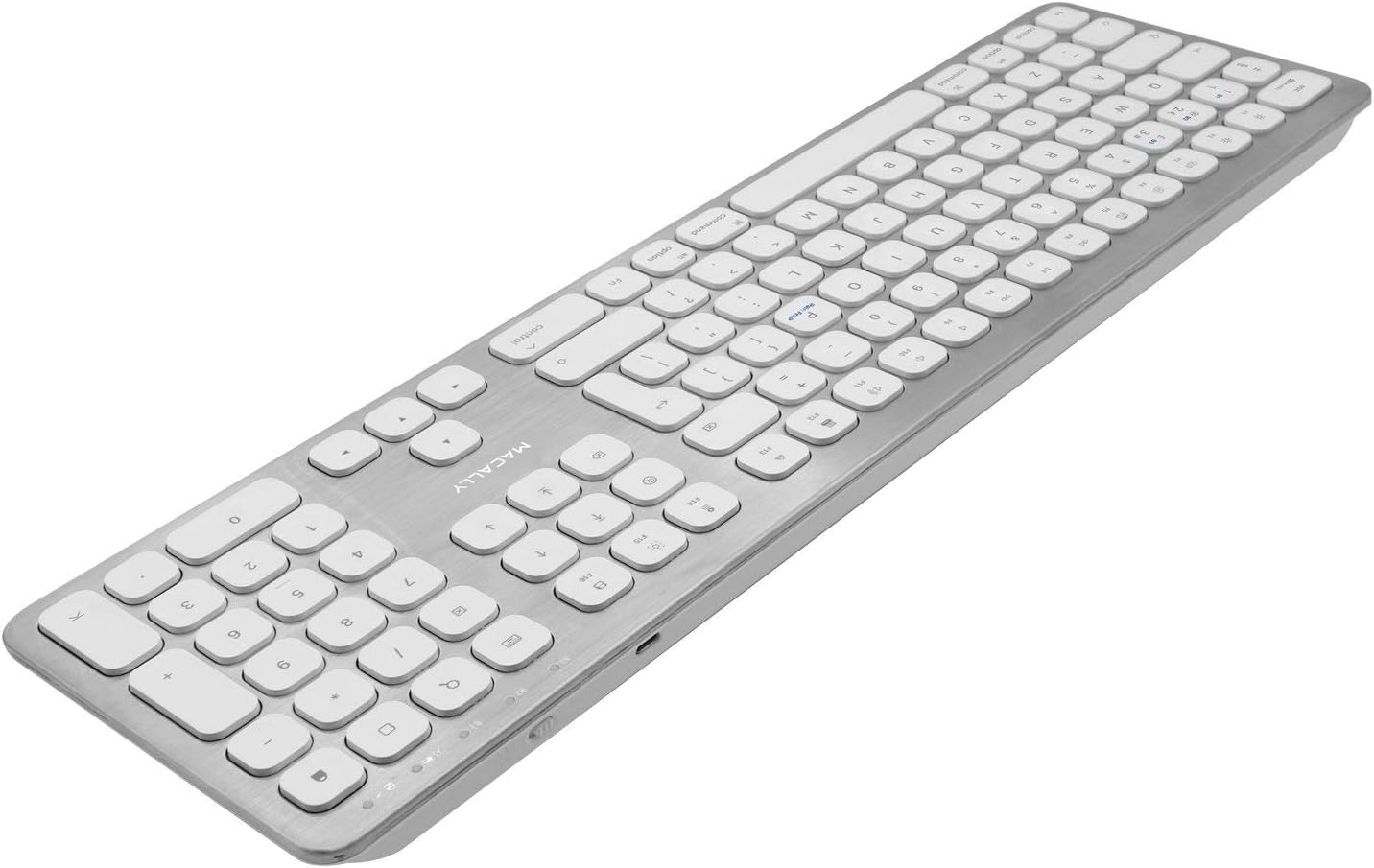
The BTWKEYMB-UK features a full-size 110-key UK QWERTY layout, including a complete numeric keypad. The keys are designed with a scissor-style mechanism for responsive and comfortable typing. Additionally, the keyboard includes 21 dedicated function shortcuts, primarily optimized for Mac operating systems, allowing quick access to various system controls.
- Kekunci F1-F12: These keys provide quick access to functions such as screen brightness, Mission Control, Launchpad, media playback controls (play/pause, next/previous track), volume control (mute, volume down, volume up), and eject.
- Papan kekunci angka: The 17-button numeric keypad on the right side enhances data entry efficiency.
- Quick-Switch Keys (F1, F2, F3): Used to switch between up to three paired Bluetooth devices.


Bertukar Antara Peranti
To switch between your paired devices, simply press the corresponding Quick-Switch key (F1, F2, or F3) once. The keyboard will connect to the selected device almost instantly.
Keserasian
The Macally BTWKEYMB-UK keyboard is compatible with devices running:
- macOS 10.6 atau lebih baru
- iOS 5.0 atau lebih baru
- Windows (Bluetooth enabled)
- Android (Bluetooth enabled)
A Bluetooth-enabled computer, tablet, or smartphone is required for operation.
Penyelenggaraan dan Penjagaan
- Pembersihan: To clean the keyboard, power it off and gently wipe the surface with a soft, slightly damp, lint-free cloth. Avoid using harsh chemicals, abrasive cleaners, or excessive moisture, as these can damage the keyboard's finish and internal components.
- Storan: Store the keyboard in a dry environment, away from direct sunlight and extreme temperatures. Prolonged exposure to heat or cold can affect battery life and overall performance.
- Penjagaan Bateri: For optimal battery longevity, charge the keyboard regularly and avoid completely depleting the battery frequently. If storing for an extended period, ensure the keyboard has a partial charge (around 50%) and recharge it periodically.
Menyelesaikan masalah
- Keyboard not pairing?
- Ensure the keyboard is fully charged and powered on. Verify that Bluetooth is enabled on your device and that the keyboard is in pairing mode (indicator light blinking). Try restarting both the keyboard and your device, then attempt the pairing process again.
- Keys not responding or typing incorrectly?
- Check the keyboard's battery level. Ensure the keyboard is properly connected to your device via Bluetooth. If the issue persists, try unpairing and re-pairing the keyboard. Clean any debris from around the affected keys.
- Connection issues or frequent disconnections?
- Ensure your device and keyboard are within the optimal Bluetooth range (typically up to 10 meters or 33 feet) and that there are no significant obstructions or sources of interference (e.g., other wireless devices, large metal objects) between them. Try switching to a different Quick-Switch channel if you are using multiple devices.
- hayat bateri pendek?
- Ensure the keyboard is fully charged before use. Battery life can vary based on usage patterns and environmental factors. Over time, rechargeable batteries may experience some degradation. If battery life significantly decreases, ensure you are charging it correctly and consider contacting support if the issue is severe and persistent.
Spesifikasi
| Ciri | Perincian |
|---|---|
| Jenama | Secara Macal |
| Nombor Model | BTWKEYMB-UK |
| Teknologi Ketersambungan | Bluetooth |
| Susun atur papan kekunci | QWERTY UK |
| Bilangan Kunci | 110 |
| Pad Kekunci Berangka | Ya (17 butang) |
| Mekanisme Utama | Suis gunting |
| bahan | Aluminium, Logam |
| warna | putih |
| Peranti Serasi | Komputer, Telefon Pintar, Tablet |
| Keserasian Sistem Pengendalian | macOS 10.6+, iOS 5.0+, Windows, Android |
| Ciri Khas | Wireless, Quick-Switch (3 devices) |
Waranti dan Sokongan
For detailed warranty information, technical support, and frequently asked questions, please visit the official Macally website. Product registration may be available and is recommended to ensure full warranty coverage.
Official Macally Webtapak: www.macally.com