
SYSTEMTREFF 20192505-a
SYSTEMTREFF PC AMD Ryzen 7 5700G User Manual
Model: Ed2505 (20192505-a)
pengenalan
This manual provides essential information for setting up, operating, maintaining, and troubleshooting your SYSTEMTREFF PC AMD Ryzen 7 5700G. Please read this manual thoroughly before using your new computer to ensure proper functionality and longevity.

Imej: Bahagian hadapan view of the SYSTEMTREFF PC, showcasing its transparent side panel and illuminated internal components.
Panduan Persediaan
Follow these steps to set up your SYSTEMTREFF PC.
1. Unboxing dan Placement
- Carefully remove the PC from its packaging. Retain all packaging materials for future transport or service.
- Place the PC on a stable, flat surface with adequate ventilation. Ensure there is sufficient space around the computer for airflow, especially at the front, rear, and top vents.
- Avoid placing the PC near heat sources, in direct sunlight, or in areas with excessive dust or humidity.

Imej: Pelbagai views of the PC case illustrating its physical dimensions for proper placement.
2. Menyambung Peranti
Connect your monitor, keyboard, mouse, and other devices to the appropriate ports.
- Pantau: Connect your monitor to the HDMI or DVI-D port on the rear of the PC. Ensure the cable is securely fastened.
- Papan Kekunci dan Tetikus: Connect your USB keyboard and mouse to any available USB ports (USB 2.0 or USB 3.0/3.2). PS/2 ports are also available for compatible devices.
- Audio: Connect speakers or headphones to the audio output jack (green) and a microphone to the microphone input jack (pink) on the rear or front panel.
- Rangkaian: For a wired connection, connect an Ethernet cable from your router to the RJ45 LAN port on the rear. For wireless connectivity, ensure the included USB Wi-Fi stick is connected.
- Kuasa: Sambungkan kabel kuasa ke unit bekalan kuasa (PSU) di bahagian belakang PC, kemudian pasangkan hujung yang satu lagi ke soket elektrik yang dibumikan.

Imej: Terperinci view of the available front and rear ports for connecting various peripherals.
Arahan Operasi
1. First Boot and Initial Setup
- After connecting all peripherals, press the power button located on the top front of the PC.
- The system will boot into Windows 10 Pro. Follow the on-screen instructions to complete the initial Windows setup, including region, language, and user account creation.
- Drivers for all components are pre-installed, ensuring a plug-and-play experience.
2. Penggunaan Asas
- Hidupkan/Mati Kuasa: Press the power button to turn on. To shut down, click the Start button in Windows, then select Power > Shut down.
- Mulakan semula: Untuk memulakan semula sistem, klik butang Mula, kemudian pilih Kuasa > Mulakan semula.
- Mod tidur: Untuk meletakkan sistem ke dalam mod tidur, klik butang Mula, kemudian pilih Kuasa > Tidur.
- Ketersambungan: The PC supports Wi-Fi and Bluetooth for wireless connections. Use the Windows settings to connect to wireless networks or pair Bluetooth devices.

Imej: Cthamples of typical usage scenarios for the PC, including productivity, entertainment, and gaming.
Penyelenggaraan
Regular maintenance helps ensure the optimal performance and longevity of your PC.
1. Pembersihan
- Luaran: Gunakan yang lembut, damp cloth to clean the exterior of the case. Avoid abrasive cleaners.
- habuk: Periodically clean dust from the vents and fans using compressed air. Ensure the PC is powered off and unplugged before cleaning. The case features a mesh front and side panel for improved airflow and dust filtration.

Image: Features of the PC case designed for efficient cooling and maintenance access.
2. Kemas Kini Perisian
- Semak dan pasang kemas kini Windows secara kerap untuk memastikan kestabilan dan keselamatan sistem.
- Keep your graphics drivers updated for optimal performance, especially for gaming and multimedia applications.
Menyelesaikan masalah
Bahagian ini menangani isu biasa yang mungkin anda hadapi.
Tiada Kuasa
- Pastikan kabel kuasa disambungkan dengan kukuh ke PC dan soket elektrik.
- Verify that the power switch on the back of the power supply unit (PSU) is in the 'On' position.
- Test the outlet with another device to confirm it is functional.
Tiada Paparan pada Monitor
- Check that the monitor is powered on and its video cable is securely connected to the PC's HDMI or DVI-D port.
- Ensure the monitor input source is correctly selected (e.g., HDMI 1, DVI).
- If you have multiple display outputs, try connecting to a different port.
System Slowdown or Freezing
- Tutup aplikasi yang tidak perlu berjalan di latar belakang.
- Check for sufficient free space on your drives, especially the C: drive (SSD).
- Jalankan imbasan virus untuk memeriksa perisian hasad.
- Ensure the PC has adequate ventilation and is not overheating.
Spesifikasi
Detailed technical specifications of your SYSTEMTREFF PC.
| Komponen | Spesifikasi |
|---|---|
| Pemproses | AMD Ryzen 7 5700G (8 Cores, up to 4.6 GHz Turbo) |
| Grafik | Integrated AMD Radeon RX Vega 8 (4GB, 2000 MHz, DirectX 12.1) |
| RAM | 32GB DDR4 3200 MHz |
| Penyimpanan | 1TB M.2 NVMe SSD + 2TB HDD |
| Sistem Operasi | Windows 10 Pro (64-bit, pre-installed) |
| Bekalan Kuasa | 500 Watt |
| Ketersambungan | Wi-Fi, Bluetooth, Gigabit LAN (RJ45) |
| Pelabuhan Depan | 1x USB 3.0, 2x USB 2.0, Audio Masuk/Keluar |
| Pelabuhan Belakang | HDMI 4K HD, DVI-D, PS/2, 4x USB 3.2, 2x USB 2.0, HD 7.1 Sound, RJ45 LAN |
| Dimensi (HxWxD) | 45 x 20.5 x 38.5 cm |
| Berat badan | 12 kg |

Image: Visual summary of the PC's core performance components.


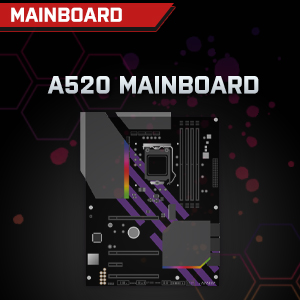

Image: Individual component representations for CPU, RAM, Graphics, Storage, Mainboard, and Power Supply.
Waranti dan Sokongan
SYSTEMTREFF is committed to providing excellent customer service.
- Waranti Pengilang: Your SYSTEMTREFF PC comes with a 36-month (3-year) manufacturer's warranty. This warranty covers defects in materials and workmanship under normal use.
- Kawalan Kualiti: All individually assembled PCs undergo a quality control check before shipment.
- Pulangan: In case of issues, SYSTEMTREFF offers free returns.
- Hubungi Sokongan: For technical assistance, warranty claims, or any other inquiries, please contact SYSTEMTREFF customer support. Contact details can typically be found on the manufacturer's official webtapak atau dokumentasi yang disertakan dengan pembelian anda.

Image: Information regarding warranty, ease of setup, and customer support availability.
Ask a question about this manual
Ask about setup, troubleshooting, compatibility, parts, safety, or missing instructions. Manuals+ will review the question and use this page’s manual context to help answer it.