
pengenalan
This manual provides detailed instructions for the installation, operation, and maintenance of your XVIM 8CH 1080P Home Security Camera System. Please read this manual thoroughly before using the product to ensure proper setup and functionality. Keep this manual for future reference.
Produk Selesaiview
The XVIM 8CH 1080P Home Security Camera System includes an 8-channel Digital Video Recorder (DVR) with a 1TB hard drive and four 2MP HD outdoor IP66 waterproof cameras. The system is designed for reliable surveillance with features such as night vision and remote access capabilities.

Imej: Selesaiview of the XVIM 1080P HD Security Camera System, showing a camera and a smartphone displaying live view.
Ciri Kamera
- IP66 Metal Housing: Durable and weatherproof construction.
- 3.6mm HD Lens: Provides a 75° viewsudut ing.
- IR-Cut Filter: Ensures clear day and night vision.
- 24 LED: Offers up to 65ft night vision range.

Image: Diagram highlighting key camera features: IP66 metal housing, 3.6mm HD lens, IR-cut filter, and 24 LEDs.
Day and Night Monitoring
The cameras are equipped with an IR-Cut filter and infrared LEDs to provide clear surveillance both during the day and at night. During the day, images are colorful and high definition. At night, the cameras automatically switch to infrared mode for clear black and white vision in low-light conditions.
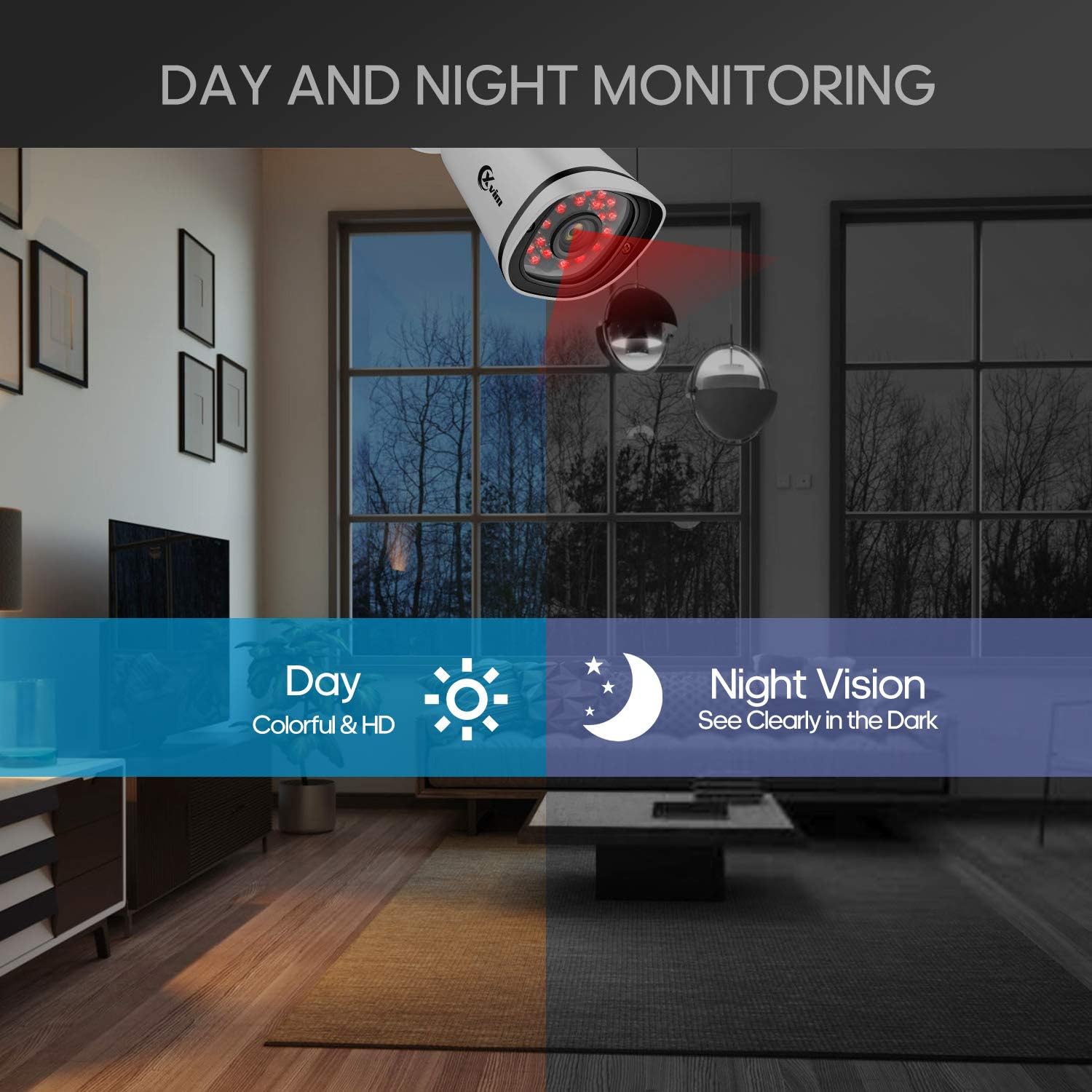
Image: Illustration showing the camera's ability to monitor both during the day (colorful HD) and at night (clear vision in the dark).
Reka Bentuk Kalis Air
The cameras feature an IP66-rated metal housing, ensuring they are protected against dust and powerful water jets, making them suitable for outdoor installation in various weather conditions.
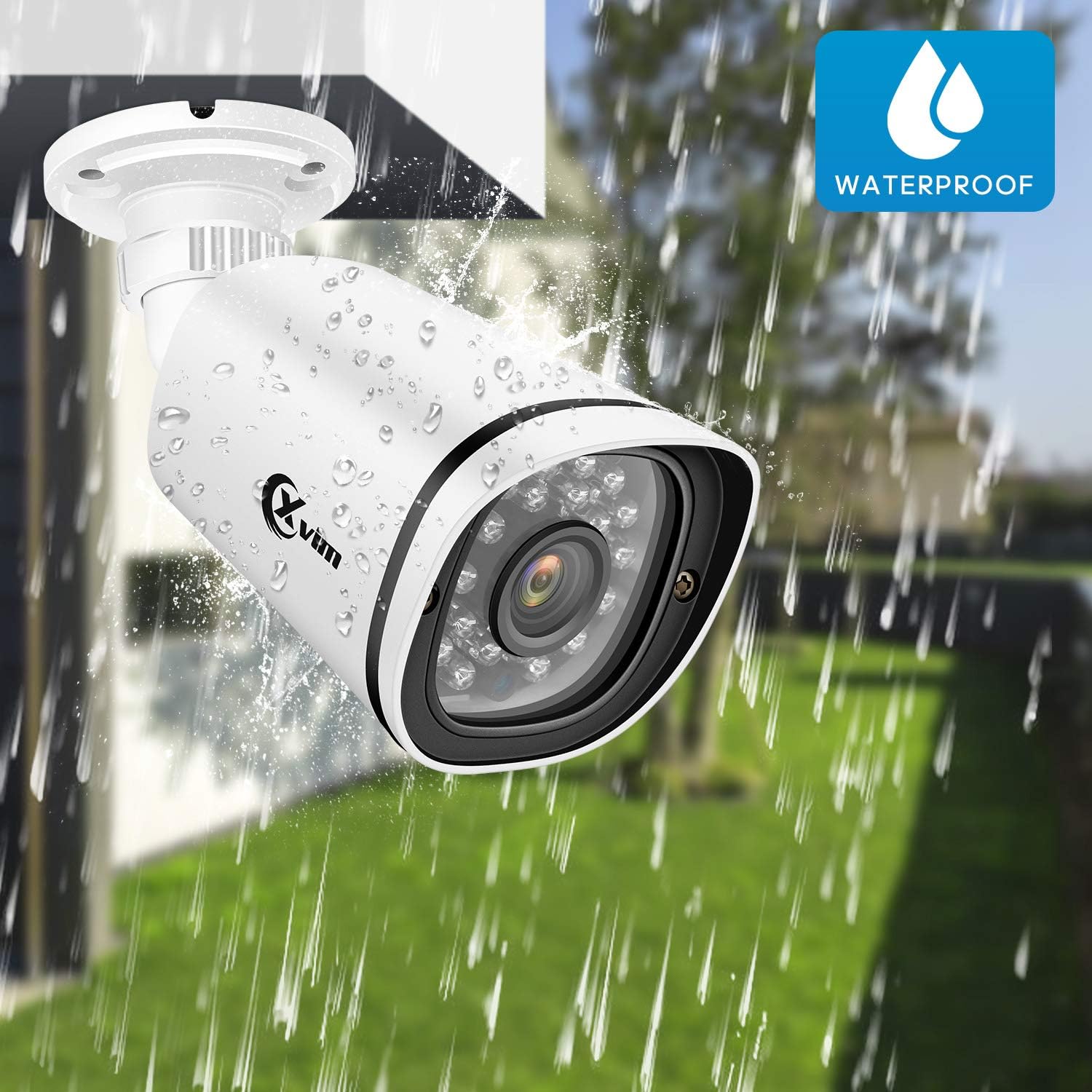
Image: An XVIM camera being sprayed with water, illustrating its waterproof design.
DVR Back Panel Overview
The DVR unit provides multiple ports for connecting cameras, a monitor, audio input/output, and network connectivity. Familiarize yourself with the ports before installation.
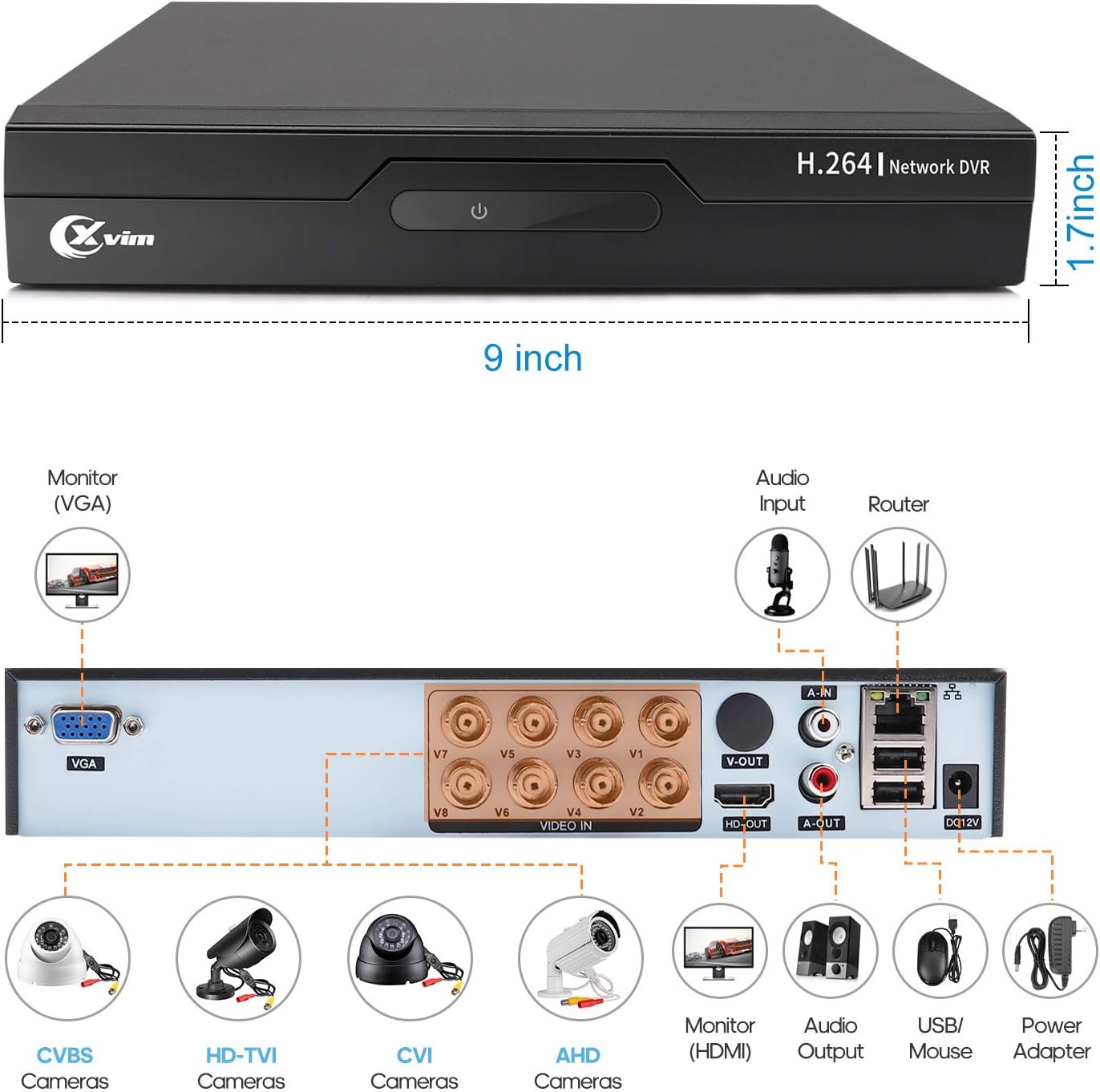
Image: Diagram of the DVR's back panel, showing ports for VGA, HDMI, video input (BNC), audio input/output, USB, and power.
Arahan Persediaan
- Sambungkan Kamera ke DVR: Connect each camera to the corresponding video input (BNC) port on the DVR using the provided cables. Ensure secure connections.
- Sambungkan DVR ke Monitor: Connect the DVR to a monitor using either the VGA or HDMI port.
- Connect DVR to Network: For remote access, connect the DVR to your router using an Ethernet cable.
- Sambungkan Kuasa: Connect the power adapters to the cameras and the DVR, then plug them into a power outlet. The system will power on automatically.
- Persediaan Awal: Follow the on-screen prompts on your monitor to complete the initial DVR setup, including setting up a password and configuring basic settings.
- Persediaan Apl Mudah Alih:
- Download the "XVR Pro" app from your smartphone's app store.
Muat turun untuk Android
Muat turun untuk iOS - Register for an account within the app.
- Add your DVR device by scanning the QR code displayed on the DVR's monitor or by manually entering the device ID.
- Setelah ditambah, anda boleh view your cameras remotely from anywhere.
- Download the "XVR Pro" app from your smartphone's app store.

Image: Step-by-step guide for connecting the system components and setting up the XVR Pro mobile application.
Arahan Operasi
Langsung View
Selepas persediaan berjaya, anda boleh view hidup footage from your cameras on the connected monitor or through the XVR Pro mobile app. The DVR interface allows you to switch between single-camera view dan grid berbilang kamera view.
Mod Rakaman
The system supports various recording modes:
- Rakaman Manual: Start and stop recording manually via the DVR interface.
- Rakaman Pengesanan Gerak: Configure the system to record automatically when motion is detected in specified areas. This helps conserve hard drive space.
- Rakaman Berjadual: Set specific times for continuous recording.
Refer to the DVR's on-screen menu for detailed configuration of recording schedules and motion detection zones.
Akses Jauh
The XVR Pro app enables you to:
- View live camera feeds from anywhere with an internet connection.
- Main semula dirakam footage stored on the DVR.
- Terima makluman pengesanan gerakan.
- Control certain DVR settings remotely.
Camera Mode Switching (OSD Menu)
Each camera features an OSD (On-Screen Display) button on its cable, allowing you to switch between different video modes (Analog, AHD, TVI, CVI) to ensure compatibility with various DVRs. To access the OSD menu and switch modes:
- Analog (CVBS) Mode: Tekan butang OSD Ke atas selama 5 saat.
- AHD Mode: Tekan butang OSD Ke kiri selama 5 saat.
- TVI Mode: Tekan butang OSD Ke kanan selama 5 saat.
- CVI Mode: Tekan butang OSD Ke bawah selama 5 saat.
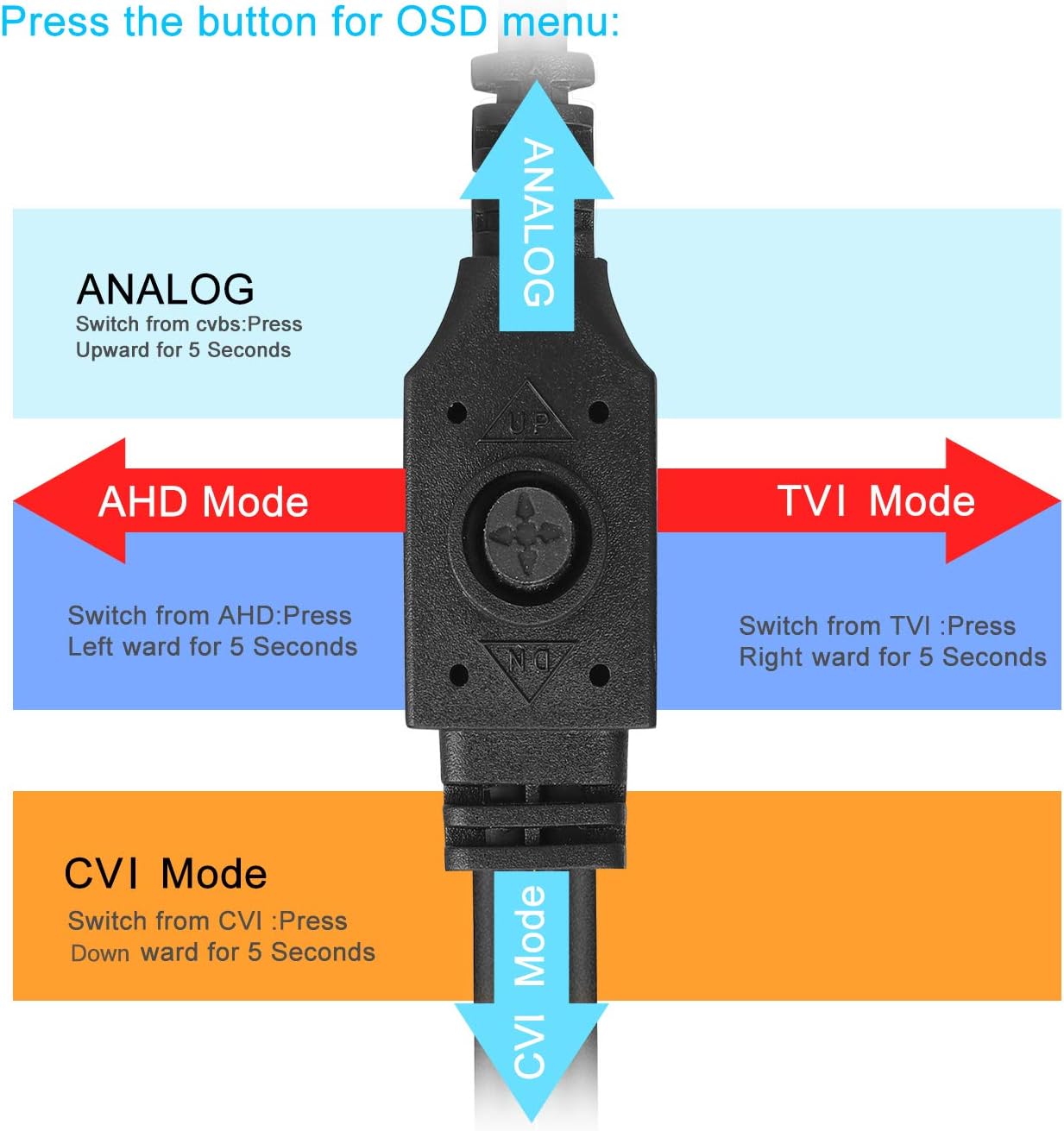
Image: Diagram illustrating how to use the OSD button on the camera cable to switch between Analog, AHD, TVI, and CVI video modes.
Penyelenggaraan
- Pembersihan Kamera: Bersihkan kanta kamera secara berkala dengan kain lembutamp kain untuk memastikan kualiti imej yang jelas. Elakkan pembersih yang kasar.
- Pemeriksaan Kabel: Periodically check all cables and connections for wear, damage, or loose connections.
- DVR Ventilation: Ensure the DVR unit has adequate ventilation to prevent overheating. Keep vents clear of obstructions.
- Pengurusan Cakera Keras: Pemacu keras 1TB akan menulis ganti fail tertua secara automatiktage when full. Regularly back up important recordings if needed.
- Kemas kini Firmware: Check the XVIM official website for any available firmware updates for your DVR to ensure optimal performance and security.
Menyelesaikan masalah
Tiada Paparan Video
- Check all power connections for the DVR and cameras.
- Verify that the monitor is correctly connected to the DVR via VGA or HDMI and is set to the correct input source.
- Ensure camera cables are securely connected to the DVR's video input ports.
- If a specific camera has no video, try switching its video mode using the OSD button (refer to "Camera Mode Switching" section).
Isu Capaian Jauh
- Confirm the DVR is connected to your router and has internet access.
- Semak sambungan internet penghala anda.
- Ensure the XVR Pro app is updated to the latest version.
- Verify that the device ID is correctly added in the app and your login credentials are correct.
Penglihatan Malam yang lemah
- Pastikan lensa kamera bersih dan bebas daripada halangan.
- Check for strong light sources near the camera that might interfere with the infrared LEDs.
DVR Not Recording
- Check the hard drive status in the DVR's system settings. Ensure it is detected and functioning.
- Verify that recording schedules or motion detection settings are correctly configured.
- Ensure there is sufficient hard drive space (though the system typically overwrites old footagdan).
If you encounter persistent issues not covered here, please contact XVIM customer support for assistance.
Spesifikasi
| Jenama | XVIM |
| Nombor Model | US-D8-4AHD7-1T-203 |
| Teknologi Ketersambungan | berwayar |
| Resolusi Tangkapan Video | 1080p |
| Ciri Khas | Image, Motion Sensor, Night Vision, Waterproof |
| Bilangan Saluran | 4 (cameras included, DVR supports 8 channels) |
| Kapasiti Penyimpanan Memori | 1 TB (Pemacu Keras) |
| Sumber Kuasa | Elektrik Bertali |
| Dimensi Item (L x W x H) | 13.94 x 11.85 x 6.93 inci |
| Julat Penglihatan Malam | 85 Kaki |
| Mod Rakaman | Manual, Motion Detection |
| Antara Muka Perkakasan | USB 3.0 Jenis B |
| Jenis Kanta | tetap |
| Input Video | BNC, RCA (CVBS) |
| Viewsudut | 81 Darjah |
Waranti dan Sokongan
XVIM products are designed for reliability and performance. For specific warranty details, please refer to the warranty card included with your product or visit the official XVIM website. For technical support, troubleshooting assistance, or any inquiries, please contact XVIM customer service through their official channels.
Sumber Dalam Talian: For additional support, FAQs, and software downloads, please visit the XVIM Store on Amazon or the official XVIM webtapak.