
1. Pengenalan
The PNI House IP516 is a 16-channel Network Video Recorder (NVR) designed for advanced surveillance systems, supporting up to 5MP IP cameras and H.265 video compression. This NVR allows for local and remote monitoring, recording, and management of your security cameras. It is compatible with ONVIF protocol cameras, offering flexibility in camera selection. This manual provides essential information for the proper installation, operation, and maintenance of your PNI House IP516 NVR.
2. Kandungan Pakej
Sila sahkan bahawa semua item yang disenaraikan di bawah disertakan dalam pakej anda. Jika ada barang yang hilang atau rosak, hubungi peruncit anda.
- PNI House IP516 NVR Unit
- Tetikus USB
- Penyesuai Kuasa
- Manual Pengguna (dokumen ini)
- CD dengan Perisian
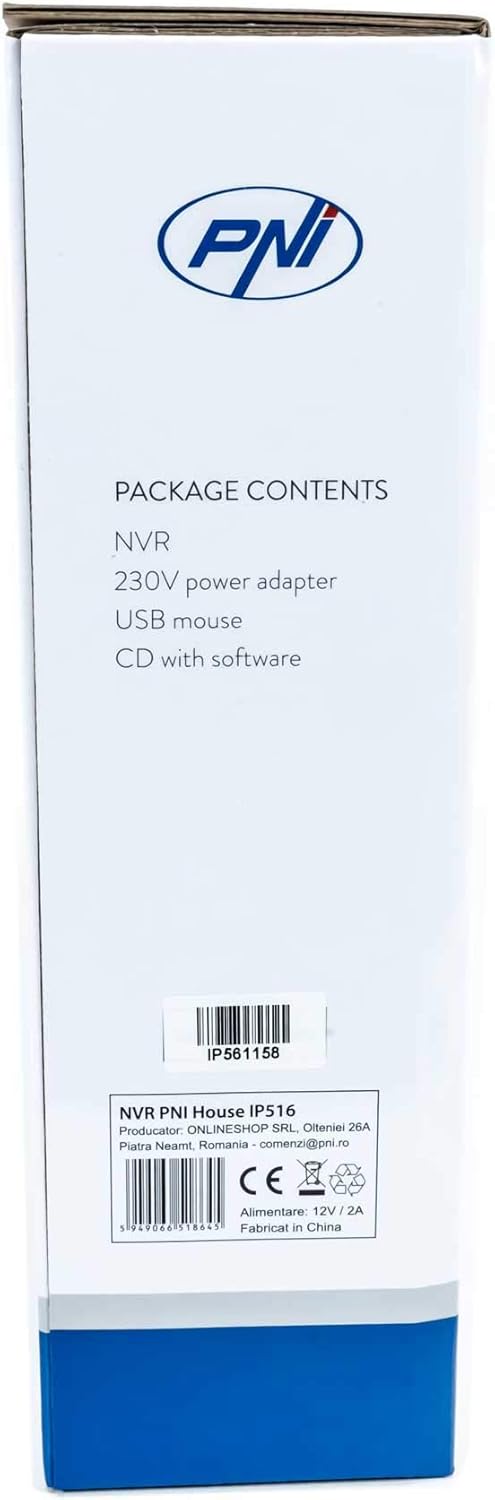
Image: Side of the NVR box detailing the package contents.

Image: The PNI House IP516 NVR unit, power adapter, and USB mouse included in the package.
3. Produk Lebihview
3.1 Panel Depan
The front panel of the NVR features indicator lights for system status.
- PWR (Kuasa): Indicates the NVR is powered on.
- RKM (Rakaman): Flashes when recording is active.
- NET (Network): Menunjukkan aktiviti rangkaian.

Imej: Depan view of the PNI House IP516 NVR, showing the power, record, and network indicator lights.
3.2 Panel Belakang
The rear panel provides all necessary connection ports for the NVR.
- Port VGA: Menyambung kepada monitor VGA.
- Port HDMI: Menyambung ke monitor HDMI atau TV untuk output video definisi tinggi.
- LAN Port (RJ45 10/100 Mbps): Connects to your network router or switch.
- Port USB (x2): For connecting the USB mouse, external storage, or for system upgrades.
- Input Kuasa DC 12V: Menyambung kepada penyesuai kuasa yang disertakan.

Imej: Belakang view of the PNI House IP516 NVR, displaying VGA, HDMI, LAN, USB, and DC 12V power input ports.
4. Persediaan
4.1 Pemasangan Pemacu Keras (Pilihan)
The NVR supports a hard drive up to 8 TB for video storage. It is recommended to use dedicated CCTV hard drives for optimal reliability and endurance.
- Buka skru dan tanggalkan penutup atas NVR.
- Sambungkan kabel data dan kuasa SATA dari NVR ke cakera keras.
- Pasangkan cakera keras pada casis NVR menggunakan skru yang disediakan.
- Pasang semula penutup atas dan pasangkannya dengan skru.
4.2 Sambungan Awal
- Connect a monitor to the NVR's VGA or HDMI port.
- Connect the USB mouse to one of the NVR's USB ports.
- Connect an Ethernet cable from the NVR's LAN port to your network router or switch.
- Connect the power adapter to the NVR's DC 12V input and then plug it into a power outlet. The NVR will power on automatically.
4.3 First Boot and Basic Configuration
Upon the first boot, the NVR will guide you through an initial setup wizard. Follow the on-screen prompts to:
- Sediakan kata laluan yang kukuh untuk akaun pentadbir.
- Konfigurasikan tetapan tarikh dan masa.
- Format the installed hard drive (if applicable).
- Perform network settings (DHCP is usually enabled by default).
- Cari untuk and add IP cameras to the NVR. The NVR supports up to 16 cameras at 2560x1920px (5MP) and is compatible with ONVIF protocol cameras.
5. Mengendalikan NVR
5.1 Operasi Tempatan
Use the connected mouse to navigate the NVR's graphical user interface (GUI) on the monitor. Right-click to access the main menu, which includes options for live view, playback, recording settings, system configuration, and more.
5.2 Akses Jauh
The PNI House IP516 NVR can be accessed remotely for live viewing, main balik dan konfigurasi.
- Mobile Application (XMEye): Download the XMEye app from the Android Play Store or Apple App Store. Register an account, add your NVR by scanning its QR code or entering its serial number, and then you can view your cameras from anywhere with an internet connection.
- PC Software (General CMS): Install the General CMS software from the included CD or download it from the PNI support website. This software allows for comprehensive management of your NVR and cameras from a Windows PC.
5.3 Pengurusan Rakaman
NVR menyokong pelbagai mod rakaman:
- Rakaman Berterusan: Rekod 24/7.
- Rakaman Berjadual: Records during specific time periods.
- Rakaman Pengesanan Gerak: Records only when motion is detected by the cameras.
Configure these settings in the NVR's menu under 'Record' or 'Storage' settings.
5.4 Pengesanan Gerakan dan Makluman
When motion is detected, the system can trigger various alerts:
- Pemberitahuan Mudah Alih: Text notifications sent via the XMEye mobile application.
- Makluman E-mel: An email sent to a predefined address.
- FTP Upload: The recording saved to an FTP server.
These alert settings can be configured in the NVR's 'Alarm' or 'Event' menu.
6. Penyelenggaraan
6.1 Pengurusan Cakera Keras
Regularly check the status of your hard drive in the NVR's storage settings. If the hard drive becomes full, the NVR will typically overwrite the oldest recordings (loop recording). You may need to format the hard drive periodically if you encounter issues or wish to clear all data.
6.2 Kemas Kini Sistem
Periodically check the PNI support website for firmware updates. Firmware updates can improve performance, add new features, or fix bugs. Follow the instructions provided with the firmware update carefully to avoid damaging the device.
6.3 Pembersihan
Ensure the NVR unit is kept clean and free from dust. Use a soft, dry cloth to wipe the exterior. Do not use liquid cleaners or aerosols directly on the unit.
7. Penyelesaian masalah
| Masalah | Kemungkinan Punca | Penyelesaian |
|---|---|---|
| NVR does not power on | Tiada bekalan kuasa; penyesuai kuasa rosak | Check power connection; test power adapter; try a different outlet. |
| Tiada output video pada monitor | Loose cable; incorrect input selected on monitor | Ensure VGA/HDMI cable is securely connected; select correct input on monitor. |
| Tidak dapat mengakses NVR dari jauh | Network issue; incorrect app settings; NVR not connected to internet | Verify NVR network connection; check router settings; ensure correct NVR ID/serial in app. |
| Kamera tidak dipaparkan | Camera not powered; network issue; incorrect camera IP/protocol | Check camera power and network cables; ensure cameras are ONVIF compatible; verify camera IP addresses. |
| Tiada rakaman | Hard drive not installed/formatted; recording schedule not set; motion detection not configured | Install and format HDD; configure recording schedule; set up motion detection zones and sensitivity. |
8. Spesifikasi
| Ciri | Perincian |
|---|---|
| Nombor Model | IP516 |
| Saluran | 16 |
| Resolusi Maks | 5MP (2560 x 1920px) |
| Pemampatan Video | H.265 |
| Peranti Serasi | IP Cameras, Smartphone |
| Teknologi Ketersambungan | HDMI, USB, VGA, RJ45 Ethernet |
| Antaramuka Komunikasi | RJ45 10/100 Mbps |
| Kapasiti Storan Maks | 8 TB (HDD) |
| Port USB | 2 |
| Penggunaan Kuasa | 10 Watt |
| Nombor Bahagian Pengilang | PNI-1920P |
9. Waranti
The PNI House IP516 NVR comes with a standard manufacturer's warranty. Please refer to the warranty card included in your package or visit the official PNI website for detailed terms and conditions regarding warranty coverage, duration, and service procedures. Keep your proof of purchase for warranty claims.
10. Sokongan
For technical support, troubleshooting assistance, or further inquiries regarding your PNI House IP516 NVR, please visit the official PNI website or contact their customer service department. You can find contact information and additional resources on the PNI brand store page: PNI Brand Store.