
pengenalan
The Forty4 Wireless Gaming Controller is designed to provide a versatile and immersive gaming experience across multiple platforms. Featuring 2.4GHz wireless technology, dual vibration motors, and programmable M buttons, this gamepad offers precise control and enhanced realism for your gaming sessions. It supports both wireless and wired modes, ensuring uninterrupted gameplay.
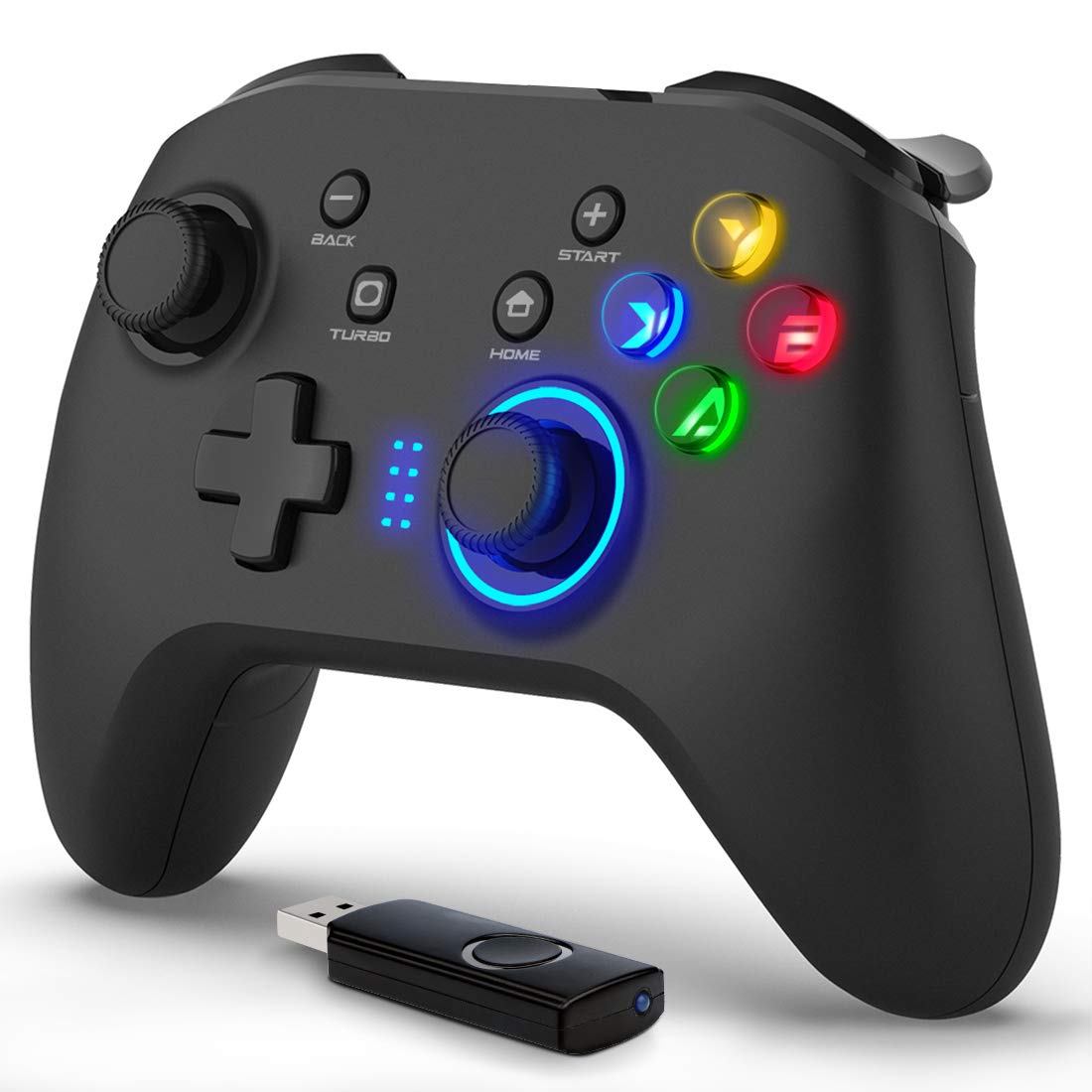
Imej: Depan view of the Forty4 Wireless Gaming Controller, showcasing reka bentuk ergonomik dan susun atur butangnya.
Ciri-ciri Utama
- Teknologi Wayarles 2.4GHz: Offers a long transmission distance, bidirectional transmission, and substantial anti-interference for a reliable connection.
- Keserasian Luas: Compatible with Windows (Xinput and Dinput), PS3, and Switch. (Not compatible with Xbox 360, Xbox One, Mac, iOS, PlayStation 4, Amazon Fire TV, Amazon Fire Stick).
- M Buttons: Features programmable M buttons (M1, M2) on the back, allowing users to assign complex operations for enhanced control. Combination keys include A, B, X, Y, LB, RB, L3, LT, RT, R3, and directional keys (up, down, left, right).
- Dual Vibration: Asymmetrical and linear vibrating motors provide distinct feedback during gameplay, increasing the realism of game scenarios and immersion.
- Wireless & Wired Mode: Seamlessly switch between wireless and wired modes. If the battery runs low, simply connect the USB cable to continue playing while charging.

Image: Illustration of the dual vibration motors within the controller, highlighting the immersive gaming experience.
Kandungan Pakej
Semasa membuka bungkusan, sila pastikan semua item berikut ada:
- Forty4 Wireless Gaming Controller (Model: GC201)
- 2.4GHz USB Receiver (Wireless Dongle)
- Kabel Pengecas USB-C
- Manual Pengguna (dokumen ini)
Video: Unboxing the Forty4 Wireless Gaming Controller, showing the controller, USB receiver, and charging cable.
Arahan Persediaan
1. Sambungan Tanpa Wayar
- Insert the 2.4GHz USB receiver into an available USB port on your PC, PS3, or Switch dock.
- Press the "Home" button on the controller to power it on. The indicator lights will illuminate.
- The controller should automatically pair with the USB receiver. If not, hold the "Home" button for a few seconds to cycle through connection modes until it connects (often indicated by a steady light). For Windows, ensure the controller is in X-input mode for optimal compatibility.

Image: The Forty4 controller and its USB receiver, demonstrating how to connect wirelessly to a computer.
2. Sambungan Berwayar
- Connect one end of the provided USB-C charging cable to the USB-C port on the top of the controller.
- Connect the other end of the USB-C charging cable to an available USB port on your PC, PS3, or Switch dock.
- The controller will automatically switch to wired mode and begin charging if needed.

Image: A visual representation of both wireless and wired connection methods for the Forty4 controller.
Arahan Operasi
Susun Atur dan Fungsi Butang
The Forty4 controller features a standard button layout for intuitive gameplay:
- Kayu Analog Kiri/Kanan: For precise 360-degree movement and camera control.
- D-Pad: Untuk input arah.
- Butang Tindakan (A, B, X, Y): Standard action inputs.
- Butang Bahu (LB, RB): Top-mounted buttons for various in-game actions.
- Pencetus (LT, RT): Analog triggers for nuanced control, especially in racing or shooting games.
- BACK/SELECT Button: Typically used for menu navigation or secondary functions.
- Butang MULA: Typically used for pausing games or accessing menus.
- Butang rumah: Powers the controller on/off and can be used to switch controller modes (e.g., X-input/D-input).
- Butang TURBO: Mengaktifkan fungsi turbo untuk menekan butang pantas.
- M Buttons (M1, M2): Programmable back buttons for custom macros or remapping. Refer to the detailed manual for programming instructions.

Image: Close-up of the back of the controller, highlighting the M1 and M2 programmable buttons for advanced customization.
Maklum Balas Dwi Getaran
The controller's dual vibration motors provide tactile feedback during gameplay, enhancing immersion. You will feel vibrations for in-game events such as explosions, impacts, or specific actions, making the experience more realistic.
Controller in Action
Video: Demonstration of the Forty4 Wireless Gaming Controller's features and responsiveness during gameplay.
Mengecas Pengawal
To charge the controller, connect it to a USB power source (e.g., computer USB port, USB wall adapter) using the provided USB-C cable. The indicator lights may show charging status and turn off or change color when fully charged.
Penyelenggaraan
- Pembersihan: Gunakan kain lembut dan kering untuk membersihkan pengawal. Elakkan menggunakan bahan kimia yang keras atau bahan yang melelas.
- Storan: Simpan pengawal di tempat yang sejuk dan kering jauh dari cahaya matahari langsung dan suhu yang melampau.
- Penjagaan Bateri: Untuk memanjangkan hayat bateri, elakkan daripada kerap mencas sepenuhnya pengawal. Caskannya secara berkala, walaupun tidak digunakan secara berterusan.
Menyelesaikan masalah
Pengawal Tidak Menyambung/Bertindak balas
- Periksa Penerima USB: Ensure the 2.4GHz USB receiver is securely plugged into a working USB port on your device.
- Hidupkan kuasa: Make sure the controller is powered on by pressing the "Home" button.
- Tukar Mod: Hold the "Home" button to cycle through different connection modes (e.g., X-input, D-input) until the controller is recognized by your system. For PC, X-input mode is generally recommended.
- pasangan semula: If issues persist, try unplugging and replugging the USB receiver, then re-powering the controller to re-establish the connection.
- Tahap Bateri: Ensure the controller has sufficient battery charge. Connect it via the USB-C cable to check if it functions in wired mode.
Input Delay in Wireless Mode
- If you experience noticeable input delay in wireless mode, try switching to wired mode using the provided USB-C cable for a more direct connection.
Stick Drift or Unresponsive Buttons
- While designed for durability, prolonged heavy use can sometimes lead to wear. If you experience stick drift or unresponsive buttons, try recalibrating the controller through your device's settings. If the issue persists, please contact customer support.
Spesifikasi
| Ciri | Perincian |
|---|---|
| Nombor Model | GC201 |
| Ketersambungan | Tanpa Wayar 2.4GHz, Berwayar (USB-C) |
| Keserasian | PC (Windows 7/8/10/11 - Xinput & Dinput), PS3, Switch |
| Getaran | Motor Dwi Getaran |
| Ciri Khas | Programmable M Buttons, Colorful Backlight |
| Sumber Kuasa | 1 bateri Lithium Ion (termasuk) |
| Berat Barang | 11.6 auns |
| Dimensi Pakej | 6.38 x 4.69 x 2.8 inci |
| Pengeluar | Empat Puluh4 |
| Tarikh Mula-mula Tersedia | 25 Mei 2020 |
Waranti dan Sokongan
The Forty4 Wireless Gaming Controller comes with a Waranti Satu Tahun. For any troubleshooting assistance, warranty claims, or product inquiries, please contact Forty4 customer service.
For additional information, you may refer to the official User Manual PDF: Manual Pengguna (PDF)