
1. Pengenalan dan Lebihview
Thank you for choosing the Macally BTNUMKEYPRO Bluetooth Numeric Keypad. This manual provides detailed instructions for setting up, operating, and maintaining your new device. This slim, rechargeable 35-key wireless numeric keypad is designed to enhance data entry efficiency and is compatible with a wide range of devices, including Mac, Windows, iOS, and Android systems.
Ciri-ciri utama termasuk:
- Simple Bluetooth Setup: Easy pairing for wireless convenience.
- Produktiviti Dipertingkatkan: 35 scissor switch keys, including 6 shortcut keys and 4 arrow keys, for efficient data entry.
- Reka bentuk tahan lasak: Slim aluminum body for aesthetics and longevity.
- Bateri Boleh Dicas Semula Tahan Lama: Built-in 300mAh battery, rechargeable via USB-C (cable included), with an ON/OFF switch to conserve power.
- Quality Typing Experience: Scissor switch keys provide semi-silent, tactile, and responsive keystrokes.
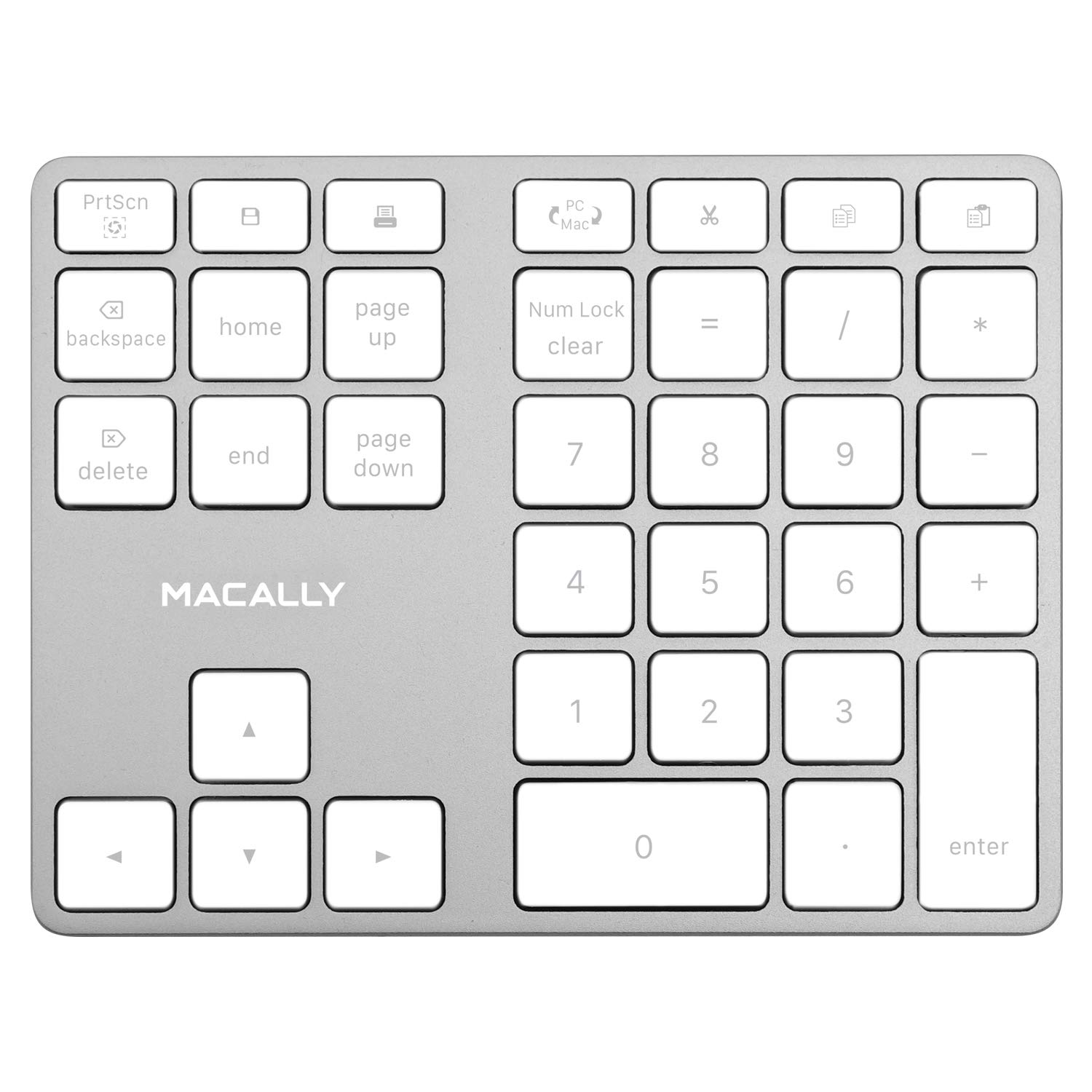
Image 1.1: The Macally BTNUMKEYPRO Bluetooth Numeric Keypad.
2. Arahan Persediaan
2.1 Charging the Keypad
Before initial use, fully charge the numeric keypad. Connect the included USB-C cable to the keypad's charging port and the other end to a USB power source (e.g., computer USB port, USB wall adapter). The charging indicator light will show the charging status.

Image 2.1: Connecting the USB-C charging cable to the keypad.
2.2 Berpasangan Bluetooth
- Pastikan papan kekunci dicas.
- Locate the ON/OFF switch on the side or back of the keypad and slide it to the 'ON' position.
- Press and hold the Bluetooth pairing button (often indicated by a Bluetooth symbol) until the LED indicator starts blinking, signifying it is in pairing mode.
- On your computer, tablet, or smartphone, enable Bluetooth.
- Cari untuk available Bluetooth devices. The keypad should appear as "Macally BTNUMKEYPRO" or similar.
- Select the keypad from the list to initiate pairing. Follow any on-screen prompts to complete the connection.
- Once successfully paired, the LED indicator on the keypad will stop blinking and remain solid or turn off, depending on the model.

Image 2.2: The keypad connected wirelessly via Bluetooth.
Video 2.1: Official product video demonstrating the Aluminum 35-Key Rechargeable Bluetooth Numeric Keypad's features and use.
3. Arahan Operasi
3.1 Key Layout and Functions
The BTNUMKEYPRO features a 35-key layout designed for efficient data entry. This includes a standard numeric pad, 6 dedicated shortcut keys, and 4 arrow keys.
- Kekunci Berangka (0-9): Standard number input.
- Arithmetic Operators (+, -, *, /): For calculations.
- Titik Perpuluhan (.): For fractional numbers.
- Masukkan kunci: Mengesahkan input atau beralih ke medan seterusnya.
- Kekunci pintasan: Dedicated keys for common functions such as Home, End, Page Up, Page Down, Delete, and Clear. Refer to the keypad's keycaps for specific labels.
- Kekunci anak panah: Untuk navigasi dalam dokumen atau hamparan.

Image 3.1: The 35-key layout optimized for data entry.
3.2 Pengurusan Kuasa
To conserve battery life, slide the ON/OFF switch to the 'OFF' position when the keypad is not in use for extended periods. The keypad also features an automatic sleep mode to save power during short periods of inactivity.
4. Penyelenggaraan
4.1 Pembersihan
To clean the keypad, gently wipe the surface with a soft, damp cloth. Avoid using harsh chemicals, abrasive cleaners, or excessive moisture, as these can damage the device. Ensure the keypad is powered off before cleaning.
4.2 Penjagaan Bateri
The keypad uses a built-in rechargeable lithium-ion battery. For optimal battery longevity:
- Elakkan menyahcas sepenuhnya bateri dengan kerap.
- Store the keypad in a cool, dry place when not in use for extended periods.
- Charge the battery regularly, even if the keypad is not used daily.
5. Penyelesaian masalah
5.1 Keypad Not Connecting via Bluetooth
- Semak Kuasa: Ensure the keypad is turned ON and has sufficient battery charge.
- Masuk semula Mod Berpasangan: Turn the keypad OFF, then ON again, and re-enter Bluetooth pairing mode by holding the pairing button.
- Bluetooth peranti: Verify that Bluetooth is enabled on your computer or device and that it is discoverable.
- Lupakan Peranti: If previously paired, remove or "forget" the keypad from your device's Bluetooth settings and attempt to pair again.
- Jarak: Ensure the keypad is within the effective Bluetooth range (approximately 30 feet or 10 meters) of your device.
- Gangguan: Beralih dari peranti wayarles lain yang mungkin menyebabkan gangguan.
5.2 Keys Not Responding or Double-Typing
- Caj semula Bateri: A low battery can sometimes cause erratic key behavior. Fully charge the keypad.
- Pasang semula Bluetooth: Disconnect and re-pair the Bluetooth connection.
- Kekunci Bersih: Ensure no debris is lodged under the keys. Gently clean around the affected keys.
- Uji pada Peranti Lain: If possible, test the keypad with another compatible device to determine if the issue is with the keypad or the original device's settings.
5.3 Keypad Not Turning On
- Charge Keypad: Connect the keypad to a power source using the USB-C cable and allow it to charge for at least 30 minutes.
- Semak Kabel: Ensure the USB-C charging cable is not damaged and is properly connected.
6. Spesifikasi
| Ciri | Perincian |
|---|---|
| Jenama | Secara Macal |
| Nombor Model | BTNUMKEYPRO |
| Teknologi Ketersambungan | Bluetooth |
| Bilangan Kunci | 35 |
| Jenis Suis | Suis Gunting |
| Sumber Kuasa | Bateri boleh dicas semula (300mAh) |
| Dimensi Produk (L x W x H) | 5.7" x 4.5" x 0.47" |
| Bahan Kepungan | aluminium |
| Peranti Serasi | MacBook, iPad, iPhone, iOS, Laptop, Windows, Android, PC |
| Sistem Pengoperasian Minimum yang Diperlukan | Mac OS X 10.6 Snow Leopard, Windows 7 |
| warna | Perak |
7. Waranti dan Sokongan
Macally products are designed for reliability and performance. This product comes with a standard manufacturer's warranty against defects in materials and workmanship. For specific warranty terms and conditions, please refer to the warranty card included with your product or visit the official Macally webtapak.
If you encounter any issues or require technical assistance, please contact Macally customer support through their official website or the contact information provided in your product packaging. Please have your model number (BTNUMKEYPRO) and proof of purchase ready when contacting support.