
1. Produk Lebihview
The PNY NVIDIA Quadro P620 is a professional graphics card designed for various demanding professional workflows. It features a 512 CUDA core Pascal GPU and 2GB of ultra-fast GDDR5 GPU memory, enabling the creation and manipulation of complex 2D and 3D models. Its flexible single-slot, low-profile form factor ensures compatibility with a wide range of computer chassis, including those with limited space and power. The card supports up to four 4K displays (4096 x 2160 at 60Hz) with HDR color, providing an expansive visual workspace for detailed creative and analytical tasks.
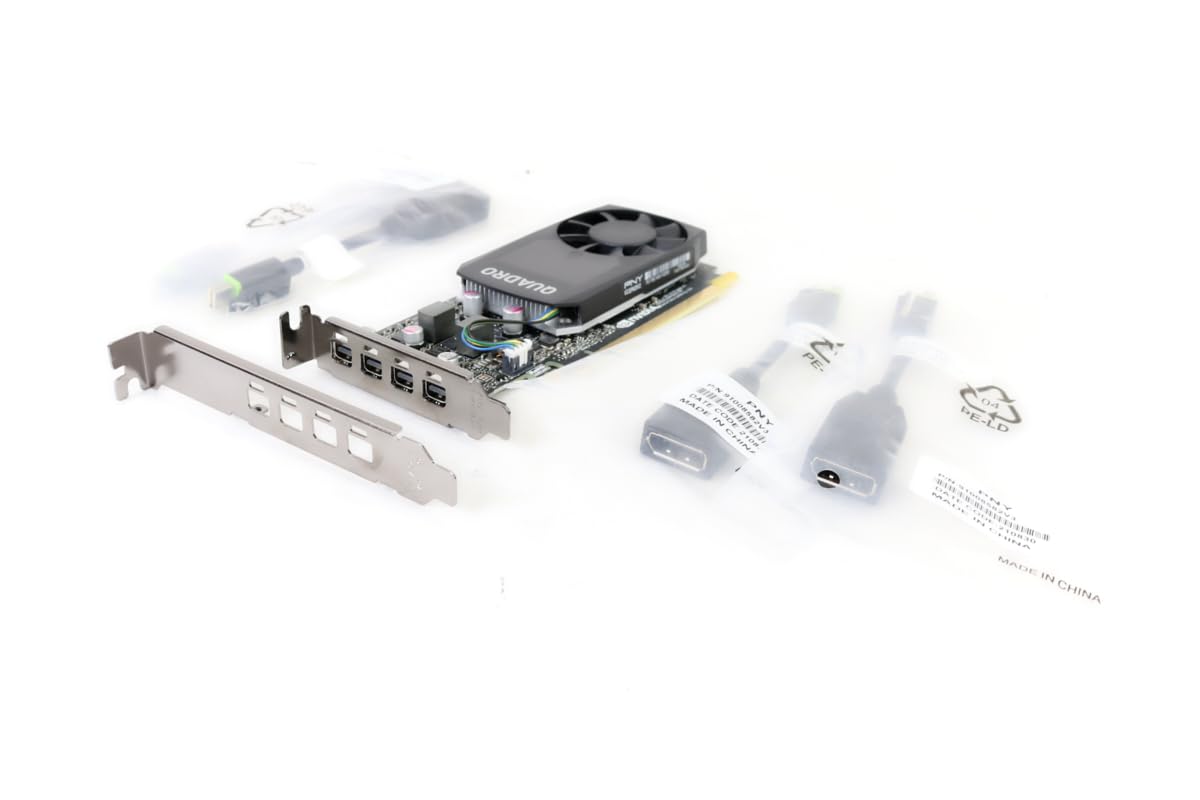
Figure 1.1: PNY Quadro P620 Graphics Card, front view.
2. Persediaan dan Pemasangan
This section provides instructions for installing your PNY Quadro P620 graphics card into a compatible desktop computer system.
2.1 Keperluan Sistem
- PCI Express x16 slot available.
- Compatible power supply (no external power connector required for P620).
- Minimum 2GB system memory recommended.
- Supported operating system (Windows, Linux).
2.2 Pemasangan Perkakasan
- Matikan dan Putuskan Sambungan: Shut down your computer completely and disconnect the power cable from the wall outlet.
- Buka Kes Komputer: Keluarkan panel sisi sarung komputer anda untuk mengakses papan induk.
- Cari Slot PCIe: Identify an available PCI Express x16 slot on your motherboard. If replacing an existing graphics card, carefully remove it.
- Install Low-Profile Bracket (if needed): The PNY Quadro P620 is a low-profile card. If your system requires a full-height bracket, ensure the correct bracket is attached. The card typically ships with both options.
- Masukkan Kad Grafik: Align the graphics card with the PCIe x16 slot and press down firmly until it is securely seated. A click may be heard.
- Kad Selamat: Use a screw or retention clip to secure the graphics card to the computer case.
- Sambungkan Paparan: Connect your display cables (Mini DisplayPort) to the graphics card outputs. Adapters may be required for HDMI or DVI.
- Tutup Sarung dan Hidupkan: Replace the computer case side panel, reconnect the power cable, and power on your computer.

Figure 2.1: PNY Quadro P620 graphics card with a low-profile bracket detached, illustrating its compact design.

Rajah 2.2: Atas-bawah view of the PNY Quadro P620 graphics card, showing the fan and heatsink assembly.
2.3 Pemasangan Pemandu
After hardware installation, you must install the appropriate drivers for your operating system to ensure optimal performance and functionality.
- Muat Turun Pemacu: Visit the official PNY or NVIDIA webtapak (www.nvidia.com/drivers) and download the latest Quadro drivers for your specific operating system and P620 model.
- Pasang Pemacu: Run the downloaded driver installer and follow the on-screen prompts. It is recommended to perform a clean installation.
- Mulakan semula Sistem: Mulakan semula komputer anda selepas pemasangan pemacu selesai.
3. Operasi
The PNY Quadro P620 is designed for professional applications requiring reliable graphics performance and multi-display support.
3.1 Konfigurasi Berbilang Paparan
The card supports up to four displays via its Mini DisplayPort outputs. To configure multiple displays:
- Ensure all displays are connected to the graphics card.
- Access your operating system's display settings (e.g., Windows Display Settings, NVIDIA Control Panel).
- Detect and arrange your displays as desired (extend, duplicate, or single display).
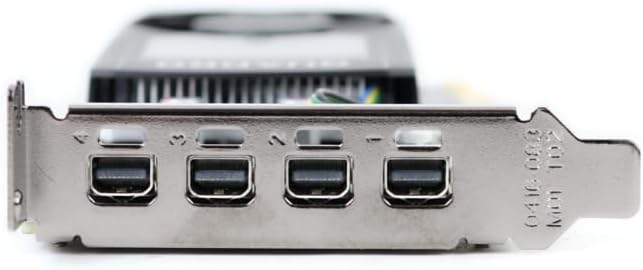
Rajah 3.1: Jarak dekat view of the four Mini DisplayPort outputs on the PNY Quadro P620 graphics card.
3.2 Professional Software Compatibility
The Quadro P620 is optimized for professional applications such as CAD (e.g., SolidWorks), 3D modeling, video editing, and other design and engineering software. Ensure your software is updated to leverage the full capabilities of the GPU.
4. Penyelenggaraan
Proper maintenance helps ensure the longevity and optimal performance of your graphics card.
- Kemas Kini Pemandu: Regularly check for and install the latest graphics drivers from the NVIDIA website. Driver updates often include performance improvements, bug fixes, and compatibility enhancements.
- Pembersihan Habuk: Periodically clean dust from the graphics card's fan and heatsink using compressed air. Ensure the computer is powered off and unplugged before cleaning. Excessive dust can impede airflow and lead to overheating.
- Aliran Udara Sistem: Ensure your computer case has adequate airflow to prevent heat buildup, which can affect the graphics card's performance and lifespan.
5. Penyelesaian masalah
If you encounter issues with your PNY Quadro P620, refer to the following common troubleshooting steps.
5.1 Tiada Output Paparan
- Semak Sambungan: Ensure all display cables are securely connected to both the graphics card and the monitor.
- Reseat Card: Power off your computer, unplug it, open the case, and carefully reseat the graphics card in its PCIe slot.
- Sahkan Kuasa: Although the P620 does not require external power, ensure your power supply is functioning correctly and providing sufficient power to the motherboard and PCIe slot.
- Test with Another Display/Cable: Try connecting the computer to a different monitor or using a different display cable to rule out external display issues.
5.2 Driver-Related Issues
- Pasang semula Pemacu: If you experience crashes or graphical glitches, try uninstalling the current drivers and performing a clean installation of the latest drivers from the NVIDIA webtapak.
- Check for Conflicts: Ensure no other graphics drivers (e.g., integrated graphics) are conflicting with the Quadro drivers. Disable integrated graphics in the BIOS if necessary.
5.3 Isu Prestasi
- Pantau Suhu: Use monitoring software to check the GPU temperature. High temperatures can lead to throttling and reduced performance. Ensure proper cooling and clean any dust.
- Sumber Sistem: Verify that your system meets the recommended requirements for the applications you are running. Insufficient RAM or CPU can bottleneck GPU performance.
- Tetapan Aplikasi: Adjust graphics settings within your professional applications to balance performance and visual quality.
6. Spesifikasi Teknikal
Below are the key technical specifications for the PNY Quadro P620 graphics card (Model: VCQP620V2-PB).
| Ciri | Spesifikasi |
|---|---|
| Pemproses bersama Grafik | NVIDIA Quadro P620 |
| Seni Bina GPU | Pascal |
| Teras CUDA | 512 |
| Saiz RAM Grafik | 2 GB |
| Jenis RAM Grafik | GDDR5 |
| Antara Muka Memori | 128-bit |
| Lebar Jalur Memori | 80 GB/s |
| Kelajuan Jam GPU | 2 GHz (Boost) |
| Kelajuan Jam Memori | 1 GHz |
| Antara Muka Keluaran Video | 4x Mini DisplayPort 1.4 |
| Resolusi Paparan Maks | 4x 4096x2160 @ 60Hz or 4x 5120x2880 @ 60Hz (with DisplayPort 1.4) |
| Faktor Bentuk | Slot Tunggal, Pro Rendahfile |
| Peranti Serasi | PC Desktop |
| Bilangan Peminat | 1 |
| Berat Barang | 4 Gram (anggaran) |
| Nama Model | VCQP620V2-PB |
| UPC | 751492633312 |
7. Maklumat Waranti
PNY products typically come with a limited warranty. The specific terms and duration of the warranty may vary by region and product. Please retain your proof of purchase.
For detailed warranty information, including coverage, limitations, and how to make a claim, please refer to the official PNY website or the warranty documentation included with your product at the time of purchase.
8. Sokongan Pelanggan
For technical assistance, driver downloads, product registration, and other support inquiries, please contact PNY customer service or visit their official webtapak.
- PNY Official Webtapak: www.pny.com
- Telefon Sokongan Teknikal: 1-800-230-0130 (Amerika Utara)
- Muat Turun Pemacu: melawat www.nvidia.com/drivers for the latest NVIDIA Quadro drivers.

Figure 8.1: Retail packaging for the PNY Quadro P620, displaying technical support contact details.