
Star Micronics 39651110
Star Micronics mC-Print3 Thermal POS Printer User Manual
Model: 39651110
1. Pengenalan
This manual provides comprehensive instructions for the setup, operation, maintenance, and troubleshooting of your Star Micronics mC-Print3 3-inch Ethernet (LAN) / USB / Lightning Thermal POS Printer. Designed for efficiency and reliability, the mC-Print3 is a compact and fast thermal printer suitable for various point-of-sale environments.
The mC-Print3 features a printing speed of 250 mm/sec and incorporates Print-Flat Technology for consistent receipt quality. It offers extensive software compatibility across Windows, iOS, Android, web, and cloud platforms. Connectivity options include USB and Ethernet LAN, with advanced features like CloudPRNT and a peripheral hub. Its splash-proof enclosure ensures durability in demanding settings.
2. Maklumat Keselamatan
Please read all safety instructions carefully before operating the printer. Failure to do so may result in injury or damage to the device.
- Ensure the printer is connected to a power source that matches the specified voltage keperluan.
- Do not expose the printer to excessive moisture or extreme temperatures. The splash-proof design offers protection against splashes, but it is not fully waterproof.
- Elakkan menyekat bukaan pengudaraan untuk mengelakkan terlalu panas.
- Do not attempt to disassemble or repair the printer yourself. Refer all servicing to qualified personnel.
- Use only recommended paper types and sizes to prevent paper jams and ensure optimal print quality.
- Pastikan tangan bebas daripada pemotong kertas semasa operasi.

3. Apa yang ada di dalam Kotak
Upon unboxing your Star Micronics mC-Print3 printer, verify that all the following items are included:
- mC-Print3 Printer
- Test Paper Roll
- Kabel USB
- Bekalan Kuasa
4. Persediaan
4.1. Persediaan Fizikal
Before connecting the printer, ensure it is placed on a stable, flat surface.

4.2. Memuatkan Kertas
The mC-Print3 features a convenient front-loading paper mechanism.
- Buka kulit hadapan pencetak.
- Insert the thermal paper roll, ensuring the paper feeds from the bottom of the roll.
- Pull a small amount of paper past the cutter and close the cover firmly until it clicks.
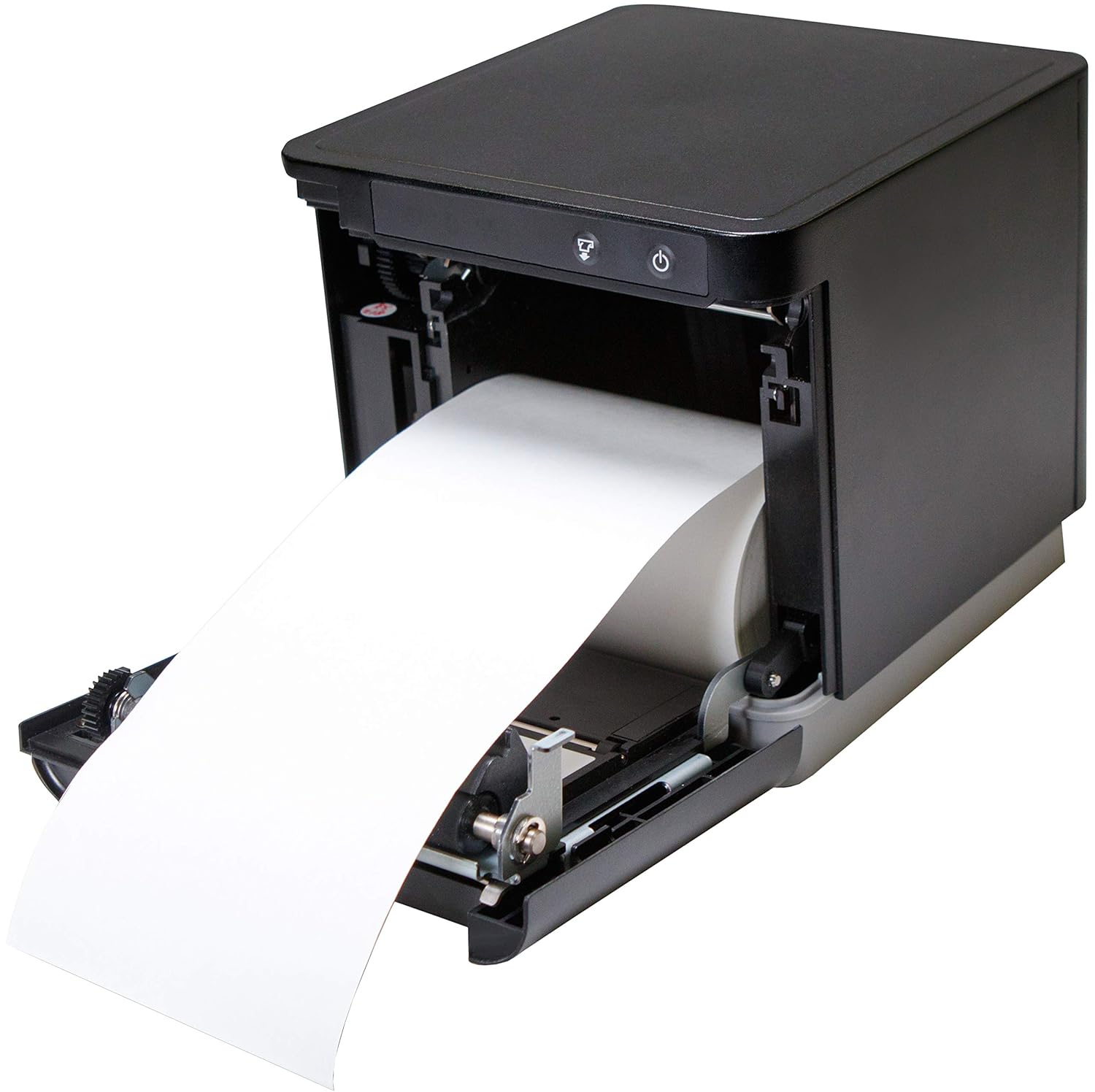
4.3. Menyambung Kabel
The mC-Print3 offers multiple connectivity options. Connect the power supply and your chosen interface cable (USB or Ethernet LAN) to the rear of the printer. The printer also features a peripheral hub for connecting other POS devices.


4.4. Pemasangan Perisian dan Pemacu
The mC-Print3 supports a wide range of operating systems including Windows, iOS, Android, web, and cloud environments. Drivers and SDKs are available from the Star Micronics website to facilitate integration with your POS system.
For iOS devices, the unique SteadyLAN™ technology allows for internet connection to the tablet via the USB cable, eliminating the need for Wi-Fi or Bluetooth for network access.
Video 4.1: This video demonstrates the SteadyLAN technology, showing how an iPad can receive internet connectivity and power directly through the printer's USB connection, simplifying POS setup.
5. Arahan Operasi
5.1. Percetakan Asas
Once connected and configured with your POS software, the printer will automatically receive print commands. The mC-Print3's fast printing speed of 250 mm/sec ensures quick transaction processing.

5.2. Peripheral Hub Functionality
The integrated peripheral hub allows you to connect various devices such as barcode scanners, customer displays, and RFID readers directly to the printer, streamlining your POS setup.
Video 5.1: This video highlights the mC-Print series' compact design and superior connectivity, including the peripheral hub that supports various POS devices like customer displays and barcode scanners.
6. Penyelenggaraan
6.1. Membersihkan Pencetak
Pembersihan berkala membantu mengekalkan kualiti cetakan dan memanjangkan jangka hayat pencetak anda.
- Matikan pencetak dan tanggalkan kabel kuasa sebelum membersihkannya.
- Gunakan kain yang lembut dan tidak berbulu dampdicairkan dengan pembersih yang lembut dan tidak kasar untuk mengelap bahagian luar.
- For the thermal print head and platen roller, use an alcohol-based cleaning pen or a cotton swab lightly dampened with isopropyl alcohol. Allow to dry completely before use.
6.2. Paper Roll Replacement
Replace the paper roll as described in Section 4.2 when the paper low sensor is activated or print quality degrades.
7. Penyelesaian masalah
This section addresses common issues you might encounter with your mC-Print3 printer.
| Masalah | Kemungkinan Punca | Penyelesaian |
|---|---|---|
| Pencetak tidak dihidupkan | Power cable disconnected; faulty power supply. | Check power connections; try a different outlet; replace power supply if necessary. |
| Tiada keluaran cetakan | Paper jam; out of paper; incorrect driver/software settings; connectivity issue. | Clear paper jam and reload paper; install correct drivers; verify USB/Ethernet connection. |
| Kualiti cetakan buruk | Dirty print head; incorrect paper type; worn-out print head. | Clean the print head; ensure correct thermal paper is used; contact support if print head is worn. |
| Paper getting stuck/hole in receipt | Paper not loaded correctly; internal mechanism issue. | Ensure paper is loaded straight and cover is closed properly. If issue persists, contact Star Micronics support. |
8. Spesifikasi
- Nama Model: mC-Cetak3
- Dimensi Produk: 5.5 x 5.25 x 5 inci
- Berat Barang: 2.8 paun
- Teknologi Percetakan: terma
- Kelajuan Cetakan Maksimum: 250 mm/sec (Monochrome)
- Teknologi Ketersambungan: Wired Connectivity (USB, Ethernet LAN)
- warna: Hitam
- Pengeluar: Star Micronics America, Inc
- Ciri Khas: Ethernet, Peripheral Hub, CloudPRNT, SteadyLAN™
9. Waranti dan Sokongan
The Star Micronics mC-Print3 printer typically comes with a manufacturer's limited warranty. For specific warranty terms and conditions, please refer to the documentation included with your purchase or visit the official Star Micronics webtapak.
Untuk sokongan teknikal, muat turun pemacu dan sumber tambahan, sila lawati Star Micronics Store on Amazon atau portal sokongan rasmi mereka.
Ask a question about this manual
Ask about setup, troubleshooting, compatibility, parts, safety, or missing instructions. Manuals+ will review the question and use this page’s manual context to help answer it.