
1. Pengenalan
Thank you for choosing the Homcloud Wi-Fi LED Strip Controller, Model AS-SL1. This device allows you to control 12-24V RGB + White LED strips via Wi-Fi, offering smart lighting solutions for your home. This manual provides essential information for safe installation, operation, and maintenance of your controller. Please read it thoroughly before use and retain it for future reference.
2. Maklumat Keselamatan
- Pastikan bekalan kuasa diputuskan sambungannya sebelum pemasangan atau penyelenggaraan bagi mengelakkan kejutan elektrik.
- Peranti ini direka bentuk untuk kegunaan dalaman sahaja. Jangan dedahkannya kepada kelembapan atau suhu yang melampau.
- Use only with 12-24V DC power supplies and compatible RGB + White LED strips. Exceeding the specified voltage atau wattage (192 Watts max) can damage the device and LED strips.
- Do not attempt to open or modify the controller. This will void the warranty and may cause damage or injury.
- Jauhkan daripada kanak-kanak.
- Ensure all wiring connections are secure and correctly polarized (positive to positive, negative to negative).
3. Kandungan Pakej
Sila semak pakej untuk item berikut:
- Homcloud Wi-Fi LED Controller (AS-SL1)
- Manual Pengguna (dokumen ini)
4. Produk Lebihview
The Homcloud AS-SL1 is a compact Wi-Fi controller designed to manage RGB + White LED strips. It features terminal blocks for secure wiring connections and an integrated Wi-Fi module for smart control via a mobile application or voice commands.
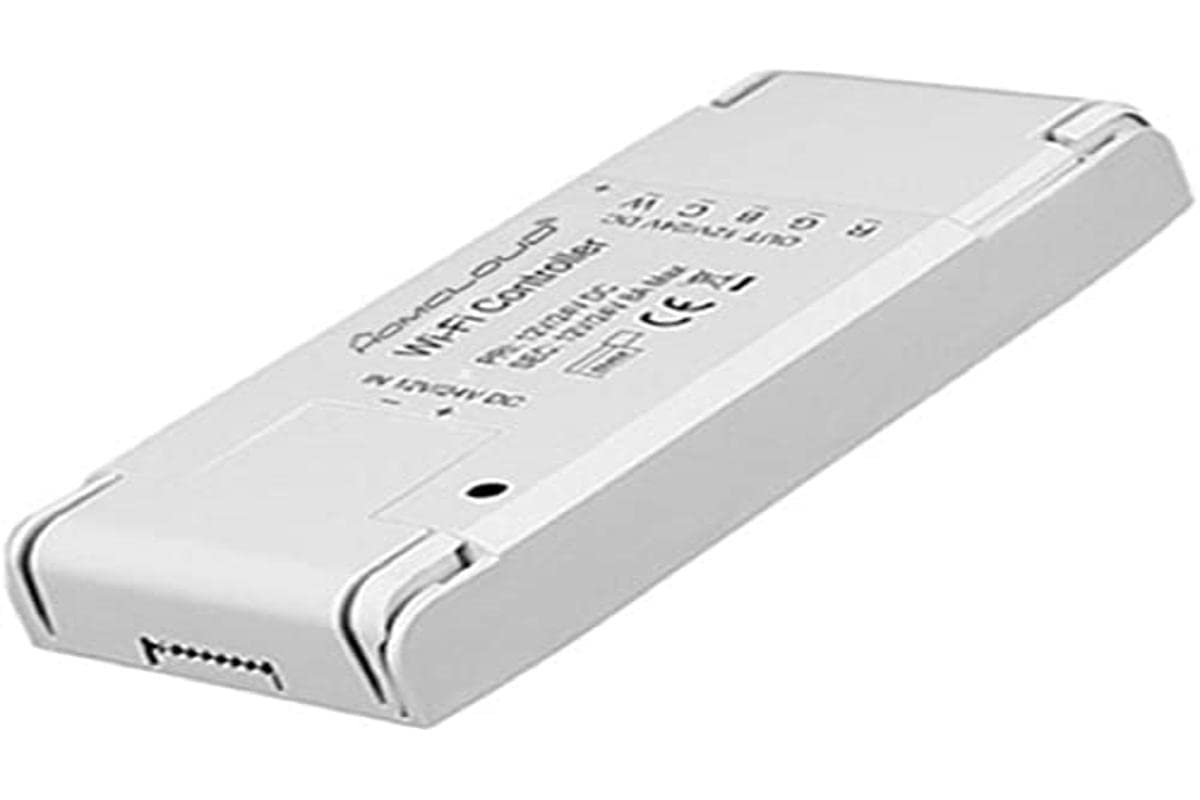
Rajah 1: Homcloud Wi-Fi LED Strip Controller (AS-SL1). This image shows the compact design of the controller with its input and output terminals.
Ciri-ciri Utama:
- Wi-Fi Connectivity (2.4GHz)
- Compatible with 12-24V RGB + White LED Strips
- App Control (via Homcloud app or compatible smart home platforms)
- Voice Control (compatible with smart assistants)
- Programmable Schedules and Timers
- Akses Jauh
5. Persediaan
5.1 Pemasangan Pendawaian
- Sediakan Komponen: Ensure you have your Homcloud Wi-Fi LED Controller, a compatible 12-24V DC power supply, and an RGB + White LED strip.
- Putuskan Kuasa: Before making any connections, ensure the power supply is unplugged from the mains.
- Connect Power Supply to Controller: Locate the input terminals on the controller (usually marked DC IN, V+, V- or similar). Connect the positive (+) output of your 12-24V DC power supply to the V+ terminal and the negative (-) output to the V- terminal. Ensure connections are secure.
- Connect LED Strip to Controller: Locate the output terminals on the controller (usually marked V+, R, G, B, W or similar). Connect the corresponding wires from your RGB + White LED strip to these terminals.
- LED Strip V+ to Controller V+
- LED Strip R to Controller R
- LED Strip G to Controller G
- LED Strip B to Controller B
- LED Strip W to Controller W
- Sahkan Sambungan: Double-check all wiring for correct polarity and secure connections. Loose connections can cause malfunctions or damage.
Note: A detailed wiring diagram is typically provided in the physical product packaging. Ensure you follow the specific wiring instructions for your LED strip and power supply.
5.2 Pasangan Aplikasi
- Muat turun Aplikasi: Download the "Homcloud" app from your smartphone's app store (iOS or Android).
- Daftar/Log Masuk: Buka aplikasi dan daftar untuk akaun baharu atau log masuk dengan akaun sedia ada.
- Pengawal Hidupkan Kuasa: Plug in the power supply to the mains. The LED strip should light up briefly or flash, indicating it's in pairing mode. If not, refer to the app's instructions for resetting the device to pairing mode (often involves cycling power multiple times).
- Tambah Peranti: In the Homcloud app, tap the "+" icon (usually in the top right corner) to add a new device. Select "Lighting" or "LED Controller" from the device list.
- Sambung ke Wi-Fi: Follow the on-screen instructions to connect the controller to your 2.4GHz Wi-Fi network. Ensure your phone is also connected to the same 2.4GHz network during pairing.
- Berpasangan Lengkap: Once the device is successfully added, you can rename it and begin controlling your LED strip through the app.
6. Arahan Operasi
6.1 Kawalan Apl
Once paired, the Homcloud app provides full control over your LED strip:
- Hidup/Mati: Toggle the power button to turn the LED strip on or off.
- Pilihan Warna: Use the color wheel or predefined color palettes to choose any desired color for RGB LEDs.
- Pelarasan Cahaya Putih: Adjust the brightness and color temperature (if supported by your LED strip) of the dedicated white LEDs.
- Kawalan Kecerahan: Slide the brightness bar to adjust the intensity of the light.
- Mod Pemandangan: Select from various pre-programmed scene modes (e.g., Party, Relax, Reading) or create custom scenes.
- Penyegerakan Muzik: Some apps offer music synchronization features, allowing the lights to react to sound.
- Pemasa & Jadual: Set schedules for the LED strip to turn on/off at specific times or activate certain scenes.
6.2 Kawalan Suara
The Homcloud AS-SL1 controller supports voice control through compatible smart assistants (e.g., Amazon Alexa, Google Assistant). To enable voice control:
- Pautkan Akaun: In your smart assistant's app (e.g., Alexa app, Google Home app), search for the "Homcloud" skill or service.
- membenarkan: Link your Homcloud account with your smart assistant account.
- Cari Peranti: Ask your smart assistant to discover new devices. Your LED strip controller should appear.
- Perintah Suara: Anda kini boleh menggunakan arahan suara seperti:
- "Alexa, turn on [LED strip name]"
- "Hey Google, set [LED strip name] to blue"
- "Alexa, dim [LED strip name] to 50%"
7. Penyelenggaraan
- Pembersihan: Disconnect power before cleaning. Use a soft, dry cloth to wipe the controller. Do not use liquid cleaners or solvents.
- Persekitaran: Ensure the controller is kept in a dry, indoor environment, away from direct sunlight, high temperatures, and corrosive substances.
- Sambungan: Periksa sambungan pendawaian secara berkala untuk memastikan ia kekal selamat.
8. Penyelesaian masalah
| Masalah | Kemungkinan Punca | Penyelesaian |
|---|---|---|
| Jalur LED tidak menyala. | No power; incorrect wiring; faulty LED strip or power supply. | Check power connection. Verify all wiring connections (V+, V-, R, G, B, W). Test LED strip and power supply separately if possible. |
| Controller cannot connect to Wi-Fi. | Incorrect Wi-Fi password; 5GHz Wi-Fi network; controller not in pairing mode; weak Wi-Fi signal. | Ensure correct 2.4GHz Wi-Fi password. Confirm your router supports 2.4GHz. Reset controller to pairing mode (refer to app instructions). Move controller closer to router. |
| Kawalan apl tidak bertindak balas. | Poor Wi-Fi connection; app glitch; controller offline. | Check your home Wi-Fi network. Restart the Homcloud app. Power cycle the controller. |
| Kawalan suara tidak berfungsi. | Smart assistant not linked to Homcloud account; device not discovered; incorrect voice command. | Ensure Homcloud skill/service is enabled and linked in your smart assistant app. Ask the assistant to discover devices. Use correct voice commands as listed in section 6.2. |
9. Spesifikasi
| Ciri | Perincian |
|---|---|
| Nombor Model | AS-SL1 |
| Jenama | Homcloud |
| Input Voltage | 12-24 Volt DC |
| Kuasa Output Maks | 192 Watt |
| Teknologi Tanpa Wayar | Wi-Fi (2.4GHz) |
| Kaedah Kawalan | Kawalan Apl, Kawalan Suara |
| Ciri Khas | Voice control, remote access, programmable, timer functions |
| Persekitaran Penggunaan | Penggunaan Dalaman Sahaja |
| Dimensi (L x W x H) | 0.01 x 0.01 x 0.01 cm (approx. 0.004 x 0.004 x 0.004 inches) - Note: These dimensions seem unusually small and might be placeholder data. |
| Berat badan | 10 Grams (approx. 0.35 oz) |
| UPC | 700443260688 |
10. Waranti dan Sokongan
Specific warranty information for the Homcloud AS-SL1 controller is not provided in the product details. For warranty claims or technical support, please contact your retailer or visit the official Homcloud website. Please have your model number (AS-SL1) and proof of purchase ready when contacting support.