
pengenalan
The Wacom STU-430 is a monochrome signature pad designed for capturing electronic signatures securely and efficiently. This device integrates seamlessly into various workflows, allowing for the digital signing of documents such as PDFs. Its robust design and advanced Electro-Magnetic Resonance (EMR) technology ensure a natural and reliable signing experience. This manual provides essential information for setting up, operating, maintaining, and troubleshooting your STU-430 Signature Pad.

Figure 1: Wacom STU-430 Signature Pad and Pen
The STU-430 features a 4.5-inch reflective LCD display with a resolution of 320 x 200 pixels, providing a clear view of the signature. The included battery-free pen offers 1,024 levels of pressure sensitivity, ensuring biometric accuracy for all handwriting styles. The scratch-resistant screen is built for durability, capable of capturing over 500,000 signatures without significant wear.
Persediaan
Isi Kotak
Sebelum meneruskan persediaan, pastikan semua komponen hadir:
- Wacom STU-430 Signature Pad
- Cordless and Battery-Free Pen
- USB Cable (9.84ft / 3m)
- Panduan Mula Pantas
- Pen Tether (nylon fibre, 19.7 inch / 50cm)
- Sign pro PDF Software (downloadable or included)

Figure 2: Contents of the Wacom STU-430 Package
Sambungan Perkakasan
- Connect the USB cable to the STU-430 Signature Pad.
- Sambungkan hujung kabel USB yang lain ke port USB yang tersedia pada komputer anda.
- Attach the pen tether to the signature pad and the pen to prevent loss.
Pemasangan Perisian
The Wacom STU-430 requires a driver to function correctly with your operating system. It is compatible with Windows 10 Education and other Windows versions.
- Visit the official Wacom support website to download the latest driver for the STU-430.
- Run the downloaded installer and follow the on-screen instructions to complete the driver installation.
- Install the included Sign pro PDF software, if not already installed, to enable PDF signing functionality.
- Mulakan semula komputer anda jika digesa selepas pemasangan.
Arahan Operasi
Capturing a Signature
Once the hardware is connected and software is installed, you can begin capturing signatures:
- Open a document that requires a signature using the Sign pro PDF software or another compatible application.
- When prompted to sign, the signature area will appear on the STU-430 pad's display.
- Use the cordless, battery-free pen to sign directly on the pad's screen. The reflective LCD display allows for clear visibility of your signature as you write.
- The pad typically presents options such as OK, Jelas, dan Batal. Tap the appropriate button on the pad with the pen to finalize, clear, or cancel the signature.

Figure 3: User interacting with the STU-430 Signature Pad
Pen Usage
- The pen is designed for comfortable and accurate use. Hold it like a regular pen.
- Apply natural pressure as you would when writing on paper. The pad's 1,024 pressure levels will capture the nuances of your signature.
- Avoid pressing excessively hard on the screen, although it is scratch-resistant.
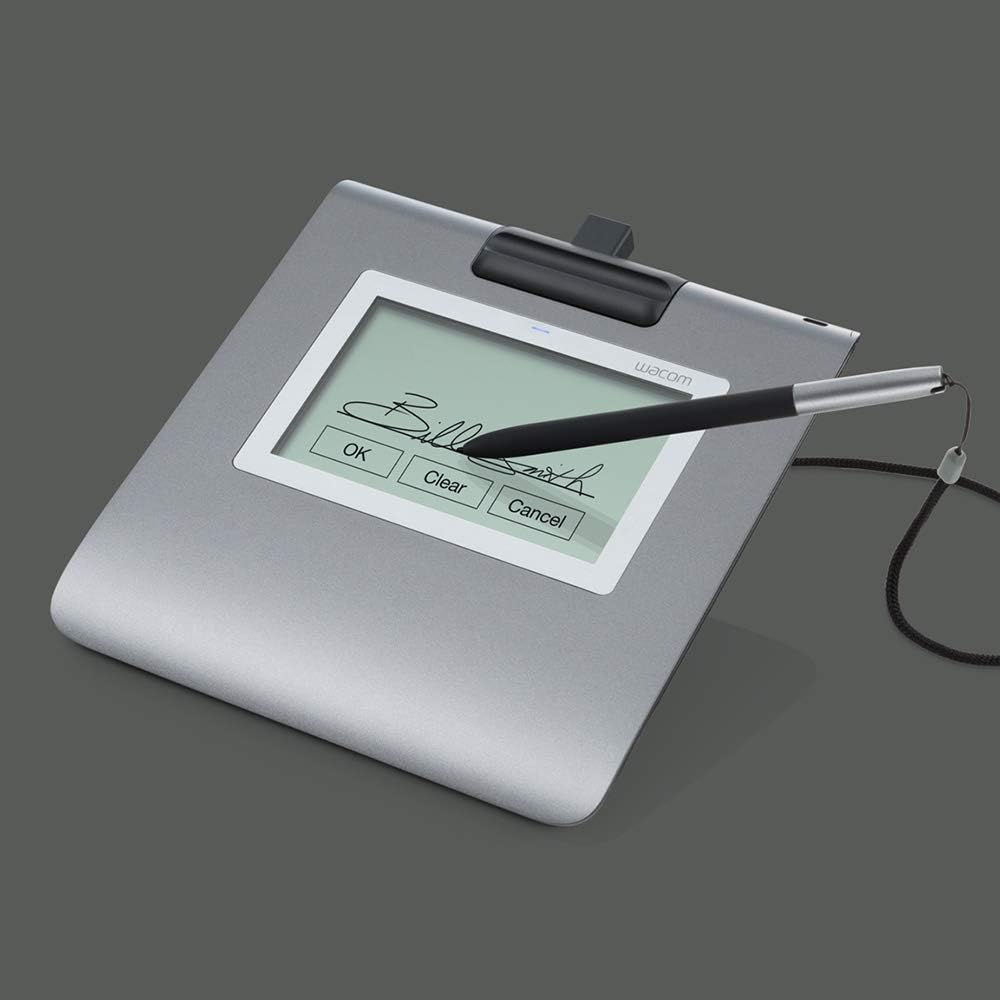
Rajah 4: Terperinci view of a signature on the STU-430 display
Penyelenggaraan
Cleaning the Signature Pad
To ensure optimal performance and longevity of your STU-430, follow these cleaning guidelines:
- Always disconnect the pad from the computer before cleaning.
- Gunakan kain lembut dan tidak berbulu sedikit dampdisapu dengan air atau larutan pembersih yang lembut dan tidak melelas.
- Gently wipe the screen and the casing. Avoid excessive moisture.
- Do not use harsh chemicals, abrasive cleaners, or solvents, as these can damage the screen surface or casing.
- Allow the pad to dry completely before reconnecting it.
Pen Care
- Store the pen securely, ideally using the integrated pen holder or tether, to prevent it from being misplaced or damaged.
- Elakkan daripada menjatuhkan pen atau terkena hentakan yang kuat.
- The pen is battery-free and does not require charging.
Menyelesaikan masalah
If you encounter issues with your Wacom STU-430, refer to the following common problems and solutions:
| Masalah | Penyelesaian yang Mungkin |
|---|---|
| Pad is not recognized by the computer. |
|
| Pen does not write or respond. |
|
| Signature appears distorted or inaccurate. |
|
Spesifikasi
Detailed technical specifications for the Wacom STU-430 Signature Pad:
| Ciri | Perincian |
|---|---|
| Nama Model | STU-430 |
| Dimensi Produk | 9.45 x 9.45 x 0.79 inci (240 x 240 x 20 mm) |
| Berat Barang | 9.8 auns (277 gram) |
| Jenis Paparan | F-STN Reflective LCD |
| Saiz Paparan | 11.4 cm (4.5 inci) |
| Resolusi | 320 x 200 Piksel |
| Kawasan Aktif | 96 x 60 mm |
| Teknologi Pen | Electro-Magnetic Resonance (EMR) |
| Tahap Tekanan | 1,024 |
| Teknologi Ketersambungan | USB |
| Keserasian Sistem Pengendalian | Windows 10 Education (and other Windows versions) |
| Ciri Khas | Electromagnetic Resonance, Scratch-resistant screen |
| Bateri Diperlukan | None (pen is battery-free) |
Maklumat Waranti
For detailed information regarding the warranty coverage for your Wacom STU-430 Signature Pad, please refer to the warranty card included with your product or visit the official Wacom webtapak. Terma dan syarat waranti mungkin berbeza mengikut wilayah dan tarikh pembelian.
Sokongan Pelanggan
If you require further assistance, technical support, or have questions not covered in this manual, please contact Wacom customer support through their official weblaman web. Anda biasanya boleh menemui sumber sokongan, Soalan Lazim dan maklumat hubungan di www.wacom.com/support.