
pengenalan
This manual provides instructions for the Speedlink PIAVO Wireless Ergonomic Vertical Mouse (Model SL-630019-BK-01). This ergonomic mouse is designed to promote a natural, relaxed wrist posture, reducing strain on the hand, arm, shoulder, and neck during extended computer use. It features 5 buttons, adjustable DPI settings, and wireless 2.4 GHz connectivity.

Rajah 1: Speedlink PIAVO Wireless Ergonomic Vertical Mouse, front view. This image shows the overall ergonomic design of the mouse.
Kandungan Pakej
Sila sahkan bahawa semua item terdapat dalam pakej:
- Speedlink PIAVO Wireless Ergonomic Vertical Mouse
- Penerima USB-A
- Bateri (dipasang terlebih dahulu atau disertakan secara berasingan)
- Manual Arahan (dokumen ini)

Rajah 2: Packaging of the Speedlink PIAVO Wireless Ergonomic Vertical Mouse. The box indicates "Wireless Vertical Mouse" and "10m Range".
Persediaan
- Masukkan Bateri: If the battery is not pre-installed, open the battery compartment on the underside of the mouse and insert the included battery, ensuring correct polarity.
- Sambungkan Penerima USB: Locate an available USB-A port on your computer or laptop. Insert the USB-A receiver into the port.
- Hidupkan Tetikus: Cari suis Hidup/Mati di bahagian bawah tetikus. Luncurkan suis ke kedudukan "Hidup".
- Pemasangan Pemandu: The mouse is designed for plug-and-play operation. Your operating system (e.g., Windows) should automatically detect and install the necessary drivers. This process typically takes a few seconds.
- Ujian: Once installed, move the mouse to test cursor movement. If the cursor does not respond, ensure the mouse is powered on and the USB receiver is securely connected.

Rajah 3: Underside of the mouse, illustrating the battery compartment and the On/Off switch. Ensure the switch is in the 'On' position for operation.
Arahan Operasi
The Speedlink PIAVO mouse features 5 buttons and adjustable DPI settings for optimal control.
- Butang Klik Kiri: Fungsi klik utama standard.
- Butang Klik Kanan: Fungsi klik sekunder standard.
- Roda Tatal: Untuk menatal dokumen dan web halaman. Boleh juga ditekan untuk fungsi klik tengah.
- Butang Suis DPI: Located near the scroll wheel. Press this button to cycle through the available DPI settings (800, 1200, 1600 DPI). This adjusts the cursor speed and sensitivity.
- Butang Maju/Mundur: Located on the side of the mouse, typically used for navigation in web pelayar atau file penjelajah.
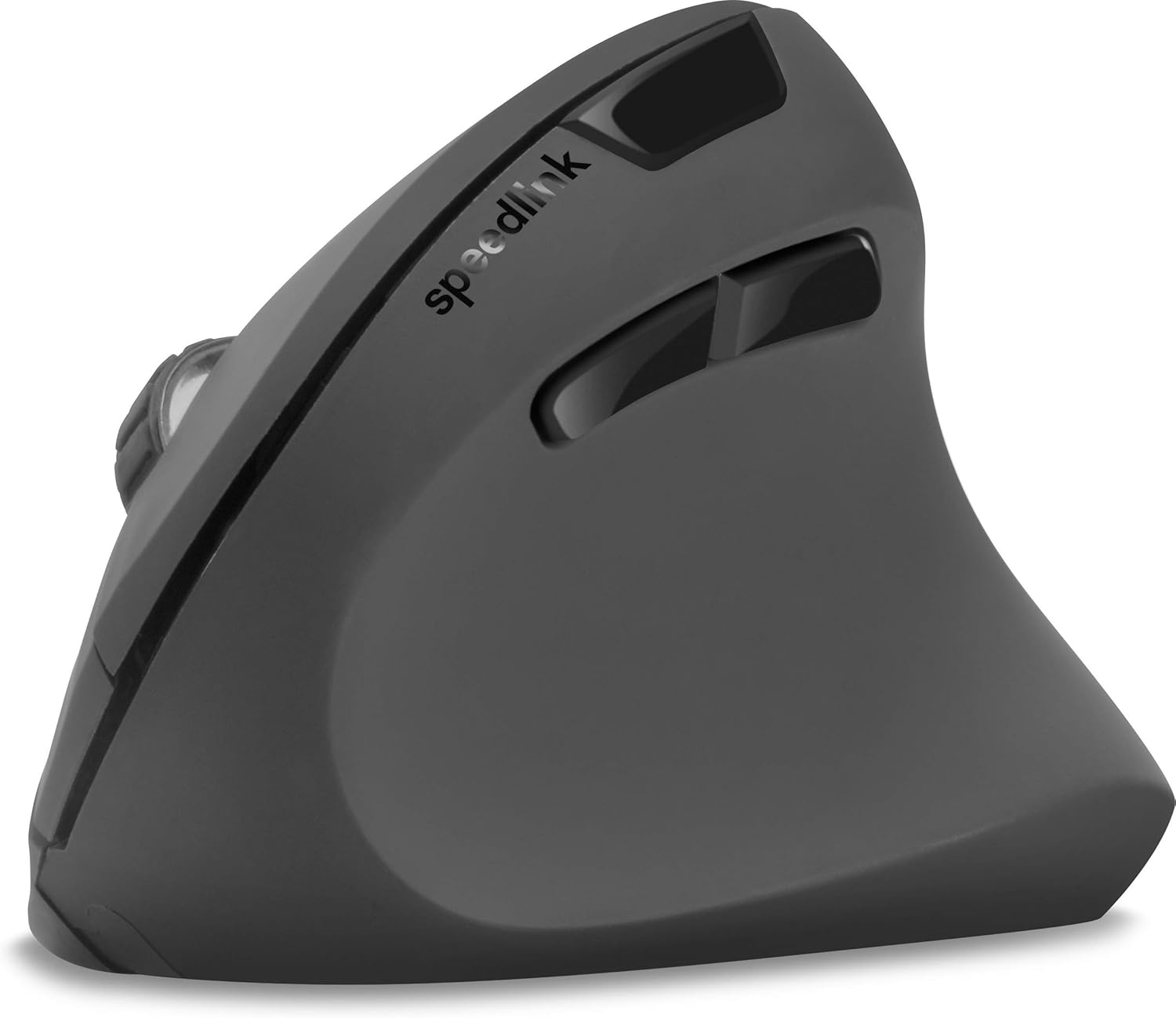
Rajah 4: Atas ke bawah view of the mouse, highlighting the left/right click buttons, scroll wheel, and DPI switch button.

Rajah 5: sebelah view of the mouse, illustrating the ergonomic grip and the forward/backward navigation buttons.
Mod Penjimatan Tenaga
The mouse features an energy-saving mode to conserve battery life. If the mouse is inactive for a period, it will enter a sleep state. To wake it up, simply move the mouse or press any button.
Penyelenggaraan
To ensure the longevity and optimal performance of your Speedlink PIAVO mouse, follow these maintenance guidelines:
- Pembersihan: Gunakan kain lembut dan kering untuk membersihkan bahagian luar tetikus. Untuk kotoran degil, gunakan sedikit kainamp cloth can be used, but ensure no moisture enters the mouse. Avoid using harsh chemicals or abrasive cleaners.
- Pembersihan Sensor: Occasionally, dust or debris may accumulate around the optical sensor on the underside of the mouse. Use a soft brush or compressed air to gently clean the sensor area.
- Penggantian Bateri: When the mouse performance degrades or it stops responding, it may be time to replace the battery. Open the battery compartment, remove the old battery, and insert a new one of the same type, observing polarity.
- Storan: When not in use for extended periods, it is recommended to switch off the mouse using the On/Off switch to conserve battery life. Store the mouse and USB receiver in a dry, dust-free environment.
Menyelesaikan masalah
| Masalah | Kemungkinan Punca | Penyelesaian |
|---|---|---|
| Mouse not responding / Cursor not moving. |
|
|
| Erratic cursor movement. |
|
|
| DPI setting resets after sleep/reboot. | This is a known characteristic for some mice; the DPI setting may revert to default. | Press the DPI switch button to select your preferred sensitivity after waking the mouse or restarting the computer. |
Spesifikasi
| Nombor Model | SL-630019-BK-01 |
| Ketersambungan | Wireless 2.4 GHz via USB-A Receiver |
| Pengesanan Pergerakan | Optik |
| Bilangan Butang | 5 |
| Tetapan DPI | 800, 1200, 1600 DPI (Adjustable) |
| Orientasi Tangan | tangan kanan |
| Julat Tanpa Wayar | Sehingga 10 meter |
| Sumber Kuasa | Battery-powered (Battery included) |
| Sistem Operasi yang Serasi | Windows |
| Berat badan | 106 Gram |
| warna | Hitam |
Waranti dan Sokongan
Information regarding specific warranty terms and customer support contact details is not available in the provided product data. Please refer to the product packaging or the manufacturer's official weblaman web untuk maklumat jaminan dan pilihan sokongan terkini.
Untuk bantuan lanjut, anda boleh melawati Speedlink official webtapak.