
pengenalan
This manual provides essential information for the installation, operation, and maintenance of your XFX RX 5700 XT Raw II graphics card. Please read this manual thoroughly before installation to ensure proper setup and optimal performance. The XFX RX 5700 XT Raw II is designed for high-fidelity gaming, featuring AMD's RDNA architecture, 8GB of GDDR6 memory, and PCI Express 4.0 support.
Maklumat Keselamatan
- Sentiasa putuskan kuasa dari komputer anda sebelum memasang atau menanggalkan sebarang komponen.
- Pegang kad grafik di tepinya untuk mengelak daripada menyentuh komponen sensitif.
- Use an anti-static wrist strap or discharge static electricity by touching a grounded metal object before handling the card.
- Pastikan pengudaraan yang betul dalam bekas komputer anda untuk mengelakkan terlalu panas.
- Jangan dedahkan kad grafik kepada kelembapan atau suhu yang melampau.
Kandungan Pakej
Sahkan bahawa semua item terdapat dalam pakej:
- XFX RX 5700 XT Raw II Graphics Card
- Panduan Pemasangan Pantas
- Driver CD (Note: Latest drivers are recommended from the manufacturer's webtapak)

Image: Front of the XFX RX 5700 XT Raw II retail packaging, showing the product name and key features.
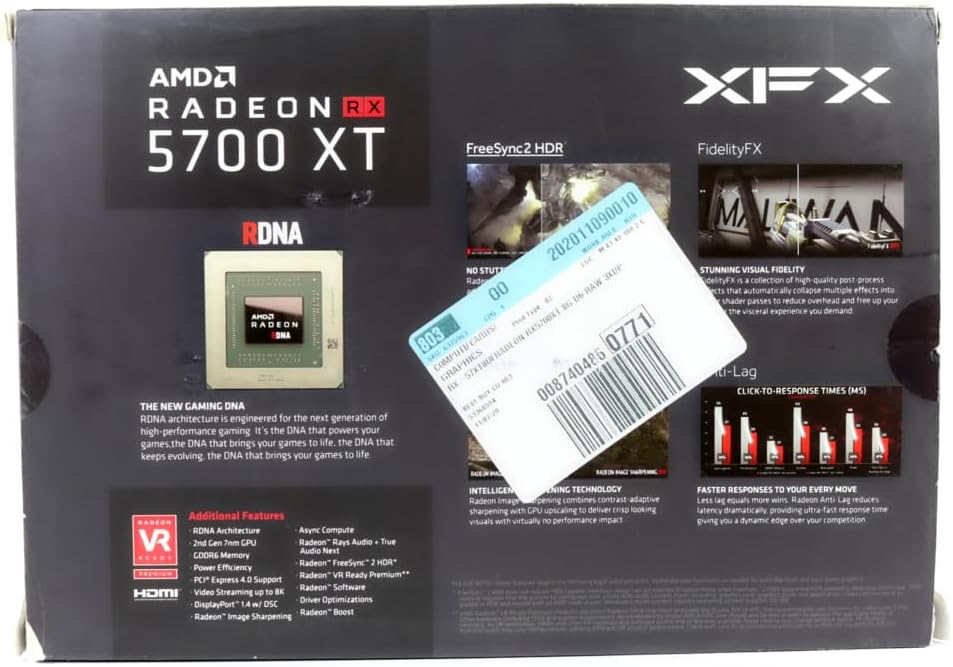
Image: Back of the XFX RX 5700 XT Raw II retail packaging, detailing RDNA architecture and additional features.
Persediaan
1. Pemasangan Fizikal
- Sediakan sistem anda: Matikan komputer anda dan putuskan sambungan kabel kuasa. Buka bekas komputer.
- Locate a PCI Express 4.0 slot: Identify an available PCI Express 4.0 x16 slot on your motherboard. This graphics card occupies approximately 2.9 slots due to its cooling solution. Ensure sufficient clearance.
- Tanggalkan penutup slot: Remove the necessary expansion slot covers from your computer case corresponding to the chosen PCIe slot.
- Insert the graphics card: Carefully align the graphics card with the PCIe slot and press down firmly until it is securely seated. The retention clip on the motherboard should click into place.
- Selamatkan kad: Fasten the graphics card to the computer case using the screw or latch mechanism provided by your case.
- Sambungkan kabel kuasa: The XFX RX 5700 XT Raw II requires both an 8-pin and a 6-pin PCI Express power connector from your power supply. Connect these cables securely to the corresponding ports on the graphics card. Ensure your power supply meets the recommended wattage (typically 600W or higher).

Imej: Bersudut view of the XFX RX 5700 XT Raw II, showing the dual-fan cooling system and heatsink fins.

Imej: Atas view of the XFX RX 5700 XT Raw II, highlighting the XFX logo and the dual 8-pin and 6-pin power connectors.
2. Pemasangan Pemandu
- Reconnect power and boot: Close your computer case, reconnect the power cable, and turn on your computer.
- Connect display: Connect your monitor to one of the DisplayPort or HDMI outputs on the graphics card.
- Pasang pemacu:
- Insert the provided Driver CD and follow the on-screen instructions.
- Alternatively, and highly recommended: Download the latest AMD Radeon drivers directly from the official AMD webtapak (www.amd.com/support). Select your graphics card model (Radeon RX 5700 XT) and operating system.
- Follow installation prompts: Complete the driver installation process, which may require a system restart.

Imej: Belakang view of the XFX RX 5700 XT Raw II, displaying three DisplayPort outputs and one HDMI output.
Arahan Operasi
Sambungan Paparan
The XFX RX 5700 XT Raw II features multiple display outputs:
- DisplayPort 1.4 HDR: Connect up to three DisplayPort monitors for high-resolution and high-refresh-rate gaming.
- HDMI 2.0b: Connect one HDMI monitor or TV.
You can use a combination of these outputs for multi-monitor setups. Ensure your cables are securely connected to both the graphics card and your display devices.
Software Configuration (AMD Radeon Software)
After driver installation, the AMD Radeon Software will be available. This software allows you to:
- Pantau prestasi: View GPU temperature, clock speeds, and fan speeds.
- Adjust game settings: Optimize game performance and visual quality.
- Tune performance (Wattman): Utilize AMD Wattman within the Radeon Software to adjust GPU clock speeds, memory clock speeds, and voltage settings. This can help optimize performance or reduce power consumption and heat. Adjusting fan curves can also help manage noise levels.
- Enable features: Access features like Radeon FreeSync, Radeon Image Sharpening, and Radeon Anti-Lag.
Refer to the AMD Radeon Software documentation for detailed instructions on using these features.
Penyelenggaraan
- Pembersihan: Periodically clean dust from the graphics card fans and heatsink fins using compressed air. Ensure the computer is powered off and unplugged before cleaning. Hold the fan blades gently to prevent them from spinning rapidly during cleaning, which can damage the bearings.
- Kemas Kini Pemandu: Semak AMD rasmi secara berkala website for the latest graphics drivers. Keeping your drivers updated ensures optimal performance, stability, and access to new features.
- Pengudaraan Sistem: Ensure your computer case has adequate airflow to prevent heat buildup, which can affect the longevity and performance of your graphics card.
Menyelesaikan masalah
If you encounter issues with your graphics card, consider the following steps:
- Tiada Output Paparan:
- Ensure the monitor is powered on and connected securely to the graphics card.
- Sahkan bahawa kad grafik dipasang sepenuhnya dalam slot PCIe.
- Confirm that all required power cables (8-pin and 6-pin) are connected to the graphics card from the power supply.
- Uji dengan kabel paparan atau monitor yang berbeza jika boleh.
- Isu Prestasi / FPS Rendah:
- Ensure you have the latest graphics drivers installed from AMD's official webtapak.
- Semak tetapan grafik dalam permainan; kurangkan tetapan jika perlu.
- Monitor GPU temperature using AMD Radeon Software. High temperatures can lead to thermal throttling.
- Verify that your power supply is sufficient for your system components.
- Excessive Heat or Fan Noise:
- Pastikan aliran udara yang mencukupi di dalam bekas komputer anda.
- Bersihkan habuk daripada kipas kad grafik dan heatsink.
- Use AMD Radeon Software (Wattman) to adjust fan curves or undervolt the GPU. Some users have found success in reducing temperatures and noise by adjusting voltage and clock speeds to stock specifications.
- Check the BIOS switch on the card; some cards have a "silent" or "performance" BIOS.
- Ketidakstabilan Sistem / Ranap:
- Ensure drivers are correctly installed and up to date.
- Periksa masalah memori sistem (RAM).
- If you have applied any overclocking, revert to default settings.
- Ensure your power supply is stable and provides sufficient power.
Spesifikasi
| Ciri | Perincian |
|---|---|
| Pemproses bersama Grafik | AMD Radeon RX 5700 XT |
| Jenama | XFX |
| Saiz RAM Grafik | 8 GB |
| Antara Muka Keluaran Video | DisplayPort, HDMI |
| Pengilang Pemproses Grafik | AMD |
| Jenis RAM Grafik | GDDR6 |
| Peranti Serasi | Desktop |
| Resolusi Paparan Maksimum | 3840x2160 |
| Antara Muka Kad Grafik | PCI Express 4.0 |
| Kelajuan Jam Memori | 14 Gbps (14 GHz effective) |
| Bilangan Peminat | 2 |
| Nama Model | Radeon RX 5700 XT RAW II Graphic Card |
| Jam Asas | 1605MHz |
| Jam Permainan | 1755MHz |
| Tingkatkan Jam | Sehingga 1905MHz |
| Pemproses Strim | 2560 |
| Bas Memori | 256 bit |
| Kad Profile | 2.9 slot |
Maklumat Waranti
The XFX RX 5700 XT Raw II graphics card comes with a Waranti Pengeluar 3 Tahun. For specific terms and conditions, please refer to the warranty documentation included with your product or visit the official XFX webtapak.
Sokongan
For further assistance, technical support, or driver downloads, please visit the official XFX support webtapak:
You may also refer to the AMD support website for general Radeon software and driver information:
