
Docooler LCMDOCOOLERC8298EUIN
Docooler COMFAST CF-EW71 Wireless Router User Manual
Model: CF-EW71 (LCMDOCOOLERC8298EUIN)
1. Produk Lebihview

Image: The Docooler COMFAST CF-EW71 Wireless Router, a white rectangular device with two external antennas, designed for outdoor use.
1.1. Penerangan Produk
The COMFAST CF-EW71 is a high-power outdoor wireless router designed to provide extensive Wi-Fi coverage. It utilizes a Qualcomm QCA9531 main chip, coupled with 64 MB of high-speed memory and 16 MB of flash memory, ensuring robust data forwarding and processing capabilities. This device is ideal for large outdoor areas such as scenic spots, communities, parks, schools, industrial plants, shopping malls, and villages.
Key features include a built-in SE2576L power amplifier for enhanced wireless reception and transmission, support for over 50 concurrent wireless clients, and an IP66 rating for resilience against severe outdoor environments. The router also supports Power over Ethernet (PoE), simplifying installation by allowing power and data transmission over a single cable.
2. Ciri-ciri Utama
- Omnidirectional Coverage: Equipped with two oxygen-free copper antennas, providing 360° omnidirectional Wi-Fi coverage suitable for diverse environments.
- Kuasa terbina dalam Amplebih hidup: Features an SE2576L power amplifier to significantly improve wireless network reception and transmission, making it suitable for wide outdoor coverage.
- High Client Capacity: A single Access Point (AP) can concurrently handle more than 50 wireless devices, ensuring a stable and lag-free network experience for all connected users.
- Outdoor Durability (IP66): Designed to withstand harsh outdoor conditions with an IP66 rating, offering protection against lightning, water, dust, extreme temperatures, and oxidation.
- POE Power Supply: Supports Power over Ethernet, which simplifies installation by eliminating the need for a separate power outlet, allowing flexible device placement.

Imej: Tamatview of the COMFAST CF-EW71's capabilities, including 300Mbps speed, high power, Qualcomm chip, 360-degree omnidirectional coverage, and support for over 50 clients.

Image: A visual representation of the 360-degree omnidirectional Wi-Fi coverage provided by the CF-EW71, extending over a wide outdoor area.

Imej: Dari dekat view of the CF-EW71, emphasizing its built-in power amplifier (PA) for improved signal strength.

Image: The CF-EW71 shown supporting multiple wireless clients simultaneously, including laptops, desktops, and mobile phones, ensuring stable connectivity.
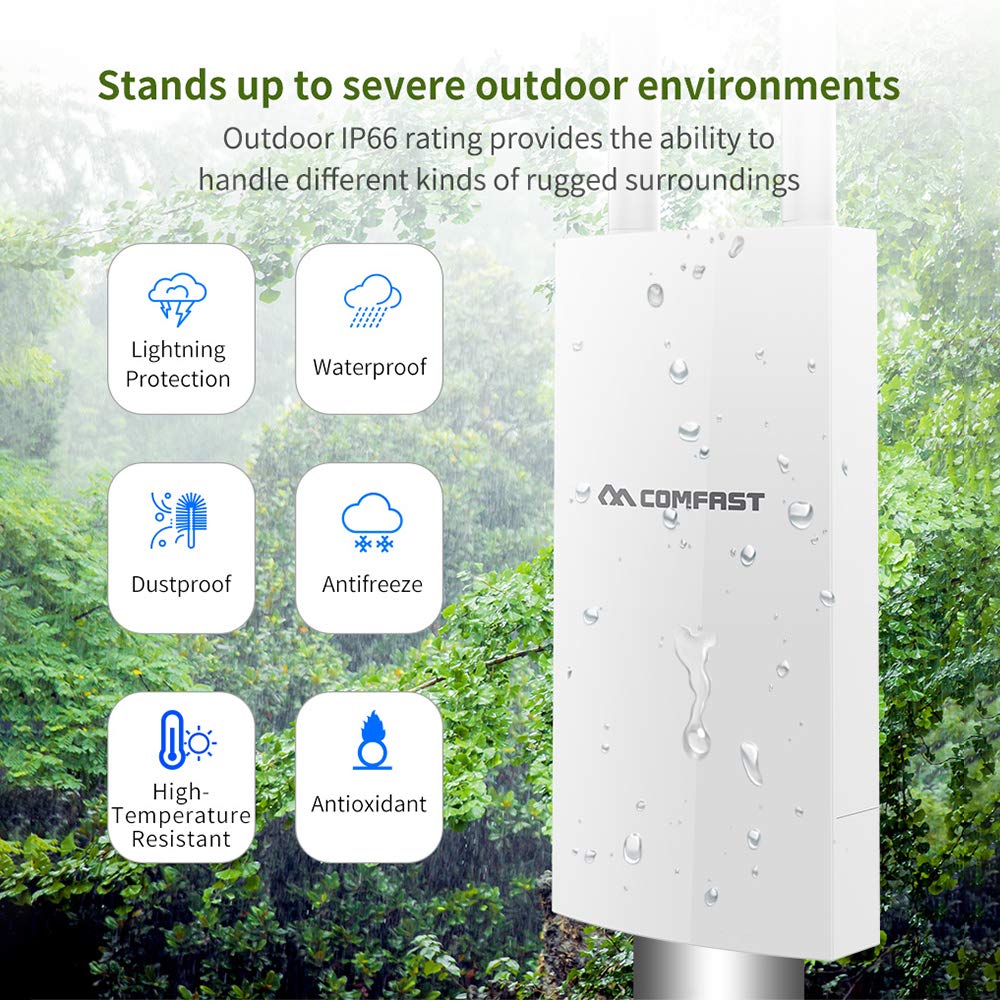
Image: An illustration detailing the CF-EW71's robust outdoor protection features, including resistance to lightning, water (IP66), dust, freezing, high temperatures, and oxidation.

Image: A diagram demonstrating the Power over Ethernet (PoE) setup for the CF-EW71, showing how it connects to a PoE switch and router for simplified power and data delivery.

Image: A diagram illustrating the CF-EW71's automatic channel selection feature, which optimizes network stability by choosing the least congested channel in an outdoor environment.

Image: A diagram showing the centralized AC management system, allowing control of multiple CF-EW71 units from a single interface, ideal for large-scale Wi-Fi deployments.
3. Spesifikasi Teknikal
| Atribut | Nilai |
|---|---|
| Jenama | Docooler |
| Model | CF-EW71 |
| Kadar Tanpa Wayar | 300Mbps |
| Jalur Kekerapan | 2.4GHz |
| Chip Utama | Qualcomm QCA9531 |
| kuasa Amplebih hidup | SE2576L |
| Memori DDR | 64MB |
| Memori Kilat | 16MB |
| Antena | Antena luaran 2 * 5dBi |
| Antenna Standard | IEEE802.11b/g/n |
| Menghantar Kuasa | 500mW |
| Menerima Sensitiviti | -96dBm |
| Kekerapan Bekerja | 2.412GHz-2.484GHz |
| Kadar Data (11b) | 1, 2, 5.5, 11Mbps |
| Data Rate (11g) | 6, 9, 12, 18, 24, 36, 48, 54Mbps |
| Kadar Data (11n) | MCS0-MCS15 (20MHz and 40MHz analog broadband) - 20MHz: 144.4Mbps, 40MHz: 300Mbps |
| Antaramuka Fizikal | 1*10/100Mbps WAN RJ45 (PoE), 1*10/100Mbps LAN RJ45 (PoE), 1*RESET button |
| Penggunaan Kuasa | <8W |
| Tahap Perlindungan | Gred IP66 |
| Recommended Clients Capacity | 50 sets (2.4GHz) |
| Dimensi Produk | 35.3 x 8.5 x 4.4 cm |
| Berat Barang | 260 g |
4. Panduan Persediaan
4.1. Kandungan Pakej
Sebelum meneruskan pemasangan, sila sahkan bahawa semua item ada di dalam pakej anda:
- COMFAST CF-EW71 Wireless Router
- Penyesuai Kuasa (jika tidak menggunakan PoE)
- Kabel Ethernet
- Mounting Kit (if applicable for outdoor installation)
- Panduan Pemasangan Pantas
4.2. Pemasangan Fizikal
The CF-EW71 is designed for outdoor deployment. Consider the following for optimal performance and safety:
- Pemilihan Tapak: Choose a location that provides clear line-of-sight to the desired coverage area, away from obstructions like large metal structures or dense foliage. Ensure the location is within reach of your network infrastructure.
- Pemasangan: Securely mount the device using the provided mounting kit. Ensure it is installed vertically with antennas pointing upwards for optimal omnidirectional coverage.
- Sambungan Kuasa (PoE): Connect an Ethernet cable from a PoE-enabled switch or PoE injector to the WAN/PoE port on the CF-EW71. This single cable will provide both power and data connectivity.
- Sambungan Rangkaian: If not using PoE for data, connect an Ethernet cable from your network (router/switch) to the WAN port. The LAN port can be used to connect another wired device if needed.
- Pemasangan Antena: Ensure the two external antennas are securely screwed into their respective connectors on the device.
4.3. Konfigurasi Awal
After physical installation, you will need to configure the router via its web antara muka:
- Sambung ke Peranti: Connect your computer directly to the LAN port of the CF-EW71 using an Ethernet cable, or connect to its default Wi-Fi network (SSID and password usually found on a label on the device or in the Quick Installation Guide).
- Akses Web Antara muka: Buka a web browser and enter the default IP address of the router (e.g., http://192.168.1.1 or as specified in the manual).
- log masuk: Enter the default username and password (e.g., admin/admin). It is highly recommended to change these credentials immediately after the first login for security purposes.
- Tetapan Asas: Follow the on-screen wizard or navigate to the wireless settings to configure your desired Wi-Fi network name (SSID) and password. Configure the WAN settings according to your internet service provider's requirements (e.g., DHCP, Static IP, PPPoE).
- Simpan dan But semula: Simpan tetapan anda dan but semula peranti jika digesa.
5. Arahan Operasi
5.1. Petunjuk LED
The CF-EW71 features LED indicators that provide information about its operational status:
- LED kuasa: Menunjukkan sama ada peranti dihidupkan.
- LED WAN: Indicates activity on the WAN port.
- LED LAN: Indicates activity on the LAN port.
- LED WLAN: Menunjukkan aktiviti rangkaian tanpa wayar.
Refer to the Quick Installation Guide for specific LED behavior (e.g., solid, blinking) and their corresponding meanings.
5.2. Menghubungkan Peranti
Once the router is configured, devices can connect to its Wi-Fi network:
- Pada peranti wayarles anda (telefon pintar, komputer riba, tablet), cari rangkaian Wi-Fi yang tersedia.
- Select the SSID (network name) you configured for the CF-EW71.
- Masukkan kata laluan Wi-Fi (kunci keselamatan) apabila digesa.
- Your device should now be connected to the internet through the CF-EW71.
5.3. Tetapan Lanjutan
The web interface provides access to advanced settings for network optimization:
- Pemilihan Saluran: The device can automatically select the best channel to avoid interference. Manual channel selection is also available for fine-tuning.
- Pengurusan Pelanggan: Monitor connected clients and manage their access.
- Peningkatan Firmware: Semak dan pasang kemas kini perisian tegar secara berkala untuk memastikan prestasi dan keselamatan yang optimum.
- Alatan Sistem: Access logs, backup/restore configurations, and perform reboots.
6. Penyelenggaraan
To ensure the longevity and optimal performance of your COMFAST CF-EW71, regular maintenance is recommended:
- Pembersihan: Periodically clean the exterior of the device with a soft, dry cloth. Do not use liquid cleaners or aerosols. Ensure no dust or debris accumulates around the ports.
- Kemas kini Firmware: Check the official Docooler/COMFAST website regularly for new firmware versions. Updating the firmware can improve performance, add new features, and fix security vulnerabilities.
- Pemeriksaan Alam Sekitar: Although the device is IP66 rated, periodically inspect its mounting and cables for any signs of wear, damage, or loose connections, especially after severe weather conditions.
- Pengudaraan: Ensure the device's ventilation areas are not blocked, even though it's an outdoor unit, proper airflow helps dissipate heat.
7. Penyelesaian masalah
This section provides solutions to common issues you might encounter with your CF-EW71 router.
| Masalah | Kemungkinan Punca | Penyelesaian |
|---|---|---|
| Tiada Kuasa / LED Kuasa Mati | No power supply or faulty power connection. | Ensure the PoE injector/switch is powered on and the Ethernet cable is securely connected to the WAN/PoE port. Check the power adapter if not using PoE. |
| Tiada Isyarat Wi-Fi | Wi-Fi disabled, incorrect settings, or device malfunction. | Check the WLAN LED. Access the web interface to ensure Wi-Fi is enabled and configured correctly. Reboot the device. |
| Tidak Boleh Akses Web Antara muka | Incorrect IP address, network configuration issue, or browser problem. | Verify your computer's IP address is in the same subnet as the router (e.g., 192.168.1.x). Try a different browser. Clear browser cache. Ensure direct connection to LAN port. |
| Slow Internet Connection | Interference, too many connected devices, or poor signal strength. | Check for sources of interference. Ensure the device is optimally placed. Limit the number of concurrent users if exceeding capacity. Consider changing the Wi-Fi channel in the settings. |
| Lupa Kata Laluan Log Masuk | Lost administrative credentials. | Perform a factory reset. Locate the RESET button (often a small pinhole) and press and hold it for 5-10 seconds while the device is powered on. This will revert all settings to factory defaults, including the login credentials. |
8. Waranti dan Sokongan
8.1. Maklumat Waranti
Docooler products typically come with a limited manufacturer's warranty. The warranty period and terms may vary based on your region and point of purchase. Please retain your proof of purchase for warranty claims. For detailed warranty information, refer to the warranty card included with your product or visit the official Docooler/COMFAST webtapak.
8.2. Sokongan Pelanggan
If you encounter issues that cannot be resolved using the troubleshooting guide, or if you require further assistance, please contact Docooler/COMFAST customer support. You can usually find contact information (phone numbers, email addresses, or support portals) on the manufacturer's official webtapak atau dalam pembungkusan produk.
When contacting support, please be prepared to provide the following information:
- Product Model: CF-EW71
- Serial Number (if applicable, usually found on a label on the device)
- Tarikh Pembelian
- Penerangan terperinci tentang isu yang anda alami
- Any troubleshooting steps you have already attempted
Ask a question about this manual
Ask about setup, troubleshooting, compatibility, parts, safety, or missing instructions. Manuals+ will review the question and use this page’s manual context to help answer it.