
pengenalan
This manual provides comprehensive instructions for the setup, operation, maintenance, and troubleshooting of your Zyxel AC750 Dual-band Wireless Router, model EMG1702-T10A. Please read this manual thoroughly before using the device to ensure proper installation and optimal performance.
Maklumat Keselamatan
- Amaran: Jangan dedahkan peranti kepada air atau lembapan.
- Pastikan pengudaraan yang betul di sekitar penghala untuk mengelakkan terlalu panas.
- Gunakan hanya penyesuai kuasa yang dibekalkan bersama peranti.
- Jauhkan peranti daripada cahaya matahari langsung dan sumber haba.
- Jangan cuba membuka atau membaiki peranti sendiri. Rujuk semua servis kepada kakitangan yang berkelayakan.
Kandungan Pakej
Sahkan bahawa pakej anda mengandungi item berikut:
- Zyxel AC750 Dual-band Wireless Router (EMG1702-T10A)
- Penyesuai Kuasa
- Kabel Ethernet
- Panduan Mula Pantas
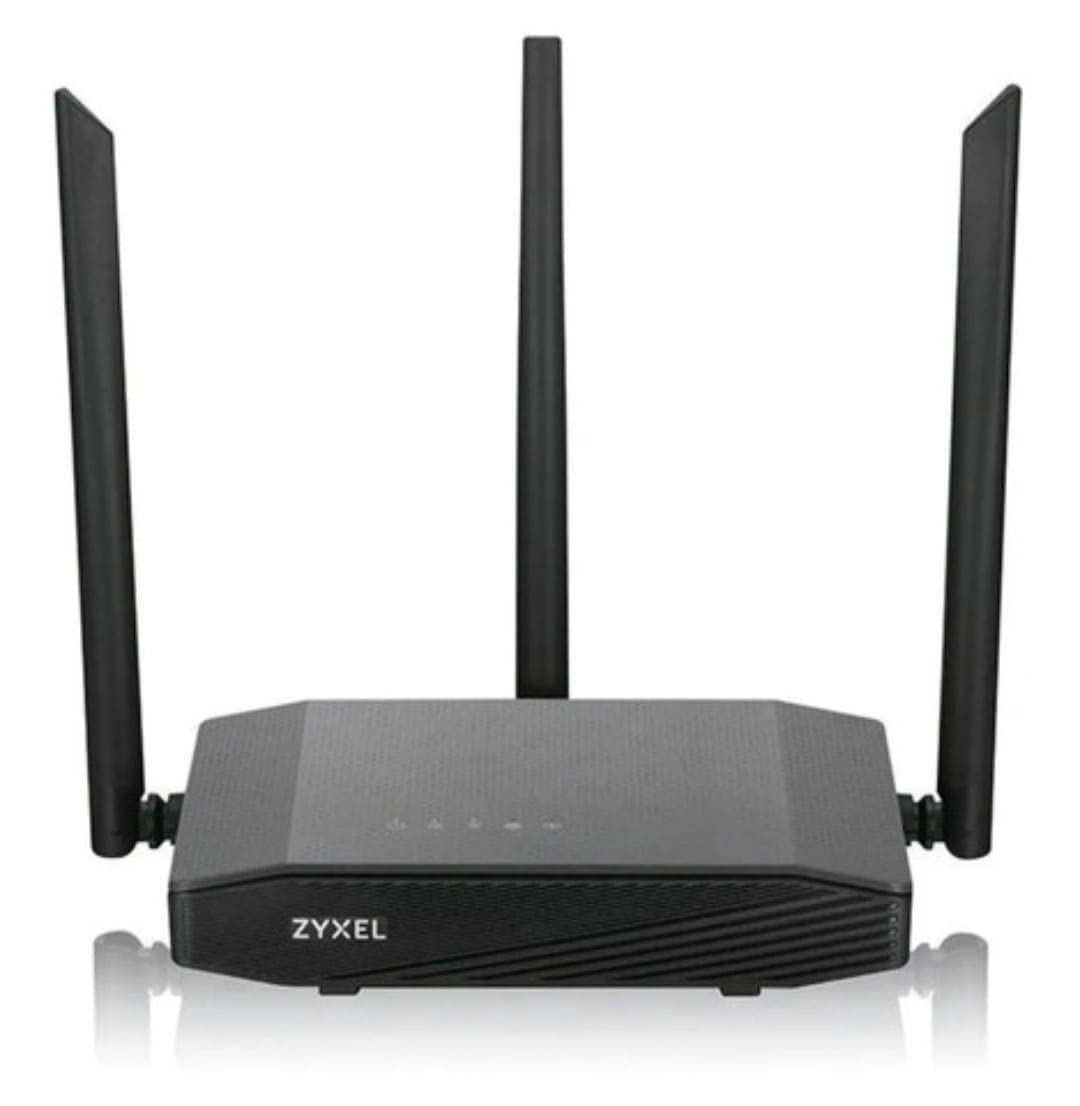
Image: Zyxel AC750 Dual-band Wireless Router with its power adapter and Ethernet cable.
Panduan Persediaan
1. Sambungan Perkakasan
- Menetapkan Penghala: Place the router in a central location in your home or office, away from obstructions and potential sources of interference (e.g., microwaves, cordless phones).
- Connect the Internet Cable: Connect one end of an Ethernet cable from your modem's LAN port to the WAN port (usually blue) on the Zyxel router.
- Sambungkan Kuasa: Plug the power adapter into the router's power jack and then into a wall outlet.
- Hidupkan kuasa: Press the power button on the router. Wait for the power LED to turn solid green, indicating the device is ready.
Image: Rear panel of the Zyxel AC750 router, highlighting the WAN port, LAN ports, and power input.
2. Konfigurasi Awal
- Sambung ke Penghala:
- Berwayar: Sambungkan komputer anda ke salah satu port LAN penghala (kuning) menggunakan kabel Ethernet.
- wayarles: On your computer or mobile device, search for the Wi-Fi network name (SSID) printed on the label at the bottom of the router. Connect using the provided Wi-Fi password.
- Akses Antara Muka Penghala: Buka a web pelayar dan taip http://192.168.1.1 (or the address specified on the router label) into the address bar and press Enter.
- log masuk: Masukkan nama pengguna dan kata laluan lalai (biasanya admin/1234 or admin/kata laluan, check the router label).
- Jalankan Wizard Persediaan: Follow the on-screen instructions of the setup wizard to configure your internet connection and wireless settings. It is highly recommended to change the default Wi-Fi name (SSID) and password for security.
Arahan Operasi
Pengurusan Rangkaian Tanpa Wayar
Your Zyxel AC750 router supports dual-band Wi-Fi (2.4 GHz and 5 GHz). You can manage these networks through the web antara muka.
- Menukar SSID dan Kata Laluan: Navigate to the "Wireless" or "Wi-Fi Settings" section in the router's web interface. Here you can modify the network names (SSIDs) and passwords for both 2.4 GHz and 5 GHz bands.
- Rangkaian Tetamu: Enable a guest network for visitors to provide internet access without sharing your main network's password. This feature is typically found under "Guest Network" settings.
- Kawalan Akses: Manage which devices can connect to your network by setting up MAC address filtering in the "Security" or "Access Control" section.
Ciri Lanjutan
- Port Forwarding: Configure port forwarding to allow external devices to access services on your local network, such as gaming servers or security cameras.
- Tetapan Firewall: Adjust firewall rules to enhance network security.
- Kawalan Ibu Bapa: Set up parental controls to restrict internet access for specific devices or during certain times.
Penyelenggaraan
- Kemas kini Firmware: Periksa sokongan Zyxel secara berkala weblaman web untuk kemas kini perisian tegar. Mengemas kini perisian tegar boleh meningkatkan prestasi, menambah ciri baharu dan membetulkan kelemahan keselamatan.
- Pembersihan: Gently wipe the router's exterior with a soft, dry cloth. Do not use liquid cleaners or aerosols. Ensure ventilation holes are free from dust.
- Memulakan semula Penghala: Jika anda mengalami masalah rangkaian, cuba mulakan semula penghala dengan mencabut penyesuai kuasa selama 10 saat dan kemudian palamkannya semula.
- Tetapan semula kilang: To restore the router to its factory default settings, press and hold the reset button (usually a small pinhole button) for about 10 seconds while the router is powered on. Use a paperclip or similar object. Nota: Ini akan memadamkan semua tetapan tersuai anda.
Menyelesaikan masalah
| Masalah | Kemungkinan Punca | Penyelesaian |
|---|---|---|
| Tiada Akses Internet | Isu modem, tetapan penghala yang salah, kabel terputus. |
|
| Isyarat Wi-Fi Lemah | Router placement, interference, outdated firmware. |
|
| Tidak Dapat Mengakses Penghala Web Antara muka | Incorrect IP address, network connection issue, browser cache. |
|
Spesifikasi
| Ciri | Perincian |
|---|---|
| Model | EMG1702-T10A |
| Jenama | Zyxel |
| Wi-Fi Standard | IEEE 802.11ac/n/a 5 GHz, IEEE 802.11n/g/b 2.4 GHz |
| Kelajuan Wi-Fi | AC750 (300 Mbps 2.4 GHz + 433 Mbps 5 GHz) |
| Antena | 3 Antena Luaran |
| Pelabuhan Ethernet | 1x WAN, 4x LAN (10/100 Mbps) |
| Jalur Kekerapan | Dwi-Jalur (2.4 GHz & 5 GHz) |
| Peranti Serasi | Gaming Consoles, Tablets, Smart TVs |
Maklumat Waranti
Zyxel products are covered by a limited warranty. The specific terms and duration of the warranty may vary by region and product. Please refer to the warranty card included with your product or visit the official Zyxel webtapak untuk maklumat jaminan dan pendaftaran terperinci.
Simpan resit pembelian anda sebagai bukti pembelian untuk tuntutan waranti.
Sokongan Teknikal
If you encounter any issues that cannot be resolved using the troubleshooting guide, please contact Zyxel technical support.
- Webtapak: Visit the official Zyxel support website for FAQs, drivers, firmware, and contact information.
- telefon: Refer to the support contact numbers provided in your product packaging or on the Zyxel webtapak untuk wilayah anda.
When contacting support, please have your product model (EMG1702-T10A) and serial number ready.