
BESDER BES-MH03
BESDER Home Security IP Camera User Manual
Model: BES-MH03
1. Pengenalan
Thank you for choosing the BESDER Home Security IP Camera. This wireless smart WiFi camera is designed to provide reliable surveillance, audio recording, and baby monitoring capabilities with high-definition video. This manual will guide you through the setup, operation, and maintenance of your new device to ensure optimal performance and security.
2. Maklumat Keselamatan
- Ensure the camera is powered by the correct voltage (DC 5V) as specified.
- Do not expose the camera to water or moisture. It is designed for indoor use only.
- Elakkan meletakkan kamera di bawah cahaya matahari langsung atau berhampiran sumber haba.
- Do not attempt to disassemble or repair the camera yourself. Contact qualified personnel for service.
- Jauhkan kamera dan aksesorinya daripada capaian kanak-kanak.
- Use only the provided power adapter and cable to prevent damage.
3. Kandungan Pakej
Sila semak pakej untuk memastikan semua item ada dan dalam keadaan baik:
- BESDER Home Security IP Camera
- Kabel Kuasa USB
- Penyesuai Kuasa (DC 5V)
- Skru Pemasangan dan Palam Dinding
- Manual Pengguna (dokumen ini)

Image showing the BESDER IP Camera along with its accessories: a USB power cable, a power adapter, and a packet of mounting screws.
4. Produk Lebihview
Familiarize yourself with the main components of your BESDER IP Camera:
- Kanta Kamera: Tangkap video footage.
- LED inframerah: Untuk penglihatan malam.
- mikrofon: Untuk input audio.
- Penceramah: Untuk komunikasi audio dua hala.
- Slot Kad SD: Untuk storan video tempatan (menyokong sehingga 64GB).
- Power Interface (DC 5V): Menyambung kepada penyesuai kuasa.
- Butang Tetapkan Semula: Digunakan untuk memulihkan tetapan kilang.

Diagram illustrating the side view of the BESDER IP Camera, highlighting the SD Card slot, Power interface (DC 5V), and Reset button.
5. Persediaan
5.1. Menghidupkan
- Connect the USB power cable to the camera's power interface.
- Palamkan penyesuai kuasa ke soket elektrik standard.
- Kamera akan dihidupkan, dan lampu penunjuknya akan mula berkelip, menunjukkan ia sedia untuk persediaan.
5.2. App Installation (iCSee)
The BESDER IP Camera uses the iCSee application for remote monitoring and control.
- Download the iCSee app from your mobile device's app store (App Store for iOS or Google Play Store for Android).
Muat turun untuk iOS | Muat turun untuk Android - Daftar akaun baharu atau log masuk jika anda sudah mempunyai akaun.
5.3. Sambungan Wi-Fi
Follow these steps to connect your camera to your home Wi-Fi network:
- Open the iCSee app and tap the "+" icon to add a new device.
- Select "Add My Device" or "Add Camera".
- Choose the "Wi-Fi Camera" option.
- Follow the on-screen prompts to enter your Wi-Fi network name (SSID) and password. Ensure your phone is connected to a 2.4GHz Wi-Fi network, as the camera may not support 5GHz.
- The app will generate a QR code. Position your phone's screen in front of the camera lens (approx. 15-20 cm away) until you hear a confirmation sound from the camera.
- Once connected, the camera's indicator light will turn solid blue. You can now name your camera and start monitoring.
5.4. Pemasangan
Kamera boleh diletakkan di atas permukaan rata atau dipasang pada dinding atau siling.
- Pilih lokasi yang sesuai dengan kawasan yang jelas view and within Wi-Fi range.
- If mounting, use the provided mounting screws and wall plugs to secure the camera base.
- Adjust the camera's angle as needed within the app after mounting.
6. Beroperasi
6.1. Hidup View
Access real-time video feed from your camera through the iCSee app.
- Open the iCSee app and select your camera from the device list.
- The live video feed will appear. You can pan and tilt the camera remotely using the controls in the app.

Screenshot of a multi-camera monitoring interface, likely from the iCSee application, displaying live feeds from multiple cameras and recording controls.
6.2. Rakaman dan Penyimpanan
The camera supports local storage via a MicroSD card.
- Insert a MicroSD card (up to 64GB, Class 10 recommended) into the SD card slot.
- In the iCSee app settings, navigate to "Storage Settings" to format the SD card and configure recording modes (e.g., continuous, motion-triggered).
- Dirakam footage boleh jadi viewdiedit dan dimuat turun terus daripada aplikasi.
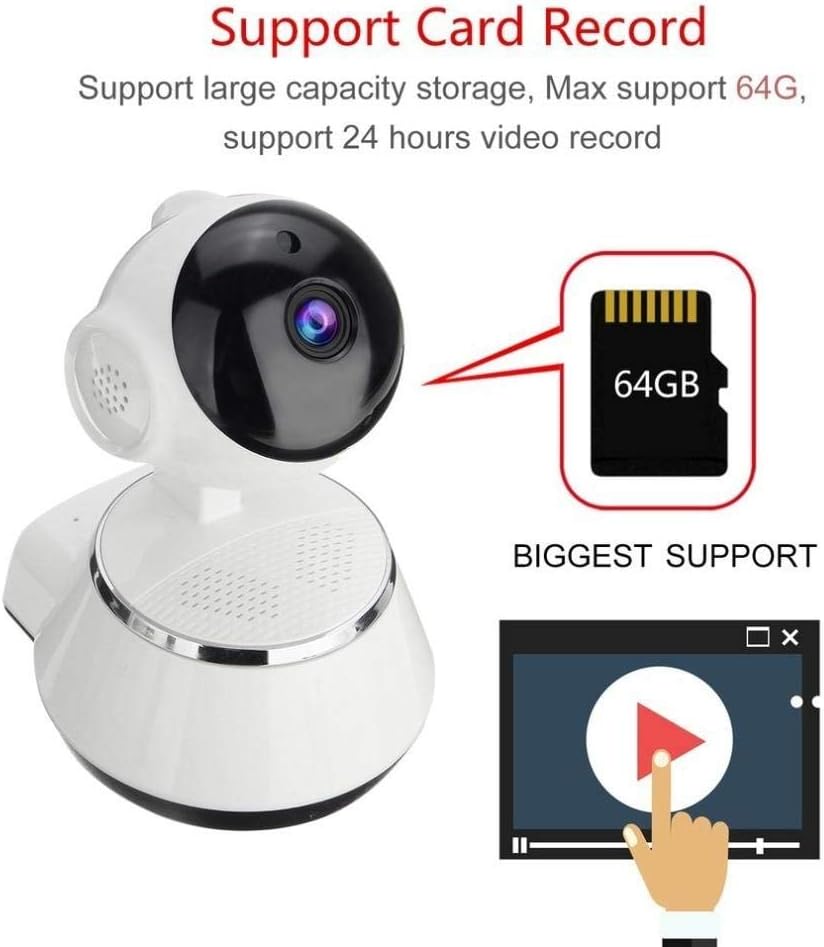
Image demonstrating the camera's support for large capacity storage, specifically showing a 64GB MicroSD card, indicating support for 24-hour video recording.
6.3. Pengesanan Pergerakan
Receive alerts when motion is detected in the camera's field of view.
- Enable "Motion Detection" in the camera settings within the iCSee app.
- Adjust sensitivity levels and set up notification preferences (e.g., push notifications, email alerts).
6.4. Penglihatan Malam
Kamera secara automatik bertukar kepada penglihatan malam dalam keadaan cahaya malap.
- Infrared LEDs provide clear black-and-white video up to 10 meters in complete darkness.
- No manual intervention is required for night vision activation.

Comparison image displayed on a smartphone screen, showing the difference between daytime and nighttime monitoring views, highlighting the infrared night vision capability.
6.5. Audio Dua Hala
Berkomunikasi melalui kamera menggunakan mikrofon dan pembesar suara terbina dalam.
- Semasa dalam live view, tap the microphone icon in the iCSee app to speak through the camera.
- Ketik ikon pembesar suara untuk mendengar audio dari persekitaran kamera.
6.6. Akses Jauh
Monitor your property from anywhere with an internet connection.
- As long as your camera is connected to Wi-Fi and your phone has internet access, you can view live feeds and manage settings remotely via the iCSee app.
7. Penyelenggaraan
- Pembersihan: Gunakan kain lembut dan kering untuk membersihkan kanta dan badan kamera. Jangan gunakan pembersih cecair atau aerosol.
- Kemas kini Firmware: Regularly check for firmware updates through the iCSee app to ensure your camera has the latest features and security patches.
- Pengurusan Kad SD: Periodically back up important recordings and format the SD card to maintain optimal performance.
- Storan: When not in use for extended periods, store the camera in a cool, dry place away from direct sunlight.
8. Penyelesaian masalah
| Masalah | Kemungkinan Punca / Penyelesaian |
|---|---|
| Kamera tidak dihidupkan | Ensure the power adapter is securely connected to both the camera and the power outlet. Try a different outlet. |
| Tidak dapat menyambung ke Wi-Fi | Check if your Wi-Fi network is 2.4GHz. Ensure the Wi-Fi password is correct. Move the camera closer to the router. Reset the camera and try again. |
| Langsung view kabur atau gelap | Clean the camera lens. Check lighting conditions. Ensure night vision is functioning correctly in low light. |
| Kad SD tidak merakam | Ensure the SD card is inserted correctly and formatted in the app. Check if the card is full or corrupted. Try a different SD card. |
| Tiada audio atau kualiti audio yang lemah | Check microphone and speaker settings in the app. Ensure there are no obstructions blocking the microphone or speaker. |
| Kamera kerap terputus sambungan | Weak Wi-Fi signal. Move the camera closer to the router or consider a Wi-Fi extender. Reduce network congestion. |
9. Spesifikasi
| Ciri | Perincian |
|---|---|
| Nombor Model | BES-MH03 |
| Teknologi Ketersambungan | Wayarles (Wi-Fi) |
| Penggunaan yang Disyorkan | Baby Monitoring, Home Security |
| Ciri Khas | Motion Sensor, Night Vision (Infrared distance 10m) |
| Faktor Bentuk | Kubah |
| Wattage | 3 watt |
| Sokongan Storan | Kad MicroSD (Maksimum 64GB) |
| Audio | Two-way audio (Audio Record) |
10. Waranti dan Sokongan
BESDER products are manufactured to high-quality standards. For warranty information, please refer to the terms and conditions provided at the point of purchase or contact your retailer. For technical support or further assistance, please refer to the support section within the iCSee application or visit the official BESDER weblaman web (jika ada).
Ask a question about this manual
Ask about setup, troubleshooting, compatibility, parts, safety, or missing instructions. Manuals+ will review the question and use this page’s manual context to help answer it.