
1. Pengenalan
Thank you for choosing the Targus W620 Wireless Optical Mouse. This manual provides detailed instructions for setting up, operating, and maintaining your mouse to ensure optimal performance and longevity. The Targus W620 offers reliable 2.4 GHz wireless connectivity, a precise 1600 DPI optical sensor, and a compact design suitable for both office and mobile use.
2. Kandungan Pakej
Sila semak pakej untuk item berikut:
- Targus W620 Wireless Optical Mouse
- Penerima USB
- 2 x Bateri AAA
3. Produk Lebihview
Familiarize yourself with the components of your Targus W620 Wireless Optical Mouse.
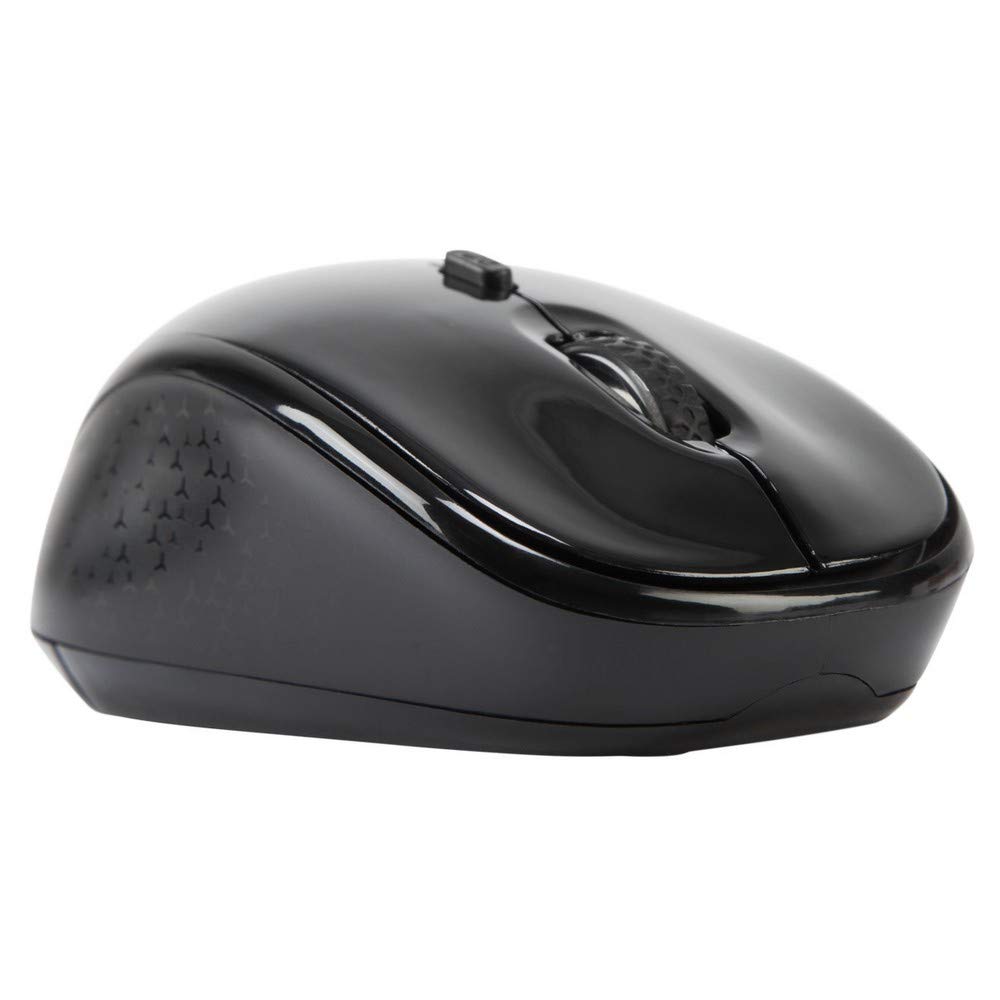
Imej 3.1: Atas view of the Targus W620 Wireless Optical Mouse. This image displays the primary buttons and scroll wheel.
- Butang Klik Kiri: Fungsi klik utama standard.
- Butang Klik Kanan: Fungsi klik sekunder standard.
- Roda Tatal: Untuk fungsi tatal menegak dan klik tengah.
- Butang DPI: Melaraskan kepekaan tetikus (DPI).
- Sensor Optik: Located on the bottom, detects mouse movement.
- Petak Bateri: Located on the bottom, holds two AAA batteries.
- Storan Penerima USB: A dedicated slot on the bottom for storing the USB receiver when not in use.

Imej 3.2: Bawah view of the mouse, highlighting the battery compartment and optical sensor.
4. Arahan Persediaan
Follow these steps to set up your Targus W620 Wireless Optical Mouse:
- Pasang Bateri:
- Locate the battery compartment cover on the bottom of the mouse.
- Luncurkan penutup terbuka.
- Masukkan dua bateri AAA, pastikan kekutuban (+/-) betul.
- Tutup penutup petak bateri dengan selamat.
- Sambungkan Penerima USB:
- The USB receiver is typically stored in a slot on the bottom of the mouse for transport. Gently remove it.
- Palamkan penerima USB ke dalam port USB yang tersedia pada komputer anda.

Imej 4.1: The mouse with its USB receiver, ready for connection.
- Hidupkan kuasa:
- There is no explicit power switch on this model; the mouse activates upon movement and connection.
- Komputer anda harus secara automatik mengesan dan memasang pemacu yang diperlukan. Ini mungkin mengambil masa beberapa saat.
- Once drivers are installed, the mouse is ready for use.
5. Arahan Operasi
The Targus W620 Wireless Optical Mouse is designed for intuitive use. Here are its primary functions:
- Navigasi Asas: Move the mouse on a flat surface to control the cursor on your screen.
- Klik Kiri: Gunakan untuk memilih item, membuka files, atau fungsi pengaktifan.
- Klik kanan: Use for accessing context menus or secondary functions.
- Roda Tatal: Rotate the wheel to scroll vertically through documents and web pages. Press the scroll wheel for a middle-click function, often used for opening links in new tabs or auto-scrolling.
- Pelarasan DPI: Press the DPI button (located behind the scroll wheel) to cycle through the available DPI settings (800, 1200, 1600 DPI). This changes the sensitivity of the mouse cursor. A higher DPI means the cursor moves further with less physical mouse movement.
6. Penyelenggaraan
Penyelenggaraan yang betul memastikan ketahanan dan prestasi tetikus anda.
- Pembersihan: Gunakan kain lembut, kering dan bebas lin untuk membersihkan bahagian luar tetikus. Untuk kotoran degil, sedikit dampen kain dengan air. Elakkan menggunakan bahan kimia yang keras atau pembersih yang kasar.
- Sensor Optik: Keep the optical sensor area on the bottom of the mouse clean and free from dust or debris to ensure accurate tracking.
- Penggantian Bateri: When the mouse performance degrades or stops responding, it is likely time to replace the batteries. Follow the steps in Section 4.1 to replace the two AAA batteries.
- Storan: When transporting or storing the mouse, always place the USB receiver back into its dedicated storage slot on the bottom of the mouse to prevent loss.
7. Penyelesaian masalah
If you encounter issues with your Targus W620 mouse, try the following solutions:
| Masalah | Penyelesaian yang Mungkin |
|---|---|
| Mouse not responding or cursor not moving. |
|
| Pergerakan kursor tidak menentu atau gelisah. |
|
| Butang DPI tidak mengubah kepekaan. |
|
| Wireless connection issues. |
|
8. Spesifikasi
| Jenama | Targus |
| Nombor Model | AMW620AP |
| Teknologi Ketersambungan | 2.4 GHz Wireless (Radio Frequency) |
| Teknologi Pengesanan Pergerakan | Optical (BlueTrace Technology) |
| Tahap DPI | 800 / 1200 / 1600 DPI (Boleh Laras) |
| Bilangan Butang | 4 (Left, Right, Scroll Wheel, DPI) |
| Orientasi Tangan | Right (Comfortable for ambidextrous use) |
| Sumber Kuasa | 2 x Bateri AAA (Termasuk) |
| Berat Barang | 26 Gram |
| Keserasian Sistem Pengendalian | Linux, Windows XP (Compatible with modern Windows and macOS) |
| Platform Perkakasan | Mac, PC |
| warna | Hitam |
9. Waranti dan Sokongan
Maklumat Waranti: The Targus W620 Wireless Optical Mouse comes with a Waranti pengilang selama 3 tahun dari tarikh pembelian. Waranti ini melindungi kecacatan pada bahan dan mutu kerja di bawah penggunaan biasa. Sila simpan bukti pembelian anda untuk tuntutan waranti.
Sokongan Pelanggan: For technical assistance, troubleshooting beyond this manual, or warranty inquiries, please visit the official Targus website or contact their customer support service. Refer to the contact information provided with your product packaging or on the Targus official webtapak.