
pengenalan
This manual provides comprehensive instructions for the installation, operation, and maintenance of your Aerocool LUX RGB 650M semi-modular power supply. The LUX RGB 650M is designed to deliver stable power to your PC components while offering customizable RGB lighting effects. Please read this manual thoroughly before installation and use to ensure proper functionality and safety.

Imej: Bersudut view of the Aerocool LUX RGB 650M Power Supply, showcasing its black finish and RGB lighting panel.
Maklumat Keselamatan
- Pastikan bekalan kuasa diputuskan dari salur keluar kuasa AC sebelum pemasangan atau penyelenggaraan.
- Jangan buka unit bekalan kuasa. vol tinggitagterdapat di dalam, yang boleh menyebabkan kejutan elektrik.
- Install the power supply in a well-ventilated area. Do not block the ventilation openings.
- Produk ini direka bentuk untuk digunakan dalam komputer peribadi. Jangan gunakannya untuk tujuan lain.
- Keep the power supply away from water, moisture, and extreme temperatures.
- Use only the cables provided with the power supply. Using third-party cables may cause damage.
Kandungan Pakej
Sahkan bahawa semua item terdapat dalam pakej:
- Aerocool LUX RGB 650M Power Supply Unit
- Modular Cable Set (PCIe, SATA, Peripheral)
- Main ATX 20+4 Pin Cable (fixed)
- CPU 4+4 Pin Cable (fixed)
- Kord Kuasa AC
- Skru Pemasangan
- Manual Pengguna
Persediaan dan Pemasangan
Follow these steps to install your Aerocool LUX RGB 650M power supply:
- Sediakan Sarung PC anda: Pastikan komputer anda dimatikan dan dicabut dari soket dinding. Buka bekas PC anda untuk mengakses kawasan pelekap bekalan kuasa.
- Pasang Bekalan Kuasa: Carefully slide the LUX RGB 650M into the designated power supply bay in your PC case. Secure it with the provided mounting screws.
- Connect Fixed Cables:
- Sambungkan 20+4 Pin ATX cable to your motherboard's main power connector.
- Sambungkan 4+4 Pin CPU cable to your motherboard's CPU power connector.
- Sambungkan Kabel Modular: Identify the necessary modular cables for your components (graphics card, SSDs/HDDs, optical drives).
- Sambungkan yang diperlukan kabel PCIe to your graphics card(s).
- Sambung Kabel kuasa SATA to your storage drives (SSDs, HDDs).
- Sambung Peripheral (Molex) cables for any other components requiring them.

Imej: Bersudut view of the Aerocool LUX RGB 650M Power Supply, illustrating the semi-modular design with fixed and detachable cables.
- Pengurusan Kabel: Utilize the semi-modular design to manage cables efficiently, improving airflow and aesthetics within your PC case.
- Sambung RGB:
- For motherboard synchronization, connect the power supply's Addressable RGB cable to a +5V Addressable RGB header on your compatible motherboard.
- If your motherboard does not have an Addressable RGB header, you can control the lighting effects directly via the LED control button on the power supply.
- Sambungan Kuasa: Connect the AC power cord to the power supply's input socket and then to a wall outlet. Ensure the power switch on the PSU is in the OFF (0) position before plugging it in.
- System Configuration Note: For optimal performance and stability, ensure your system's power requirements do not exceed the PSU's capacity. A recommended maximum configuration for this 650W model is an Intel i5 processor, an RTX 3060 graphics card, and 16GB DDR4 RAM. For precise power calculations, consult online PSU calculators.
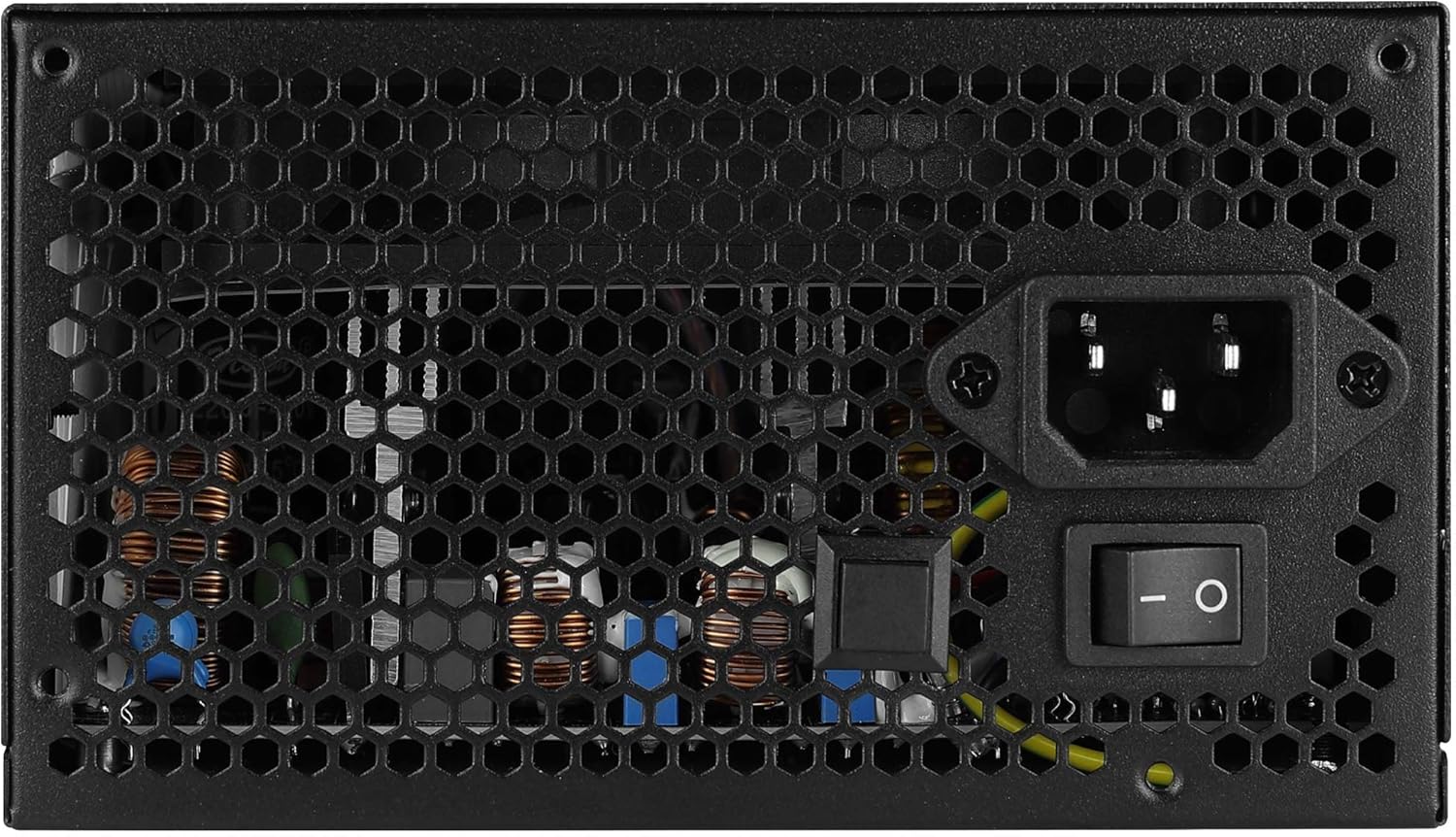
Imej: Belakang view of the Aerocool LUX RGB 650M Power Supply, showing the AC power input, power switch, and ventilation grille.
Arahan Operasi
Selepas pemasangan berjaya, ikut langkah ini untuk mengendalikan bekalan kuasa anda:
- Hidupkan kuasa: Flip the power switch on the rear of the power supply to the ON (I) position. Then, power on your computer using the case's power button.
- Kawalan Pencahayaan RGB:
- Via LED Control Button: If not connected to a motherboard ARGB header, press the dedicated LED control button on the power supply to cycle through 13 predefined lighting effects.
- Via Motherboard Software: If connected to a +5V Addressable RGB header on your motherboard, you can control and synchronize the power supply's lighting effects using your motherboard's RGB software (e.g., ASUS Aura Sync, MSI Mystic Light Sync, Gigabyte RGB Fusion, ASRock Polychrome Sync).
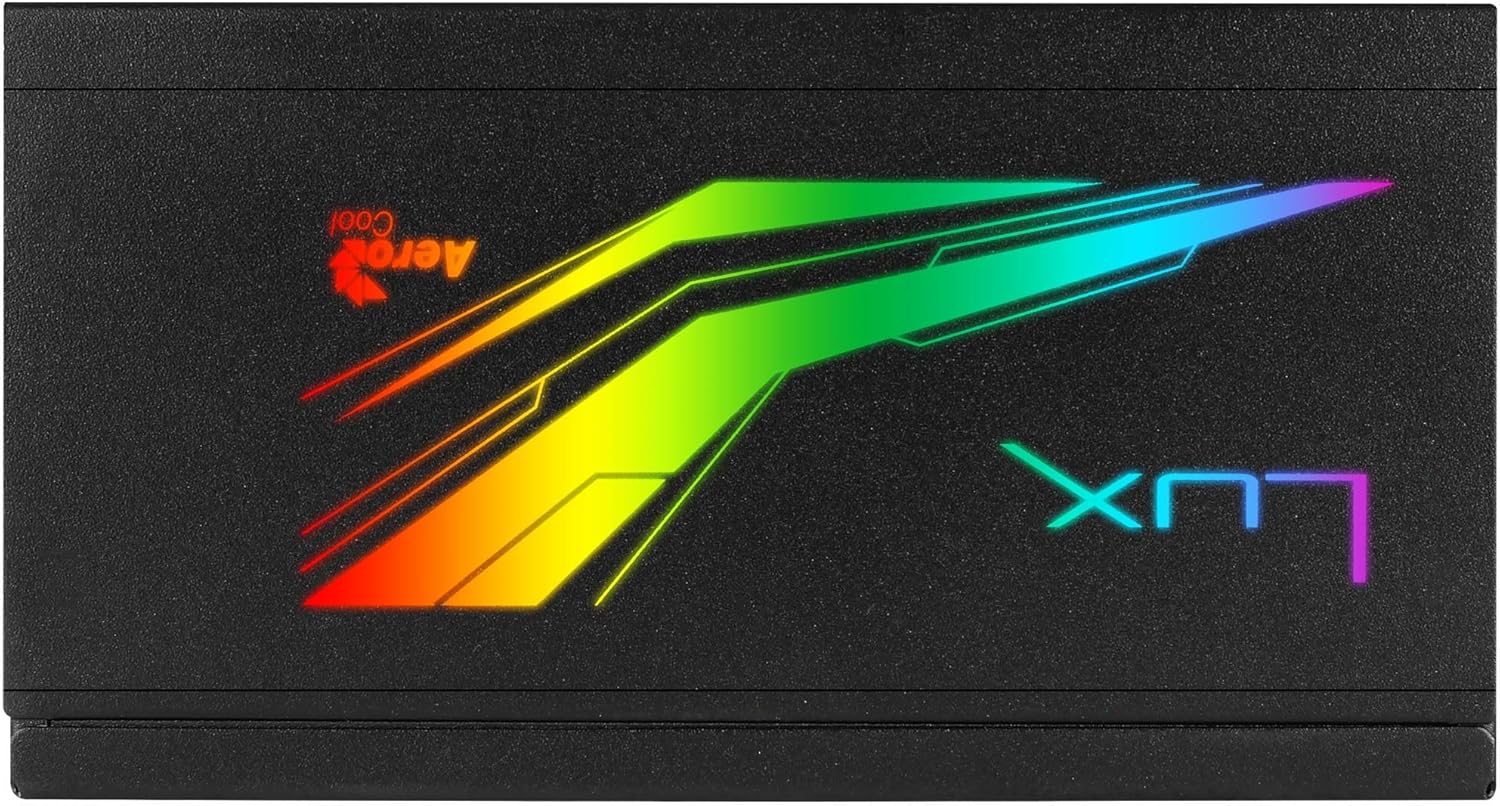
Imej: Atas view of the Aerocool LUX RGB 650M Power Supply, highlighting the integrated RGB lighting panel with the "LUX" and "AeroCool" logos.
Penyelenggaraan
Penyelenggaraan yang betul memastikan jangka hayat dan prestasi optimum bekalan kuasa anda:
- Pembersihan Habuk: Periodically clean the power supply's fan and ventilation grilles to prevent dust buildup, which can impede airflow and cooling. Use compressed air for best results. Ensure the power supply is off and unplugged before cleaning.
- Aliran udara: The LUX RGB 650M features a 30% increased ventilation area for enhanced airflow. Ensure your PC case has adequate ventilation to support efficient heat dissipation from the power supply.
- Operasi Kipas: The 12cm silent black fan operates with optimized thermal fan speed control, adjusting its speed based on temperature to maintain quiet operation and effective cooling.

Imej: Sisi view of the Aerocool LUX RGB 650M Power Supply, highlighting the extensive honeycomb ventilation pattern for improved airflow.
Menyelesaikan masalah
Jika anda menghadapi masalah dengan bekalan kuasa anda, rujuk masalah dan penyelesaian biasa berikut:
- Tiada Kuasa ke Sistem:
- Periksa sama ada kord kuasa AC disambungkan dengan selamat ke kedua-dua bekalan kuasa dan alur keluar dinding.
- Ensure the power switch on the rear of the PSU is in the ON (I) position.
- Verify that all power cables (20+4 Pin ATX, 4+4 Pin CPU, PCIe, SATA) are correctly and firmly connected to their respective components.
- Uji alur keluar dinding dengan peranti lain untuk mengesahkan ia mempunyai kuasa.
- Ketidakstabilan/Ranap Sistem:
- Ensure your system's power draw does not exceed the 650W capacity of the PSU. Overloading can cause instability.
- Periksa sambungan kabel yang longgar.
- Ensure adequate ventilation within the PC case to prevent overheating.
- Pencahayaan RGB Tidak Berfungsi:
- If using the LED control button, ensure it is being pressed correctly to cycle effects.
- If connected to a motherboard ARGB header, verify the connection is secure and that your motherboard's RGB software is installed and configured correctly. Ensure it's a +5V ARGB header, not a +12V RGB header.
Spesifikasi

Image: Electrical specifications label for the Aerocool LUX RGB 650M Power Supply, detailing voltage dan keluaran semasa.
| Ciri | Perincian |
|---|---|
| Nombor Model | LUXRGB650M |
| Jenama | AeroCool |
| Output Kuasa | 650 Watt |
| Pensijilan Kecekapan | 80Plus 230V EU Bronze (up to 88%+ efficiency) |
| Faktor Bentuk | ATX |
| Cabling Design | Separuh Modular |
| Kaedah Penyejukan | Air (12cm silent black fan with optimized thermal speed control) |
| Pencahayaan RGB | Prism RGB (13 predefined effects via button, compatible with +5V Addressable RGB motherboards) |
| Input Voltage | 115-230 Volt |
| Dimensi (L x W x H) | 16 x 15 x 8.6 cm |
| Berat badan | 1.5 Kilogram |
| Peranti Serasi | Komputer Peribadi |
Waranti
The Aerocool LUX RGB 650M Power Supply comes with a Waranti 2 tahun on spare parts. Please retain your proof of purchase for warranty claims. The warranty covers defects in materials and workmanship under normal use. It does not cover damage caused by misuse, accident, modification, or unauthorized repair.
Sokongan
For technical assistance, troubleshooting beyond this manual, or warranty inquiries, please contact AeroCool customer support. Visit the official AeroCool webtapak untuk maklumat hubungan dan sumber tambahan.
Sumber Dalam Talian: www.aerocool.io