
1. Pengenalan
This manual provides essential information for the installation, operation, and maintenance of the MADRIX Software 5 Key Start. This software is a professional LED lighting control solution designed to manage complex lighting installations with ease and precision. It offers control over 1,024 DMX channels (2 DMX Universes) and 16,384 DVI voxels, making it suitable for a wide range of applications.
MADRIX is a Windows-based application that functions as both an effect generator and a media server. It supports various industry standards, including DMX512, DVI, Art-Net, and Streaming ACN, ensuring broad compatibility with existing lighting setups.
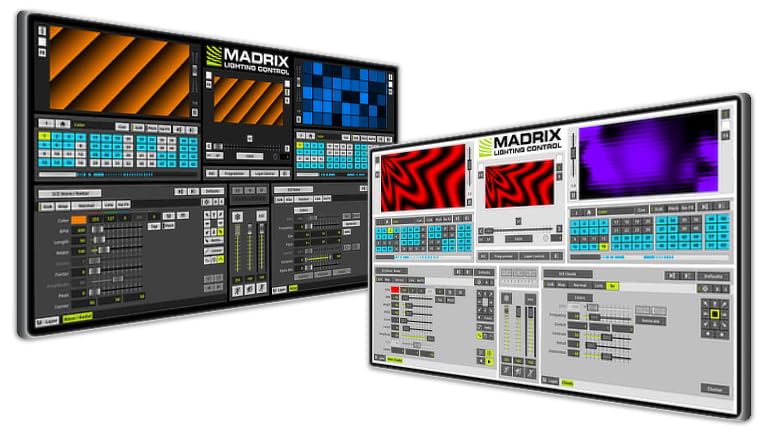
Figure 1: MADRIX Software 5 Key Start USB Dongle. This image shows the physical USB dongle required to activate and use the MADRIX 5 Key Start software.
2. Persediaan dan Pemasangan
2.1 Keperluan Sistem
- Sistem pengendalian: Windows 7, 8, 10, or 11 (64-bit recommended)
- Pemproses: Dual-core CPU, 2 GHz or faster
- RAM: 4 GB atau lebih
- Kad Grafik: Dedicated graphics card with 1 GB VRAM (NVIDIA or AMD recommended)
- Storan: 1 GB ruang cakera kosong untuk pemasangan
- Port USB: Available USB 2.0 or 3.0 port for the MADRIX Key
- Rangkaian: Ethernet port for Art-Net/sACN (optional)
2.2 Pemasangan Perisian
- Muat turun: Obtain the latest MADRIX 5 software installer from the official MADRIX webtapak.
- Jalankan Pemasang: Klik dua kali pada pemasang yang dimuat turun file dan ikut arahan pada skrin.
- Kunci Lesen: Insert the MADRIX 5 Key Start USB dongle into an available USB port on your computer. The software will detect the key automatically upon launch.
- Pemasangan Pemandu: Ensure all necessary drivers for your DMX/DVI interfaces are installed correctly.
2.3 Sambungan Perkakasan
Connect your LED fixtures and DMX/DVI interfaces to your computer. MADRIX supports various protocols for output:
- DMX512: Connect DMX interfaces (e.g., MADRIX NEO, MADRIX LUNA) via USB or Ethernet.
- DVI: Connect DVI-controlled LED displays via a DVI output from your graphics card.
- Art-Net/Streaming ACN (sACN): Connect network-enabled DMX nodes or fixtures to your computer's Ethernet port.
Refer to the specific hardware's manual for detailed connection instructions.
3. Arahan Operasi
3.1 Perisian Tamatview
Upon launching MADRIX 5, you will be presented with the main interface. Key areas include:
- Matrix Generator: Define your LED layout and pixel mapping.
- Storan: Store and organize effects, scenes, and shows.
- Effect Generator: Create and customize visual effects.
- Output: Monitor and control DMX/DVI output.
- MIDI/DMX Input: Configure external control devices.
3.2 Operasi Asas
- Create a New Setup: Pergi ke "Preferences" > "Device Manager" to configure your DMX/DVI outputs.
- Define Matrix: Gunakan "Matrix Generator" to create a virtual representation of your LED setup. This is crucial for pixel mapping.
- Generate Effects: Navigasi ke "Effect Generator" section. Select from a variety of built-in effects or create custom ones. Adjust parameters such as speed, color, and intensity.
- Store Scenes: Save your configured effects and settings as scenes in the "Storage" section for quick recall.
- Kawalan Output: Ensure your output devices are enabled in the "Device Manager" and that the output is active to send data to your LEDs.
3.3 Ciri Lanjutan
- Pixel Mapping: Map video content or effects directly onto your LED layout, regardless of its physical arrangement.
- Pelayan Media: Main balik video files and images as lighting content.
- Kawalan Luaran: Integrate with DMX/MIDI consoles for live control and automation.
- Skrip: Utilize scripting capabilities for advanced customization and automation.
4. Penyelenggaraan
4.1 Kemas Kini Perisian
Regularly check the official MADRIX website for software updates. Updates often include new features, performance improvements, and bug fixes. It is recommended to keep your software up-to-date for optimal performance and compatibility.
4.2 Sandaran Sistem
Periodically back up your MADRIX show files, settings, and custom content. This ensures that your configurations are safe in case of system failure or data loss. The MADRIX software typically stores user data in a dedicated folder within your Documents directory.
5. Penyelesaian masalah
Jika anda menghadapi masalah, rujuk langkah penyelesaian masalah biasa berikut:
- Perisian Tidak Dilancarkan:
- Ensure the MADRIX Key USB dongle is properly inserted.
- Verify your system meets the minimum requirements.
- Cuba pasang semula perisian.
- No DMX/DVI Output:
- Check all physical cable connections (USB, Ethernet, DVI).
- Confirm that your DMX/DVI interfaces are recognized in the MADRIX Device Manager.
- Ensure the output is enabled in the software.
- Verify that the correct drivers for your hardware are installed.
- Effects Not Displaying Correctly:
- Review your Matrix Generator setup to ensure it accurately reflects your physical LED layout.
- Check effect parameters and color settings.
- Ensure your LED fixtures are correctly addressed and configured.
- Isu Prestasi:
- Close other demanding applications.
- Ensure your graphics card drivers are up-to-date.
- Reduce the complexity of effects or the number of active layers if your system is struggling.
For further assistance, consult the official MADRIX support resources.
6. Spesifikasi
| Ciri | Perincian |
|---|---|
| Nama Produk | MADRIX Software 5 Key Start |
| Nombor Model | IA-SOFT-001001 |
| Jenama | MADRIX |
| Saluran DMX | 1,024 (2 DMX Universes) |
| DVI Voxels | 16,384 (128 x 128) |
| Piawaian yang Disokong | DMX512, DVI, Art-Net, Streaming ACN, Philips Color Kinetics, Insta/ROBE protocols, Eurolite T9, ColourSmart Link |
| Sistem Operasi | Windows (7, 8, 10, 11) |
| Kefungsian | Effect Generator, Media Server, Pixel Mapping |
| Input Kawalan | DMX, MIDI console/desk |
| UPC | 683258961110 |
7. Waranti dan Sokongan
7.1 Maklumat Waranti
Warranty terms for the MADRIX Software 5 Key Start are typically provided at the point of purchase or can be found on the official MADRIX webtapak. Sila simpan bukti pembelian anda untuk tuntutan waranti.
7.2 Sokongan Teknikal
For technical assistance, software issues, or advanced inquiries, please visit the official MADRIX support portal or contact their customer service directly.
Official MADRIX Webtapak: www.matrix.com