
1. Pengenalan
This manual provides instructions for the proper setup, operation, and maintenance of your Acer B247Y 23.8-inch LED LCD Monitor. Please read this manual thoroughly before using your monitor to ensure optimal performance and to prevent damage.
The Acer B247Y is a 23.8-inch Full HD (1920 x 1080) monitor featuring an IPS panel for wide viewing angles, an anti-glare display, and a frameless design on three sides. It includes multiple connectivity options and an ergonomic stand for comfortable viewing.
2. Kandungan Pakej
Sahkan bahawa semua item terdapat dalam pakej anda. Jika ada barang yang hilang atau rosak, hubungi peruncit anda.
- Acer B247Y 23.8-inch LED LCD Monitor
- Stand Monitor (Asas dan Leher)
- Power Adapter (Internal) and Power Cable
- Kabel VGA
- Kabel DisplayPort 1.2
- Kabel HDMI
- Audio-in Cable (if included)
- Audio-out Cable (if included)
- Manual Pengguna (dokumen ini)
3. Persediaan
3.1 Memasang Stand Monitor
The monitor comes with a detachable foot stand. Follow these steps to assemble:
- Keluarkan komponen monitor dan berdiri dengan berhati-hati daripada pembungkusan.
- Pasangkan leher pendirian pada panel monitor. Pastikan ia mengklik pada tempatnya dengan selamat.
- Attach the stand base to the stand neck. Tighten any screws if provided, usually located on the underside of the base.
- Letakkan monitor yang dipasang pada permukaan yang stabil dan rata.
Nota: The monitor also supports VESA mount (100 x 100 mm) for wall or arm mounting. Refer to your VESA mount kit instructions for installation.
3.2 Menyambung Monitor
Sambungkan monitor ke komputer anda atau peranti lain menggunakan kabel yang sesuai.
- Sambungan Video:
- Connect one end of the DisplayPort cable to the DisplayPort output on your computer and the other end to the DisplayPort input on the monitor.
- Alternatively, connect an HDMI cable from your computer's HDMI output to the monitor's HDMI input.
- For older systems, connect a VGA cable from your computer's VGA output to the monitor's VGA input.
- Sambungan Audio:
- If using VGA or DisplayPort without audio, connect an audio cable from your computer's audio output to the monitor's audio-in port for integrated speakers.
- To connect external speakers or headphones, use the monitor's audio-out port.
- Sambungan Kuasa:
- Sambungkan kabel kuasa ke input kuasa monitor, kemudian palamkan hujung yang satu lagi ke soket elektrik yang dibumikan.

Figure 3.2.1: Acer B247Y Monitor with Stand. This image illustrates the overall appearance of the monitor when fully assembled on its stand.
4. Arahan Operasi
4.1 Menghidupkan/Mematikan
Tekan butang kuasa, biasanya terletak di bahagian bawah kanan atau belakang monitor, untuk menghidupkan atau mematikan monitor. Lampu penunjuk kuasa akan menyala apabila monitor dihidupkan.
4.2 Adjusting Monitor Settings (OSD)
The monitor features an On-Screen Display (OSD) menu for adjusting various settings. Use the control buttons (typically located near the power button) to navigate and select options within the OSD menu.
Tetapan OSD biasa termasuk:
- gambar: Brightness, Contrast, Color Temperature, Gamma, Acer eColor Management modes (e.g., Dark Room, Eco).
- Audio: Volume control for integrated speakers or audio-out.
- Input: Select the active video input source (VGA, DisplayPort, HDMI).
- OSD: Tamat masa OSD, bahasa.
- Pengurusan: Tetapkan semula ke lalai kilang.
4.3 Pelarasan Ergonomik
The Acer B247Y monitor stand offers several ergonomic adjustments to optimize your viewpengalaman:
- Condong: Adjust the screen angle from -5 degrees to 25 degrees (forward/backward).
- Pusing: Rotate the monitor horizontally up to +/- 45 degrees.
- Pelarasan Ketinggian: Laraskan ketinggian skrin sehingga 120mm.
- Pivot: Putar skrin 90 darjah untuk potret viewing.
5. Penyelenggaraan
Penyelenggaraan yang betul memastikan jangka hayat dan prestasi optimum monitor anda.
- Membersihkan Skrin: Lap skrin perlahan-lahan dengan kain lembut yang tidak berbulu. Untuk tanda degil, dampen the cloth with a small amount of water or a non-abrasive screen cleaner. Do not spray liquid directly onto the screen.
- Membersihkan Casing: Gunakan kain lembut dan kering untuk membersihkan monitor casing. Elakkan menggunakan detergen yang kuat atau pembersih yang kasar.
- Pengudaraan: Pastikan bukaan pengudaraan pada monitor tidak disekat untuk mengelakkan terlalu panas.
- Matikan: Sentiasa matikan monitor dan cabut plagnya daripada soket kuasa sebelum membersihkan atau apabila tidak digunakan untuk tempoh yang lama.
6. Penyelesaian masalah
Jika anda menghadapi masalah dengan monitor anda, rujuk langkah penyelesaian masalah biasa berikut:
- No Power / Monitor Does Not Turn On:
- Pastikan kabel kuasa disambungkan dengan selamat pada monitor dan soket elektrik yang berfungsi.
- Sahkan alur keluar kuasa berfungsi dengan memasang peranti lain.
- Tekan butang kuasa dengan kuat.
- No Image / "No Signal" Message:
- Check that the video cable (DisplayPort, HDMI, or VGA) is securely connected to both the monitor and your computer.
- Pastikan komputer anda dihidupkan dan bukan dalam mod tidur.
- Gunakan menu OSD untuk memilih sumber input yang betul secara manual.
- Cuba kabel atau port video lain jika tersedia.
- Image is Distorted or Unclear:
- Pastikan resolusi paparan pada komputer anda ditetapkan kepada resolusi asli monitor (1920 x 1080).
- Adjust brightness, contrast, and other picture settings via the OSD menu.
- Check for any physical damage to the screen or cables.
- Tiada Bunyi dari Pembesar Suara:
- Increase the volume using the OSD menu or your computer's sound settings.
- Ensure the audio cable (if used) is properly connected.
- Verify that the correct audio output device is selected in your computer's sound settings.
7. Spesifikasi
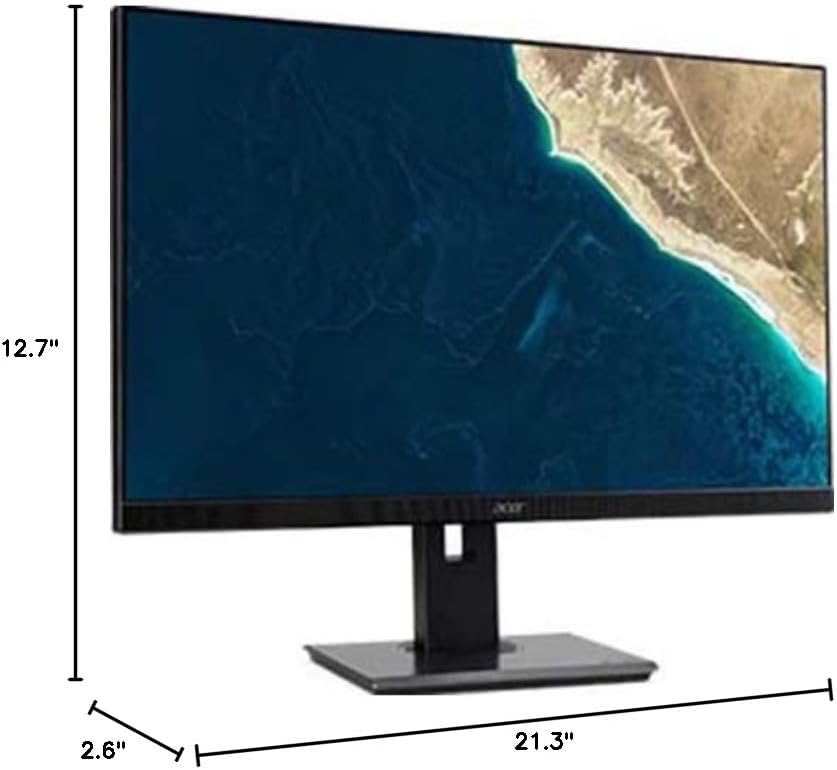
Figure 7.1.1: Acer B247Y Monitor Dimensions. This image shows the approximate height (12.7"), width (21.3"), and depth (2.6") of the monitor without the stand.
| Ciri | Spesifikasi |
|---|---|
| Nombor Model | B247Y |
| Saiz Skrin | 23.8 inci (60.5 cm) |
| Jenis Paparan | LED LCD, IPS Panel, Anti-glare (AG) |
| Resolusi Maksimum | 1920 x 1080 (HD Penuh) |
| Nisbah Aspek | 16:9 |
| Kadar Segar Semula | 75 Hz |
| Masa Tindak Balas | 4ms (gray-to-gray) |
| Kecerahan (biasa) | 250 cd/m² |
| Nisbah Kontras Asli | 1,000:1 |
| Nisbah Kontras Dinamik | 100,000,000:1 |
| Viewsudut sudut (H / V) | 178° / 178° |
| Ketersambungan | VGA, DisplayPort 1.2, HDMI, Audio-in, Audio-out |
| Penceramah Bersepadu | 2 x 2.0W |
| Pelarasan Ergonomik | Tilt (-5° to 25°), Swivel (+/- 45°), Height Adjustment (120mm), Pivot (90°) |
| VESA Mount Support | 100 x 100 mm |
| Dimensi dengan Dirian (W x H x D) | 21.3" x 14.9"~19.6" x 7.6" (54.0cm x 37.9cm~49.9cm x 19.3cm) |
| Berat dengan Stand | 12.3 lb. (5.6 kg) |
| Penyesuai Kuasa | Dalaman |
| warna | Hitam |
8. Waranti dan Sokongan
Your Acer B247Y monitor comes with a Limited Three-Year Warranty. Please retain your proof of purchase for warranty claims.
For technical support, service, or warranty inquiries, please refer to the official Acer support website or contact their customer service department. Contact information can typically be found on the Acer webtapak atau dalam kad jaminan yang disertakan dengan produk anda.
Kunci Kensington: The monitor supports a Kensington lock for security. Attach a compatible Kensington lock (sold separately) to the security slot on the monitor to deter theft.