1. Pengenalan
This manual provides comprehensive instructions for the installation, operation, and maintenance of your Enter Wireless Bluetooth USB Dongle, model E-UBTV. This device enables wireless connectivity between your computer and various Bluetooth-enabled devices for data transfer and voice communication.
2. Produk Lebihview
The Enter Wireless Bluetooth USB Dongle is a compact device designed to add Bluetooth capabilities to your desktop or laptop computer. It facilitates wireless communication with devices such as mobile phones, PDAs, and other Bluetooth-enabled peripherals.

Imej 1: Bersudut view of the Enter Wireless Bluetooth USB Dongle.
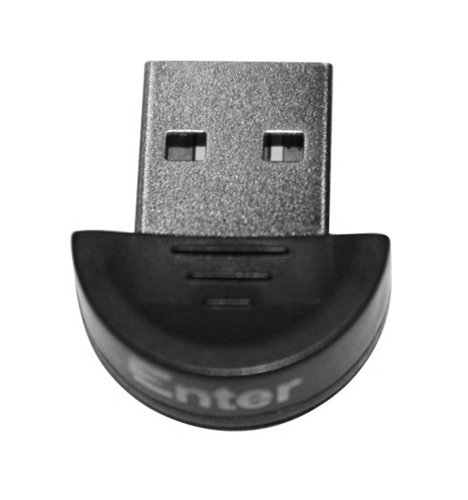
Imej 2: Depan view of the Enter Wireless Bluetooth USB Dongle, showing the USB connector.
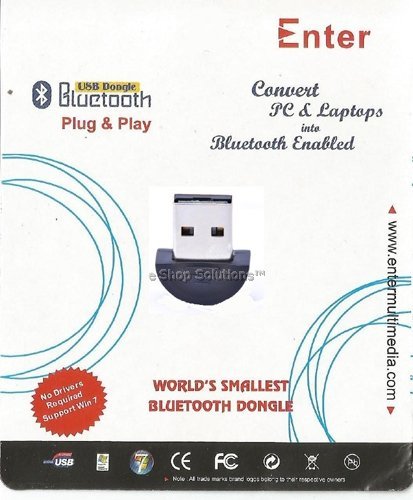
Image 3: Packaging of the Enter Wireless Bluetooth USB Dongle, highlighting 'Plug & Play' functionality.
3. Ciri-ciri
- Enables wireless connection to Bluetooth devices such as mobile phones, PDAs, and personal computers for data transfer.
- Supports Bluetooth voice data transmission.
- Compatible with various operating systems including Windows 98, 98SE, Me, 2000, XP, Vista, 7, 8, and 10.
- Supports networking, dial-up, fax, LAN access, and headset profiles.
4. Persediaan
Follow these steps to set up your Bluetooth USB Dongle:
- Masukkan Dongle: Locate an available USB port on your desktop or laptop computer. Carefully insert the Enter Wireless Bluetooth USB Dongle into the USB port.
- Pemasangan Pemandu: For most modern operating systems (Windows XP and newer), the necessary drivers should install automatically upon insertion (Plug & Play). If prompted, allow the system to search for and install drivers. For older operating systems, you may need to install drivers from an included CD (if provided) or download them from the manufacturer's webtapak.
- Pengesahan: Once installed, a Bluetooth icon should appear in your system tray (usually near the clock) or in your computer's Device Manager, indicating that the dongle is recognized and ready for use.
Note: This device is not compatible with car USB or stereo systems.
5. Arahan Operasi
After successful installation, you can begin connecting to Bluetooth devices:
- Dayakan Bluetooth pada Peranti Anda: Ensure the Bluetooth function is enabled on the device you wish to connect (e.g., mobile phone, headset, PDA).
- Make Device Discoverable: Set your Bluetooth device to 'discoverable' or 'pairing' mode. Refer to your device's manual for specific instructions.
- Cari untuk Peranti: On your computer, right-click the Bluetooth icon in the system tray and select 'Add a Bluetooth Device' or 'Show Bluetooth Devices'. Your computer will begin searching for nearby discoverable Bluetooth devices.
- Berpasangan: Select your device from the list of found devices. You may be prompted to enter a passcode (often '0000' or '1234') on both your computer and the Bluetooth device to complete the pairing process.
- Pemindahan Data: Setelah berpasangan, anda boleh memindahkan files dengan mengklik kanan file you wish to send and selecting 'Send to Bluetooth Device', then choosing the paired device. For receiving files, ensure your computer's Bluetooth settings allow incoming connections.
- Voice Data: For headsets or other audio devices, once paired, you may need to select the Bluetooth device as your default audio input/output in your computer's sound settings.
6. Penyelenggaraan
To ensure the longevity and optimal performance of your Enter Wireless Bluetooth USB Dongle, follow these simple maintenance guidelines:
- Pastikan dongle kering dan jauhkan daripada kelembapan.
- Avoid exposing the dongle to extreme temperatures.
- Clean the dongle with a soft, dry cloth. Do not use liquid cleaners or solvents.
- Simpan dongle di tempat yang selamat apabila tidak digunakan untuk mengelakkan kerosakan fizikal.
7. Penyelesaian masalah
If you encounter issues with your Bluetooth USB Dongle, consider the following:
- Dongle Not Detected:
- Try inserting the dongle into a different USB port.
- Mulakan semula komputer anda.
- Check Device Manager for any unknown devices or driver errors. Reinstall drivers if necessary.
- Tidak Boleh Memasangkan Peranti:
- Ensure the target Bluetooth device is in discoverable/pairing mode.
- Verify that the Bluetooth function is enabled on both the dongle (via your computer's settings) and the target device.
- Check for correct passkey entry.
- Move devices closer to each other to ensure they are within range.
- Slow Data Transfer or Disconnections:
- Reduce the distance between the dongle and the connected device.
- Minimize obstructions (walls, large metal objects) between devices.
- Ensure there are no other devices causing interference (e.g., Wi-Fi routers, cordless phones).
- Ketidakserasian: Remember that this dongle is not designed for use with car USB or stereo systems.
8. Spesifikasi
| Spesifikasi | Perincian |
|---|---|
| Jenama | Masuk |
| Nombor Model | E-UBTV |
| Antara Muka Perkakasan | USB |
| Protokol Pautan Data | Bluetooth |
| Peranti Serasi | Desktop, Komputer riba |
| Sokongan Sistem Pengendalian | Windows 98, 98SE, Me, 2000, XP, Vista, 7, 8, 10 |
| warna | Hitam |
| Berat Barang | 100 g |
| Dimensi Pakej | 15 x 10 x 5 cm |
9. Waranti dan Sokongan
The Enter Wireless Bluetooth USB Dongle E-UBTV comes with a Waranti 1 tahun dari tarikh pembelian. Sila simpan bukti pembelian anda untuk tuntutan waranti.
For technical support or warranty inquiries, please contact your retailer or the manufacturer directly. Refer to the product packaging or manufacturer's webtapak untuk maklumat hubungan.