
pengenalan
Thank you for choosing the MeeTion K9310 Gaming Keyboard. This manual provides detailed instructions for setting up, operating, and maintaining your new keyboard. The K9310 is designed for an enhanced gaming experience with features such as multicolor backlighting, anti-ghosting, and dedicated shortcut keys.
Kandungan Pakej
- MeeTion K9310 Gaming Keyboard
- Manual Pengguna (dokumen ini)
Persediaan
Follow these steps to connect your MeeTion K9310 Gaming Keyboard to your computer:
- Tanggalkan papan kekunci daripada pembungkusannya.
- Cari port USB yang tersedia pada komputer anda.
- Pasangkan penyambung USB papan kekunci ke port USB.
- Your operating system (Windows XP/Vista/7/8/10) will automatically detect and install the necessary drivers. No additional software installation is typically required.
- The keyboard is ready for use once the drivers are installed.

Imej: Atas view of the MeeTion K9310 Gaming Keyboard with its USB cable, ready for connection.
Arahan Operasi
Ciri-ciri Utama
- Multicolor Key Backlit: The keyboard features vibrant multicolor backlighting for enhanced visibility and aesthetic appeal, especially in low-light conditions.
- Comfortable and Soft Keys: Designed with membrane keys offering tactile feedback, providing a comfortable typing and gaming experience.
- 19 Keys Anti-Ghosting: This feature ensures that up to 19 keys can be pressed simultaneously without any input loss, crucial for complex gaming commands.
- Win Lock Function with LED Indication: Prevents accidental presses of the Windows key during gameplay, which can interrupt your game. An LED indicator shows when this function is active.
- 12 FN Shortcut Buttons: Access various multimedia and system functions quickly using the Function (FN) key in combination with the F1-F12 keys.
Kawalan Lampu Latar
The K9310 keyboard features a multicolor backlight. Specific key combinations may be used to adjust brightness or switch lighting modes. Refer to the keyboard's markings for dedicated backlight control keys, often indicated by a sun or light bulb icon, or through FN key combinations.
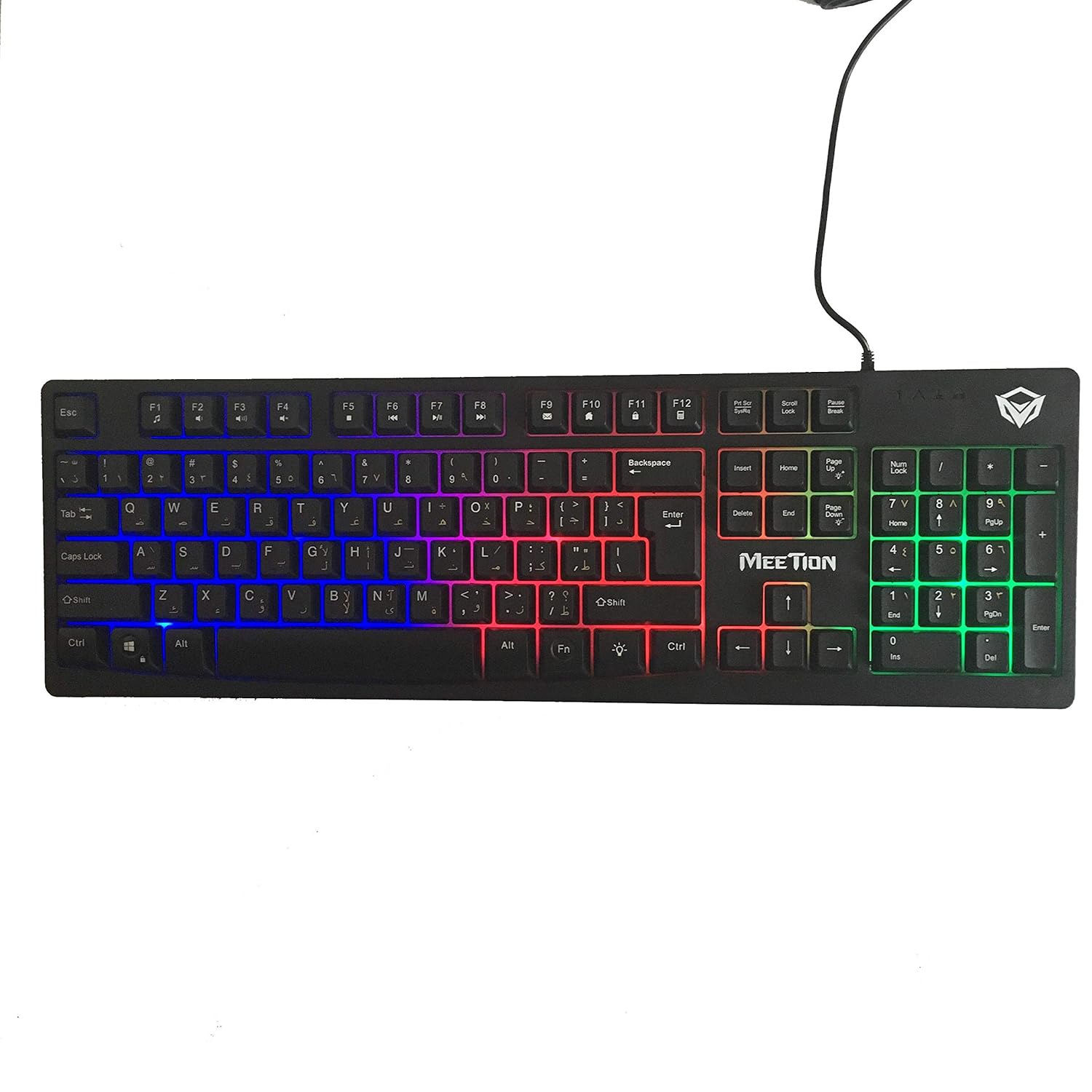
Imej: Atas view of the MeeTion K9310 Gaming Keyboard with its multicolor backlighting illuminated.
FN Shortcut Functions
The keyboard includes 12 FN (Function) shortcut buttons. To activate these functions, press and hold the FN key, then press the desired F-key (F1-F12).
| Gabungan Kunci | Fungsi |
|---|---|
| FN + F1 | Pemain Media |
| FN + F2 | Kelantangan Kurang |
| FN + F3 | Kelantangan Naik |
| FN + F4 | bisu |
| FN + F5 | Berhenti |
| FN + F6 | Trek Sebelumnya |
| FN + F7 | Main/Jeda |
| FN + F8 | Trek Seterusnya |
| FN + F9 | E-mel |
| FN + F10 | Web pelayar |
| FN + F11 | Komputer Saya |
| FN + F12 | Kalkulator |
Win Lock Function
To activate or deactivate the Windows key lock function, press FN + Win Key. When active, the Windows key will be disabled, preventing accidental presses during gaming. An LED indicator on the keyboard will typically illuminate to show the Win Lock status.
Penyelenggaraan
Penyelenggaraan yang betul memastikan jangka hayat dan prestasi optimum papan kekunci anda.
- Pembersihan: Gunakan kain lembut dan kering untuk mengelap permukaan papan kekunci. Untuk pembersihan yang lebih mendalam, sedikitamp Kain dengan sabun lembut boleh digunakan, memastikan tiada cecair memasuki suis kunci atau komponen dalaman.
- Penyingkiran habuk: Gunakan udara termampat untuk mengeluarkan habuk dan serpihan dari antara kekunci.
- Elakkan Cecair: Do not spill liquids on the keyboard. If a spill occurs, immediately disconnect the keyboard from the computer and allow it to dry completely before reconnecting.
- Storan: Simpan papan kekunci di tempat yang sejuk dan kering, jauh daripada cahaya matahari langsung dan suhu yang melampau apabila tidak digunakan untuk tempoh yang lama.

Imej: Bawah view of the MeeTion K9310 Gaming Keyboard, showing the product label and rubber feet.
Menyelesaikan masalah
If you encounter issues with your MeeTion K9310 Gaming Keyboard, refer to the following troubleshooting steps:
- Papan Kekunci Tidak Membalas:
- Pastikan kabel USB dipasang dengan selamat ke dalam port USB yang berfungsi pada komputer anda.
- Cuba pasangkan papan kekunci ke port USB yang berbeza.
- Mulakan semula komputer anda.
- Uji papan kekunci pada komputer lain untuk menentukan sama ada masalahnya adalah pada papan kekunci atau komputer.
- Keys Not Working (e.g., 'W' key):
- Check for any debris or foreign objects lodged under the affected key. Use compressed air to clear it.
- If only specific keys are not responding, and the keyboard is otherwise functional, it might indicate a hardware issue.
- Lampu Latar Tidak Berfungsi atau Berkelip-kelip:
- Pastikan papan kekunci disambungkan dengan betul.
- Check if the backlight brightness is set to minimum or turned off via FN key combinations.
- If the issue persists, it may indicate a hardware malfunction.
- Win Lock Function Not Working:
- Ensure you are using the correct key combination (FN + Win Key) to toggle the function.
- Check the LED indicator for Win Lock status.
Spesifikasi
| Ciri | Perincian |
|---|---|
| Jenama | MESYUARAT |
| Model | K9310 |
| Jenis Papan Kekunci | Papan Kekunci Permainan |
| Kenalan Utama | Membrane with tactile feedback |
| Susun atur | Cyrillic alphabet layout (Windows Keys) |
| Anti-Ghosting | 19 kunci |
| Lampu latar | Lampu belakang kunci pelbagai warna |
| Win Lock Function | Ya, dengan petunjuk LED |
| FN Shortcut Buttons | 12 |
| Error-Free Running Time | More than 10 million strokes |
| Keserasian OS | Windows XP/Vista/7/8/10 |
| Dimensi | 17.5 × 5.5 x 1.5 inches (approximate) |
| Berat badan | 1.2 paun (anggaran) |
| Peranti Serasi | Laptop (and Desktop PCs) |
Waranti dan Sokongan
For warranty information or technical support, please refer to the documentation provided at the time of purchase or visit the official MEETION webtapak. Simpan bukti pembelian anda untuk sebarang tuntutan waranti.