
pengenalan
This manual provides comprehensive instructions for the setup, operation, and maintenance of your Lawmate LMWIFICASE WiFi 1080P HD Smart Phone Camera Case. Please read this manual thoroughly before using the device to ensure proper functionality and to maximize its performance.
Produk Selesaiview
The Lawmate LMWIFICASE is a discreet camera system integrated into a functional smartphone case, designed for covert video recording and live streaming. It features a high-definition camera, Wi-Fi connectivity for remote access, and internal storage capabilities.
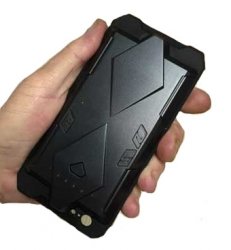
Imej: Depan view of the Lawmate LMWIFICASE Smart Phone Camera Case, showing the integrated camera lens and design.
Komponen Utama:
- Kanta Kamera: Discreetly located on the case.
- Slot Kad Mikro SD: Untuk storan video setempat.
- Port Pengecasan USB: For power and data transfer.
- Butang Kuasa/Fungsi: Controls device power and recording modes.
- Lampu Penunjuk Status: Provide feedback on device status (e.g., recording, Wi-Fi connection).
Persediaan
1. Mengecas Peranti
Before initial use, fully charge the device. Connect the provided USB cable to the charging port on the camera case and plug the other end into a USB power adapter (not included) or a computer USB port. The indicator light will show charging status and turn off when fully charged.
2. Memasukkan Kad Mikro SD
Locate the micro SD card slot. Gently insert a compatible micro SD card (up to 32GB, Class 10 recommended) with the gold contacts facing down until it clicks into place. Ensure the device is powered off before inserting or removing the card.
3. Memuat turun Aplikasi Mudah Alih
Cari untuk the official Lawmate PV Cam Viewer application on your smartphone's app store (available for iOS and Android). Download and install the application.
4. Menyambung ke Wi-Fi
- Power on the camera case by pressing and holding the Power/Function button until the indicator lights activate.
- On your smartphone, go to Wi-Fi settings and connect to the Wi-Fi network broadcast by the camera case (e.g., "PV-XXXXXX"). The default password is typically "88888888".
- Open the PV Cam Viewer application. The device should automatically be detected. If not, manually add the device within the app.
Arahan Operasi
1. Rakaman Video
Once connected via the app, you can initiate video recording. Tap the 'Record' button within the PV Cam Viewer app to start or stop recording. Videos are saved to the inserted micro SD card.
2. Hidup Viewing
From the PV Cam Viewer app, select the connected device to access the live video feed. This allows you to monitor the camera's view in real-time from your smartphone.
3. Changing Settings via App
The app provides access to various settings, including video resolution (1080p, 720p), motion detection sensitivity, loop recording, date/time stamp, and Wi-Fi password modification. Navigate to the 'Settings' menu within the app to adjust these parameters.
4. Motion Detection Recording
Enable motion detection in the app settings. When activated, the camera will automatically begin recording when movement is detected within its field of view, conserving battery life and storage space.
Penyelenggaraan
Pembersihan
Use a soft, dry cloth to clean the camera lens and the exterior of the case. Avoid using liquid cleaners or abrasive materials, as they may damage the device.
Penjagaan Bateri
To prolong battery life, avoid fully discharging the device frequently. Store the device in a cool, dry place when not in use for extended periods. Recharge the battery periodically if stored for a long time.
Kemas kini Perisian Tegar
Periodically check the Lawmate website or the PV Cam Viewer app for available firmware updates. Keeping your device's firmware up-to-date ensures optimal performance and access to new features.
Menyelesaikan masalah
Peranti Tidak Dihidupkan
- Pastikan peranti dicas sepenuhnya.
- Sahkan butang kuasa ditekan dan dipegang dengan betul.
Tidak Dapat Menyambung ke Wi-Fi
- Confirm the camera case is powered on and broadcasting its Wi-Fi signal.
- Check that the Wi-Fi password entered is correct (default: 88888888).
- Ensure your smartphone is within range of the device's Wi-Fi signal.
No Recording or Corrupted Files
- Check if a micro SD card is properly inserted and has sufficient free space.
- Ensure the micro SD card is Class 10 or higher.
- Format the micro SD card using the app settings or a computer.
Kualiti Video Lemah
- Pastikan lensa kamera bersih dan bebas daripada halangan.
- Check the video resolution settings in the app; set to 1080p for highest quality.
- Ensure adequate lighting in the recording environment.
Spesifikasi
| Ciri | Perincian |
|---|---|
| Nombor Model | LMWIFICASE |
| Protokol Ketersambungan | Wi-Fi |
| Jenis Pengawal | Android (also compatible with iOS) |
| Resolusi Tangkapan Video | 1080p, 720p |
| Teknologi Komunikasi Tanpa Wayar | Wi-Fi |
| Teknologi Cahaya Rendah | Warna Malam |
| Format Tangkapan Video | MPEG-4 |
| Penilaian Perlindungan Antarabangsa | IP54 |
| Ciri Khas | Penderia Pergerakan |
| Sumber Kuasa | AC/DC (via USB) |
| Penggunaan yang Disyorkan | Pengawasan |
Maklumat Waranti
Specific warranty details for the Lawmate LMWIFICASE are typically provided at the point of purchase or can be found on the official Lawmate website. Please retain your proof of purchase for warranty claims. The manufacturer's warranty generally covers defects in materials and workmanship under normal use.
Sokongan
For technical assistance, troubleshooting beyond this manual, or inquiries regarding your Lawmate LMWIFICASE, please refer to the official Lawmate support channels. This may include their website's FAQ section, online contact forms, or customer service telephone numbers. Always provide your model number (LMWIFICASE) when seeking support.