
pengenalan
The DJI Goggles Racing Edition (RE) are advanced First Person View (FPV) goggles designed to enhance your drone flying experience. Inheriting all the functions and dual 1080p HD screens from the original DJI Goggles, DJI Goggles RE support Sphere pano viewing and local video playback, offering an upgraded FPV experience. This manual provides essential information for setting up, operating, and maintaining your DJI Goggles RE.

Imej: Depan view of the DJI Goggles Racing Edition headset, showcasing its sleek design and the DJI logo.
Ciri-ciri Utama
- OcuSync Video Transmission Module: Offers 2.4 and 5.8 GHz dual-band digital video transmission with latency as low as 50 ms and a maximum control range of up to 7 km. Features 1280×960 HD transmission and automatic Frequency-Hopping Spread Spectrum (FHSS) transmission. Compatible with a variety of multi-rotor and fixed-wing aircraft.
- Modul Kamera: Uses a 1/3” image sensor for higher-resolution video transmission than most analog FPV goggles. Features a global shutter to reduce rolling shutter effect and a 148° FOV with a low-distortion lens for a wide, natural-looking camera view.
- Ultimate Control for Boundless Flight: Provides access to flight setting adjustments, gimbal control, and precise flight data essential for drone racing.
- Multiple Antennas for Every Flight: Can be purchased with a set of three external antennas for different scenarios: “Pagoda” (circularly polarized, 5.8 GHz), “Cylindrical” (circularly polarized, 2.4 and 5.8 GHz), and “Dipole” (linearly polarized, 2.4 and 5.8 GHz, lightweight for clear video at close distances).
- More Compatibility, More Comfort: Compatible with the Mavic Pro, Spark, Phantom 4 series, and Inspire 2. Inherits features like full flight setting control, two high-resolution screens, and Head Tracking.
Produk Selesaiview
Familiarize yourself with the components and ports of your DJI Goggles Racing Edition.

Imej: Sisi view of the DJI Goggles Racing Edition, showing the main headset unit connected to the adjustable headband.

Imej: Atas view of the DJI Goggles Racing Edition, highlighting the adjustable head strap and the connection point to the main goggle unit.
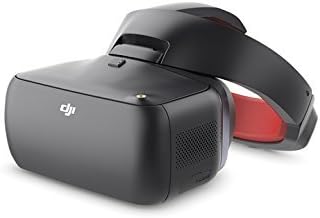
Image: Detailed side view of the DJI Goggles Racing Edition, showing the power button, LED indicators, and speaker grille.

Image: The DJI Goggles Racing Edition packaged with various accessories, including cables, antennas, and a cleaning cloth.
Persediaan
Menghidupkan/Mematikan
- To power on, press the power button once, then press and hold it for a few seconds until you hear the startup tone and see the display activate.
- To power off, press the power button once, then press and hold it for a few seconds until the unit shuts down.
Connecting to a Computer for Firmware Update
To ensure optimal performance, it is recommended to keep your DJI Goggles RE firmware updated. This can be done by connecting the goggles to a computer with the DJI Assistant 2 software installed.
- Download and install the DJI Assistant 2 software from the official DJI webtapak ke komputer anda.
- Connect the DJI Goggles RE to your computer using a USB cable. The USB port is located on the main goggle unit.
- Launch DJI Assistant 2. The software should detect your goggles.
- Follow the on-screen prompts within DJI Assistant 2 to check for and install any available firmware updates.
Linking with Aircraft
The DJI Goggles RE can be linked wirelessly to compatible DJI aircraft. For Mavic Pro, Quick Linking is used. For other compatible devices, Advanced Linking may be required.
- Navigate to the 'Linking Settings' in the goggles' menu.
- Select 'Quick Linking' for Mavic Pro or 'Advanced Linking' for other DJI aircraft.
- Follow the specific linking instructions for your aircraft model to establish a connection.
Arahan Operasi
Navigasi dan Kawalan
- Pad sentuh: Located on the right side of the goggle unit. Use swiping gestures (up/down, left/right) to navigate through menus and options.
- Butang Belakang: Located on the bottom of the goggle unit, identifiable by a small divot. Used to go back in menus.
- Butang Fungsi: Also on the bottom of the goggle unit, next to the back button. Its function may vary depending on the context.
- Roller Jog: A small wheel on the bottom of the goggle unit used to adjust the display's eye distance (IPD) for optimal viewkeselesaan.
Flight Modes and Features
The DJI Goggles RE offer various intelligent flight modes and features:
- TapFly: Tap the display to fly in a designated direction without using the remote controller.
- ActiveTrack: Allows you to mark and track a moving object on your screen.
- Ikuti rupa bumi: Aircraft adjusts flight height automatically based on terrain.
- Mod Tripod: Reduces flight speed and control sensitivity for precise control and more stable shooting.
- Mod Sinematik: Enables smoother photos and videos. Aircraft yaw speed is lower, and braking distance is longer.
- Fixed-Wing Mode: Activates Fixed-Wing Mode for cruise control and coordinated turning.
Input HDMI
The DJI Goggles RE feature an HDMI input, allowing you to connect external devices such as computers or TVs to view content on the goggle screens. This provides an immersive viewing experience for movies or other media.
Mod Eko
Eco Mode is a power-saving feature that can turn off the headset when the visor is lifted or after a period of inactivity. Be aware that enabling Eco Mode during drone flight might interfere with the flight experience.
Penyelenggaraan
To ensure the longevity and optimal performance of your DJI Goggles RE, follow these maintenance guidelines:
- Storan: Store the goggles in a protective case when not in use to prevent scratches, impacts, and dust accumulation. The headset can be separated from the headband for more compact storage.
- Pembersihan: Regularly clean the lenses and screens with a soft, lint-free cloth. Avoid using abrasive materials or harsh chemicals.
- Penjagaan Bateri: Ensure the battery is charged regularly, even during periods of non-use, to maintain battery health. Avoid fully discharging the battery for extended periods.
Menyelesaikan masalah
- Main Semula Video 4K: The DJI Goggles RE do not natively support 4K video playback. If you attempt to play 4K videos directly from an SD card, it may result in a